

Add the storefront
Open Watch a storefront. The box is labeled Storefront link or seller ID. You paste Maple Toys’ seller id,AEXAMPLE123. A seller id starts with A, then 9 to 20 letters or numbers. A store link works too. The box’s example looks like amazon.com/sp?seller=A... on Amazon.com.
The Add button stays off for a bad id. The line under the box then says Use an Amazon storefront link or a seller ID starting with A. Amazon’s own code is refused with That’s Amazon’s own code, not a seller. Paste the seller’s storefront link.
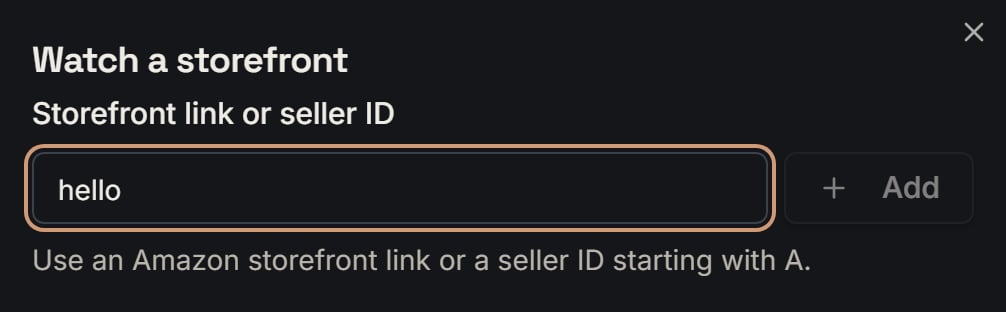
A bad id: the add box after you type hello. Notice Add stays gray, and the line asks for a storefront link or a seller ID starting with A.
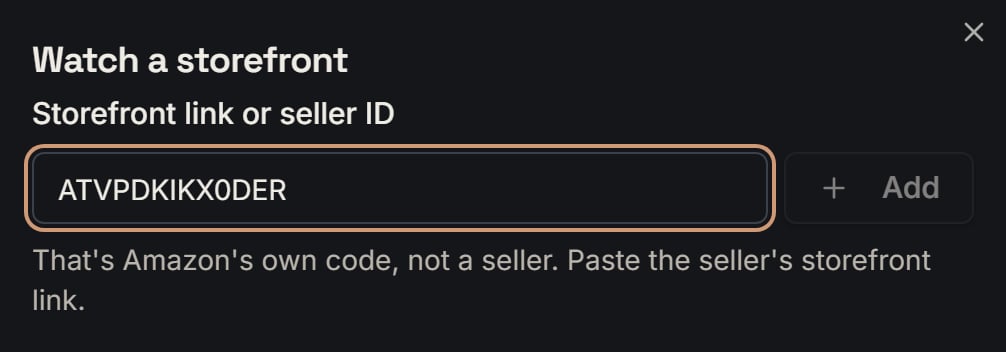
Amazon's own code: the add box after you type ATVPDKIKX0DER. Notice Add stays gray, and the line says that is Amazon's own code, not a seller.
Stage the shop
Track
2 - 1 = 1, so the form says “Only 1 slot left on your plan. Uncheck 1 to choose which.” The button says “Track 1”. At 10 of 10, Add is off, and the line says “Tracking 10 of 10. Remove one to add another.”
The first check is a baseline
Scout does not list those 840 products as finds. The first full list is a baseline. A baseline is the shop’s starting catalog. Scout stores it and tells nobody. Click Maple Toys’ card. Its empty list then says First check done. New products show from the next check. That line lasts 24 hours after you added the watch, once the first check has finished and nothing new is waiting. After that day, with still no new product, the line is Watching. New products this store adds will show here. The next day Maple Toys adds the red toy truck,B0EXAMPLE1. That product was not in the baseline. It becomes a find. The 840 do not.
The first check waits for Scout’s pass. That pass runs every 5 minutes and can take up to 25 shops. If this same shop was already pulled in the last 30 minutes, Scout reuses that list and does not pull again. Each pass takes at most 2 of your shops, so adding many at once spreads out their first checks.
How often a check runs
Every current plan promises 1 Scout check a day for each shop that still fits in its slots. The wait is24 hours / 1 = 24 hours, which is 1,440 minutes.
Away from SourceDock for 7 days, on the web and in the extension? Checks wait. Open Scout and they start again. No finds are lost.
Scout will not check one shop more than once an hour. The shortest wait is 60 minutes. A faster check would buy the same cached list. On today’s plans the promise is once a day, so the hour rule does not speed that up.
Many people can watch the same shop. Scout pulls that shop once and shares the list.
Opening this page does not buy a second check inside the day. Scout moves a shop forward only when the last pull is older than your plan’s window. That window is 24 hours here, and it can never be shorter than 60 minutes.
The clock on the card is the next scheduled time. That time is at most one full interval away. It can be shorter when a check lands just before the shop’s own slot.
Sometimes a check waits its turn. The clock then counts down about 5 minutes, and Scout looks again. Waiting its turn does not count as a miss. If a check fails, the first four misses in a row each wait a day. The fifth waits 32 hours. From the sixth on, each waits 64 hours. A check that comes back short still counts as a miss, but it never waits longer. Scout checks again the next day. The third miss in a row shows We could not reach this storefront on recent checks. If the checks came back with no products at all, the line says This storefront showed no products on recent checks. instead, because the shop may simply be empty.
A shop with more than 5,000 products is too big. Scout keeps at most 5,000 products from one pull. A known count over 5,000 is skipped before any tokens are spent. The card says This storefront is too big to check in full, so new products may be missed. It shows no bar and no countdown. A store of exactly 5,000 can still be checked. A short list is not treated as the whole shop, so Scout does not call old products new.
The four tiles
It is 2:00 p.m. on your computer. Maple Toys was checked at 6:00 a.m. today. Its next check is 6:00 a.m. tomorrow. Oak Lane Goods was checked yesterday. Its next check is 8:00 p.m. today. Watching shows 2. That is the number of shops on your list. The line under it says storefronts under watch. One shop would say storefront under watch. A search does not change this count. New finds shows 4. A new find is still unread. You have not saved it or acknowledged it. Opening the page does not clear it. Maple Toys has 3. Oak Lane Goods has 1.3 + 1 = 4. The line says “unreviewed, across 2 storefronts”. Two more finds are blocked and hidden, so they are not in this 4. While the count is still loading, the tile says … and counting unreviewed finds.
Checks today shows 1. Scout counts a shop when its last successful pull falls after midnight on your computer, and not after now. Maple Toys’ 6:00 a.m. pull counts. Oak Lane Goods’ pull was yesterday, so it does not. The line says 1 storefront pulled today. If both had been pulled today, the line would say every storefront pulled today.
Next sweep shows 6:00:00. A sweep is the next scheduled check. Oak Lane Goods is due in 6 hours, and Maple Toys is due in 16 hours. The sooner time wins. Six hours is 6 x 3,600 = 21,600 seconds, so the clock reads 6:00:00. The line says “Oak Lane Goods is up next”. Maple Toys’ own clock reads 16:00:00. A due shop reads 00:00. A shop with no time yet reads Queued.

The demo store's two storefronts: the four tiles. Notice Watching 2, New finds 2 across 1 storefront, Checks today 2, and Next sweep counting down with Copper Kettle Deals up next.
The storefront card
Maple Toys’ card shows the name “Maple Toys”, then a New pill. The pill has no number. It appears because 3 new finds are greater than 0. The live strip under the tiles is where the 3 shows, as “+3 new”.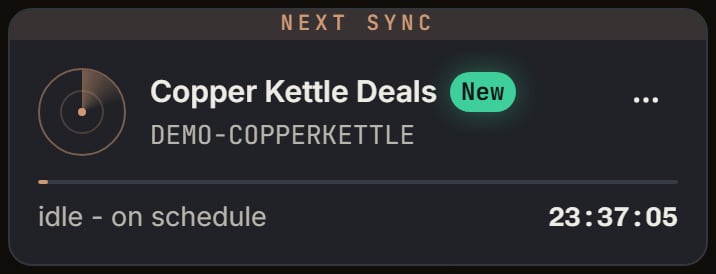
Copper Kettle Deals: its card. Notice the New pill with no number, the seller ID under the name, and the Next sync strip on top because it is the next shop.
AEXAMPLE123. Before the first pull, that line adds first catalog pull pending.
The card says “4 in the Vault”. That is how many live Vault products you added from this shop. You click it to open the Vault on those rows. Oak Lane Goods has 1. The higher count is Gold. The next count is Silver. Ties share a medal. A count of 0 shows nothing. The top three counts get medals. A fourth count gets none.
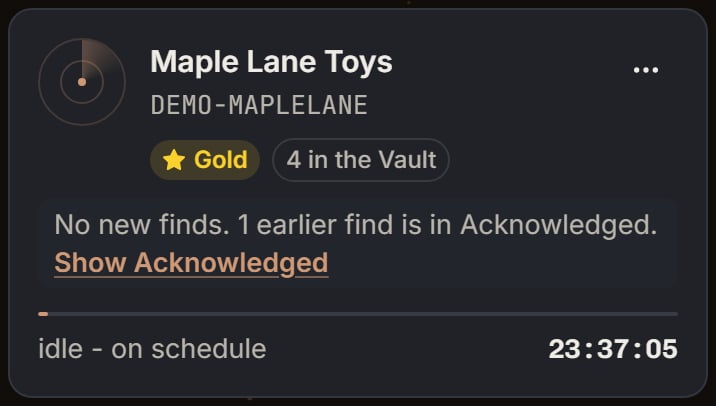
Maple Lane Toys: its card. Notice the Gold medal, 4 in the Vault, and the line that says its 1 earlier find is in Acknowledged.
8 + 16 = 24 hours. The bar is 8 / 24 of the way across. The words say idle - on schedule, then 16:00:00. A shop whose time has arrived says sweeping storefront…. A shop that has never been checked says first check queued until its turn comes up, then sweeping storefront….
The live strip shows Maple Toys as “+3 new”, then “next 16:00:00”, then 8h. The 8h is the age of the last check. Under 1 minute it says now. Under 60 minutes it says a number of minutes. A shop with no new finds says clean. A shop still waiting for its first pull says pending.

The demo store's two storefronts: the live strip. Notice Copper Kettle Deals +2 new, Maple Lane Toys clean, the next check, and 22m since the last check.
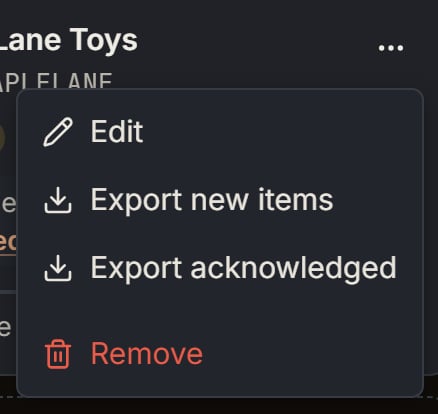
Maple Lane Toys: the card's menu. Notice Edit, Export new items, Export acknowledged, and Remove.
One find, line by line
The new find is the red toy truck. Scout found it 8 minutes ago. The title is “Red toy truck”. It links to the product on Amazon. A green just found pill sits beside it. That pill lasts 15 minutes.8 is less than 15, so you still see it. The time on the right says 8m ago. Under 1 minute it would say just now.
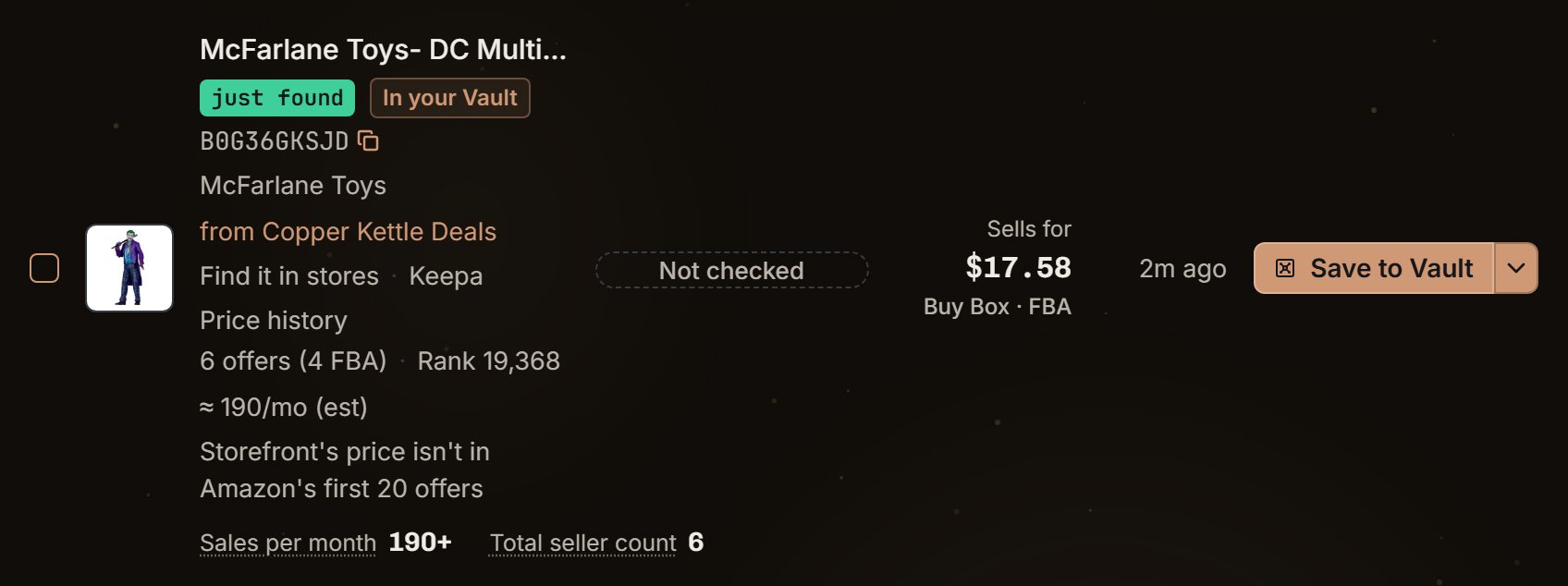
The Joker figure from Copper Kettle Deals: one find. Notice the green just found pill, 2m ago, the line 6 offers (4 FBA), Rank 19,368, about 190 a month, and Sells for $17.58 Buy Box FBA. The shop's own price isn't in Amazon's first 20 offers, so the line says that.
B0EXAMPLE1, the brand “BrightWheels”, and “from Maple Toys”. Then Find it in stores, Keepa, and Price history. Price history opens the price chart SourceDock already holds. If the saved chart is more than 12 hours old (3 days for a product your own store sells), Scout asks for a new one. You see the old chart until the new one lands.
The market line reads “8 offers (5 FBA) · Rank 12,450 · ≈ 40/mo (est) · Storefront’s price $22.00 FBM”.
Amazon said 8 sellers offer it new. That is the offer total. Amazon also said 5 of them are FBA. FBA means Amazon ships it. The card prints the 5. It does not print an FBM count. The hover says the rest ship it themselves. A missing count is left out. It is not shown as 0.
“Rank 12,450” is Amazon’s Best Sellers Rank in the main category. A lower rank sells faster.
”≈ 40/mo (est)” is a monthly sales estimate, not Amazon’s own order count. Scout picks the first number it has. With no sales rank there is no estimate at all, even when Amazon’s monthly count is there.
- Amazon’s “bought in past month” count, when that count is at least 1. Scout rounds it. The truck’s count is 40, and
round(40) = 40. - Else Keepa’s count of sales-rank drops in 30 days, rounded the same way.
- Else a rank model.
round(18.50 x 100) = 1,850 cents. Shipping is $3.50, which is round(3.50 x 100) = 350 cents. 1,850 + 350 = 2,200 cents, and 2,200 cents prints as $22.00. A missing shipping amount counts as 0. If the shop has both an FBA offer and an FBM offer, Scout keeps the FBA one. If it has only FBM offers, Scout keeps the lowest landed price.
The big price on the right says Sells for, then $24.00, then “Buy Box · FBA”.
Sells for means someone holds Amazon’s Add to Cart button. The $24.00 is that button’s landed price. Amazon sent a landed price of $24.00, and round(24.00 x 100) = 2,400 cents. The FBA tag appears because an FBA offer in Amazon’s answer is flagged as the winner. An FBM winner would say “Buy Box · FBM”. If Amazon names a Buy Box price but does not flag the winner, you still see Sells for and the price, with no tag.
If nobody holds the button, the label changes to Lowest FBA. The number is then the lowest price an FBA seller offers. Scout never prints 0 for a price Amazon did not send.
The two prices can differ for a real reason. Sells for rounds Amazon’s landed price once. Storefront’s price rounds the listing and the shipping apart, then adds them. The same offer can be off by a cent.
Under the title, Sales per month shows 40, and Total seller count shows 8. Sales per month uses the same 40. A figure of 100 or more gets a plus on Sales per month only. The market line would still say ”≈ 240/mo (est)” while Sales per month said “240+”. The truck is under 100, so both say 40. Total seller count is the same 8 as the offers line.
The chart under that opens on 90d. You can switch to 30d or 1yr. The lines are Sales Rank, Seller count, New, Amazon, and Buy Box. Tap the expand icon, or the chart, to make it big. If Scout has no saved history, the box says No history saved for this product yet.
The status pill says Approved. That is the Gate Scanner’s word for a product you can sell. The other pills are Needs approval and Blocked. Before any check, the pill says Not checked. Scout checks each new find by itself, with your own Amazon account, so a new find gets its pill without you asking. A check that fails leaves the last verdict, or Not checked if there was none. While a check runs, the pill is a blank pulse. The hover names who checked it and the day.
Until your own store has priced the find, the price spot says Price pending. Your store prices up to 20 finds every 5 minutes, unread finds first. A find with no Amazon catalog says -. With no connected store, the spot says Connect Amazon to see prices. If Amazon has cut the store off, it says Reconnect Amazon to see prices.
What you can do with a find
Save to Vault puts the truck in the Vault. The toast says Saved to your Vault. and Find them in Prospect Vault, tagged scout. The find’s status becomes saved. It leaves the New finds count. The row stays on this visit, and the button turns into Saved to Vault. A later visit does not list a saved find on New or on Acknowledged. Click Saved to Vault to undo. The undo removes the Vault row this save made, and the find returns to New. The arrow on Save to Vault also holds:- Save to Vault + Acknowledge saves it and moves it to Acknowledged.
- Acknowledge only moves it. The truck leaves the New count. It does not enter the Vault.
- Run gate scan now checks this product with your own Amazon account. After a verdict exists, that line says Scan again.
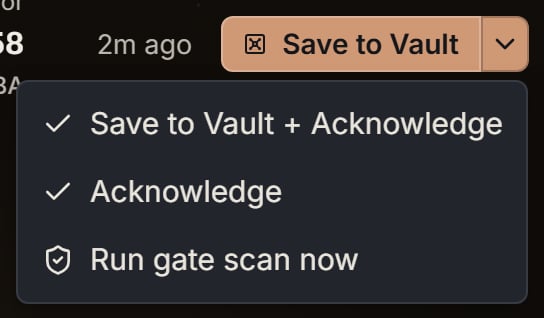
The Joker figure: the arrow on Save to Vault. Notice the three choices.
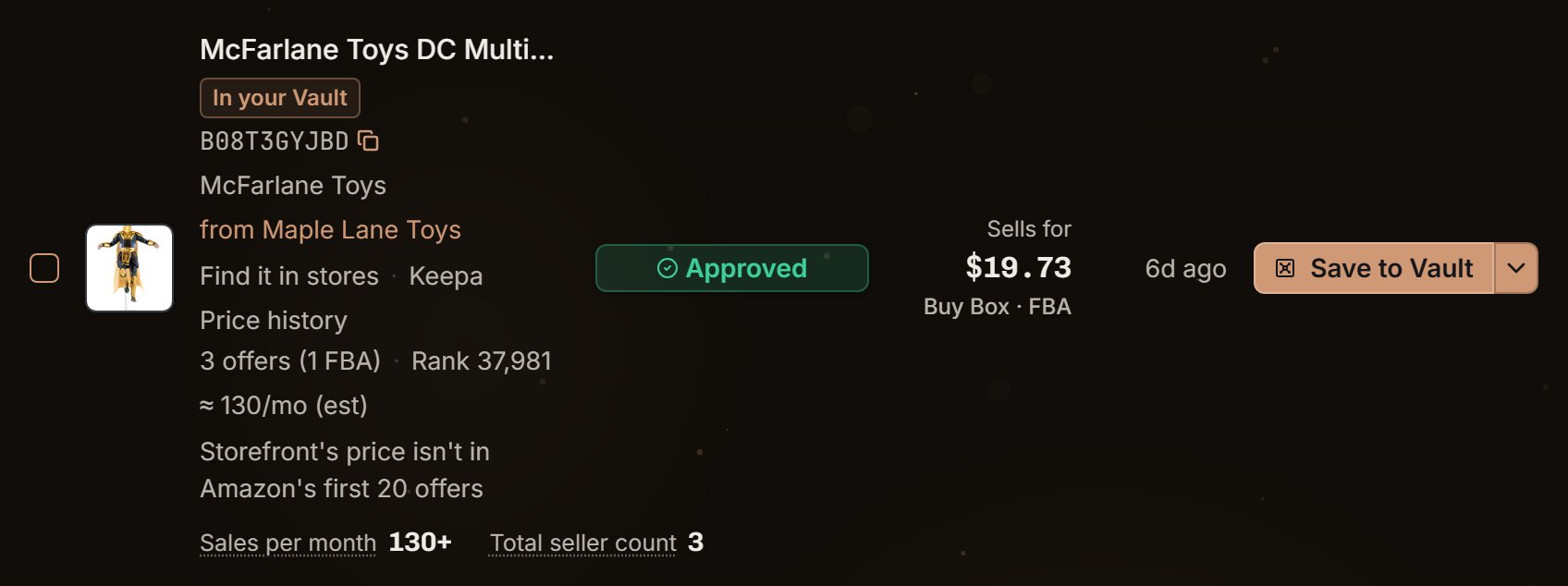
Dr. Fate from Maple Lane Toys, on the Acknowledged tab. Notice the main button is still Save to Vault.
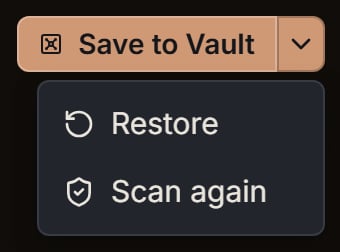
Dr. Fate: the arrow on the Acknowledged tab. Notice Restore, and Scan again because Dr. Fate already has a verdict.
The bulk bar
The bar sticks to the top of the list. With nothing checked it says Select all on this page. That box checks the finds on this page, not every page. You check the truck. The bar says “1 selected” and Clear.
The Joker figure ticked: the bulk bar. Notice 1 selected, Clear, and Gate scan all 2.
ceil(40 / 25) = 2. Prev and Next show only when there is more than one page.
Sort
The control says Sort. The choices are Newest, Price, Offers, and Sales rank.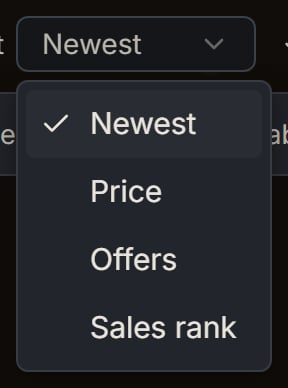
The demo store's finds: the Sort list. Notice the four choices.
Filters
The search box says Search products or storefronts. It matches the title, brand, ASIN, shop name, and seller id. The shop cards narrow only when the words match a shop name or a seller id. A product word leaves the cards as they are and filters the finds. Filters apply to every find, not only this page. The truck is $24.00 on Amazon and $22.00 at the shop. Product holds these fields:- Storefronts limits the list to the shops you pick. A card click shows that one shop and clears these picks.
- Category has Include categories and Exclude categories. Include drops a product with no category. Exclude keeps it.
- Hide titles with hides a title that contains anything you type, even inside a word. Commas split the words. “used” would hide a used title, and an unused one too. “Red toy truck” does not contain it, so it stays.
- Include brands and Exclude brands match without capital letters and without spaces. “Bright Wheels” and “brightwheels” are one brand. A brand can sit on only one list. Adding it to one takes it off the other. Each list holds 100 brands. A product with no brand stays when you exclude brands, and it drops when you include brands.
- Hide blocked items is covered below.
- Price is the Sells for price, or Lowest FBA when there is no Buy Box. You type dollars. Scout stores cents with
round(dollars x 100). You set 20 to 30. That is 2,000 to 3,000 cents. The truck’s 2,400 cents sits inside, so it stays. A find with no price yet is hidden and counted. - Offers is the offer total. You set a minimum of 5. The truck’s 8 stays. A minimum of 2.5 is read as 3, because a minimum rounds up.
- Sales rank is the rank. Lower is faster. You set a maximum of 20,000. The truck’s 12,450 stays.
- Sales/mo (est) keeps finds whose estimate is at least the number you type. The truck’s 40 stays when you type 40, and it drops when you type 41.
- Storefront’s price uses the shop’s landed price. A find whose shop price Scout could not see is hidden and counted.
- Ships with is Any, FBA, or FBM. FBM keeps the truck. FBA drops it.
- Within % of Buy Box compares the shop price with the big price, above or below. The test is
abs(shop - big) x 100 <= percent x big, in cents. The truck isabs(2,200 - 2,400) x 100 = 20,000. Five percent of 2,400 is5 x 2,400 = 12,000.20,000 <= 12,000is false, so 5 hides the truck. Ten percent is10 x 2,400 = 24,000.20,000 <= 24,000is true, so 10 keeps it. A find with no big price is hidden and counted as no price yet.
Hide blocked items
Hide blocked items starts on. It is saved with your login, so it stays on your other devices. It hides a find when the newest Gate Scanner or Seller Central check for your own store says Blocked or Needs approval. Approved and Not checked stay on the list. The two hidden finds make the switch say 2 hidden. The bar says “2 blocked items hidden” and offers Show them. Turn the switch off and those two come back. The bar then says “2 blocked items shown” and offers Hide them. The New finds tile and each card’s new count leave the hidden finds out, so they match the list.
The demo store's finds with Hide blocked items on: the bar. Notice 3 blocked items hidden (the Transformers figure, the Alakazam and the armadillo), Show them, and Showing 2 of 5 finds.
Notify and the phone
Notify sits by the New and Acknowledged tabs. It starts on. The choice is saved with your login. It does not fire the first time the page loads. It fires when the unread count goes up. The notice shows the new total, not the size of the jump. Your 4 finds across 2 shops read “4 new products on 2 storefronts”. One new product on one shop reads “1 new product on 1 storefront”. The notice stays until you open it, close it, or the unread count falls to 0. A find hidden by Hide blocked items does not raise it. An undo that puts a find back on New does not raise it either. The phone is a second switch: the phone icon on Scout’s row of the Alerts page. It starts off. The phone app shows how to set it up. A phone buzz needs Notify on, the Scout phone icon on, and a phone that can receive it. Turning the phone icon on also turns Notify on. Turning the phone icon off leaves Notify as it is. The phone does not name the product or the price. Twelve new finds on three shops read Scout: 12 new finds on 3 storefronts. One find reads “Scout: 1 new find.” The title is SourceDock. Scout only buzzes for finds that arrived after you turned Notify on. A find you acknowledge a minute later still counts for that buzz. Scout waits 5 minutes to group finds into one buzz. Scout and Vault share one buzz every 3 hours at most, and you get at most 5 buzzes a day. Finds held back ride on the next buzz.Export and plan limits
Export new items and Export acknowledged sit in the page menu and on each card. The card’s file is that one shop, with your search and filters but not the Storefronts picks. The page’s file is every shop in the current search and filters, even after you click a card. Hidden blocked finds stay out of the file. The file is every matching page, up to 100,000 rows. Premier cannot export. The request answers CSV export is not available on your plan. Please upgrade. Pro and Flagship can export. The page file is namedscout-new- plus the UTC day, then .csv. Acknowledged uses scout-acknowledged-. Maple Toys’ own file is scout-maple-toys-new- plus the day. The name is the shop name in lowercase. Every run of other characters becomes one dash, and the ends are trimmed, cut at 40 characters. “Bob’s Toys” becomes bob-s-toys. A blank name gives storefront.
An empty file toasts Nothing to export. The note is No new products to export. For one shop it is “No new products from Maple Toys.”
The truck’s row uses these columns:
2,400 / 100 = 24.00. Storefront Price is 2,200 / 100 = 22.00. A blank price stays blank. Status says New or Acknowledged. The file also has Marketplace and Amazon URL.
Plan slots and the daily check: