

- Approved codes: 01, 05, 07, 09, 11. That is 5.
- Needs approval codes: 02, 06, 12. That is 3.
- Blocked codes: 03 and 08. That is 2.
- Error codes: 04 and 10. That is 2.
How the 12 codes get into the box
The empty page says Gate Scanner. Under that it says Know what you’re allowed to sell before you buy it. The box holds the list. You can type, paste, drop a file, or pick from the Vault. Scout can also send codes to the same checker, as shown below. You type the 12 codes, one on each line. A comma, a semicolon, a space, or a tab also splits codes. The corner of the box shows “12”. The button says “Scan 12 ASINs”, and the hint beside the buttons says “12 ready”.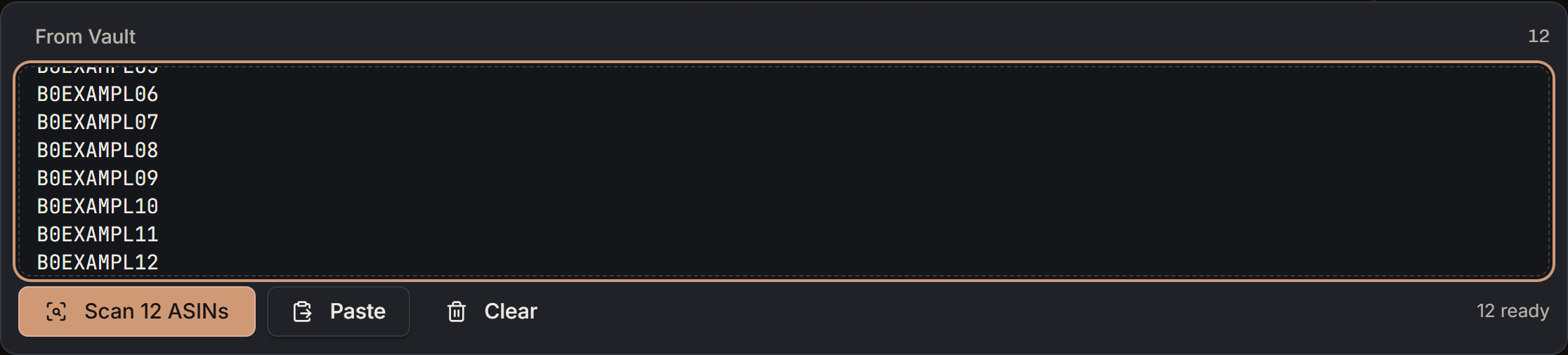
The 12 codes: the box after you type them. Notice the corner says 12, the button says Scan 12 ASINs, and the hint says 12 ready.
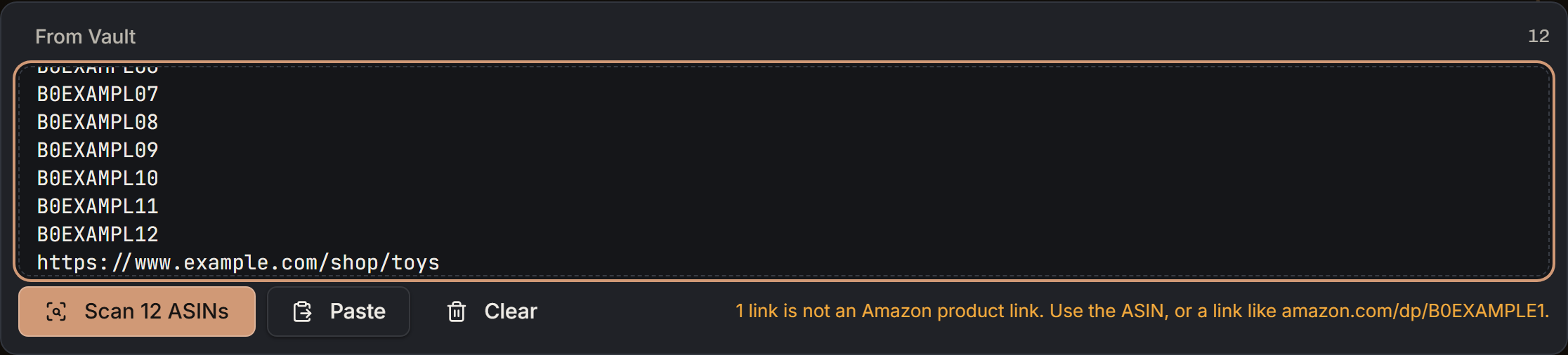
The 12 codes plus one store link: the line under the box. Notice it says 1 link is not an Amazon product link, and the button still says Scan 12 ASINs.
A CSV file
You drop a file on the box. The file name must end in.csv, .tsv, or .txt. Any other file, like a spreadsheet workbook, is refused. The toast says Use a CSV file and Spreadsheet exports should be saved as CSV first.
The file is read for codes the same way as the box. Your file toy-list.csv holds the 12 codes. The line under the box says “toy-list.csv: 12 ASINs ready to scan”.
A file with no codes shows No ASINs found and Drop a CSV or a list that contains B0… codes or Amazon links. Text in the box with no codes shows No ASINs found - paste B0… codes or Amazon links beside the buttons.
From the Vault
From Vault opens your saved products. The search box says Search your Vault, and it looks in the code, the name, and the brand. You tick the blender and the toy truck. The line says “2 selected”, and the button says “Scan 2 ASINs”.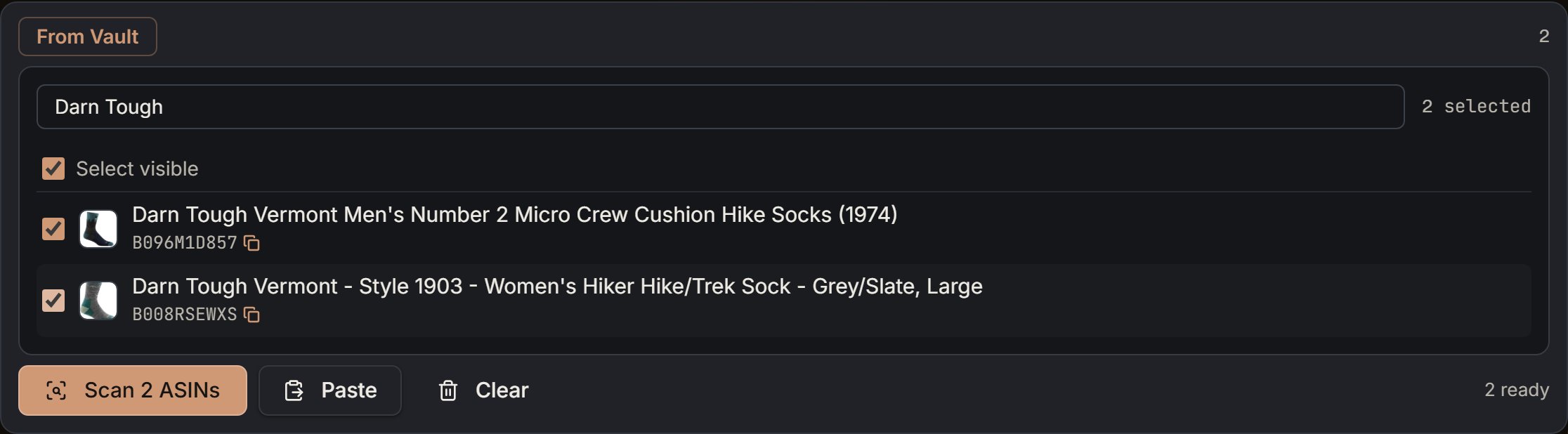
Two Darn Tough socks: picked from the demo store's Vault (the picture uses these two in place of the blender and the toy truck). Notice the line says 2 selected and the button says Scan 2 ASINs.
- Empty Vault: Nothing in the Vault yet. Paste ASINs or drop a supplier sheet instead.
- Search miss: No Vault ASINs match that search.
- Load miss: Could not load Vault ASINs. Try again in a moment.
From Scout
On Scout, a row’s menu has Run gate scan now when the row has no verdict yet. It has Scan again when the row already has one. For checked rows, open the arrow next to Gate scan all and pick Run gate scan now on selected finds. On a phone, it is in the bar’s ⋯ menu. These send the codes to the same checker, and Scout stays on Scout. The scan does not open here. It shows up under Recent scans with a Scout badge. One code takes about 1 second at your own pace, so the time words say “under a minute”. For one row, the toast says “Scanning 1, under a minute.” For checked rows, the same kind of line sits beside Gate scan all. On a phone it comes as a toast. Gate scan all is the other door. The button shows “Gate scan all 40”. The 40 is how many finds your Scout list matches. It is not how many get checked. Here is that 40, made up:- 3 finds are in another country. They are left out first.
- 2 of the rest are already in a scan that is queued or running.
- 4 of the rest were checked in the last 7 days.
- 40 − 3 − 2 − 4 = 31. Those 31 are the ones to scan.
What one check asks Amazon
Each code costs one check. The check uses the Amazon account you have selected. Take the blender, B0EXAMPL01. Amazon is asked two things. First, Amazon is asked if you may list it as New. This is Amazon’s listing-restrictions check, for the New condition only. Used, refurbished, and collectible are not asked. Amazon’s answer is a list of restrictions.- The list is empty. The verdict is Approved, and you can sell it as New. The blender is this case.
- The list is missing or broken. The verdict is Error, with the words Unexpected response from Amazon. An empty list is the only clean yes. A broken answer is never read as a yes.
- A reason says you are not eligible. The verdict is Blocked, and any apply link is dropped.
- A reason says the code is not in this marketplace. The verdict is Error, with ASIN not found in marketplace. It is not shown as Needs approval.
- A reason says approval is required. The verdict is Needs approval. A link is kept only when Amazon sent one you can open.
- Any other reason, or a reason with no code, is Error, with Unrecognized restriction response.
- Amazon says the code is missing (HTTP 404). The words are ASIN not found in marketplace. Mystery Cup, B0EXAMPL04, is this row.
- Any other HTTP error shows API error: plus that number. For example, a 429 that is still there after a few tries shows “API error: 429”.
- The call fails outright. The words are Request failed. Wood Spoon, B0EXAMPL10, is this row.
The live check
You press “Scan 12 ASINs”. The box is replaced by the live desk. Your own list moves at about 4.5 codes a second. The first time guess uses that pace. 12 ÷ 4.5 = 2.67, which rounds up to 3 seconds. The worker looks for new scans about every 3 seconds. So for a moment the big number can sit at “0”, next to “of 12”. While it waits, the label says Queued - starting. If two older scans of yours are still waiting in line, the label says “Queued - 2 ahead”. The 2 counts only scans that are waiting. A scan of yours that is already running does not count, so Queued - starting can show while another one runs. At 0 answers, the speed part of the line says timing. The time guess uses 12 ÷ 3 = 4 codes a second, so time left is 12 ÷ 4 = 3 seconds. 12 seconds or less reads almost done, so the line says “timing · almost done”. Then the label changes to Scanning. Say 8 answers have landed and 2 seconds have passed.- The big number is “8”, next to “of 12”. The 8 is how many verdicts are on the page. The 12 is the list SourceDock queued.
- 8 ÷ 12 = 0.667. The bar fills that share, 66.7 percent of the track.
- Speed is 8 ÷ 2 = 4.0, so the line says “4.0 ASINs/sec”.
- 4 codes are left. 4 ÷ 4.0 = 1 second, so the rest of the line is almost done.
- Approved: 01, 05, 07. That is 3.
- Needs approval: 02, 06. That is 2.
- Blocked: 03, 08. That is 2.
- Error: 04. That is 1.
The live feed
The feed title is Live verdicts, with newest first beside it. The latest answer is at the top. The dots say approved, gated, and blocked. gated is the same group as Needs approval. There is no dot for Error, but error rows still show in the feed with their Error badge. On a wide screen each row has a 24-hour clock with seconds. A phone hides that clock. The product name is Amazon’s name. With no name, you see the code. Only the newest 40 rows show. Your 12 all fit, and a run of 2,000 still shows 40. Under the 8 rows, two waiting rows shimmer. The feed never draws more than two, even when 4 are still out. Those two are the next codes in your list, B0EXAMPL09 and B0EXAMPL10. The footer says “4 still in queue - verdicts append as Amazon responds”. The 4 is 12 − 8. The other side says Full table after this run. When the last answer is in and the desk has not flipped yet, the footer says Finishing up. Under the buttons, while it runs, the line says Keeps running. Open it again from Recent scans. If you started at 3:04 PM, it adds ”· started 3:04 PM”. That clock is hours and minutes, not the 24-hour clock on each row. Scan another does not stop this run. It clears the desk so you can paste the next list. The 12 keep going, and you open them again from Recent scans. Cancel scan stops the run. On a capped trial, checks that never got an answer are given back. That math is in the limits section. The page also asks the server every 5 seconds, so a dropped live link still fills in.When the 12 are done
The toast title is Scan Complete. The body is “Scanned 12 ASINs. 5 approved, 3 need approval, 2 blocked.” Add the toast: 5 + 3 + 2 = 10. The two errors are not in the toast, but the Errors chip shows “2”. 10 + 2 = 12. The label says Scan complete, and the big number is “12”. If the run took 4 seconds, the words beside it are “in 4 sec”. A minute and 5 seconds is written “1 min 05 sec”. The word “of” shows while the scan runs, and on a finished scan only when the clock is 0. The bar is now four parts of the same 12: 5, 3, 2, and 2, in the same order as the tiles.- Approved “5”
- Needs approval “3”
- Blocked “2”
- Errors “2”
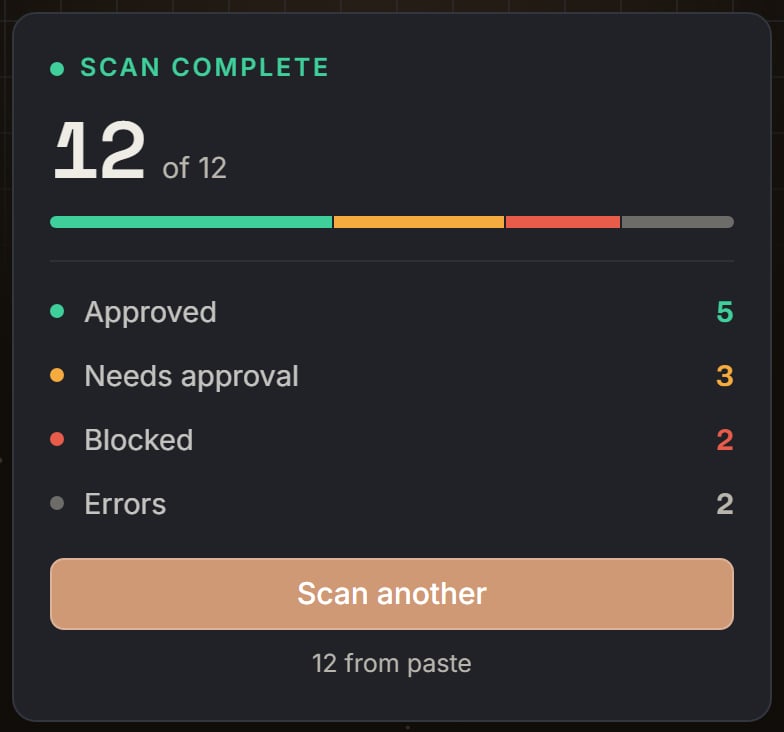
The demo store's scan of 12: the finished desk. Notice the bar in four parts, Approved 5, Needs approval 3, Blocked 2, Errors 2, and 12 from paste.
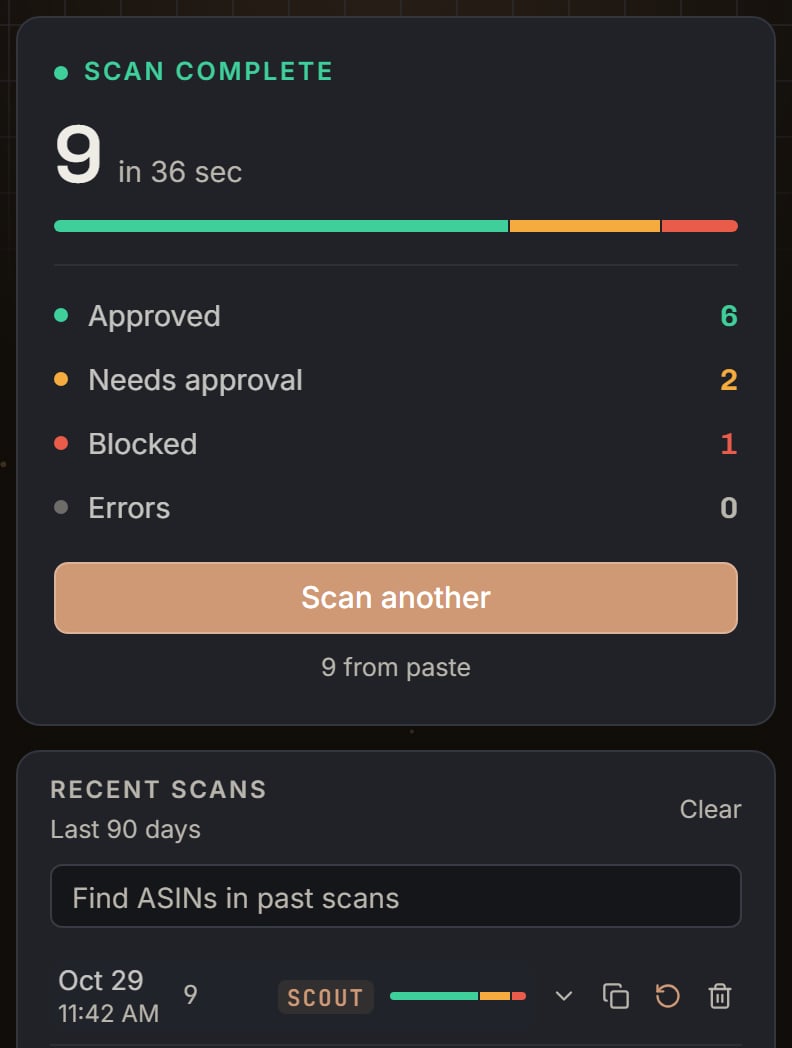
Scout's scan of 9, opened from Recent scans. Notice the row has the Scout badge, but the desk says 9 from paste.
Answers from the last 24 hours
Say you scan a toy at 9 AM, and Amazon says Approved. At noon you paste it again. SourceDock shows the 9 AM answer, and it uses no check. Under the badge, the row says “Checked 3 h ago”.- An Approved answer is shown again for up to 24 hours.
- A Blocked or Needs approval answer is shown again for only 1 hour. If Amazon just approved you, you see it soon.
- An Error is never shown again. That ASIN is checked fresh.
- Check again now under a row checks just that row. The row stays in place. It says Checking…, then Checked just now. This uses one check.
- Check all again now beside the note checks the whole paste again.
What each verdict means
The card What verdicts mean sits on the empty page.
The empty page: the What verdicts mean card. Notice the three words, Approved, Needs approval, and Blocked, each with its one line.

The Poké Ball clip set: the hint on Verify. Notice the button is off and the hint asks you to connect the extension.
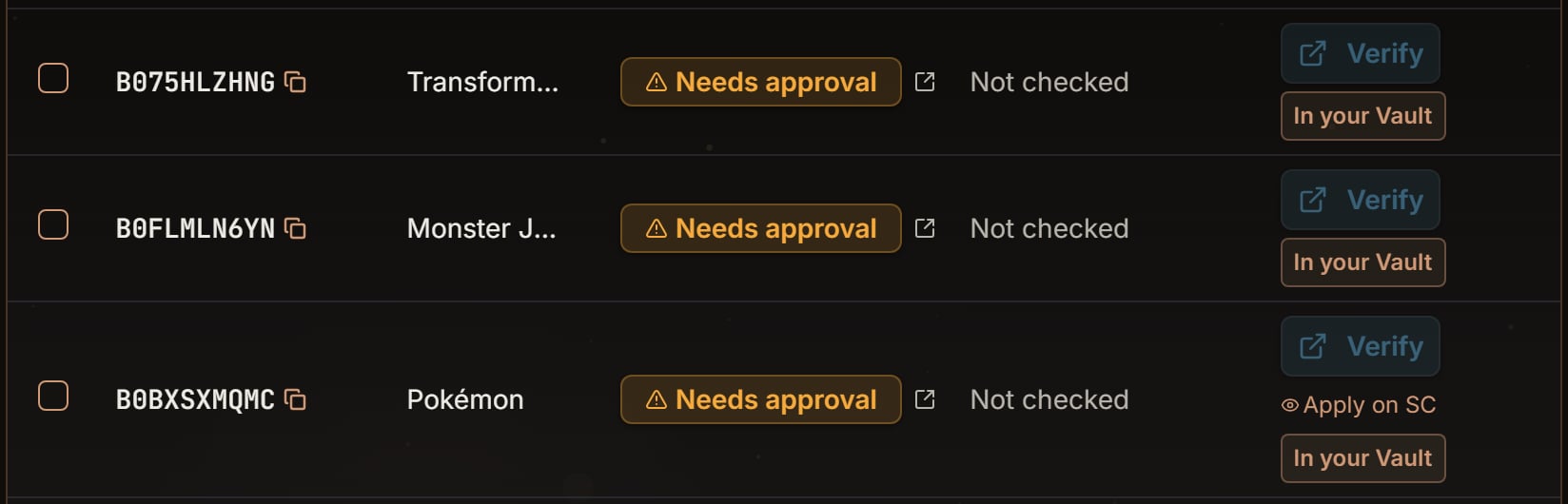
The scan of 12: its 3 Needs approval rows. Notice Not checked and Verify on each, Apply on SC only on the Poké Ball clip set (Amazon sent that one a link), and In your Vault, because the demo store saved all three before.
- Auto-Approved when the detector is sure. Sure means a confidence of 0.9 or more. 0.94 is 94 percent, so the badge says Auto-Approved and the small type says “94%”. A line under it can say from a Verify check.
- Below 0.9, no green badge shows. At 0.86, which is 86 percent, the badge says Unverified and Verify in Seller Central.
- Documents Required
- Info Required
- Not Accepting
- Unknown
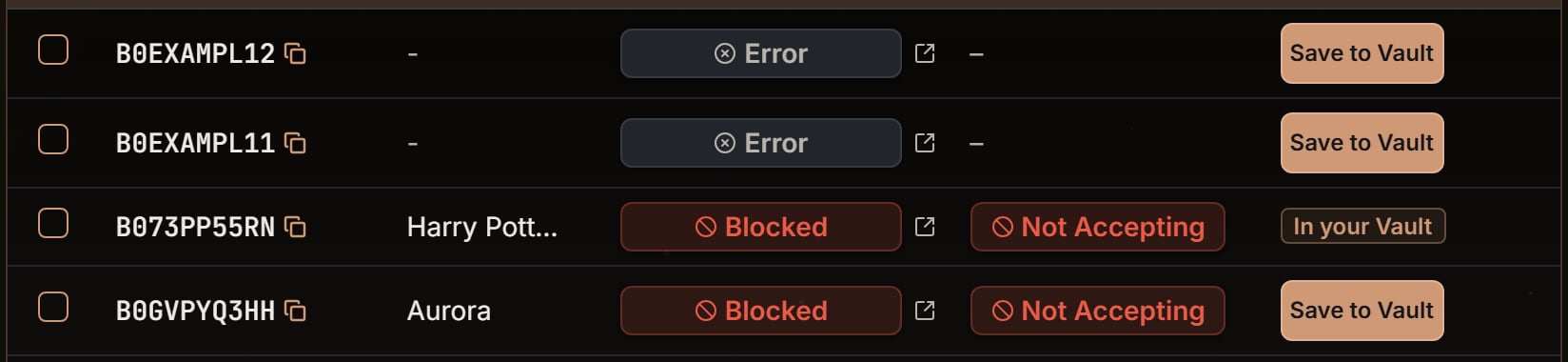
The scan of 12: its 2 Error and 2 Blocked rows. Notice the errors show a dash under Auto approve and still offer Save to Vault, and the blocked rows say Not Accepting. The Harry Potter row is already in your Vault.
Save to your Vault
When the scan is done, you can save right from the results:- One row: click Save to Vault in its Action column.
- Many rows: click the Approved chip, then tick the rows you want. The box at the top ticks every row on the page. Then click Save to Vault beside Export. With rows ticked, it shows how many it will save.
The result table
The table is newest first. Your finished 12 read from the fan down to the blender: 12, 11, 10, 09, 08, 07, 06, 05, 04, 03, 02, 01. The first columns are ASIN, Brand, Verdict, Auto approve, and Action. Reason is off until you show it. Click a code in ASIN to open the product on Amazon. The copy icon copies it.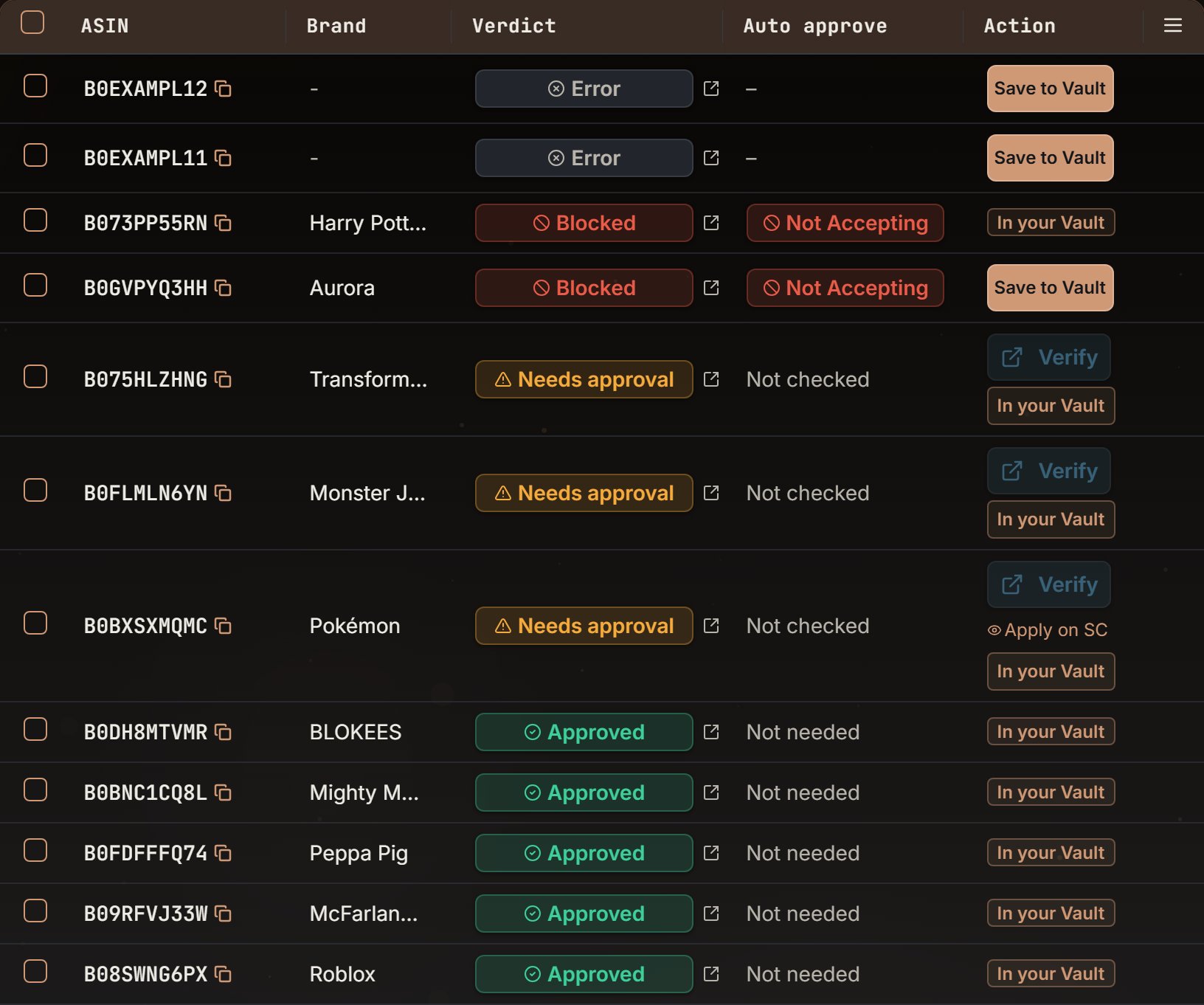
The scan of 12: the result table. Notice the columns ASIN, Brand, Verdict, Auto approve and Action, newest first, with the 2 errors on top. Action shows Save to Vault, or In your Vault for a product the Vault already has.
The scan of 12: the table foot at 50 per page. Notice 12 verdicts, Showing 1-12 of 12, and no Prev or Next.
- Page 1 holds the first 10 of the newest-first list, 12 down through 03. The pager says “1-10 of 12” and “page 1 of 2”.
- Page 2 holds 02 and 01. The pager says “11-12 of 12” and “page 2 of 2”.
- Next and Prev move one page.
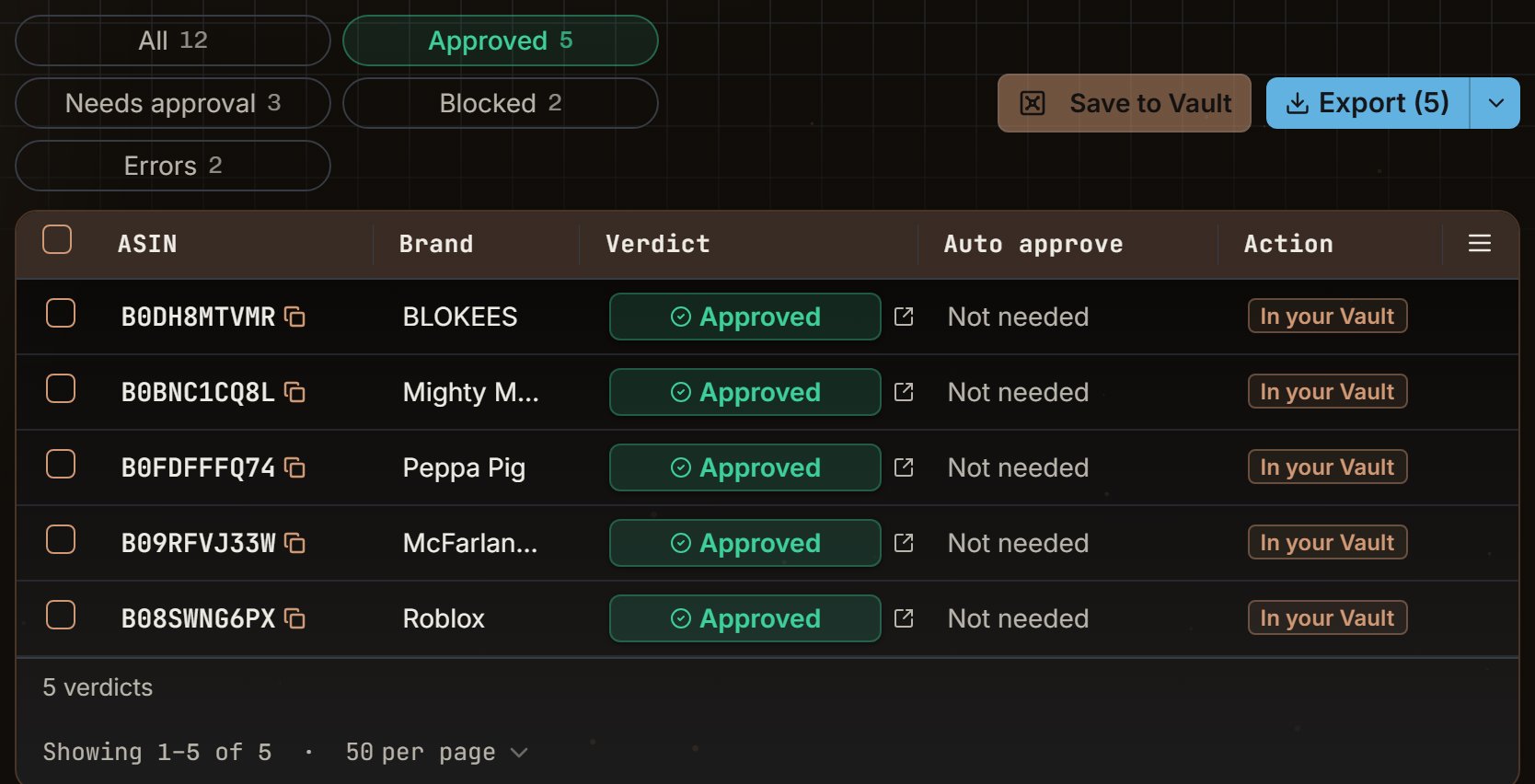
The scan of 12 after you press Approved. Notice the Approved chip still says 5 and All still says 12, while the foot says 5 verdicts and 1-5 of 5. All 5 say In your Vault, so Save to Vault beside Export is off.
The file you export
The button “Export (12)” downloads every row the chip is showing, on every page. It is not limited to the 10 on screen. The button is not on screen while a scan runs. After you open a past scan, it stays off until all its verdicts load, and the hover says Scan still running. A chip with 0 rows turns it off, and the hover says Nothing to export for this filter. The file name starts with the chip, then-asins-, then the UTC date. All writes all-asins- plus that date. Approved writes approved-asins-, and Needs approval writes needs-approval-asins-. Blocked writes blocked-asins-, and Errors writes error-asins-. On the UTC day 28 Oct 2026, All writes all-asins-2026-10-28.csv.
The columns, in order, are ASIN, Title, Brand, Status, Reasons, and Approval URL. The rows are in the table’s order, newest first.
Status is the stored word, not the badge. Your 12 rows use approved, restricted, blocked, and error. The toy truck’s status cell says restricted, while its badge says Needs approval.
Reasons joins Amazon’s notes with a semicolon. An error row puts the error words there. An Approved row with no note from Amazon has a blank Reasons cell. The table’s Reason column can still say Ready to list for that row, but the file does not copy those three words.
Approval URL is filled only when Amazon sent a link you can open on a Needs approval row. A Blocked row drops that link, so the cell is blank. The header row is plain, and each data cell is in quotes.
The arrow next to Export opens more:
- “Export selected (10)” when 10 boxes are ticked. The file starts with
selected-asins-. With nothing ticked, it is off. - “Copy to clipboard (12)” copies the same six columns with tabs, header row too, so they land in a sheet as columns. The toast says “Copied 12 rows.”
- “Copy ASINs (12)” copies the codes, one per line. The toast says “Copied 12 ASINs.”
- “Copy selected (10)” shows only after you tick a row. It copies those rows with tabs. The toast says “Copied 10 rows.”
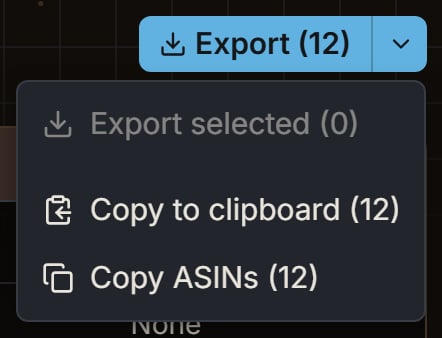
The scan of 12: the arrow next to Export. Notice Export selected (0) is off because nothing is ticked.
Free checks and plan limits
A check is one code in one scan. The 12 codes reserve 12 checks before Amazon is asked. A paid plan has no daily cap and no per-scan cap. The corner of the box shows the count alone, with no “out of” number. The free-check banner is not shown, and a scan is never refused for a daily limit. The 10,000-code limit above still applies. A trial gets 1,000 free checks for the whole trial, not per day. A card on file removes the cap, unless your trial is the kind that stays capped until the plan starts. The button tells you which kind you are on. The banner stays hidden while more than 200 checks remain. At 799 used, 1,000 − 799 = 201 are left. 201 is more than 200, so there is no banner. You have used 812. You scan these 12. All 12 fit, because 1,000 − 812 = 188, and 12 is less than 188. Used becomes 812 + 12 = 824, and 1,000 − 824 = 176 are left. 176 is 200 or less, so the banner shows. The bold line is “You have 176 free checks left in your trial.” The quiet line is “824 of 1,000 free checks used”. The button says Choose plan. On a trial that unlocks by starting the plan, the button says Start my plan. At 0 left, a normal trial says Put a card on file to get unlimited access. and the button says Add a card. A pay-to-start trial says “You used all 1,000 free checks. Start your plan to keep checking.” and the button says Start my plan. The quiet line at the cap, with nothing waiting, is “1,000 of 1,000 free checks used”. The used number never prints higher than the cap.A list the cap cuts
You have used 980. You paste 30 codes. Room is 1,000 − 980 = 20. The first 20 run, the other 30 − 20 = 10 wait, and used becomes 1,000. The live desk shows the banner. Its bold line is the cap line above, Put a card on file to get unlimited access. Its quiet line is “10 ASINs are waiting. They run as soon as a card is on file.” On a pay-to-start trial, the quiet line says “10 ASINs are waiting. They run as soon as your plan starts.” The desk does not count the 10. Its total is 20, the number that ran. The 10 run on their own once a card is on file, or once the plan starts. When you go back to the empty page with Scan another, one more line shows under the banner: “We’re checking 20 ASINs. The other 10 are waiting. Put a card on file to get unlimited access.” On a pay-to-start trial, that line ends with “Start your plan to keep checking.” If 0 checks are left and you paste 30, none run now. All 30 wait instead. The banner shows the cap line, and the quiet line says “30 ASINs are waiting. They run as soon as a card is on file.” The screen never treats those 30 as approved. On someone else’s account, you see the owner’s words and no button. At 176 left the bold line is “The account owner’s trial has 176 free checks left.” The quiet line is still “824 of 1,000 free checks used”. At the cap the bold line is The account owner’s trial used all its free checks. Ask the owner to choose a plan to keep checking. Scout’s own scans (Run gate scan now and Gate scan all) spend this same 1,000. The checks Scout runs by itself are free. When the cap cuts a Scout scan, Scout’s toast uses the same “We’re checking” sentence.Cancel and a failed run
You cancel the 12 after 7 answers. Unrun checks are 12 − 7 = 5. On a capped trial those 5 are given back, and the 7 that finished stay used. If you were at 824, the count goes back to 824 − 5 = 819. A paid plan, or a trial that is no longer capped, gets no number back. There is no cap to refill. A scan that fails gives back only the codes it never checked. A finished scan gives nothing back. A paused account does not get the scanner. A failed payment shows “Gate Scanner is paused” and Update payment. No plan shows “Gate Scanner pauses without a plan” and See plans. The next line says nothing was deleted and how to turn it back on. If SourceDock has set a date to delete your Amazon store data, that line gives the date instead.Recent scans
Recent scans and Last 90 days list the scans for the Amazon account you have selected, newest first. A scan from more than 90 days ago drops off, unless it is still queued or running. The list reads your newest 500 scans. Each row shows the date, the time, and the code count. Your row shows “12”. A finished row’s small bar uses the same parts as the desk: 5, 3, and 2. Errors are not drawn on this bar. A live row’s bar shows how much is done. A live row says Scanning, Queued, or “Queued · 2 ahead”. The desk uses a hyphen, as in “Queued - 2 ahead”, and this list uses a dot. The number is the same. A failed row says Failed, and a cancelled row says Cancelled. A finished row has no word, so the bar is the status. A Scout row adds the Scout badge.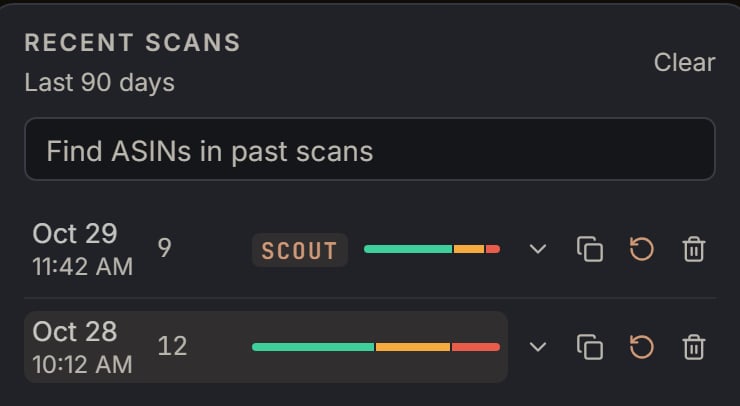
The demo store's Recent scans. Notice the scan of 9 with the Scout badge, and the scan of 12 from the day before.
- No scan has it: No saved scan includes these ASINs.
- One scan has it: “1 scan include B0EXAMPL02”. The row says “1 hit”.
- You search two codes and one scan has either one: “1 scan include at least one of 2 ASINs”.
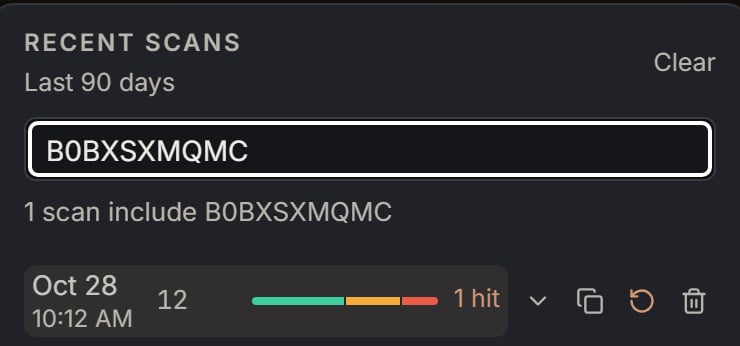
Recent scans after you search the Poké Ball clip set's code. Notice 1 scan include B0BXSXMQMC and 1 hit on the scan of 12.
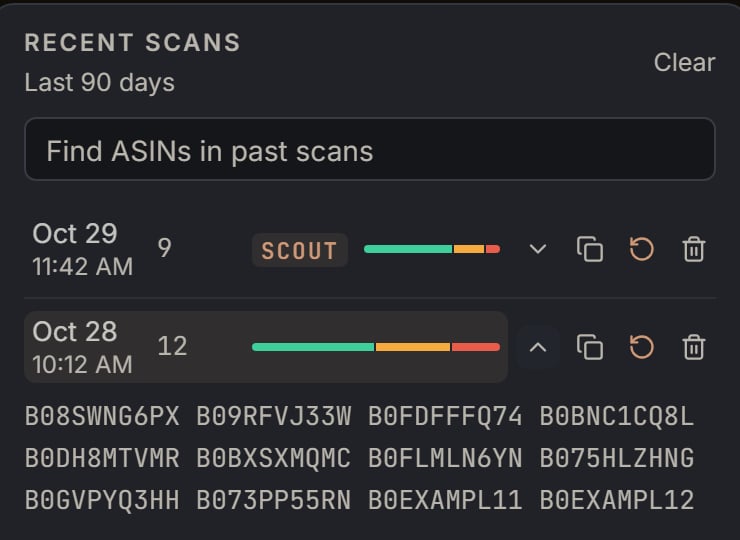
The scan of 12 in Recent scans with its arrow open. Notice its 12 codes, from B08SWNG6PX to B0EXAMPL12.
Empty screens and errors
The scan could not start
The scan could not start
The scan failed after it started
The scan failed after it started
Nothing came back for 10 minutes
Nothing came back for 10 minutes
You have no scans yet
You have no scans yet