

B0EXAMPLE1. You bought it once: 200 units at $8 each, so $1,600 in all. You sold 180. 20 are left, still at $8 each, so $160 is still in stock. The units that are gone cost $1,600 − $160 = $1,440.
This run of the blender is 40 days old, and it was in stock every day. It sold 90 in the last 30 days, so it sells 3 a day. Amazon holds 12 ready to sell, 3 getting ready, and 5 on the way. That is 20 left. Every line below is this blender.
The settings card
Open Account, then Features. Under Alerts, Restock reminders is the first card. It shows only in your own account, with a store. A team member does not see it. Under the title, a line says what the card is doing: “At 10% left · Profitable only · Alerts page, Phone”. The switch starts on. The card starts closed, so press its header or the arrow to open it. While the switch is off, the card stays closed and the line says Off.
DOS card game: the Restock reminders card, closed. Notice the line under the title: At 10% left, Profitable only, Alerts page, Phone.
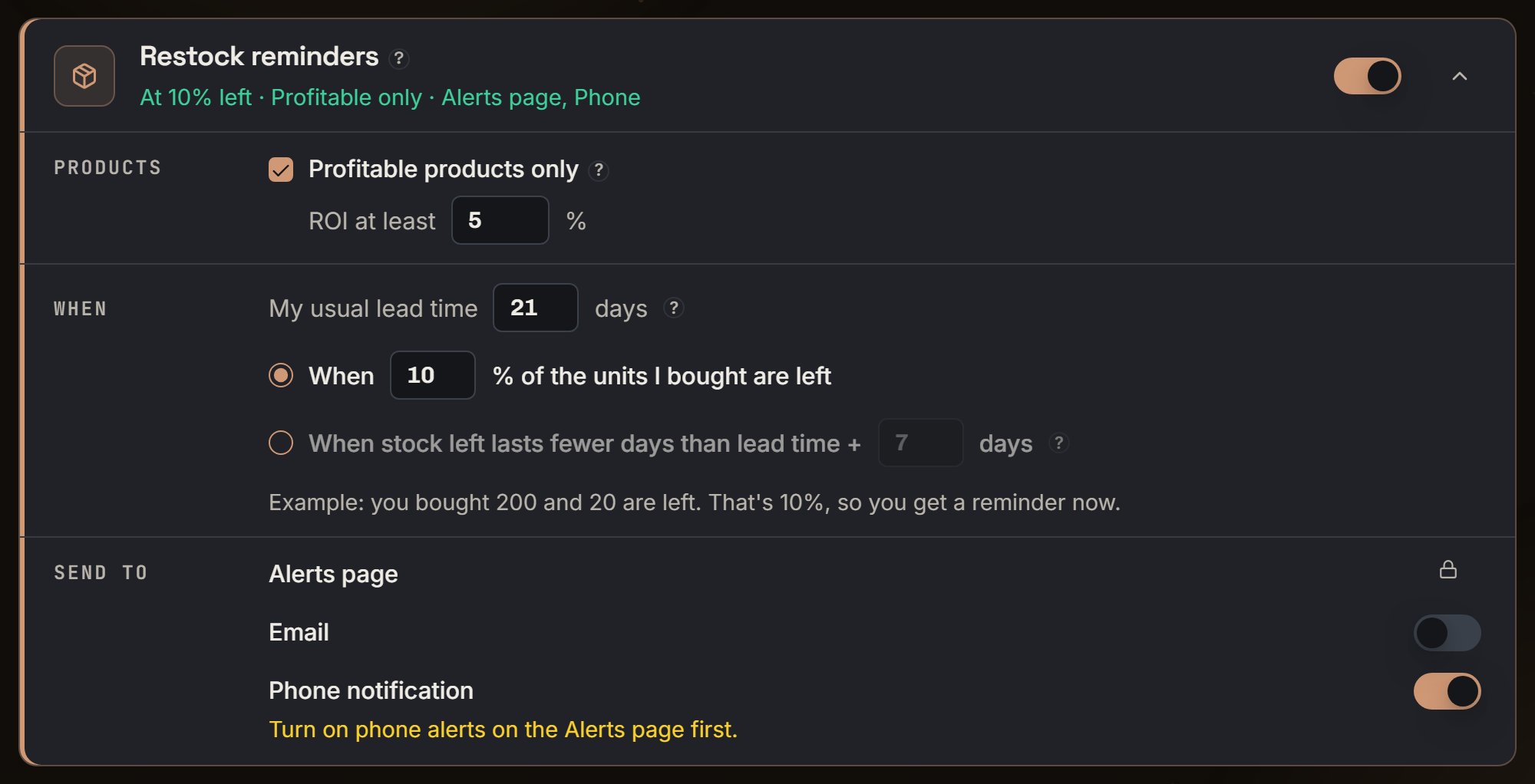
DOS card game: the same card, open. Notice the three parts, Products, When and Send to.
Which products
PRODUCTS comes first. Profitable products only starts checked. Right under it is ROI at least, with “5” in a box, then %.
DOS card game: Products. Notice Profitable products only is checked and ROI at least reads 5.
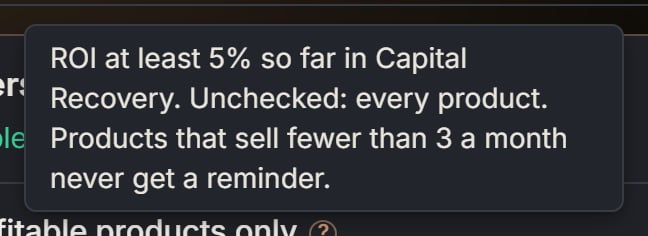
DOS card game: the ? beside Profitable products only. Notice it says products that sell fewer than 3 a month never get a reminder.
When to remind you
WHEN comes next. My usual lead time is “21” days. Its ? says lead time is how long a new order takes to go on sale at Amazon: buying it, getting it to you, prepping it, and Amazon checking it in. It also says you can change it for one product from its Reorder badge.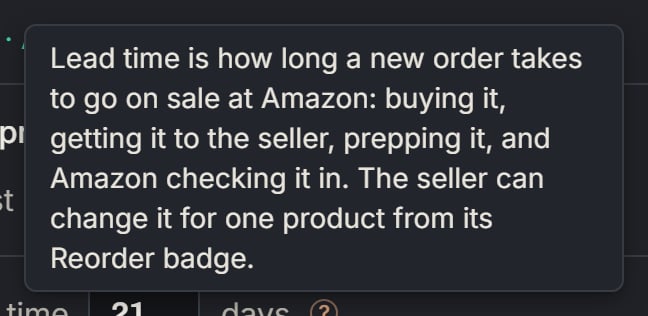
DOS card game: the ? beside My usual lead time. Notice it says you can change the lead time for one product from its Reorder badge.
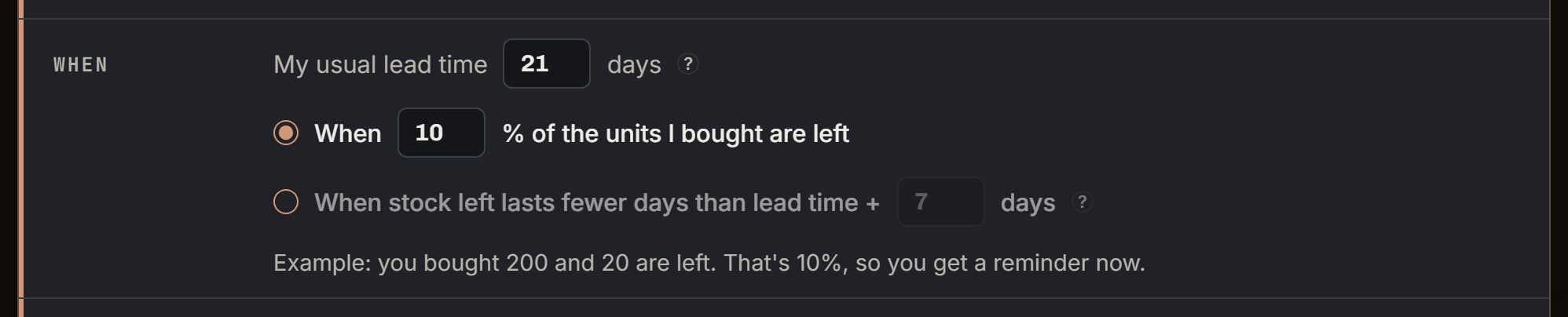
DOS card game: When. Notice the percent choice is picked, and the example under the choices uses made-up stock, not your products.
Where it goes
SEND TO is last. Alerts page has a lock, so it is always on. Email starts off. Phone notification starts on. If Email is on but Optional emails is off, the card says Your optional emails are off, so no reminder emails go out. That switch is on Account, Profile, under EMAIL. Turning it off puts your address on the do-not-email list. If that switch cannot load, Profile says We could not load this setting. Please refresh the page. A failed save there says Your email setting did not save. If Phone notification is on, but no phone has phone alerts on, or Recovery phone alerts are off on the Alerts page, the card says Turn on phone alerts on the Alerts page first.
DOS card game: Send to, on the demo login. Notice Phone notification is on, but no phone has phone alerts on yet, so the card says Turn on phone alerts on the Alerts page first.
What has to be true first
The checks run in this order. The first one that fails stops the rest.- Reminders are on.
- You did not turn this product off.
- It is the product’s current run. A new run starts when you buy the product again after it sold out. Older runs never get a reminder.
- Its count of sales in the pace window is known.
- The run is at least 7 days old. Age is whole days since the run’s first purchase. The blender’s 40 passes.
- It sold at least 3 in the pace window. The blender’s 90 passes.
- Its ROI passes, while Profitable products only is checked.
- Its stock is known. Until Amazon’s count and your purchases load, there is no reminder.
How many are left
Units left are ready to sell, plus getting ready, plus on the way, plus not sent yet. Getting ready is reserved, preparing, and receiving. On the way is in transit. Not sent yet is on order plus on hand. Units Amazon sent back to you are added too, unless you marked them returned or thrown away, or you shipped them to buyers yourself. The blender has 12 + 3 + 5 = 20. The badge window writes “15 at Amazon + 5 on the way = 20”. At Amazon is the 12 ready plus the 3 getting ready. Units left leave out units Amazon is looking for, units not matched yet, units missing from Amazon’s records, and units on an open move between warehouses. Units bought counts the purchases in the run’s money. A purchase SourceDock made from Amazon’s records with no cost is left out when another purchase in the run has a cost. The blender is one purchase with a cost, so units bought is 200.When it fires
The percent choice
The blender uses this choice. SourceDock compares units left × 100 with your percent × units bought. 20 × 100 = 2,000, and 10 × 200 = 2,000. Equal counts, so the blender gets a reminder. With 21 left, 21 × 100 = 2,100, which is over the line. That product has enough stock, and its pace is not even read. If no units bought are counted, this choice never fires, except when the product is out of stock.The days choice
If you pick the days choice instead, the percent line is not used. Days left are units left ÷ the daily pace. For the blender, 20 ÷ 3 = 6.666666667. The line is lead time + extra days, 21 + 7 = 28. 6.666666667 is under 28, so it would get a reminder. Exactly 28 would not.Out of stock
With 0 left, a product gets a reminder in either choice, once it passes the checks above and has a pace above 0. With 0 left and no pace, there is no reminder and no chip. A product with a reminder and 0 left gets the chip Out of stock.The order-by day
The order-by day works the same in both choices. Take days left, subtract the lead time, and round down. For the blender, 6.666666667 − 21 = −14.33, which rounds down to −15. Zero or less means order today, and the date is never before today. So the blender’s chip says Reorder today. If the result were 4, the chip would say “In 4 days”. On Capital Recovery and the Alerts page, “today” is your browser’s day. The daily email and phone job uses the time zone saved when you first turned on phone alerts, or Eastern time if none is saved. The math uses 6.666666667, not a rounded 7. The badge window rounds it to “about 7 days”. A lead time you save for this product replaces the 21. The extra days always come from the card.The suggested order
The suggested order covers about 30 days of sales after the order arrives, minus what will still be on the shelf then. It rounds up to a step of 5, and it is never less than 5. Sales for 30 days: 3 × 30 = 90. Still on the shelf when it arrives: 20 − (3 × 21) = 20 − 63, which is below 0, so nothing comes off. 90 is already a step of 5. If the math gave 87, it would round up to 90. The badge window shows “about 90”, with Enough for about 30 days of sales after it arrives.Alerts and the Desk
On Alerts, the store you are viewing gets one row for all its products to reorder. It reads Reorder soon, with “1 winner running low” under it, and a Review button. With All products, the line says “1 product running low”.
DOS card game: the Buy next chip on the Alerts page. Notice it counts 1.

DOS card game: its Reorder soon row on the Alerts page. Notice 1 winner running low, and the card game with Reorder today, about 7 a week, 4 days left and ROI 61%.
The badge
On Advanced Capital Recovery, the blender’s row shows an orange Reorder badge. Hover shows Reorder today. Today and out of stock are filled orange. A later day is an orange outline. The row also gets an orange corner. Default shows no badge and no Reorder soon chip, but Alerts and the Desk still show the reminder. The Review link opens Advanced for that visit.
DOS card game: its row on Advanced Capital Recovery. Notice the orange Reorder badge beside the ASIN and the orange corner on the left.
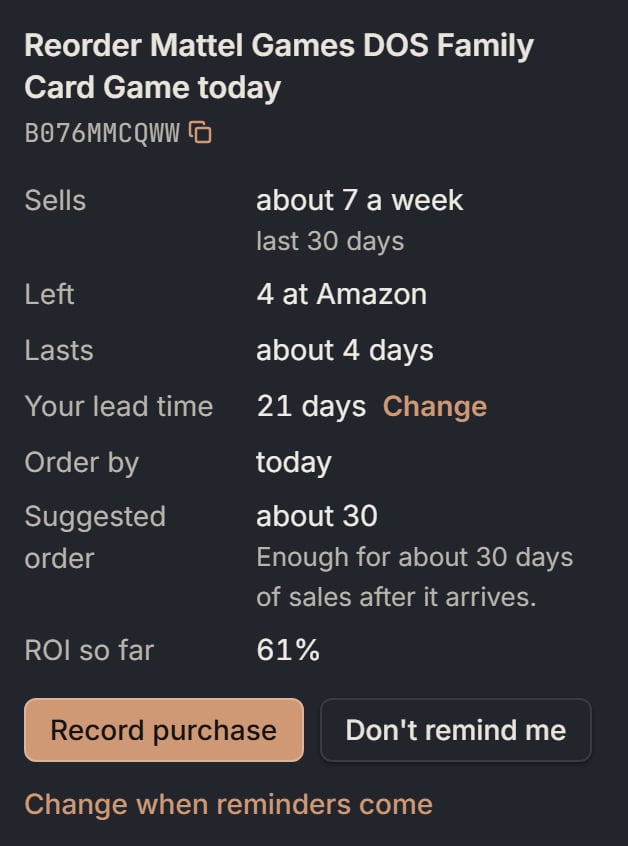
DOS card game: the badge window. The numbers are the demo product's, not the blender's. Notice Sells about 7 a week, 4 at Amazon, about 4 days, Order by today, Suggested about 30, ROI so far 61%.
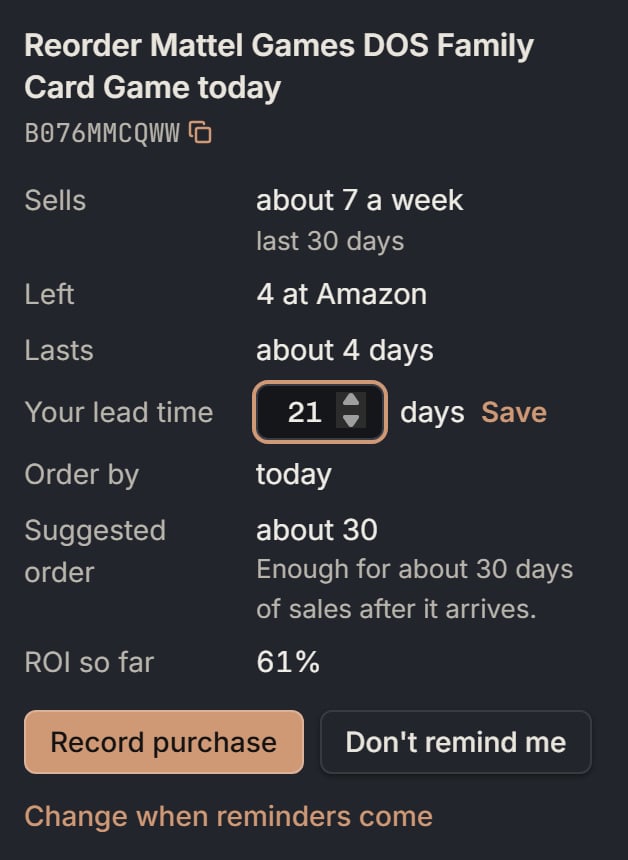
DOS card game: after Change. Notice the lead time box with 21 days and Save.
The email and the phone
The badge and the Alerts row are worked out each time you open the page. The email and phone notice come from a daily job. It checks every 2 minutes and reads each store once a day, from 6 AM in the time zone named above. It uses saved numbers only. If Amazon’s saved stock count is more than 2 days old, or a number it needs did not load, the store waits. The job tries again an hour later, and gives up for the day after 4 tries. The first time the job reads a store, it stays quiet. Every product on the list counts as already told, so no email and no phone notice go out. The badge and the Alerts row still show. After that, a product is told once while it stays on the list. The next day the Alerts row can still show it, but the email and phone do not repeat. If a daily read finds the product still off the list 7 or more days after it left, it can be told again when it comes back. You get at most one email a day, and only on a day a product is newly due. It waits until every store has been read, or until 9 AM, then goes with the stores read by then. Email must be on. With no email address, or an address on the do-not-email list, no email goes. The subject is “1 product to reorder”. The email covers only stores with a newly due product that day. It counts every product still due in those stores, not just the new ones. With two or more stores, it reads like “5 products to reorder in 2 stores”, and each store’s name heads its list. The greeting is “Hi there,” or “Hi” with your first name. Then comes “These make money and are down to 10% of what you bought:” The label at the top is Reorder soon. New products come first, and their names end with ”- New”. The blender reads:- “Blue Blend blender (B0EXAMPLE1) - New”
- “Reorder today”
- “Sells about 3 a day. 20 left, lasts about 7 days. Suggested order: about 90.”
The reorder list
On Advanced Capital Recovery, the chip reads “Reorder soon · 1”. While the count is still working, it reads Reorder soon and you cannot press it, unless the list is already open. The status ? ends with “Reorder soon shows products with ROI at least 5% that are down to 10% of what the seller bought.”
DOS card game: the Reorder soon chip on Advanced Capital Recovery. Notice it reads Reorder soon · 1.