

The status rail
The right side of every tab shows an ACCOUNT STATUS card.
Under it, a Next step card may appear. It asks you to turn on two-factor codes, or to reconnect Amazon when the token has expired. Click its link to jump to the right tab.
Profile
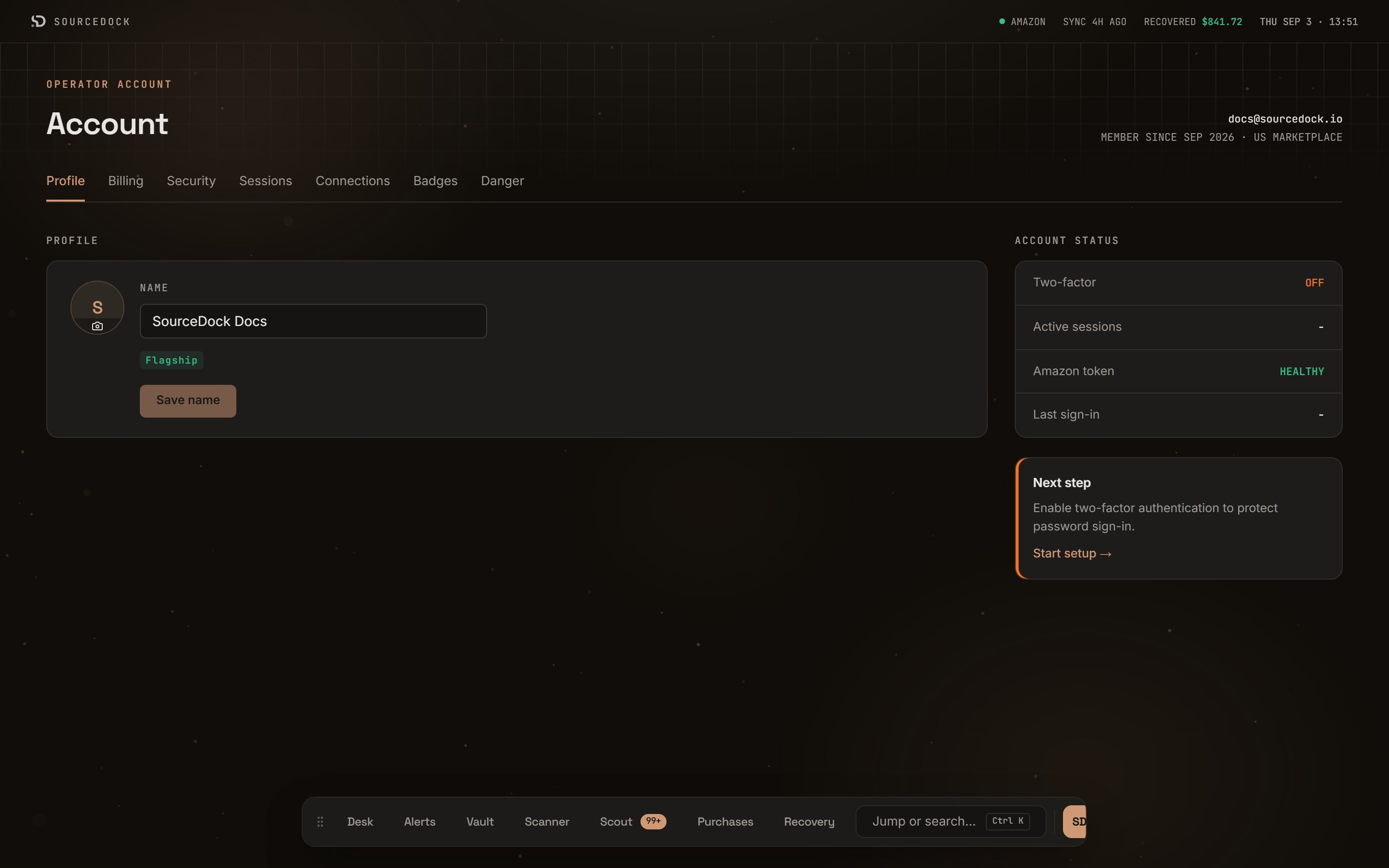
The Profile tab.
Security
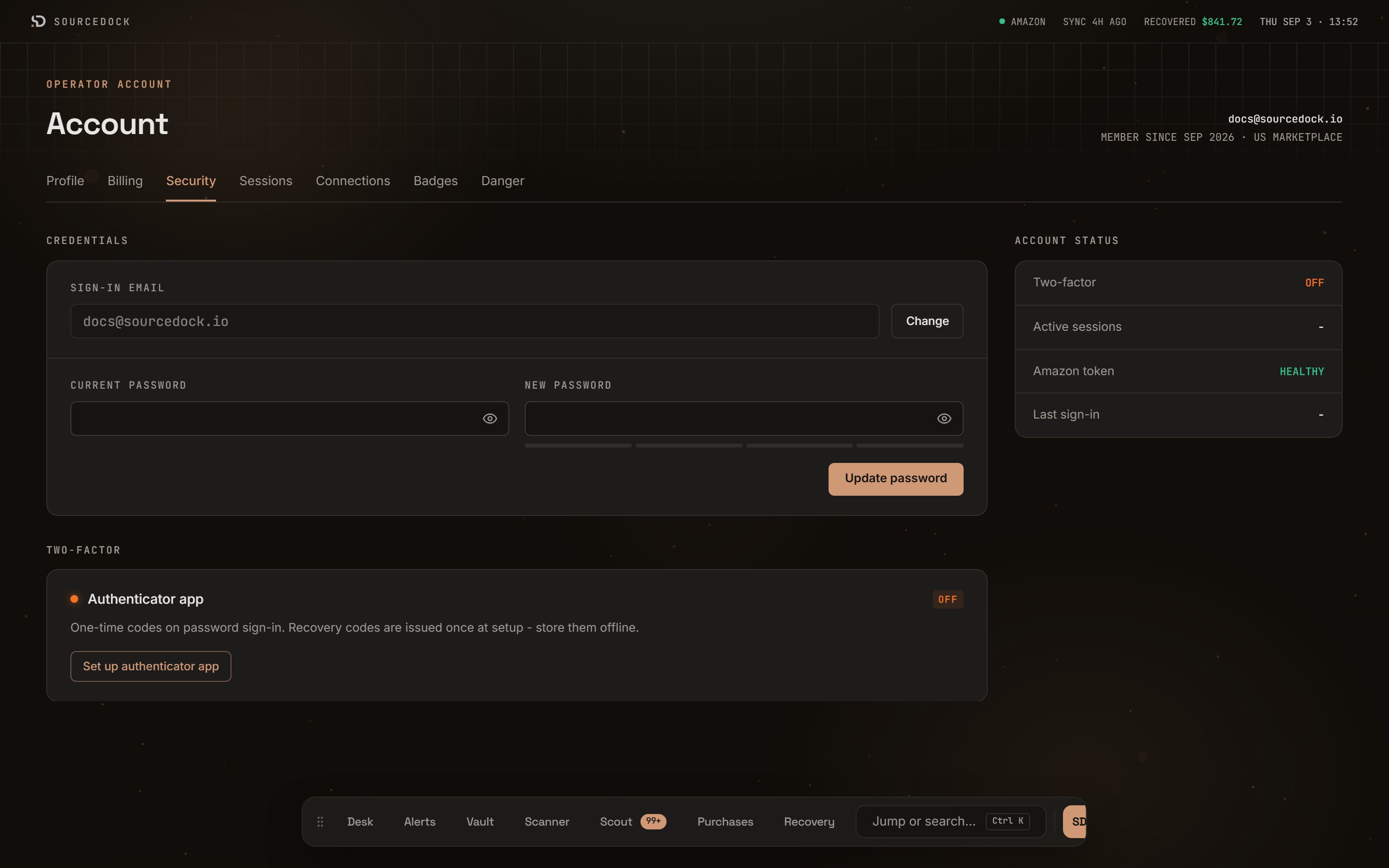
The Security tab with the Credentials and Two-factor cards.
Change your email
Your Sign-in email shows at the top of the CREDENTIALS card. Click Change. Type your New email and your Current password. Click Update email. You see Email updated. SourceDock sends a link to the new address. Until you click it, checkout and the Amazon connection stay locked.Change your password
Type your Current password and a New password. A meter rates the new one WEAK, FAIR, GOOD, or STRONG. Use at least 12 characters. A password you do not use anywhere else is best. Click Update password. You see Password updated. Every other device is signed out for safety. This one stays signed in.If you sign in with Google, SourceDock cannot change your email or password. The card says so. Change them in your Google account instead.
Turn on two-factor codes
Two-factor means you type a code from a phone app each time you log in with your password. It stops someone who only has your password.1
Start setup
In the TWO-FACTOR card, click Set up authenticator app.
2
Scan the QR code
Open your authenticator app on your phone and scan the square code. If you cannot scan, type the Manual setup key into the app instead.
3
Confirm
Type the 6-digit code the app shows and your Current password. Click Verify and enable.
4
Save your recovery codes
SourceDock shows a list of recovery codes. Each one works once if you lose your phone. Click Copy or write them down. Keep them somewhere safe and off your computer. Tick I saved these recovery codes, then click Done.
Turn off two-factor codes
Click Disable in the TWO-FACTOR card. Type your Current password and a 6-digit code. No phone? Tick Use a recovery code and type a Recovery code instead. Click Disable two-factor authentication.Sessions
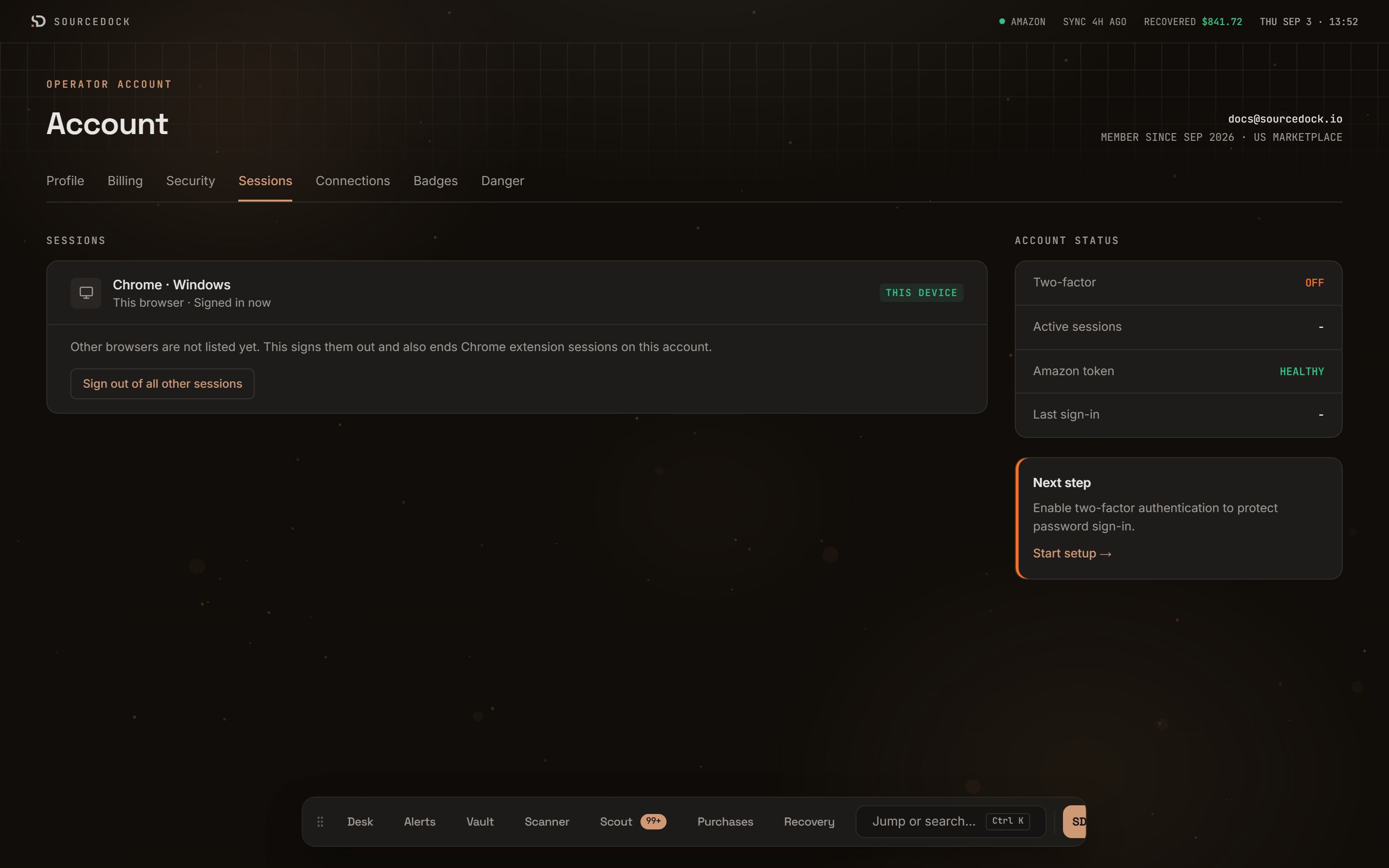
The Sessions tab.
Badges
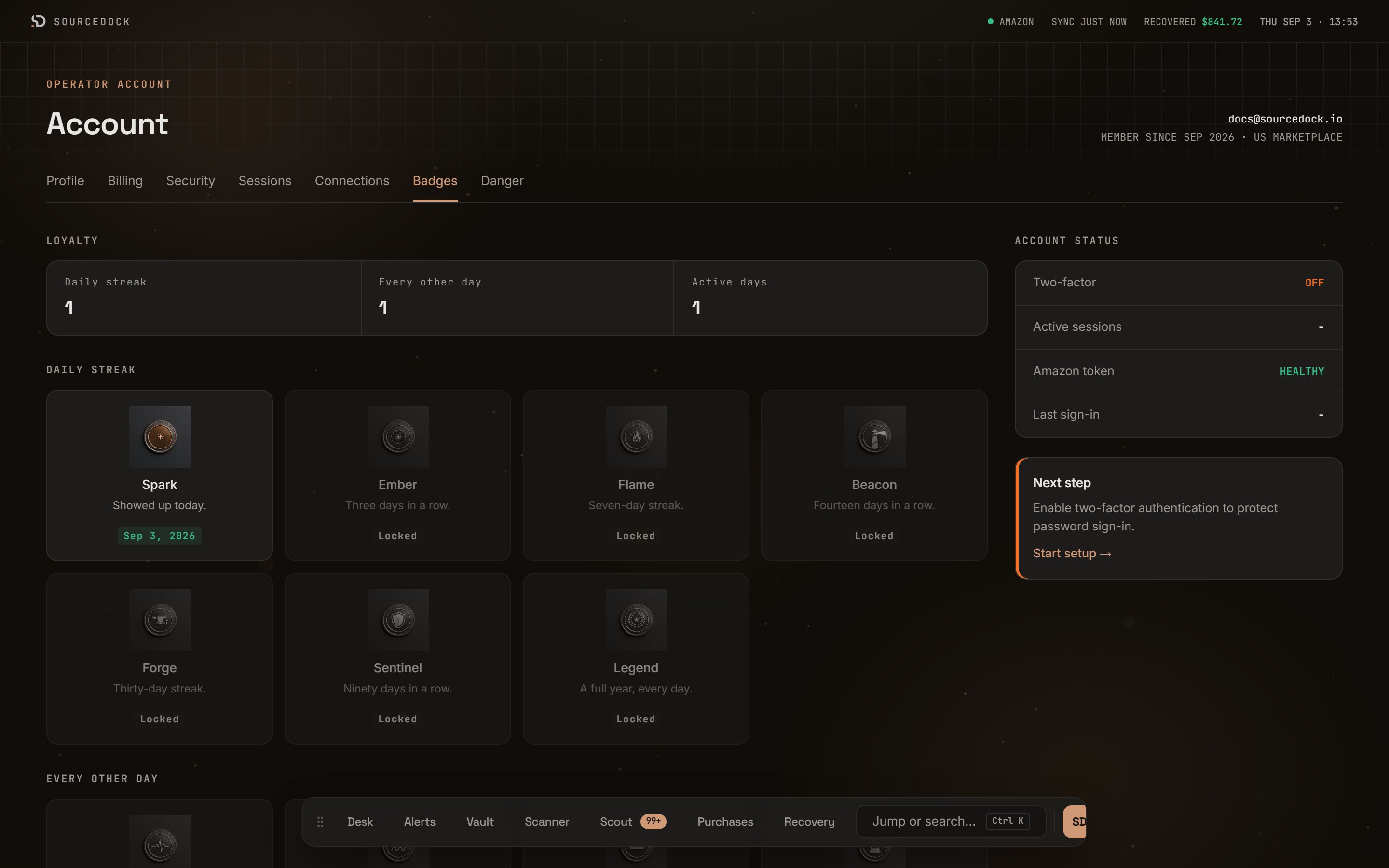
The Badges tab.
Badge tiles sit under it in three groups: DAILY STREAK, EVERY OTHER DAY, and TENURE. A badge you have not earned yet is gray and says Locked. An earned badge shows the date you got it.
Daily streak badges
Daily streak badges
Spark (1 day), Ember (3 days), Flame (7 days), Beacon (14 days), Forge (30 days), Sentinel (90 days), Legend (365 days).
Every other day badges
Every other day badges
Pulse (a week), Rhythm (two weeks), Steady (a month), Metronome (a quarter).
Tenure badges
Tenure badges
First Watch (1 active day), Scout (10), Operator (25), Veteran (50), Centurion (100).
Danger
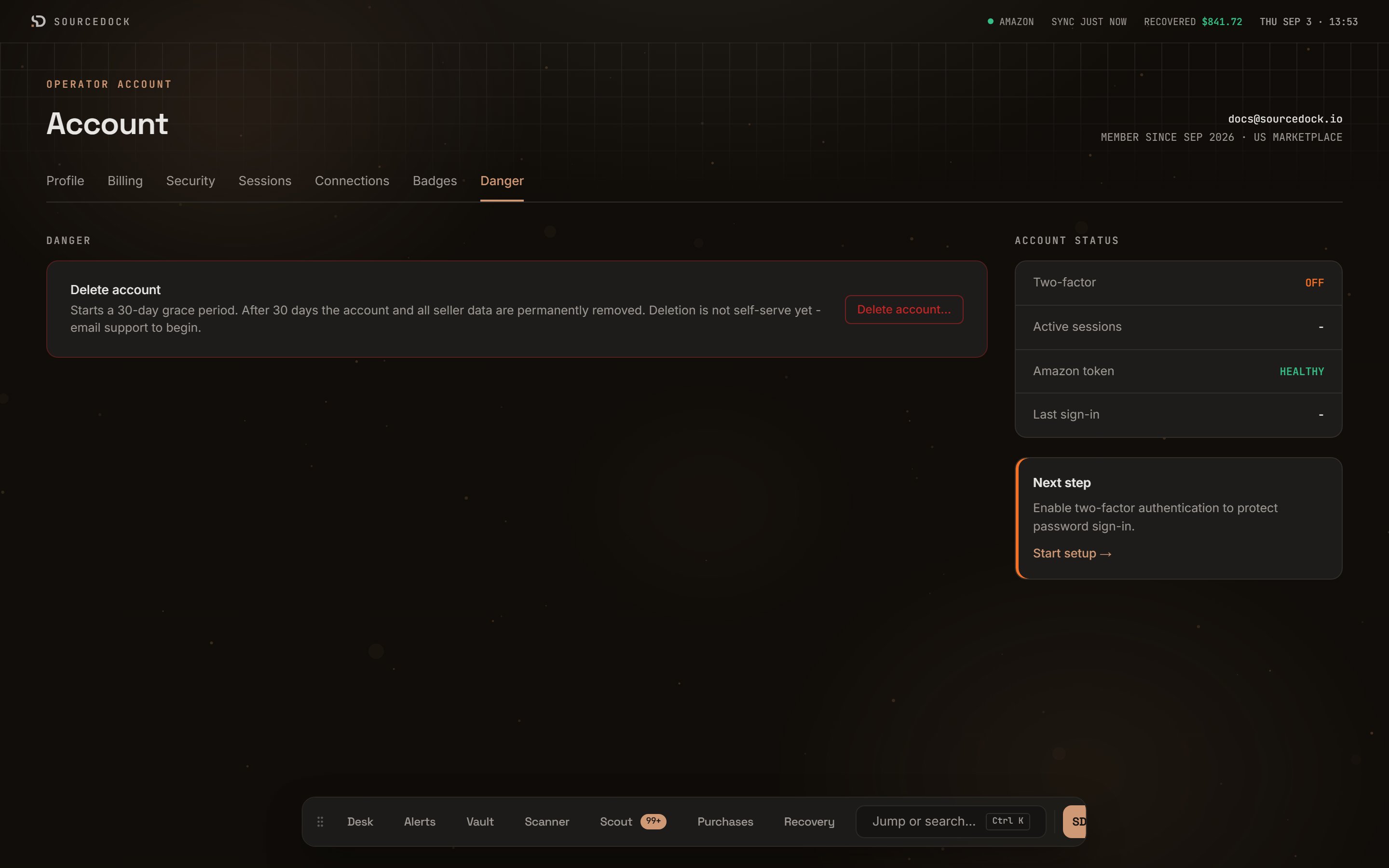
The Danger tab.