

B0EXAMPLE1, and you bought 6 of them.
The phone app is SourceDock opened from your home screen, with no app store download. Your login, stores, and numbers match the website.
The phone layout shows only when three things are true. You opened SourceDock from the home screen, not a browser tab. The screen is a touch screen. Its short side is under 600 px. A tablet, a computer, and a phone’s browser tab keep the website.
Put it on your home screen
iPhone
Safari never offers to install SourceDock, so the Desk tells you how.Open SourceDock
Add it
Open it
Android
Android’s browser offers its own install, so SourceDock prints no line there. Once installed, sharing an Amazon page to SourceDock opens the Profit calculator with it. An iPhone’s share sheet never lists SourceDock, and on an iPhone only the home-screen app can get phone alerts.The top bar
The SourceDock mark opens the Desk. The eye icon (privacy mode) hides your money figures until tapped again.
Demo login: the phone's top bar. Notice the store code US, because the demo has two stores, and the eye icon on the right.

Jordan Park, Premier trial: the trial line on a phone. Notice Update your billing information beside it. A narrow phone cuts the words short.
The bottom bar
The bar shows three icons with no words: a calculator for the Profit calculator, a round button, and a camera for Photos. A screen reader calls them “Calculator”, “Menu”, and “Photos”.
Demo login: the bottom bar. Notice three icons with no words: a calculator, the round button, and a camera.
The round button
A tap fans up to 6 shortcuts over a dimmed page, with the page you are on circled, and More last. Until you choose, they follow the website bar’s order, with pages you took off the bar last. With the starting page order, they are Desk, Purchases, Alerts, Vault, Scanner, and Scout.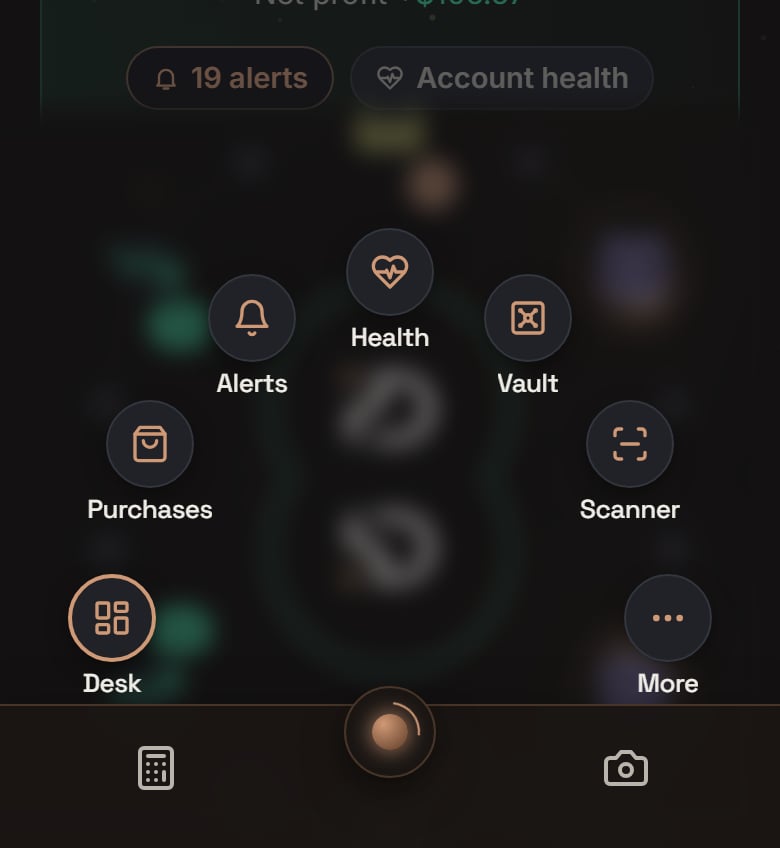
Demo login: the round button, tapped. Notice Desk is circled because you are on it, and More is last. The demo keeps Health on its bar, so Health takes a spot here.
- Your name, plan, and Amazon line, plus Switch account with more than one account.
- Jump or search (pages, products, orders, and storefronts), then Choose shortcuts.
- Every other page you can open, except the two on the bar. Alerts and Scout carry a count; over 99 reads “99+”.
- Account, Billing & pricing, and Connections (a teammate sees only Account).
- Theme with dark and light, then Docs, Discord community, and Log out.
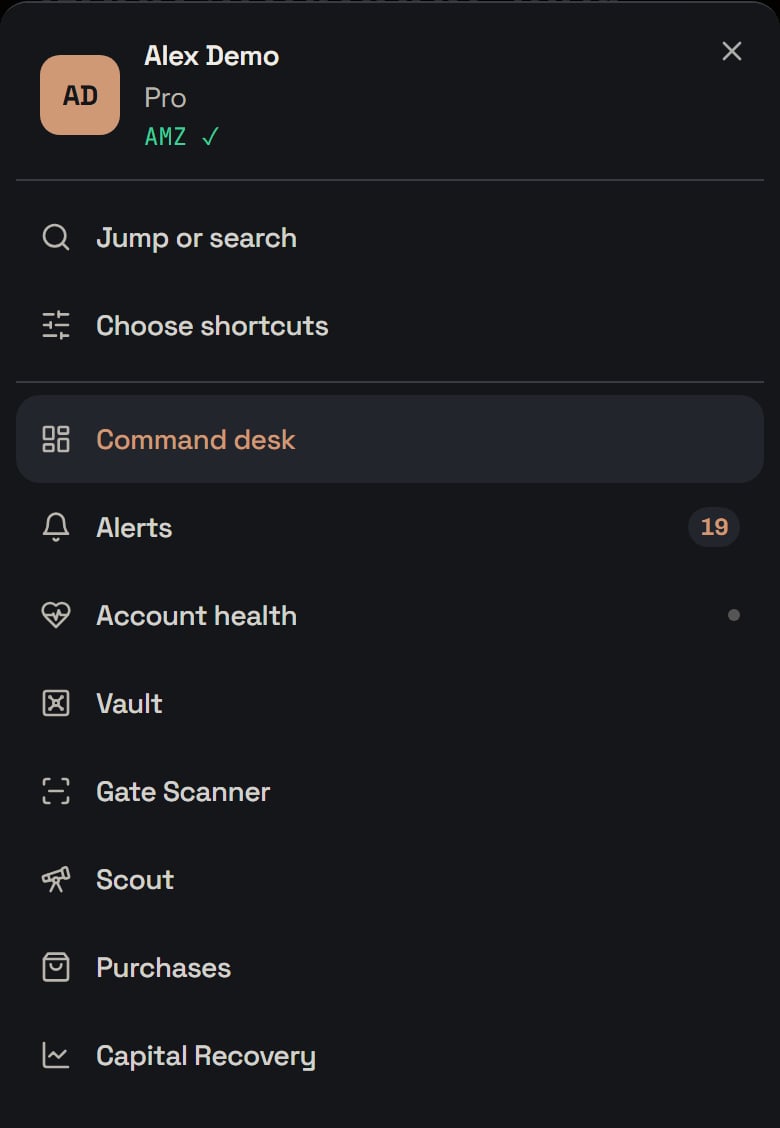
Demo login: the More sheet. Notice the name, plan and Amazon line at the top, then Jump or search and Choose shortcuts.
Choose shortcuts
On the Shortcuts sheet, under Bottom bar, Left and Right each pick any page you can open. The picker calls the starting two Calculator and Photos, and an empty side reads None. Picking the other side’s page swaps them.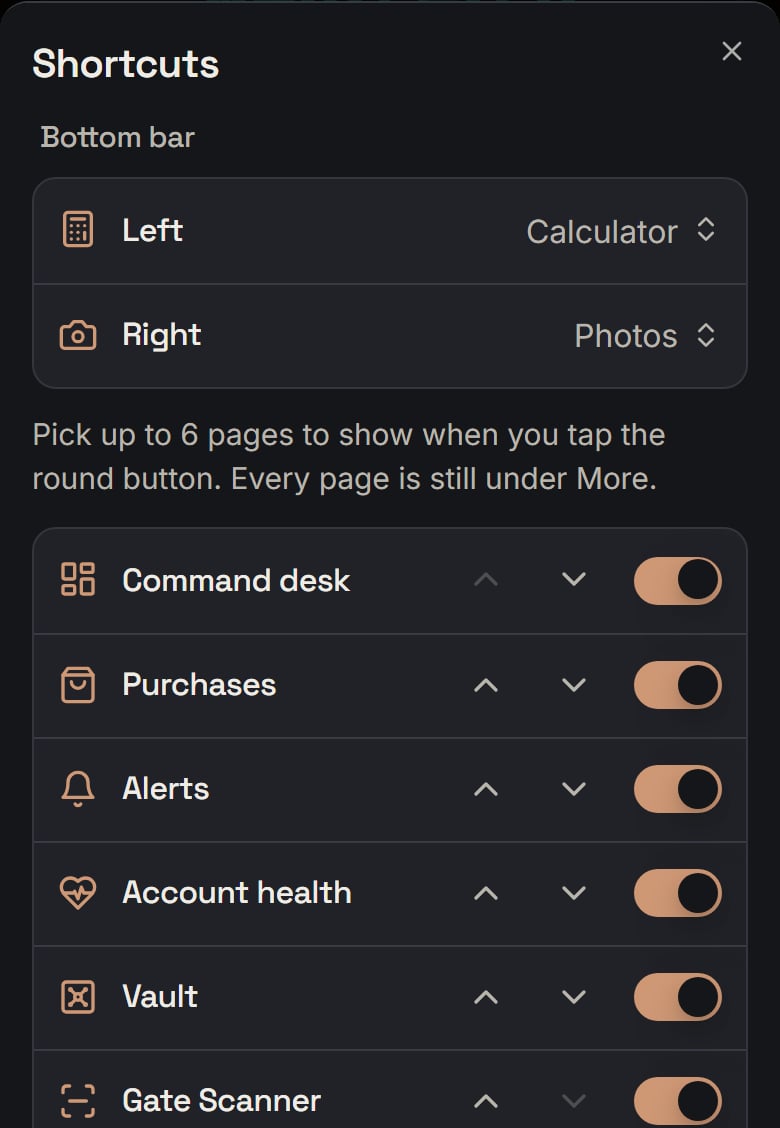
Demo login: the Shortcuts sheet. Notice Left is Calculator and Right is Photos, the two the bar starts with.
The phone Desk
It is afternoon and your name is Sam, so the Desk opens with “Good afternoon, Sam.” Before noon it says morning, and from 6 pm evening. With no first name, the name is left off. The phone Desk never asks you to install the Chrome extension.Found for you
Say Needs a look is $12.00 on 2 priced units, and Ready to claim is $40.00 on 3 units. The Desk’s only sum adds them: $12.00 + $40.00 = $52.00. The line above the tiles reads “You could claim back up to $52.00”.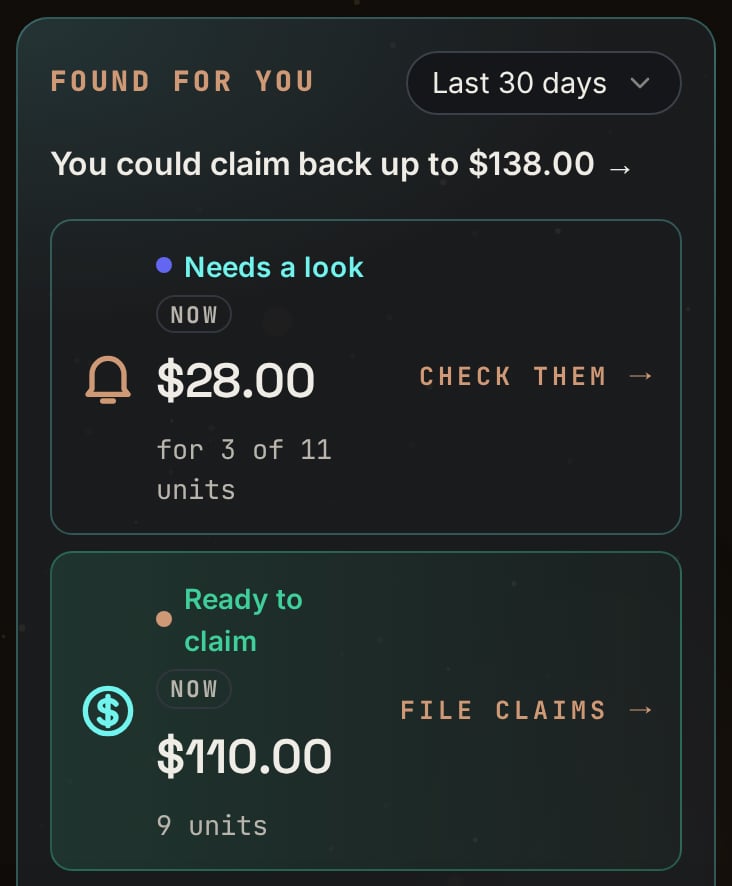
Demo login: the top of Found for you. Notice $110.00 ready plus $28.00 needs a look makes $138.00. Needs a look has an amount for only 3 of its 11 units.
- Needs a look: “$12.00”, “2 units”, Now, and the foot Check them.
- Ready to claim: “$40.00”, “3 units”, Now, and the foot File claims.
- Paid back by Amazon: what Amazon paid back for lost or damaged units, minus what it took back. It is not in the $52.00. If Amazon took back $3.00 more than it paid, it shows “-$3.00", never $0.00. Its foot says Recovery.
- A pile with units but no money shows its units, never $0.00. Needs a look’s small line then says No amount yet.
- If only some Needs a look units are priced, its small line says so, such as “for 2 of 4 units”.
- The claim line hides while either tile says Updating, or when the two add up to $0 or less.
- A failed load says Could not load Capital Recovery. An uncovered store shows US and Canada only. With Capital Recovery paused or off your plan, the card is gone.
Needs you
Needs you lists up to 3 alerts, then See more in Alerts when there are more. Claims Found for you already counts are left out. A quiet day says Nothing needs you. Good time to go find the next deal. and Check Scout, or Open Vault if your login cannot open Scout. If only left-out alerts remain, it says Nothing else needs you right now. With Account health turned on for the Desk, its card takes this place.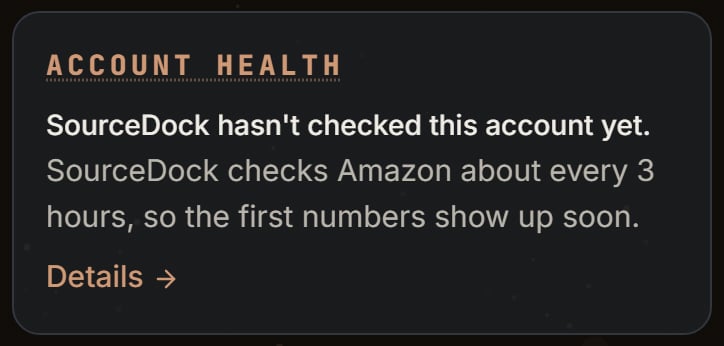
Demo login: Account health in the Needs you spot, because the demo turns Health on for the Desk. Notice it says SourceDock hasn't checked this account yet.
The wheel
Next comes a card with Came back to you, then the wheel: word-free icons for Scout, Gate Scanner, Vault, Purchases, Sales, and Recovery, each opening its page. A copper count is that stage’s alerts, and a green count is Scout’s new finds or Sales’ units sold. The title SourceDock Flywheel sits under it, without the website’s steps line.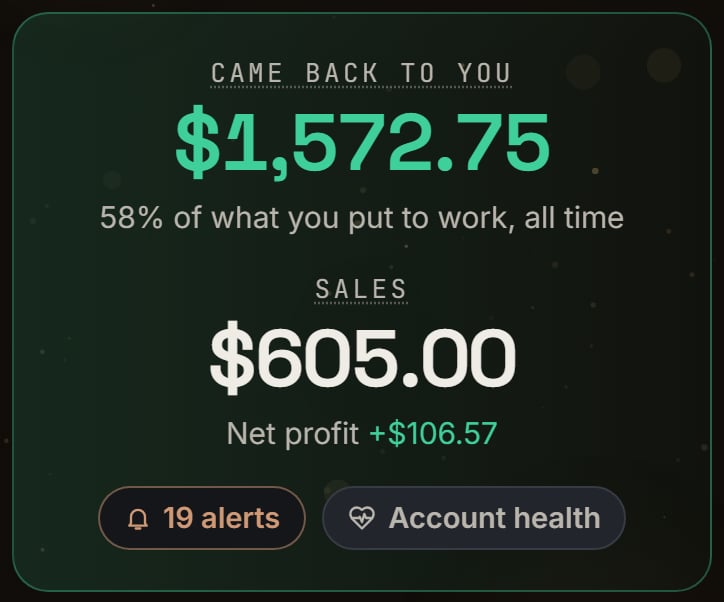
Demo login: the Came back to you card. Notice the sales number with the net profit under it.
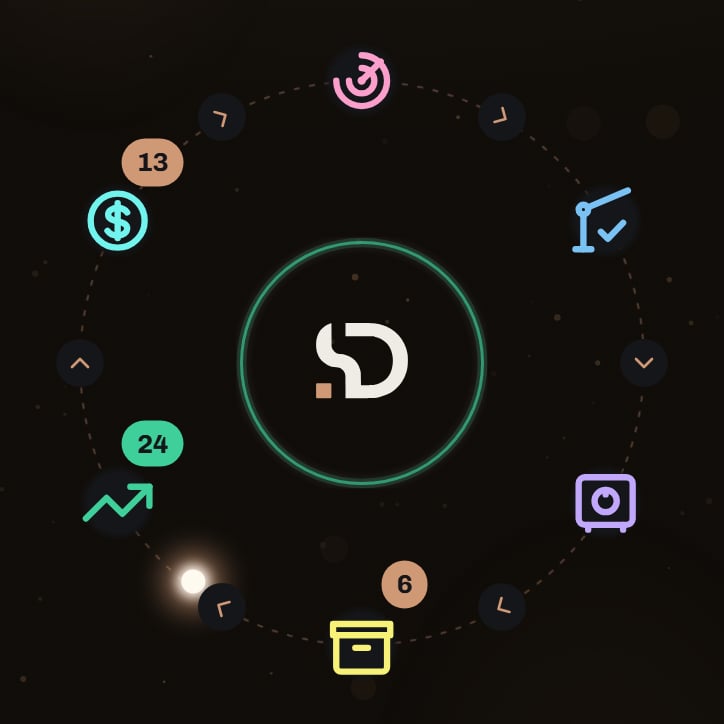
Demo login, on the seed day: the wheel. Notice the copper 13 on Recovery, the copper 6 on Purchases, and the green 24 on Sales.
Look up a blender
Tap the calculator icon. Under the heading Profit calculator is the Chrome extension’s own profit panel, same words and math. See Chrome extension.Find the product
Pastehttps://www.amazon.com/dp/B0EXAMPLE1 or B0EXAMPLE1 in the box (Paste a link, ASIN or UPC) and tap Look up. A short link from the Amazon app’s Share button works too. On an installed Android phone, the line under the box says Share an Amazon page to SourceDock, or paste its link here. An iPhone shows no line.
Or tap Scan a barcode. It says Your phone may ask to use the camera. The picture stays on your phone., then Hold the barcode inside the box. Only the numbers are looked up. On phones that allow it, Light turns on the phone’s light, and Type it instead goes back to the box.
Find it with a photo
Say you hold a toy in a store, and its barcode is torn. Tap Photo, beside Scan a barcode. Take a picture of the box, with its words showing.- The sheet is called Find it with a photo. It says We send the photo to an AI service to read the words on the box. SourceDock doesn’t keep it.
- While it works, it says Reading the photo….
- Then it shows what it searched for, like “We looked for: toy rescue truck”, and up to 5 Amazon matches with a picture, a title, and a size.
- Tap the one you have. It opens just like a typed ASIN. A match tagged Barcode match was found by a barcode in your photo.
The settings
The panel reads your account’s profit settings, set in Account > Features. They start as: Prep per item $0.00, Sales tax on cost (%) 0, Months in storage 1, Use peak storage fees off, Inbound placement Minimal shipment splits, Inbound shipping per lb not set (your store’s rate from recent boxes can apply), Lowest ROI you want (%) 30, Lowest profit you want $5.00, and Sale price used for profit Buy Box, FBA sellers only. For Kitchen Blend you set a clean case:- Your cost is $18.00 (1800 cents), and the blender is not in your Vault.
- Sale price is the Buy Box, $40.00 (4000 cents), and an FBA seller holds it. Max cost uses the same price.
- Fulfillment is FBA, and Months in storage is 0, so storage is left out.
- Inbound placement is Amazon-optimized shipment splits ($0), and your store has no recent boxes to Amazon, so placement is $0.
- Inbound shipping per lb is $0.00, so your store’s rate is not used. Prep and tax stay at 0.
- Amazon quotes a Referral fee of $6.00 and an FBA fulfillment fee of $5.50. The category takes 15% of the whole price, never under $0.30, and 15% of $40.00 is $6.00. There is no closing, other, or low-stock fee.
Quick info
The panel’s sections are Product, Quick info, Profit calculator, Alerts, Offers, and Variations (closed until tapped). In Product, the Vault badge saves the blender with this cost (Saved to your Vault. or We couldn’t save it to your Vault. Try again.). Once it is saved, the badge opens the Vault on it. The + icon opens the form to record a purchase. Quick info starts with Approval. With your store connected, SourceDock checks by itself: Approved, Needs approval, Blocked, or Not checked. If it could not, Check now shows, then Checking… With no store, it says Connect your store to check. Next, one row holds Sales rank, Sold a month (on the phone, an estimate from the rank, marked “(est)”), and Max cost.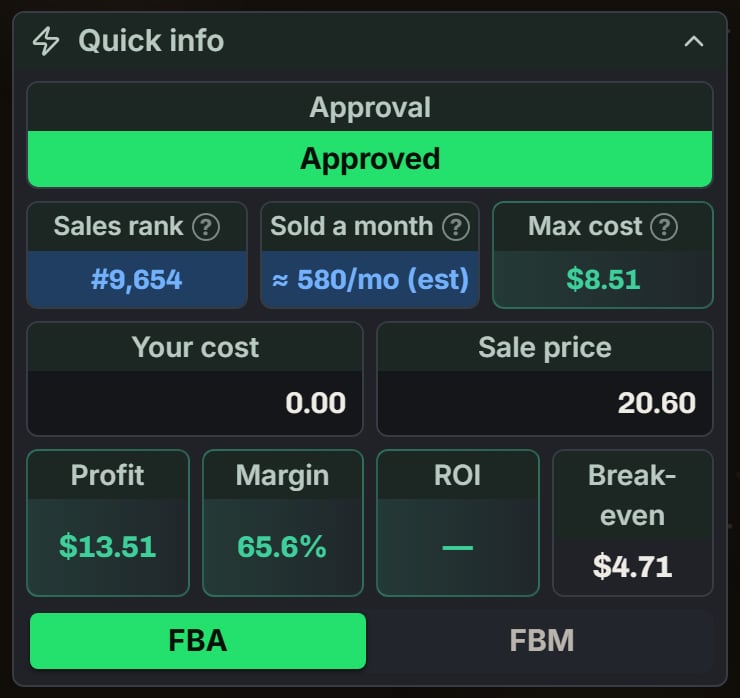
Uno card game on the phone, with no cost typed. Notice Approved, the (est) after Sold a month, and the ROI dash.
- Profit: 4000 − 600 − 550 − 1800 = 1050 cents, so “$10.50". With a $0.00 cost it would be “$28.50”.
- Margin: profit over the sale price. 1050 ÷ 4000 × 100 = 26.25, shown as “26.3%”.
- ROI: profit over the price you pay. 1050 ÷ 1800 × 100 = 58.33, shown as “58.3%”. A $0.00 cost shows —, and only the profit goal colors the numbers.
- Break-even: the lowest sale price with $0 profit at your cost. At $27.65 the referral is $4.15, and $27.65 − $4.15 − $5.50 = $18.00. At $27.64 the referral is still $4.15, 1 cent short. So it shows "$27.65”.
The Profit calculator section
This section repeats Quick info’s numbers as rows, adding Fulfillment, Months in storage, Total fees, Break-even price, and You get. Profit, ROI, and Margin are green: profit is over $0, at least $5.00, and ROI is at least 30%. Under a goal they turn yellow, and a loss turns red. A $0 profit stays plain unless it is under a goal. Open Total fees:- Storage fee: cubic feet times Amazon’s monthly rate, month by month. October to December use the peak rate, and Use peak storage fees uses it every month. The months box takes 0 through 36; a bad entry snaps back.
- Inbound placement fee: with recent boxes (US stores), what Amazon charged per unit on them, whatever option you picked. Without, Amazon-optimized is $0 and the others use Amazon’s highest listed rate, marked estimated.
- Low-stock fee: only while Amazon’s test says stock is under 28 days of supply. It is part of Amazon’s fulfillment charge, so it lowers Profit and You get.
- Closing fee and Other sale fees: only when Amazon’s quote splits them out and they are over $0. Otherwise the referral line can hold a closing fee.
- Sales tax: your cost times your percent, rounded to the cent.
When the numbers wait
Profit stays ”-” until the price, fees, and every cost turned on are known, and a line under Quick info says why:- No sale price: such as Nobody is selling this new on Amazon right now. Type a sale price. Max cost says Needs a price.
- Your own per-pound rate and no weight: a Weight (lb) box and Type the weight (lb) to add inbound shipping. Max cost says Needs weight.
- No size for storage: No size for this product, so storage can’t be added. Set Months in storage to 0 to leave it out.
- No size for placement: No size for this product, so the placement fee can’t be added. Pick Amazon-optimized to leave it out.
FBM and Offers
Tapping FBM adds a Your shipping box. Blank, it uses the FBM shipping saved in SourceDock. With none saved, it says Not counted, and profit uses $0 shipping. The sale price is the lowest offer from a seller who ships it. You get is the sale minus the referral and closing fees and your shipping. On a Canada or Mexico store, FBM profit is in that store’s own money, like CA$. Offers lists live sellers, cheapest first, under Seller, Price, Profit, and ROI, with your cost and goals: red for a loss, yellow under a goal, green otherwise. Tap a seller’s FBA or FBM badge to read about them. Another seller’s tip ends with Open this store on Amazon. Offers can also say Connect your store to see live offers, SourceDock couldn’t load the live offers., or Amazon shows no live offers. Tap Show stock to see how many units each seller has. Nothing loads until you tap.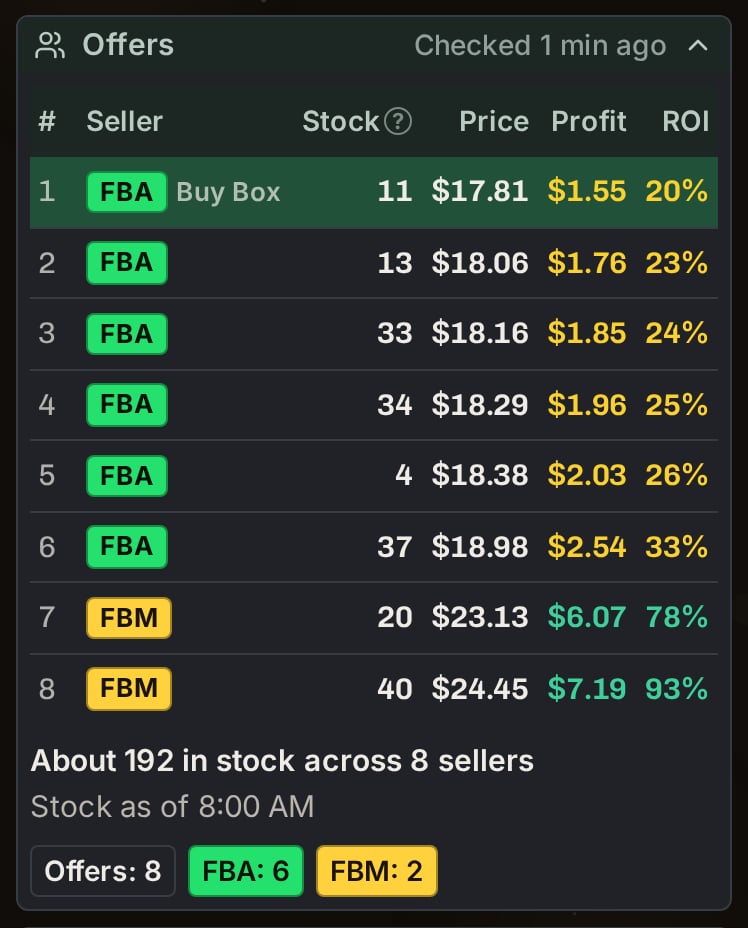
YETI mug: Offers after Show stock on a phone. Notice the Stock column and the total under it.
Photos and receipts
Tap the camera icon. Purchase Orders lists your 20 newest orders that are not cancelled, under a search box that says Product, ASIN or order number. The blender row shows the picture, the name, and “Oct 22 · 6 units”. A product with no name yet shows its ASIN and a copy icon.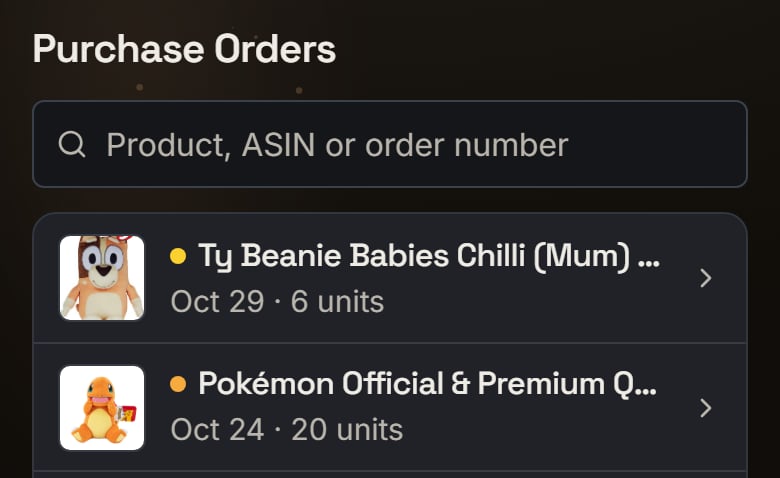
Ty Chilli plush order, 6 units, the day before the seed day: Purchase Orders, the page the camera icon opens. Notice each row shows the picture, the name, then the day and the units.
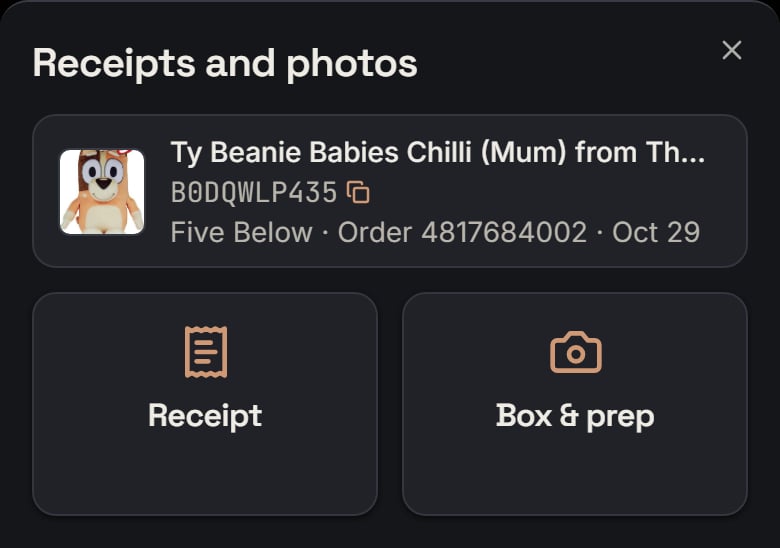
Ty Chilli plush order: the sheet a tap opens. Notice the two big buttons, Receipt and Box & prep.
Lists and detail sheets
On the phone, each table becomes a list, driven by the website’s filters, sort, and pages, with the website’s own figures.Purchases
Purchases groups rows by week, starting Sunday: This week, Last week, then “Week of Oct 5”. It shows this list in a phone’s browser tab too. A row shows the picture, the name, the ASIN with a copy icon (a tap copies and opens nothing), “Oct 22 · 6 units”, and the status words. On the right are the cost total, the cost per unit, and the profit, tagged now, or exp. with no current one. A missing cost says Cost unknown, and no known profit shows ”-”. An order not received 14 days after its purchase date has a red corner, and its sheet says how many days ago you bought it. A tap slides a sheet up with every column of the Purchases table as a line, in its order and with its names. An (i) explains a name with a tap. At the foot are Add receipt, Edit, and the row’s own menu, when you can change the order. The X or the phone’s Back closes it. Grouped by ASIN, a product row shows orders, such as “2 orders”, and opens on each order, newest first.Other pages
- Sales: a product opens a sheet with every figure column, each with a ”?” you tap.
- Vault: a card per product, with Import and Export behind ”…”. A tap shows every column, the alert, Edit Prospect, Price History, Record Purchase, and Delete.
- Capital Recovery: a card per product with ROI, margin, profit on what sold, and P&L. A tap opens every other figure.
Alerts on your phone
Alerts shows a line such as “2 things to look at.” under its heading. SHOW ME is one menu, starting at Everything, where you can tick several choices. Each area, such as Purchases, is one row with its count, closed until you tap it. An alert’s x hides it, and a toast offers Undo for 8 seconds.The phone icon
Tap the bell. Each row is an area: Purchases, Recovery, and Vault always, and Scout and Health once they have an alert. The phone icon comes last, after the sound icon. Lit means this area would buzz and a phone is set up; with none set up, all are dim. The first tap on a dim icon asks to allow notifications and saves this device. Later taps turn the area on or off, saved on your login. Purchases, Recovery, Vault, and Health start on, and Scout starts off. Turning Scout’s icon on also turns Scout alerts on; turning it off leaves them. Health also needs Health on your Desk, and stays dim until then.What a buzz says
Today these alerts can buzz: a Purchases auto-cancel notice, a Recovery restock reminder, a Vault alert you set, and new Scout finds. Other rows stay on the Alerts page. The lock screen title is SourceDock. The words are counts only, never a product or a dollar amount, one line per area:How often it can buzz
- A burst becomes one buzz: nothing goes until the oldest waiting alert is 5 minutes old.
- A buzz carries every waiting alert. Held alerts never expire; they ride the next buzz. An alert the phone service never picked up within 24 hours of firing is dropped.
- Your login gets at most 5 buzzes a day, in the time zone of the first phone that turned alerts on. A failed buzz does not count.
- Only alerts that fire after your first phone was set up can buzz. A login with no active plan gets none. Scout finds from before Scout alerts were on never buzz.
- Vault and Scout share a quiet clock. A buzz with only Vault or Scout alerts waits until 3 hours after the last buzz that carried either. A Purchases or Recovery buzz does not wait, and carries them along.
- A held buzz is looked at again in 1 hour, or when the quiet clock opens.
If the phone said no
On an iPhone browser tab, a tap on the icon says To get phone alerts on iPhone, put SourceDock on your Home Screen: tap Share, then Add to Home Screen. Open SourceDock from there and tap this icon again. After you block notifications, it says Phone alerts are blocked for SourceDock on this device. Allow notifications for SourceDock in this device’s settings, then tap this icon again. Where phone alerts are not set up or cannot work, the icon is hidden.What the phone app does not have
- The Chrome extension.
- Letter keys that jump to a page. Use Jump or search.
- The account picker or a recovered-cash total in the top bar.
- Tips that need a mouse resting on a word, such as the panel’s break-even tip. Tap tips are the (i) and ”?” marks in list sheets and the Offers seller badges.
- The panel’s settings. Its sections keep their starting order, and the Buy Box pie never shows.
- The extension’s Seller Central check for a product that needs approval.