

Scenario for this page: the demo store’s Vault on the seed day. Tier 1 holds 14 products. Lobo figure (a McFarlane Toys action figure with a vehicle): S, Top pick, Approved, 45.7% ROI. YETI Rambler 14 oz mug: B, Good buy, with 2 risks and 3 good signs. Find them in the demo store under AlphaChaser, on Vault.
AlphaChaser is in Beta. Its chip says Beta. Hover it and it says A second opinion, not a promise. Use the grade to help you choose. Always check the product yourself before you buy.
The grades
Each grade has a letter and a word.
Some products can’t be graded yet. SourceDock needs a price and some sales history first. It tries again every day. Until then, the product has no grade.
The gold grades
S and A are the gold grades. They are the ones to look at first.- Their letter sits in a gold tile. S is solid gold, and A is a lighter gold.
- Their badge on a Vault row or a Scout find has a small flame on it. B to F have no flame.
- On the AlphaChaser page, they fill the first card, Tier 1.
Where you see grades
On your Vault and Scout rows
A small badge sits on each graded product, right after the ASIN’s copy icon. It shows the SourceDock mark, then the grade’s letter. Hover it to read what the grade means, like “AlphaChaser grades this A, a great buy for the seller.” Click the badge to open the drawer for that product. See The drawer below. To see only some grades, open Filters and use Grade. You can pick more than one, like S and A. A product SourceDock hasn’t graded yet is left out.On the AlphaChaser page
Click AlphaChaser on the bar, right after Scout, or press X. It has a Beta tag. The page lists your graded products, best grades first.- The switch at the top picks Vault, Scout, or All. On All, each row says where it came from.
- The products sit in three cards: Tier 1 (S and A), Tier 2 (B and C), and Tier 3 (D and F).
- Each row shows the grade and a few numbers. With a buy cost, it shows the ROI. Without one, it shows Buy at or under: the most you should pay to meet your goals.
- Each row also has a gate badge from the Gate Scanner: Approved, Needs approval, or Blocked. Not checked means SourceDock hasn’t checked that product yet.
- Explore opens the drawer for that product.
- The X button on a row hides a product you don’t want. A note says Dismissed, with Undo. To bring it back, switch to Dismissed and click Bring back.
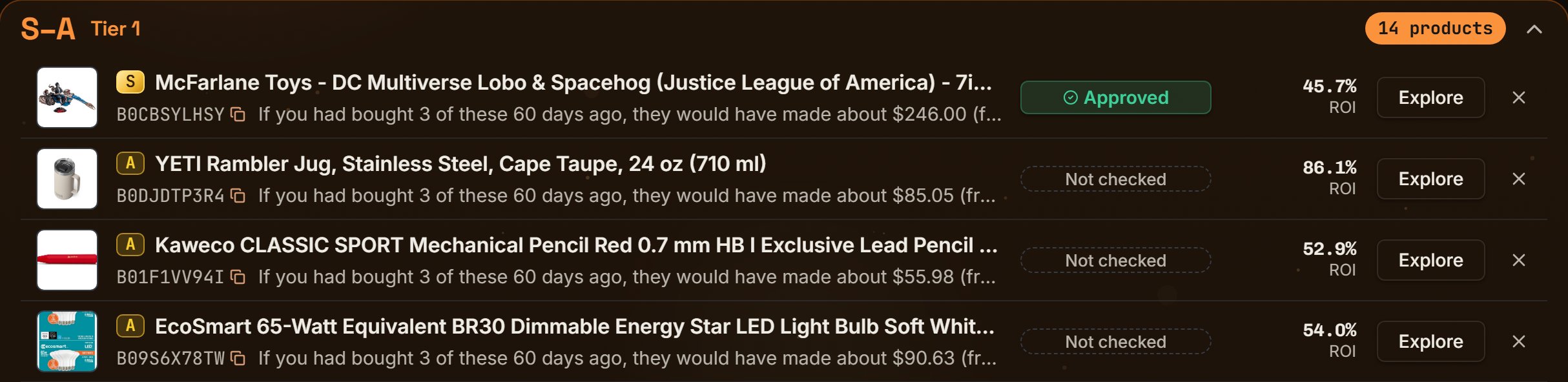
Demo store's Vault: the Tier 1 card. Notice the Lobo figure's S with Approved, and the A rows marked Not checked.
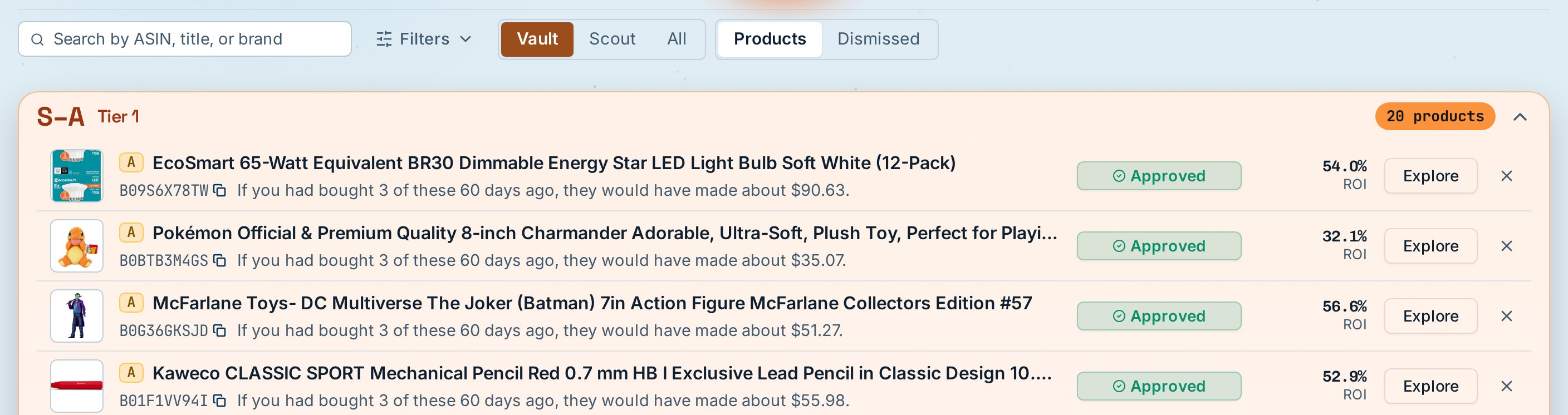
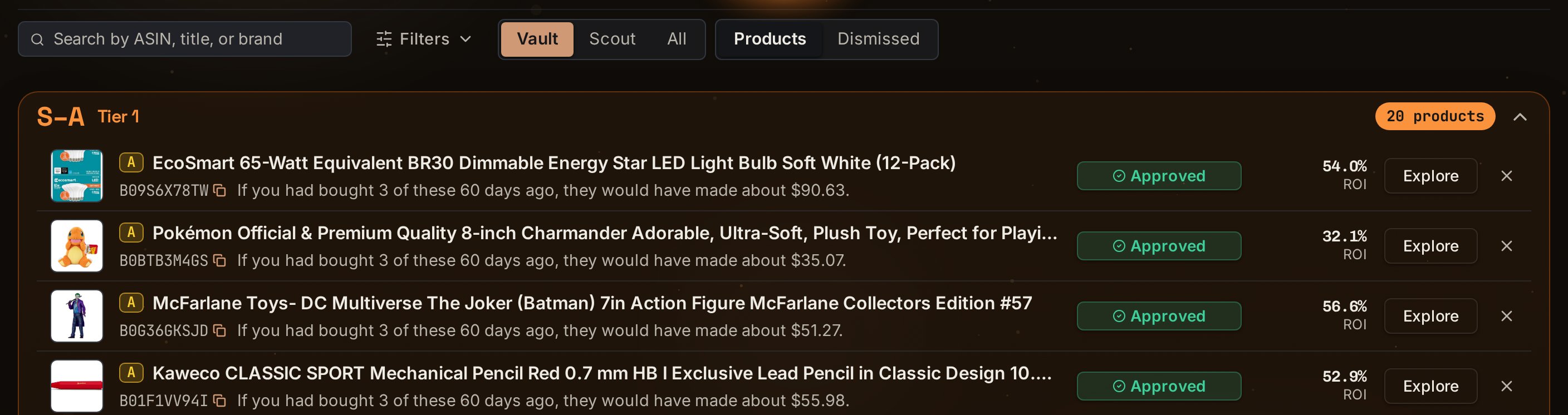
Demo store's AlphaChaser page: the bar above the list and the top of Tier 1. Notice the Approved badges SourceDock filled in by itself.
On the Command desk
The Command desk has an AlphaChaser tab beside Needs you (or Account health). It lists your top 3 gold picks, S first, then A. Click one to open it in AlphaChaser. The X button hides one, and the next pick takes its place. See more in AlphaChaser opens the page. With no S or A yet, it says No gold picks yet.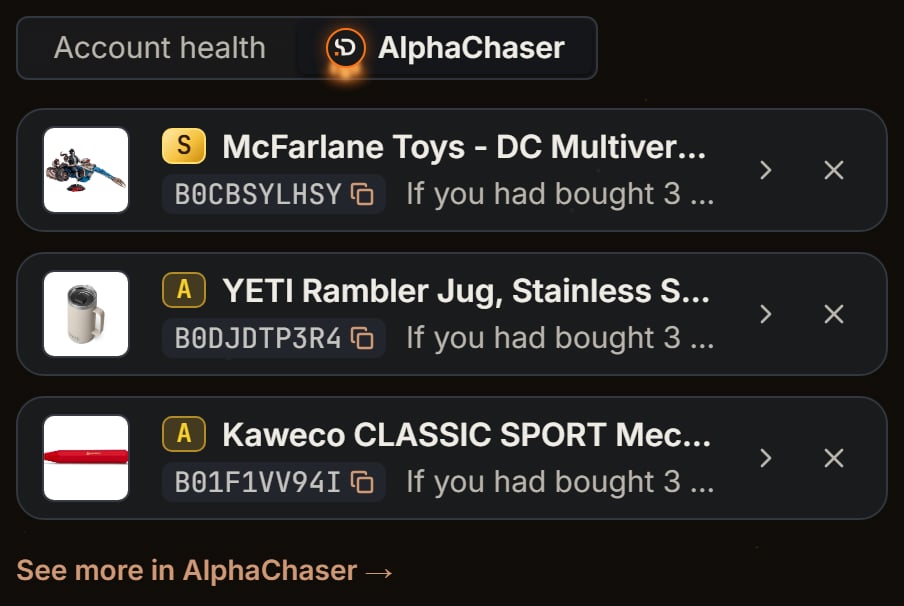
Demo store's Desk: the AlphaChaser tab. Notice the top 3 gold picks, S first, then A.
In the Chrome extension
The Chrome extension’s Profit tab has an AlphaChaser section. It shows the product’s grade, its word, and its main reason. Open in AlphaChaser opens that product’s drawer in SourceDock, in a new tab. The section starts off. To turn it on, open the extension’s Settings. Under Panel sections, turn on AlphaChaser. When it’s on, a small grade chip also sits by the product’s name. Click the chip to open the section. A product that isn’t in your Vault or Scout has no grade. The section says Add it to your Vault to get a grade.The drawer
The drawer slides in from the right. Its top says AlphaChaser, the Beta chip, and the grade’s word. Under its Amazon and Keepa links is the product’s gate badge, the same one the page’s row shows.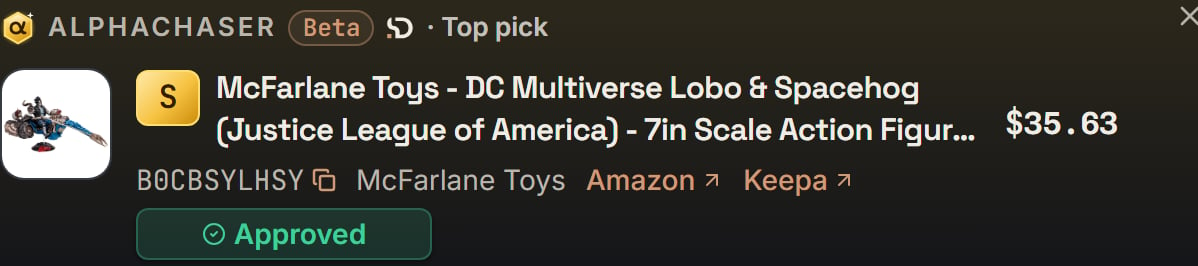
Lobo figure: the drawer's top. Notice Top pick beside the Beta chip, and the Approved badge under the links.
- The short version: a few quick numbers, like sales a month and the profit.
- A price chart for the past year. Numbers on the chart mark big moments, like a Price spike, a Price war, or Amazon left the listing. A card under the chart tells what each one was.
- Why it’s solid (or Why this grade on a lower grade): the reasons for the grade, as a checklist. It says how many checks pass, like “4 of 5 checks pass”. An S or A card always shows its biggest warning here, if it has one, like “The price fell while more sellers joined.” Some cards show 6 reasons so a warning is never left out.
- FBA or FBM?: the profit if Amazon ships it, and if you ship it yourself. It marks which one is best.
- Profit: a bar that splits the sale price into your cost, Amazon’s fees, shipping in and storage, and your profit. Type a cost in Your cost per unit to see the grade at that cost.
- Sales: sales in each of the last 12 months.
- Buy Box · 90d: who held the Buy Box over the last 90 days. The Buy Box is the offer Amazon shows first.
- Sellers by price: the offers on the listing, cheapest first.
- Risks and Good signs, in two boxes. See below.
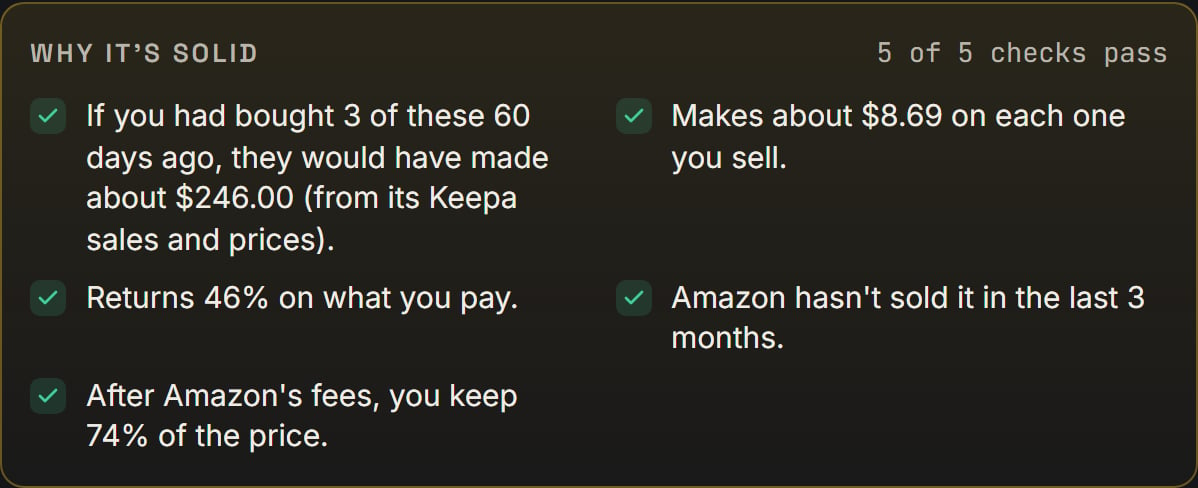
Lobo figure: Why it's solid. Notice 5 of 5 checks pass.

Lobo figure: the drawer's foot. Notice Graded 4 hours ago, with Refresh beside it.
Risks and Good signs
Risks are things that could cost you money or stop the sale. The box also lists facts SourceDock hasn’t checked yet. Its chips are red or yellow. For example:- Amazon sells it: Amazon has its own offer on the listing.
- A seasonal chip: sales drop after a certain day each year.
- Price falling as sellers join: more sellers came in, and the price went down.
- Selling slower than usual.
- Gate Scanner: not checked: run it through the Gate Scanner to learn if you can sell it.
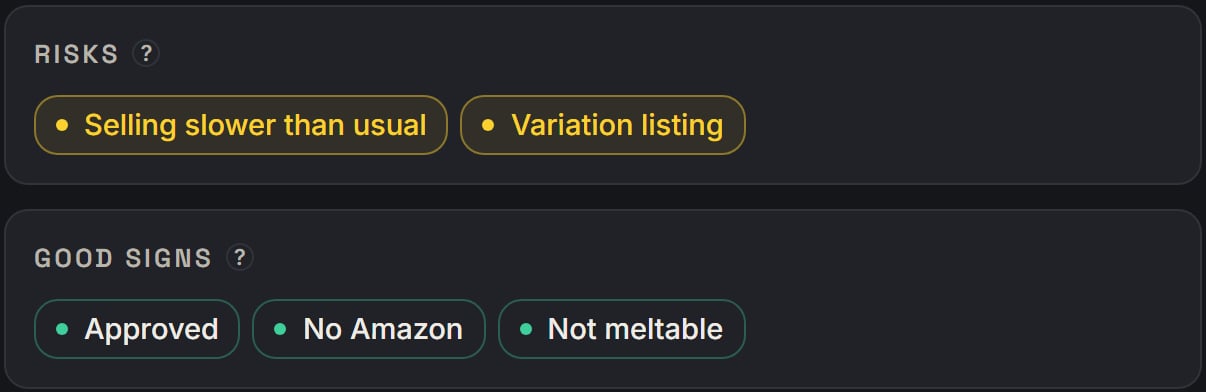
YETI mug: Risks and Good signs. Notice the yellow risks and the green good signs in their own boxes.
Save from the drawer
In the drawer, you can type your cost and save it.- On a Vault product, Save cost saves it to the Vault row.
- On a Scout find, Save to Vault saves the find to your Vault. With a cost typed, it says the cost, like Save to Vault at $9.00.
- A Scout find that’s already in your Vault says It’s in your Vault. Save its cost there.
Good to know
- AlphaChaser is a second opinion, not a promise. Prices and sales can change fast.
- Grades come from what SourceDock already knows about the product, like its price, sales, sellers, and fees.
- Your profit goals in the profit calculator settings shape the Buy at or under price.