

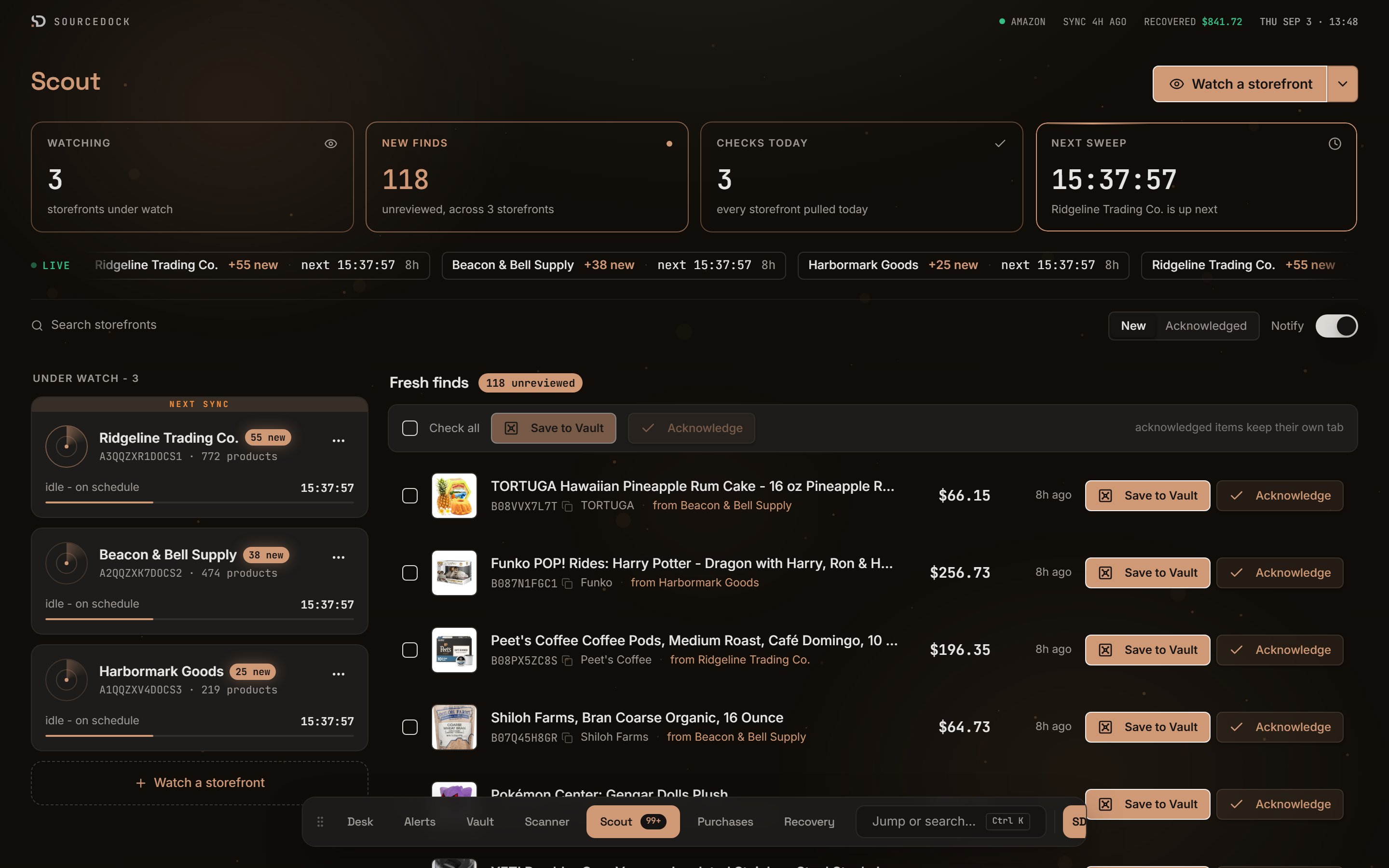
Scout. The watchtower on top, watched storefronts on the left, fresh finds on the right.
Watch a storefront
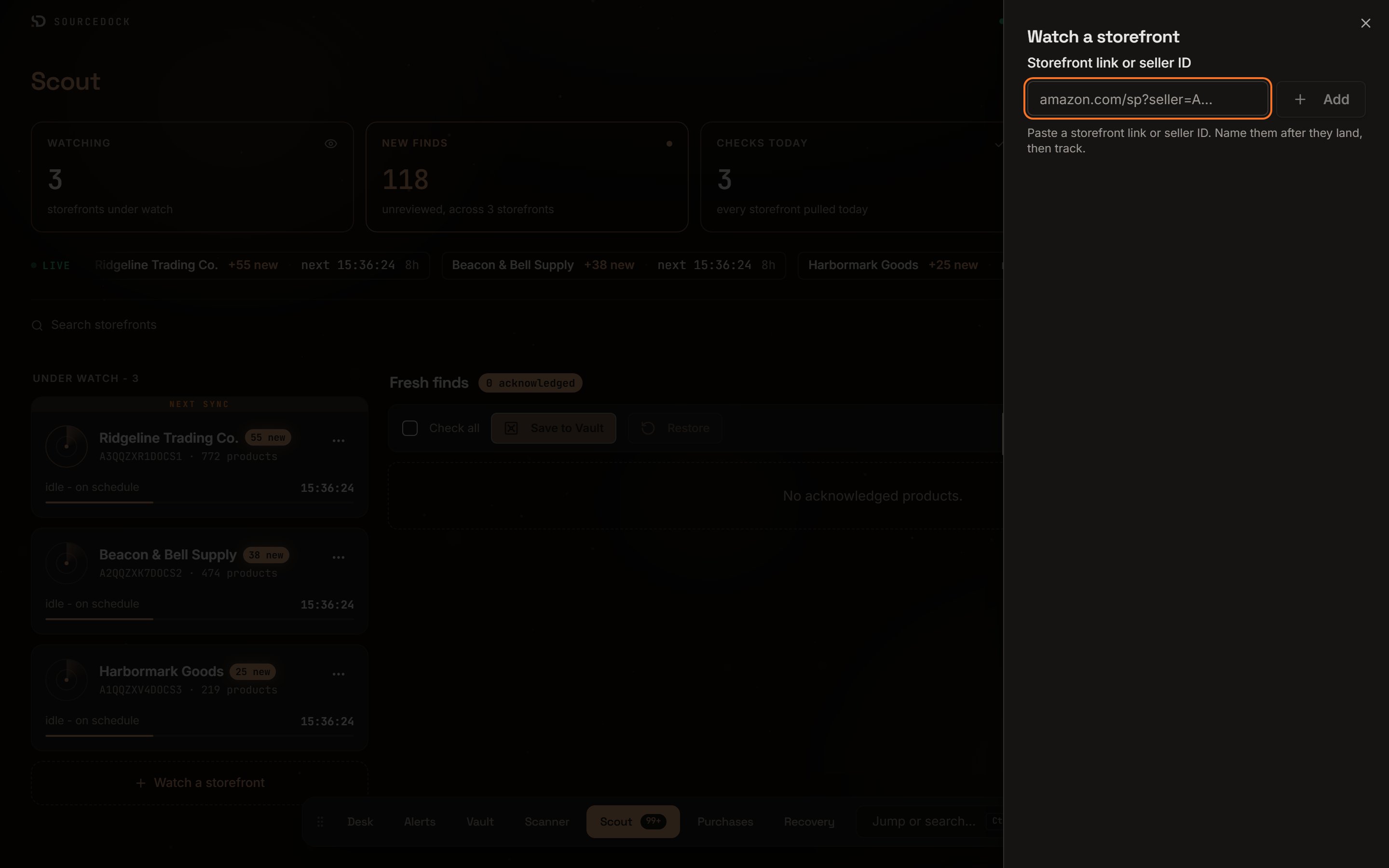
The Watch a storefront sheet with one storefront staged and named.
1
Open the sheet
Click Watch a storefront at the top right. The same button sits under the storefront cards.
2
Paste the link or seller ID
Put an Amazon storefront link or a seller ID in Storefront link or seller ID. A seller ID starts with the letter A. Click Add. The button reads Checking… while Scout finds the seller, or Still checking if that takes a while.
3
Name it
The storefront drops into a list below with its seller ID and product count. Type a name in Name this seller. You can add more storefronts before you track any.
4
Track
Tick the rows you want and click Track 2. A toast reads Storefront added to Scout. The first check runs in the background.
Tracking 5 of 5. Remove one to add another. Closing the sheet drops the staged list.
The watchtower

The four watchtower tiles.
Under the tiles a LIVE ticker scrolls one pill per storefront. Each pill shows the name and a state such as
+3 new, clean, or pending. It also shows the next check countdown and the time since the last check.
Storefront cards
Each storefront you watch is a card under Under watch. It shows the name, a3 new pill when there are unreviewed finds, the seller ID, and the product count. Before the first pull it reads first catalog pull pending. The card that is next in line wears a Next sync ribbon. Click a card to show only that storefront’s finds. Click it again to show all.
The bottom of the card shows the check state and a countdown.
The three-dot menu on a card has three items.
The feed
The right side is Fresh finds. A pill shows the count, such as12 unreviewed. The New tab shows finds you have not reviewed. The Acknowledged tab shows finds you marked as seen, so nothing is lost.
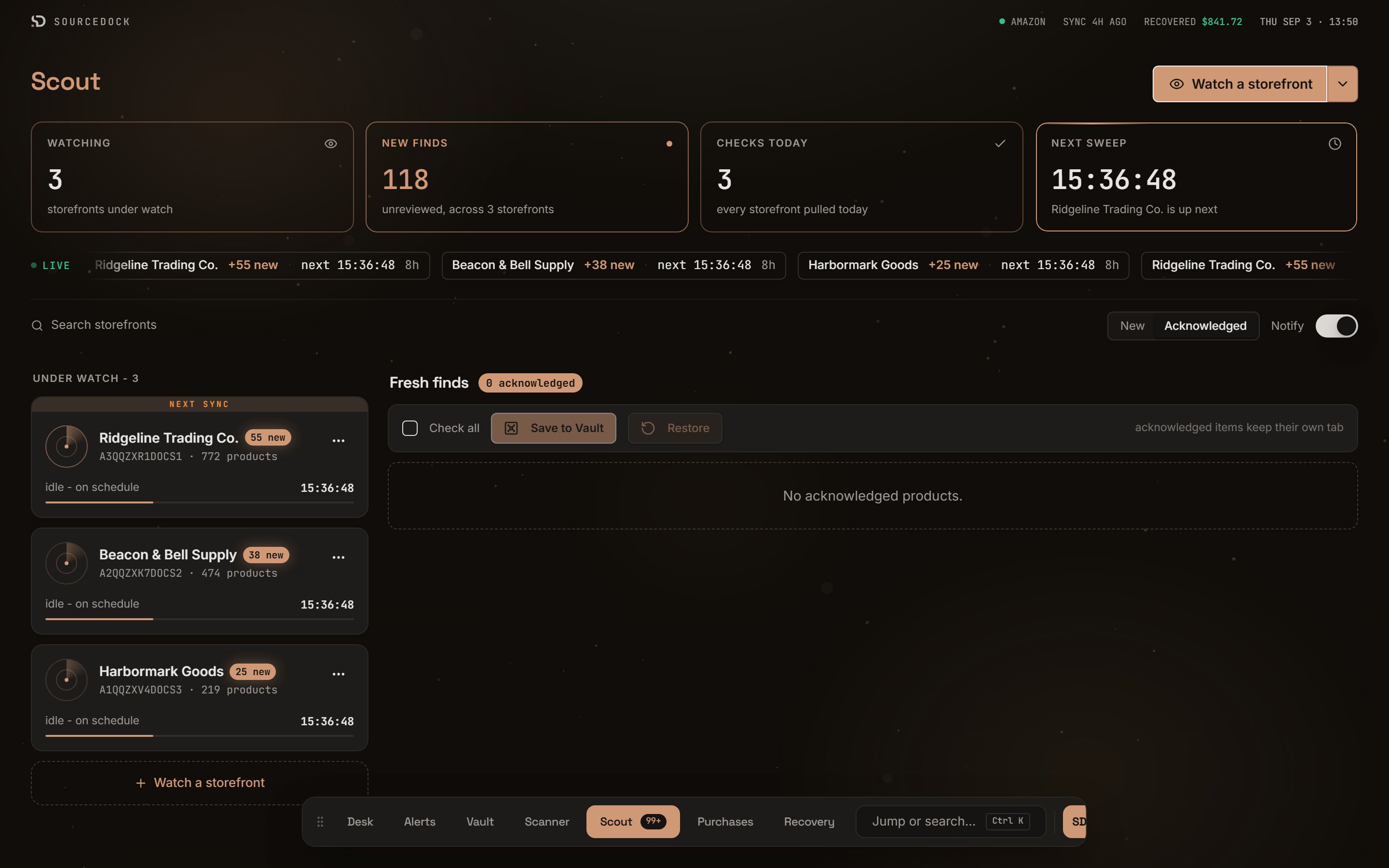
The Acknowledged view.
The feed shows eight finds at a time. Click the line at the bottom, such as
20 more - load as you triage, to see more.
Search, notify, and export
The search box reads Search storefronts. Type part of a name or seller ID to filter both the cards and the feed. The Notify switch is on by default. It shows a notice at the top right of any page when the unreviewed count goes up. It reads something like3 new products on 2 storefronts. Click it to open Scout, or click the X to dismiss it. The switch is saved in this browser only.
The arrow next to Watch a storefront opens a menu with Export new items and Export acknowledged. These download finds from every storefront. Use the card menu to export one storefront.
How often Scout checks
Every plan checks each storefront once a day. A few rules shape the timing.
A very large storefront cannot be pulled in full. Its feed reads Too big to check in full with the product count. New products on it may be missed.
Plan limits
If you watch more than your plan allows, nothing is removed. A notice reads Nothing was removed - some of it just is not being refreshed. The newest storefronts up to your limit keep being checked. The rest stay on the list but are not checked.
If your subscription is not active, the page shows one card: Scout needs an active plan. Your tracked storefronts come back as they were when you restart it.