

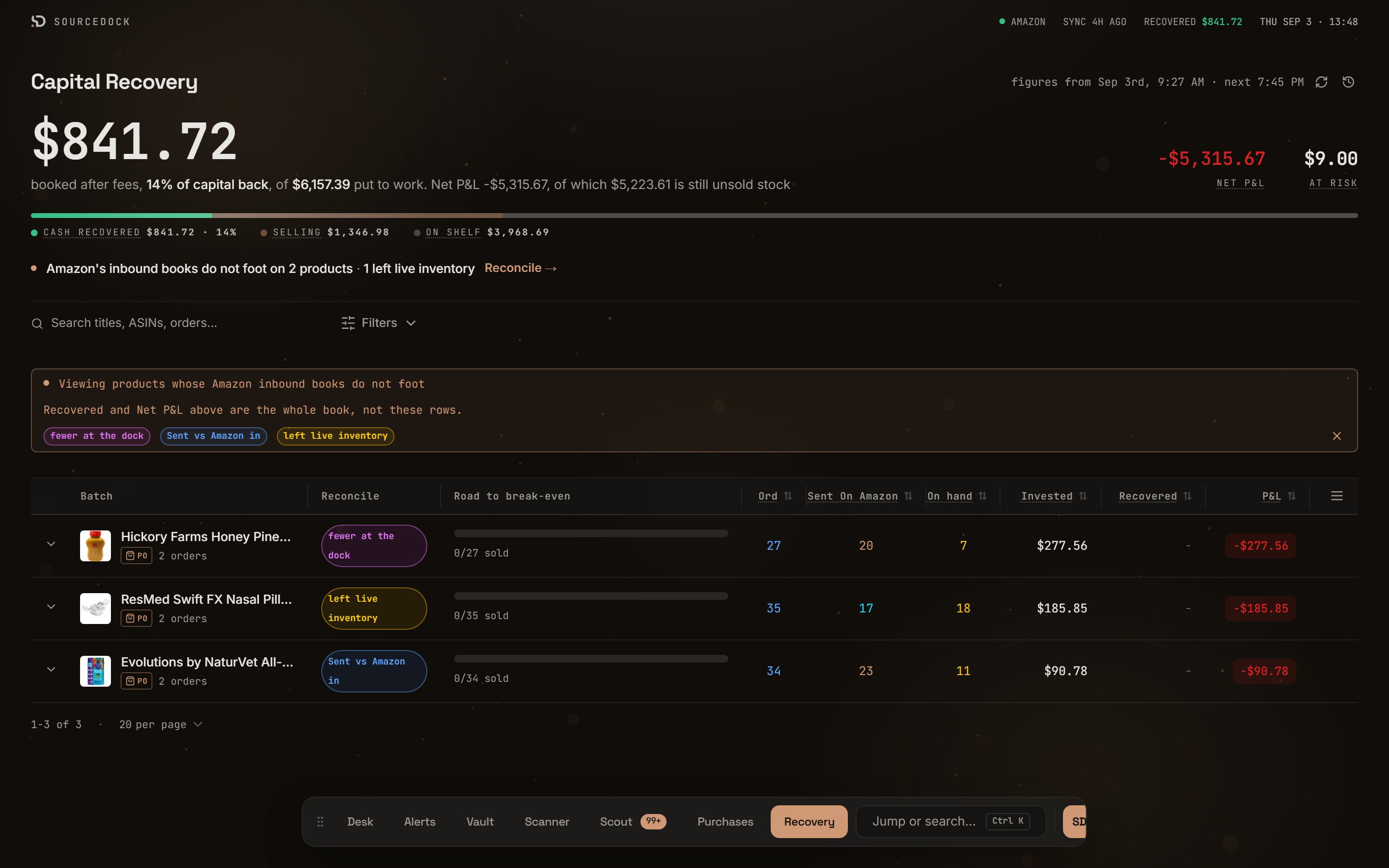
Capital Recovery in the reconcile view
The four counts
SourceDock looks at your Amazon inbound shipments for the last 180 days. It refreshes that list about every 5 minutes.
A joint is where two counts meet. There are three joints. Each one has its own message.
Where the messages show
You can also open the view with a link. Add
?recon=1 to the Capital Recovery address for every joint. Use ?recon=sent, ?recon=dock, or ?recon=warehouse for one joint. Click a chip in the banner to narrow to that joint.
Joint 1: sent vs told
This joint compares Marked Sent against Sent On Amazon. Its chip reads Sent vs Amazon in. It breaks in two directions.Amazon has more than you marked
Amazon has an inbound shipment for this product. But your order in SourceDock is still at Ordered, Received, or Prepped. You most likely forgot to move it.
To fix it, open the order on Purchases. Click its status chip and choose Sent to FBA. The message clears on the next check.
You marked more than Amazon has
Your order says the units went to Amazon. Amazon’s shipment list shows fewer, or none.
Check the order. If it did not ship, move it back to Received. If it did ship, check the shipment in Seller Central. A shipment older than 180 days will not be in SourceDock’s list.
Joint 2: told vs checked in
This joint compares Sent On Amazon against Amazon Received, for shipments Amazon has closed. Units in shipments that are still open are not counted as short.
Amazon’s own paperwork says a shipment carried more units than its warehouse counted in. The missing units never made it onto the shelf. This is Amazon’s side, not yours.
Ask Amazon. Open the shipment in Seller Central and file a reconciliation request for the missing units. If Amazon pays you for them, the message clears on its own. The expanded row may also show a Potential claim? chip with a deadline.
Joint 3: checked in vs live
This joint compares Amazon Received against Amazon holds.
Amazon counted the units in at the dock. Now fewer are in stock. No sale, loss, or damage explains the gap. Something happened inside the warehouse.
Open the row’s ledger and check the EVENTS tab for a loss or damage event. If there is none, run a sync. A recent sale may not have posted yet. If the gap stays, ask Amazon about the missing units.
The dash: shipments not found
Sometimes the Sent On Amazon cell shows a dash instead of a number. Hover it. The tip says “A dash means we did not find those shipments.” This is not zero. SourceDock looked through your last 180 days of inbound shipments and found none for this product. On hand shows a dash too. That row is left out of the column totals. No joint message fires for a dash. If you never sent the product, nothing is wrong. If you sent it more than 180 days ago, the count is not available.Chips that are not joints
The Purchases banner shows two more chips. They come from your own counts, not Amazon’s.How the messages go away
Every message is derived. Nothing is stored. SourceDock works out the joints again each time the page loads. So a message clears as soon as the two counts agree.
Run a sync to pull the latest Amazon counts if a fix has not shown up yet.