

Seats on each plan
Pro has 5 seats. You count as 1, so 5 minus 1 leaves 4 seats for other people. Flagship also has 5 seats. A new seller can pick Premier or Pro. Premier has 1 seat, and that seat is you. 1 minus 1 leaves 0 seats for a helper. A trial has the same seats as its plan. A Pro trial has 5 seats, and a Premier trial has 1. A plan that has ended has 1 seat, the same as Premier. A later section walks that drop. SourceDock counts used seats like this: 1 for you, plus each person on the team, plus each open invite. An open invite is one nobody has accepted or cancelled, and that has not run out. A paused person is still on the team, so a paused person still counts.The Team tab with two invites open
You invite Sam and Jo on the morning of October 28, 2026. Neither has joined yet, and no one else is on the team. That is 1 for you, plus 0 people, plus 2 invites, which makes 3. Open Account, then Team. The label TEAM sits at the top, with “3 of 5 seats used” beside it. Point at that line and it says The account owner counts as one seat. That is the 1 at the start of the 3. Under it is the line People you invite sign in with their own email. They see only the pages you turn on. Then comes the card, top to bottom.- You, with the badge OWNER. Your email, “maya@brightblend.example”, sits under it.
- “sam@brightblend.example”, with the badge MANAGER. Under it: “Desk, Vault, Scanner, Purchases, Recovery”. Then “Invite sent. It works until Nov 4.” Then the button Cancel invite.
- “jo@brightblend.example”, with the badge VA. Under it: “Purchases (view only)”. Then “Invite sent. It works until Nov 4.” Then Cancel invite.
- The button Invite someone.

Maya Chen's open invite to Lee: an invite row. Notice the email is the name, and the line Invite sent. It works until Nov 4.
After they join, the 3 stays 3
Sam and Jo accept. Each invite stops counting, and each person starts counting. That is 1 for you, plus 2 people, plus 0 invites, which is still 3. The line still says “3 of 5 seats used”, because each invite seat became a person’s seat. The rows change. Sam’s row now says “Sam Ortiz”, with MANAGER and his email under his name. His page line stays “Desk, Vault, Scanner, Purchases, Recovery”. Change access and Remove take the place of Cancel invite. Jo’s row works the same way, with VA and “Purchases (view only)”.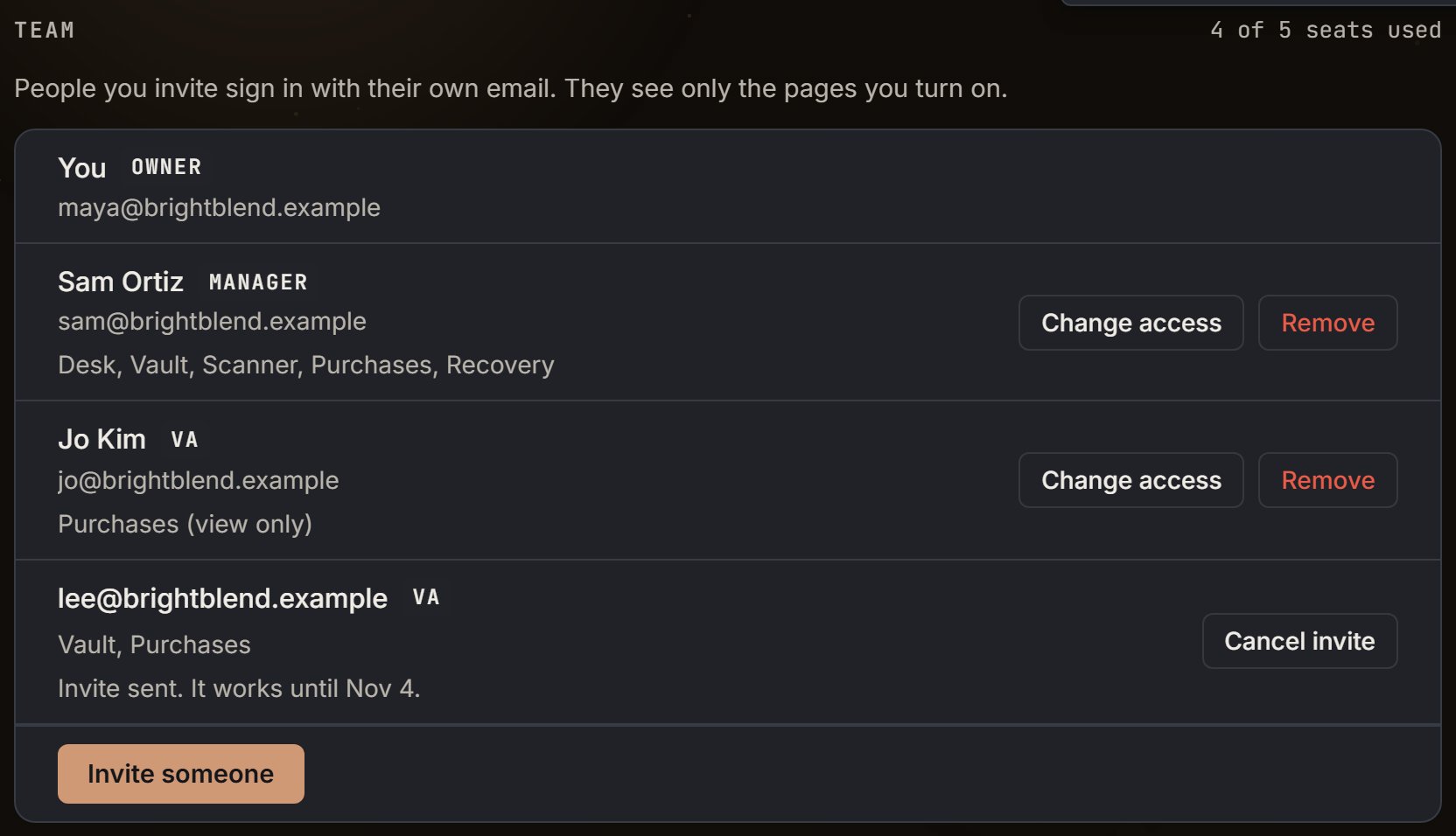
Maya Chen's team: Sam and Jo have joined, and Lee's invite is open. Notice 4 of 5 seats used at the top right: 1 for Maya, 2 people, and 1 invite.
Send an invite
Invite someone opens a box called Invite someone to your team. The same intro line sits under the title. Then comes the form, top to bottom.Type the email
Pick a role
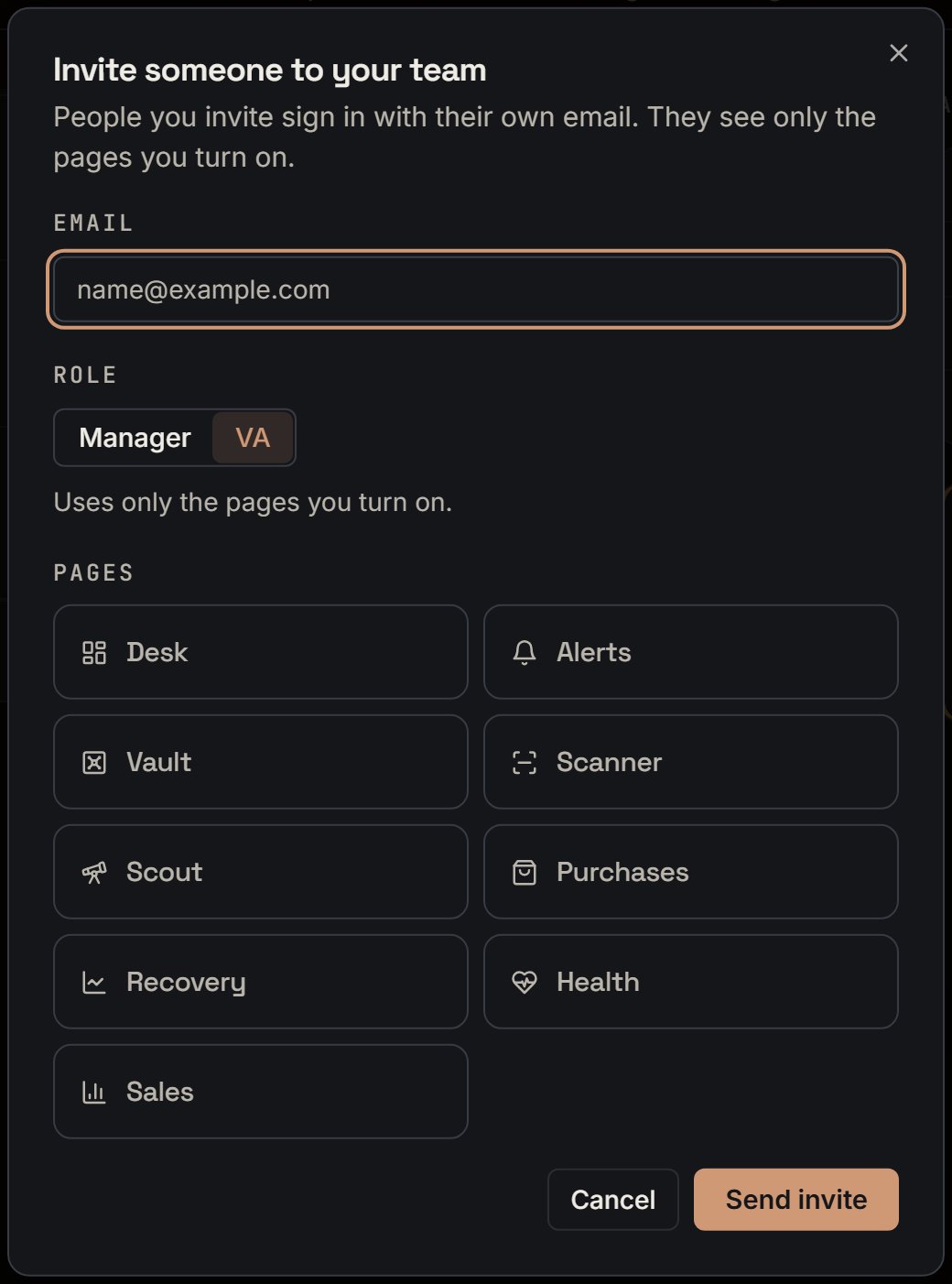
Maya Chen: the invite box as it opens. Notice it starts on VA, with every page off.
Set the pages
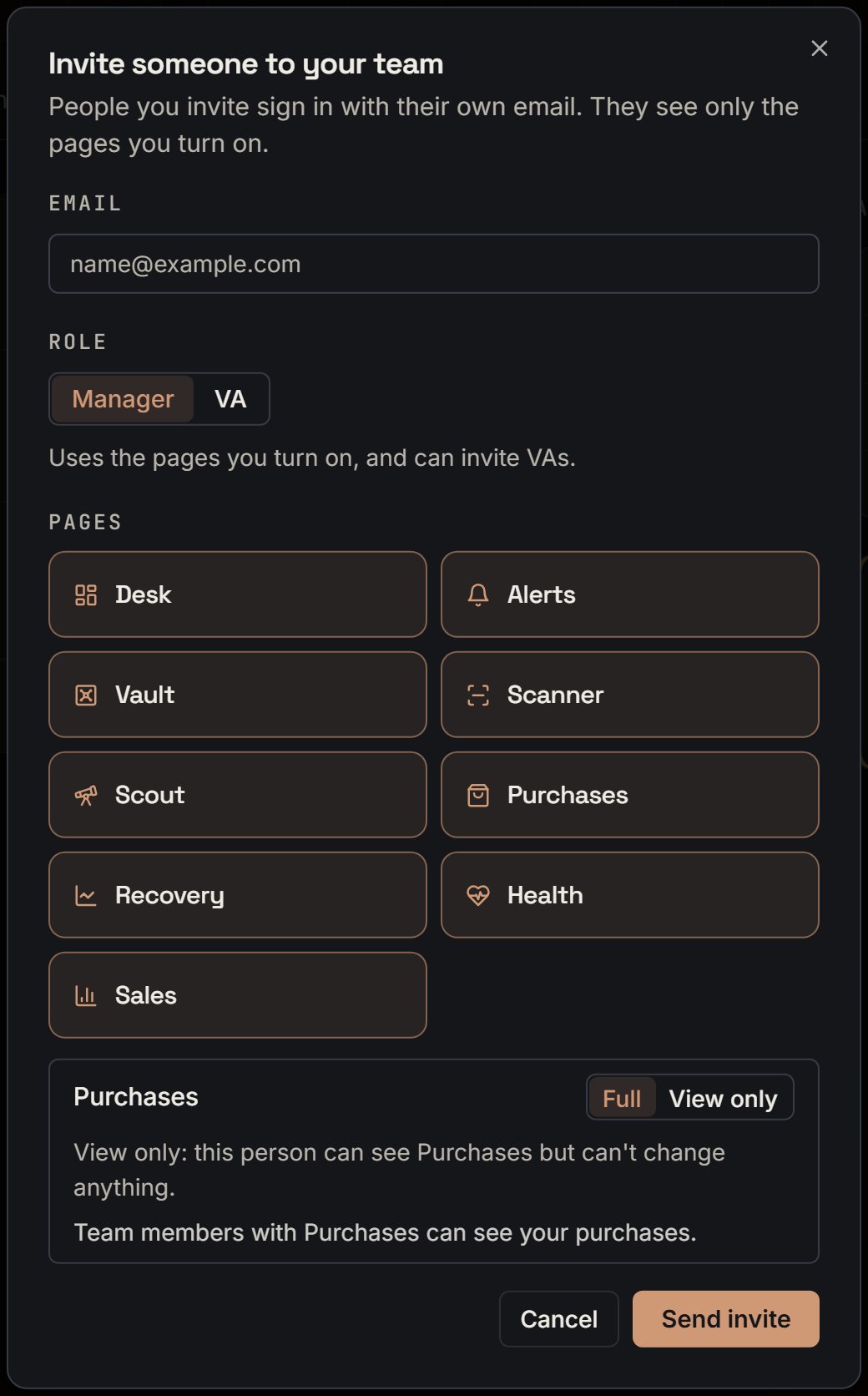
Maya Chen: the same box with Manager picked. Notice every page turns on, and Purchases shows Full and View only.
Send it
The email and the 7 days
An invite lasts 7 times 24 hours. You send Sam’s at 9:00 AM Eastern on October 28, 2026. Clocks go back one hour on November 1, so it ends at 8:00 AM Eastern on November 4, 2026. The subject is “Maya Chen invited you to their SourceDock team”. The title is You’re invited to a team. The first line says “Maya Chen invited you to join Maya Chen’s team on SourceDock as a manager. You’ll help run Maya Chen’s Amazon store, using the pages Maya Chen shares with you.” The first name in that line is whoever sent the invite. If Sam invites someone, it starts with “Sam Ortiz invited you”. The subject always names the owner, so it still says “Maya Chen invited you to their SourceDock team”. The email says “a manager” or “a VA”. If a person has no name saved, SourceDock uses their email in place of the name. Next it says “The invite works until November 4, 2026. Sign in or create an account with this email address to accept it.” The button says Accept the invite. Under it: Not expecting this? You can ignore this email. Nothing happens unless you accept. The email ends with The SourceDock team. The footer says If you were not expecting this, you can safely ignore this email. An invite past its end stops counting by itself, and its row goes away. You do not have to press Cancel invite.Accept the invite
Sam presses Accept the invite. The join page checks the link first, and while it checks it says Checking your invite… Then the title is “Join Maya Chen’s team”, with A SourceDock team invite. under it. The page says “Maya Chen invited sam@brightblend.example to their SourceDock team as a Manager.” Under that: “Pages: Desk, Vault, Scanner, Purchases, Recovery”. Jo’s page says “as a VA” and “Pages: Purchases (view only)”. If Sam is not signed in, the page says “Sign in or create a SourceDock account with sam@brightblend.example to join.” The buttons are Sign in and Create account. He must use the address the invite went to. Once he is signed in, the button says “Join Maya Chen’s team”. While it works, it says Joining… He then lands on his first page, in the same order as the switches. Sam’s first page is Desk. Jo has no Desk, so she lands on Purchases. Some problems show only after he presses the button. If he signed in with another email, the page says “This invite is for sam@brightblend.example. Sign out, then sign in with sam@brightblend.example.” The button changes to Sign out. An account with a password must check its email first. If Sam has not, the page says Verify your email first. Check your inbox, then open the invite link again.What each role can do
You, Sam, and Jo are all in. The seat line still says “3 of 5 seats used”.
Sam Ortiz, Maya Chen's manager: his card on the Team tab. Notice Your role: Manager and his five pages.

Jo Kim, Maya Chen's VA: her card. Notice Your pages: Purchases (view only).
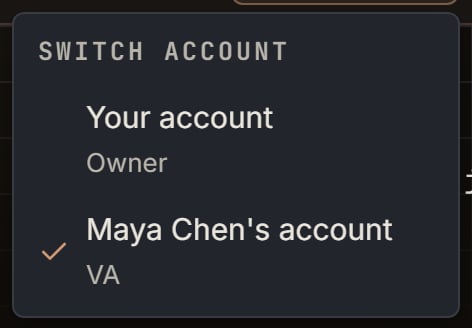
Jo Kim: her Switch account menu. Notice the check mark on Maya Chen's account, with VA under it.
Pages, and Jo’s view only
Full means they can use the page and change things on it. View only exists only on Purchases. Jo opens Purchases. A line at the top says You can view Purchases but not change it. Record Purchase is gone, and Export sits in its place. The Import from Amazon tab is hidden, and the Reconcile tab does not show. Write-offs stays. If a change is tried anyway, SourceDock refuses it with You can view this page but not change it. Expenses is not a switch in the invite. A helper gets it with Sales or Recovery, on a plan that has either one. Sam has Recovery at Full on Pro, so he sees Expenses and can change it. Jo has neither page, so Expenses stays hidden for her. On the phone app, Calculator goes with Vault, and Box photos goes with Purchases. They are not extra switches. Jo’s Box photos says You can view Purchases but not change them, so you can’t add photos.What a helper never sees
While they work in your account, Sam and Jo never see these Account tabs: Billing, Connections, Reports, Features, and Danger. They see these, in this order: Profile, Team, Security, Sessions, and Badges. While they work in your account, their menus don’t show Billing & pricing or Connections. In their own account, they see their own. Account stays. If they open the Connections address, they get the not-shared line. On Profile, a helper sees the SourceDockIQ (Chrome extension) card. You see that card on Connections instead. On Profile, a helper also sees Sync purchases to Google Sheets. It says Connected. or Not connected. The account owner can turn it on in Connections. When it is connected, it adds Only the account owner can connect or disconnect Google Sheets. They get no connect or disconnect button. A manager sees the Team tab’s seat line, like “3 of 5 seats used”. Only the line about a plan with no team seats, and its See plans button, are yours alone.Remove someone, or leave
On Sam’s row, you press Remove. The box asks “Remove Sam Ortiz from your team?” It says “Sam Ortiz loses access to your SourceDock account right away. Sam Ortiz’s own SourceDock account, if Sam Ortiz has one, stays.” Remove does it, and Keep closes the box.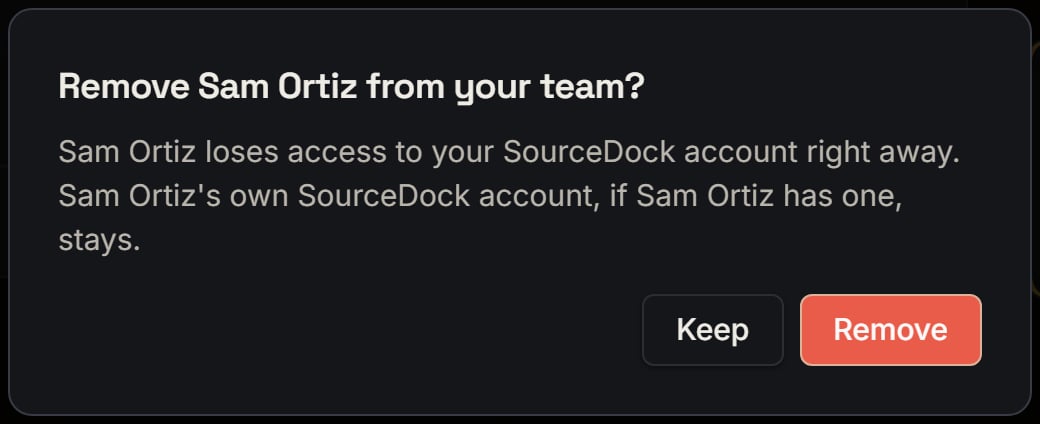
Maya Chen removing Sam Ortiz: the box before anything happens. Notice Keep closes it and nothing changes.
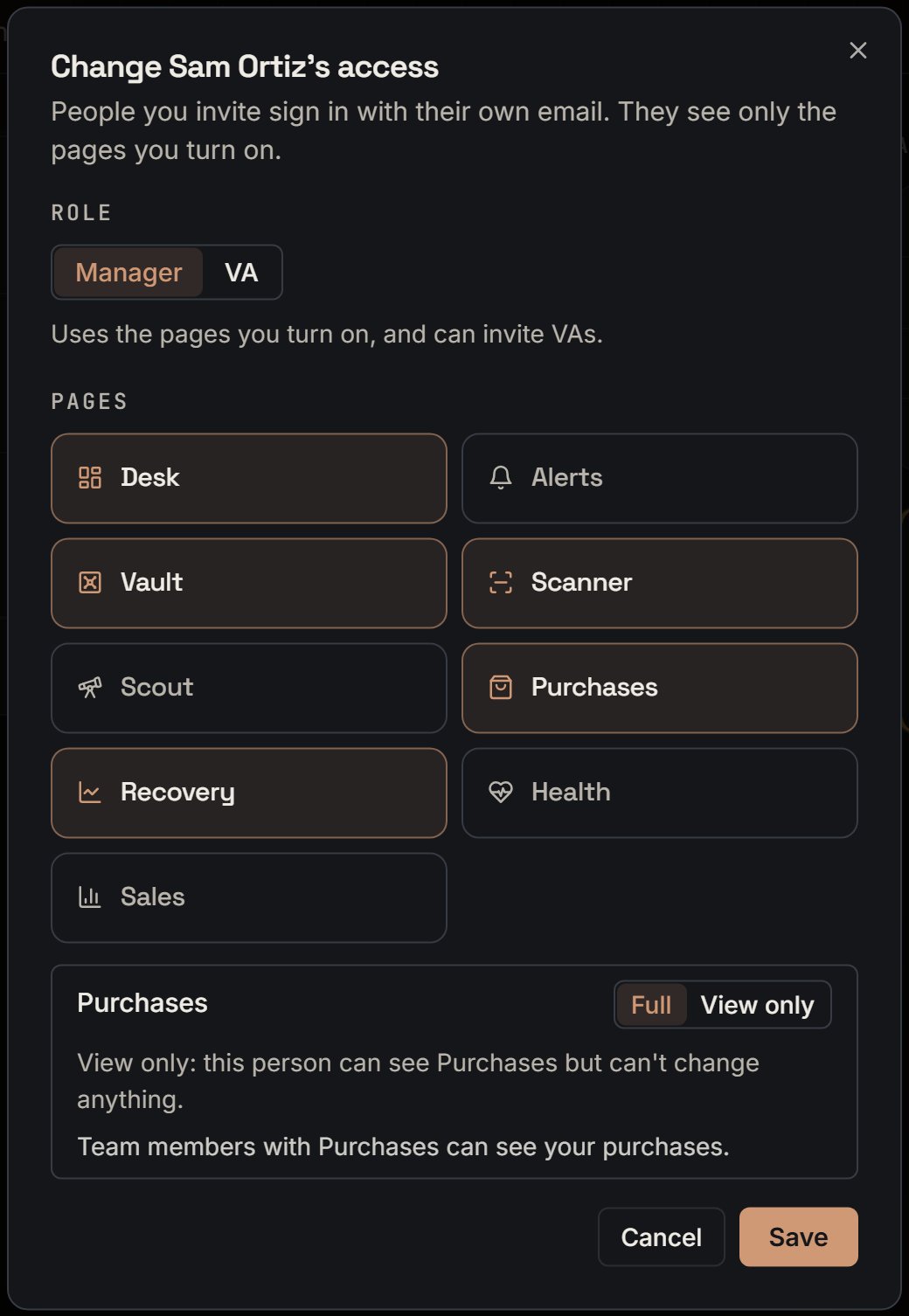
Maya Chen: Change Sam Ortiz's access. Notice there is no email box, and his five pages are on.
When the plan pauses or ends
Start from the joined team. The line says “3 of 5 seats used”, and Sam and Jo both work. You move to Premier, which has 1 seat. Room for helpers is 1 minus 1, which is 0. So both helpers pause as soon as your plan is Premier. There is no 3-day wait for a plan change. A failed payment is different. For 3 days after it fails, your plan still works. The limit stays 5, the line stays “3 of 5 seats used”, and Sam and Jo keep working. Say the payment fails at 9:00 AM Eastern on October 28. The 3 days run until 9:00 AM Eastern on October 31. After that, your plan has ended and the limit drops to 1. A plan you cancel keeps its seats until the paid time runs out. After that, the limit is 1 too. On an ended plan, or on Premier, seats for helpers are 1 minus 1, which is 0. So 0 people can work, and 2 minus 0 means 2 people are paused. The “3 of 5 seats used” line hides, because it shows only when the limit is more than 1. The used count is still 3, because paused people still count. You just do not see it. A bar at the top of your pages says Your plan has no team seats. SourceDock paused your team members. With only 1 paused person, it says Your plan has no team seats. SourceDock paused your team member. Its button, See plans, opens your Billing tab. Only you see this bar. On the Team tab, under the rows, you see “Your plan has no team seats. Pro has 5 seats, and you count as one.” Its See plans opens Billing too. Invite someone is gone. Each helper’s row gets a PAUSED badge. Point at it, and it says “Sam Ortiz stays on the team but can’t use this SourceDock account, because the account owner’s plan has no seat for Sam Ortiz right now.” Jo’s says the same with her name. Nothing is deleted, and their pages stay saved. You can still use Change access and Remove. Sam’s menu still lists “Maya Chen’s account”, but he cannot pick it. Under it, it says “Paused. Maya Chen’s plan has no seat for you right now.” If Sam was in your account when his seat ended, SourceDock sends him to his own account. A note says The account owner’s plan has no seat for you right now. Ask the account owner to pick you. If he never had a plan of his own, and every team he is on is paused, that sentence fills the screen with a Sign out button under it. Say you sent an invite before the move to Premier. It cannot be accepted now, because the seats used are more than the limit. After the person presses the join button, they see “Every seat on Maya Chen’s plan is taken. Ask Maya Chen to free a seat.” The invite stays open until you cancel it or it runs out. You go back to Pro, and the limit is 5 again. Room for helpers is 4, and you have 2 people, so both can work at once. The PAUSED badges go away, and the line says “3 of 5 seats used” again. You do not send new invites.Empty states and errors
Only you so far
Only you so far
The team did not load
The team did not load
The invite link is bad
The invite link is bad
Too many invites
Too many invites
An account is being deleted
An account is being deleted
Two tabs, or lost access
Two tabs, or lost access
A missing invite or person
A missing invite or person