

Scenario for this page: the demo store before its first Account Health check. SourceDock hasn’t stored a check for it yet, so the pictures show what any store sees before the first check. Find it in the demo login: press H, or open the picture menu and pick Health. The numbers in the walk below are a made-up store, Harbor Toys.
Harbor Toys at 2:14 PM
SourceDock last read Amazon today at 2:14 PM ET. The check before that was today at 11:02 AM ET. You did not press a button. SourceDock asks Amazon about every 3 hours, and nothing you do starts a check. A failed check saves nothing, so the last good check stays. The next try waits about 3 hours. The page reads the saved checks again every 15 minutes. The numbers change only when a new check is saved. The heading reads Account health. Then it reads “Good. Last checked 2:14 PM ET.” A check from today shows the time only, with ET on the end. A check from another day adds the month and day, like “October 27 at 2:14 PM ET”.Account Health Rating
The big number is “248”. Beside it is / 1,000. The chip says Good, in capital letters. The number is green. Under it, the label reads Account Health Rating. 248 is Amazon’s score, rounded to a whole number. 247.6 would show as 248. 247.4 would show as 247. A missing score is never turned into 0. The bands use that whole number:
248 is at least 200, so the chip is Good.
The bar runs from 0 to 1,000. The mark sits at 248 ÷ 1,000 = 24.8% of the way across. The red piece is the first 100 points, which is 10% of the bar. The amber piece is the next 100 points, another 10%. The rest is green, so your mark sits a little way into the green.
The ticks read 0, 100, 200, and 1,000.
The dot by Health uses this same band, so yours is green. It does not look at complaints or late orders. A green dot can sit next to a red warning line.
If Amazon sends no score, the big number and the bar are hidden. The line says Amazon didn’t send a rating. The dot is gray.
Click Open Account Health in Seller Central to see Amazon’s own page in a new tab. A US store opens
sellercentral.amazon.com/performance/dashboard. A Canada store opens sellercentral.amazon.ca/performance/dashboard. A Mexico store opens sellercentral.amazon.com.mx/performance/dashboard.
Account status
The same card lists Account status. It has one row per marketplace Amazon sent. Harbor Toys shows three. They sort as US, then Canada, then Mexico.
Normal means Amazon lets you sell there. At risk means Amazon may stop the account there. Deactivated means you cannot sell there right now, and it shows in red. Any other word Amazon sends shows as that word, in red too.
Your Canada row is the one to open in Seller Central. The US and Mexico rows are fine.
If Amazon sends no rows, the card says Amazon sent no account status.
The card also says Last checked, then “2:14 PM ET” in bold. That is the same 2:14 PM ET check.
Intellectual property
Two counts sit side by side. They are not part of Other policy issues. IP complaints received is “2”. It is red because it is more than 0. The line under it says Brand or rights owners told Amazon about a listing. A brand told Amazon that a listing broke their rights. Yours is the BrightMix blender. The page does not name it, but Seller Central does. The last check had 1 complaint. This check has 2. 2 − 1 = 1, so the chip says “1 new since last check”, with an up arrow, in red. A new complaint can lower your rating. Suspected IP violations is “0”. It stays the normal text color, and above 0 it would turn red. The line under it says Flagged by Amazon before any rights-owner complaint. Amazon itself flagged listings, and no owner had to write in. The rise is 0 − 0 = 0. The chip says “None new since last check”, in gray, with no arrow. Both counts compare with the 11:02 AM ET check. The card header says “vs 11:02 AM ET check”. If an older check had no number for a count, that count looks further back to the newest check that has one. If both counts look back to the same older check, the header names that check. The chips still say “since last check”. If the two counts look back to different checks, the header is hidden. Then each chip names its own check, like “1 new since the October 27 at 9:40 AM ET check”. If today’s check has no number for a count, the big number shows - and there is no chip. If no older check has that count, the chip is hidden too. A count that falls does not show a minus. The chip still says none new, and the big number is today’s count. Each count is rounded to a whole number, so 1.6 would show as 2. At the bottom of this card is the status line. The Desk card shows the same line. See “What the warnings mean” below.Other policy issues
This card starts closed. Its header shows one total, then the word open. Click the header to open the list. Harbor Toys:
Add the numbers Amazon sent: 1 + 2 = 3. The zeros add nothing. The header shows “3” in amber, then open in gray. The number turns amber at 1. A total of 0 stays gray.
While the card is closed, one sentence names only the rows above zero. It says “1 listing policy violation, 2 policy warnings.”
Open the card and every row is there, zeros included. A row Amazon left out shows -, and it is left out of the 3.
Nine of these rows are Amazon’s defect count. Policy warnings is Amazon’s warning count. Each is rounded to a whole number.
If every count Amazon sent is 0, the closed card says None open. If Amazon sent none of the ten, the header shows - and the line says Amazon sent none of these counts.
These are account totals. They do not name the blender. Open Seller Central for the listing.
Customer service
The card title is Customer service. Beside it: “Order defect rate · target under 1%”. Those target words come from the first row, FBA orders. FBA means Amazon stores the goods and ships the order. Amazon sent a target of 0.01 and the condition “less than”. 0.01 × 100 = 1, so the words are “under 1%”. FBA orders is “0.50%”, with a green check. Amazon sent the rate 0.005. 0.005 × 100 = 0.50, and the page keeps two decimals. Amazon also counted 4 orders with a defect, out of 800 orders. 4 ÷ 800 = 0.005, which matches the rate. Hover the percent and it says “Amazon counted 4 of 800.” A defect here is a bad review, an A-to-z claim, or a chargeback. An A-to-z claim is a buyer’s claim through Amazon. A chargeback is the buyer’s bank taking the payment back. The bar runs from 0% to twice the target. Twice 1% is 2%. The middle line is the limit. 0.50 ÷ 2 = 0.25, so the fill is 25% of the bar. That is halfway to the middle line. The labels read 0%, “1% limit”, and “2%”. A rate of 2% or more fills the whole bar. A rate of 0 fills none. A good row’s fill is green, and a bad row’s fill is red. Seller-fulfilled orders is “1.48%”, in red, with a red triangle. Seller-fulfilled means you ship the order yourself. Amazon sent the rate 0.0148. 0.0148 × 100 = 1.48. Amazon counted 3 orders with a defect, out of 203. 3 ÷ 203 is about 0.0148, so the hover and the percent agree. The percent is always Amazon’s own rate, and the hover shows Amazon’s own counts. The target is still under 1%. 1.48 is past 1, and Amazon marked this row BAD. The fill is 1.48 ÷ 2 = 74% of the bar, past the middle line. Amazon’s own GOOD or BAD always wins. If Amazon says GOOD, you get the green check even when the rate is over the target. Only when Amazon sends neither does the page hold the rate to the target. Then “under” means the rate must stay below it, and a rate that equals the target misses. The page does not print the start or end dates of Amazon’s window. The hover says Amazon counts this over its own recent window. If Amazon had no orders, the figure says No orders, not 0.00%, and the bar is hidden. If the rate itself is missing, you see -. If Amazon sends no order defect rate at all, the card says Amazon sent no order defect rate.Seller-shipped orders
This card is for orders you ship yourself. Amazon holds each rate to the target it sent.
These four use one decimal. 0.015 × 100 = 1.5. 0.80 × 100 = 80.0. A trailing zero stays on this card. The order defect card would have printed 80.00%.
Late shipment rate is orders you shipped after the ship-by date, out of seller-shipped orders. 6 of 400 is 1.5%. The target 0.04 reads “under 4%”. 1.5 is under 4, and Amazon said GOOD, so you get a green check.
Cancellation rate is seller-shipped orders you canceled before they shipped. 2 of 400 is 0.5%. The target 0.025 reads “under 2.5%”. You are under it, so you get a green check.
Valid tracking rate is packages with a tracking number Amazon could follow. The target 0.95 reads “over 95%”, so you need to be above 95%. 390 of 400 is 97.5%, which is above it. Green check.
On-time delivery rate is packages that arrived by the date Amazon promised the buyer. The target is over 90%. 312 of 390 is 80.0%, which is below 90%, and Amazon said BAD. The number is red, with a red triangle.
This card has no bar. The target sits under each name.
Late shipment and cancellation are out of orders. Valid tracking is out of shipments. On-time delivery is out of shipments that had tracking Amazon could follow. That is why on-time is 312 of 390, not 312 of 400.
If you have no seller-fulfilled orders and no late-shipment orders, this whole card is hidden. Customer service then shows FBA orders only.
The desk
On the Desk, the round picture is the SourceDock Flywheel. Its pill says “Account health: Good”. That is the band name, not 248. The pill is green. At risk is amber, and Critical is red. With no band yet, the pill says Account health, in gray.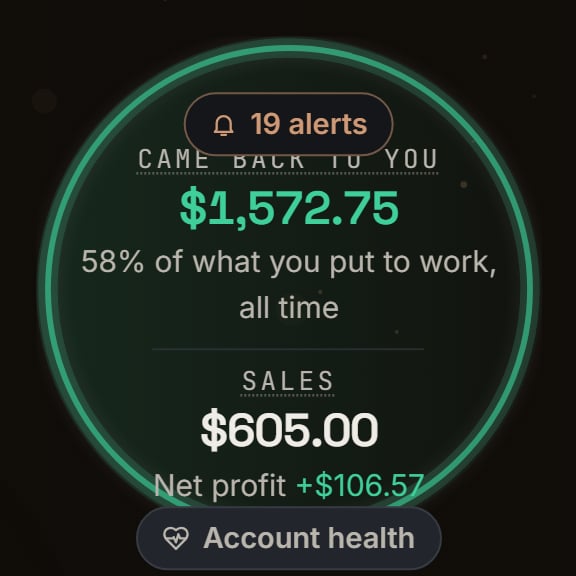
Demo store before its first check: the middle of the wheel. Notice the pill at the bottom says just Account health, in gray, because there is no band yet.
- Account health, then “Checked 2:14 PM ET”. The page says Last checked. The Desk says Checked. It is the same time.
- “248” and Good, in green, with a short bar and no ticks.
- IP complaints “2”, in red. The page says IP complaints received, and the Desk says IP complaints. The small chip is “1”, in red, with an up arrow. Hover it, and it says how many more Amazon counts now than at SourceDock’s 11:02 AM ET check.
- Suspected IP violations “0”, with a gray “0” chip.
- Other policy issues “3”, in amber. This one has no “new” chip.
- “1.48%” with the label ODR, seller-fulfilled. The Desk shows one order defect rate, the higher one. 1.48% is higher than 0.50%, so the seller-fulfilled row wins. It is red because that row is bad. A row that is not bad stays the normal text color. A tie keeps ODR, FBA. If you ship only through FBA, the label says Order defect rate.
- The chips “US”, “CA”, and “MX”, with the same dots. The words under them are “CA at risk”. Only marketplaces that are not Normal are named. If all of them are Normal and you have more than one, it says All marketplaces normal. One normal marketplace says Account normal.
- Details. The whole card opens the health page.
What the warnings mean
The status line can stack three kinds of news. Old numbers come first. A new problem comes next. Then comes each marketplace that is not Normal. Old numbers: if the newest check is more than 12 hours old, the line adds an amber warning. It reads like “SourceDock couldn’t check this account since 2:14 PM ET. These numbers are from that check.” That is about four missed checks. It happens when checks keep failing, or when the store’s Amazon link stops working. You still see the last good numbers, but you cannot start a check. A new problem is a higher IP complaint count, a higher suspected IP count, or a rating band that fell. Your line has the new complaint. The band did not fall, since 248 is still Good. A band drop reads like “Rating dropped from Good to At risk since the 11:02 AM ET check.” Marketplace words look like “Canada is at risk.” A deactivated row would say “Mexico is deactivated.” What to do: click Open Account Health in Seller Central and work the row Amazon marked. SourceDock only reads these numbers. It does not fix them for you. The same Health strip on desk switch also turns on an alert. It shows on Alerts, at the top, while Everything is selected. The button says Open Health. Your alert title is “1 new IP complaint”. A new complaint is the title even if the band also fell. The line under it is “Account health · rating 248, Good”. A suspected IP rise does not make this alert. It does show on the status line. A band drop with no new complaint uses a title like “Rating dropped from Good to At risk”. The alert shows the newest band drop or new IP complaint from the last 7 days. A drop counts only while your band is still below the band you fell from. Its title runs from that band to today’s band. Say the next check is 80. That is Critical, so the title becomes “Rating dropped from Good to Critical”. Say the check after that is 172. That is At risk, still below Good, so the title reads “Rating dropped from Good to At risk”. If you climb back to 200 or more, that drop no longer counts. The alert then goes back to your new IP complaint, as long as that complaint’s check is less than 7 days old. The X button on the alert says Hide for 7 days. Hiding it does not change the health page. A newer drop or complaint shows up again, even if you hid the old one.When something is missing
No store yet: the page says Connect an Amazon store first. Then it says SourceDock checks its Account Health about every 3 hours. The link is Open Connections. Still loading: you see gray blocks, and the Desk card shows gray bars. There is no number yet, and the dot is gray. No check stored: the page and the Desk card say SourceDock hasn’t checked this account yet. Under that: SourceDock checks Amazon about every 3 hours, so the first numbers show up soon.
Demo store before its first check: the health page. Notice it says SourceDock hasn't checked this account yet, and shows no score.
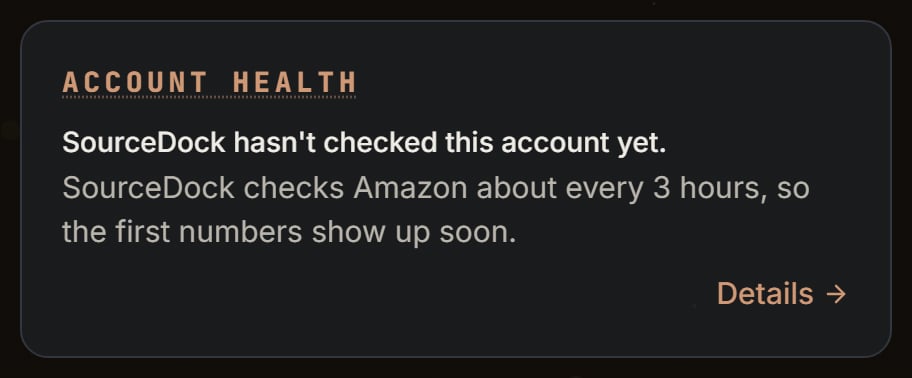
Demo store before its first check: the Desk card. Notice it says the same words as the page, with a Details link.