

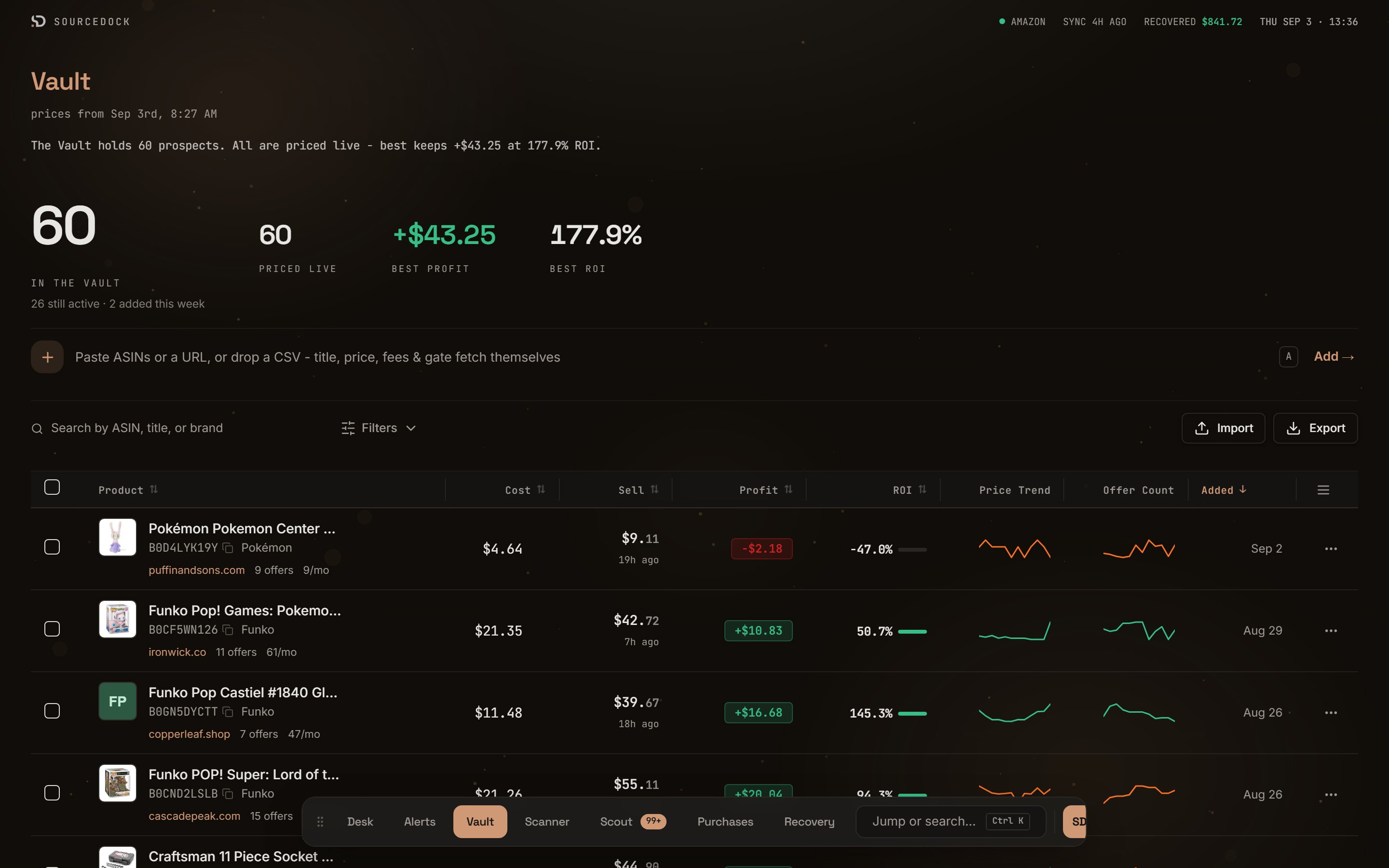
The Vault. Headline figures on top, then the add bar, the filters, and the prospect table.
The headline
The top of the page is one plain sentence, such as “The Vault holds 11 prospects. 8 are priced live - best keeps +$33.82 at 112.7% ROI.” Four figures sit under it. They cover the whole Vault, not only the page you are on. A figure shows a dash when nothing is priced yet. A dash is not zero.
The headline figures cover the whole Vault, not only the page you are on.
Add a prospect
The add bar sits under the headline. Paste an ASIN, an Amazon link, or a list of ASINs. Press Enter or click Add →. You can also drop a CSV file on it. Press the A key to jump to the bar from anywhere on the page. The bar opens the Add to Vault sheet on the right tab for what you pasted. The Import button opens the same sheet.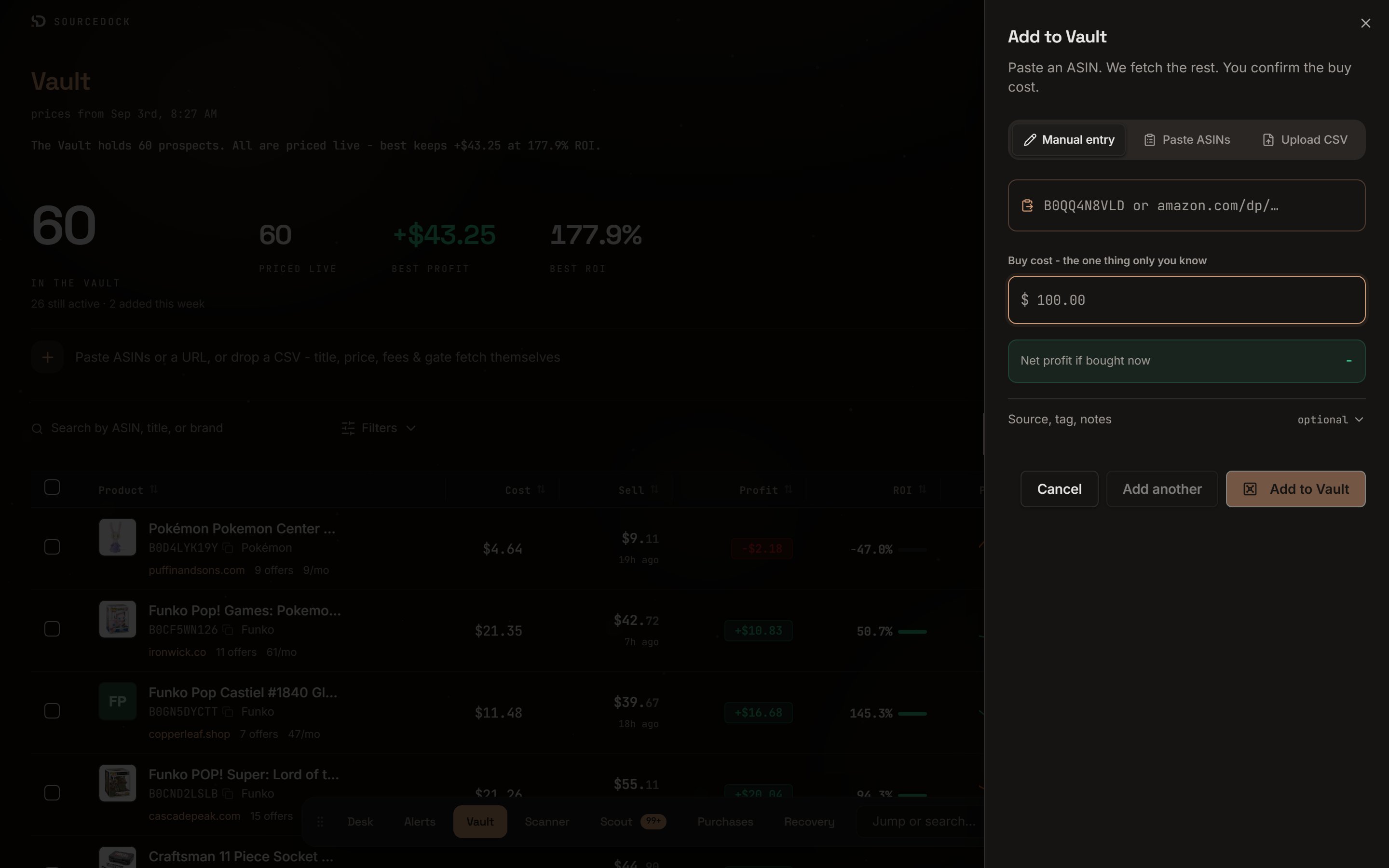
The Add to Vault sheet on the Manual entry tab.
Manual entry
Manual entry
Paste one ASIN or product link. A preview card fills in with the image, title, sell price, and fees. A gate chip reads OPEN, GATED, or BLOCKED. Type your buy cost. The line Net profit if bought now updates as you type. Open Source, tag, notes for the optional fields.Click Add to Vault to save and close, or Add another to save and keep going. If the ASIN is already saved, the sheet offers Open existing.
Paste ASINs
Paste ASINs
Paste many ASINs, one per line or split by commas. Type one cost in Buy cost, applied to every ASIN ($). Click Import 12 Prospects.
Upload CSV
Upload CSV
Drop a CSV file or click to browse. Only the ASIN column is required. The file can also carry buy cost, sell price, source link, title, brand, notes, and tags. Match the columns, then click Import Prospects. A row with no buy cost imports at $0 and gets a Needs cost badge.
What fills in on its own
After you add a prospect, SourceDock looks the product up and keeps these fresh.
If Amazon fee data is not available, the fees come from a local estimate. Those rows show a small est. fees note. Real fees may differ.
The table
Click a header to sort by Product, Cost, Sell, Profit, ROI, or Added. Click any row to open it for editing.
Badges and notes on a row
Filters
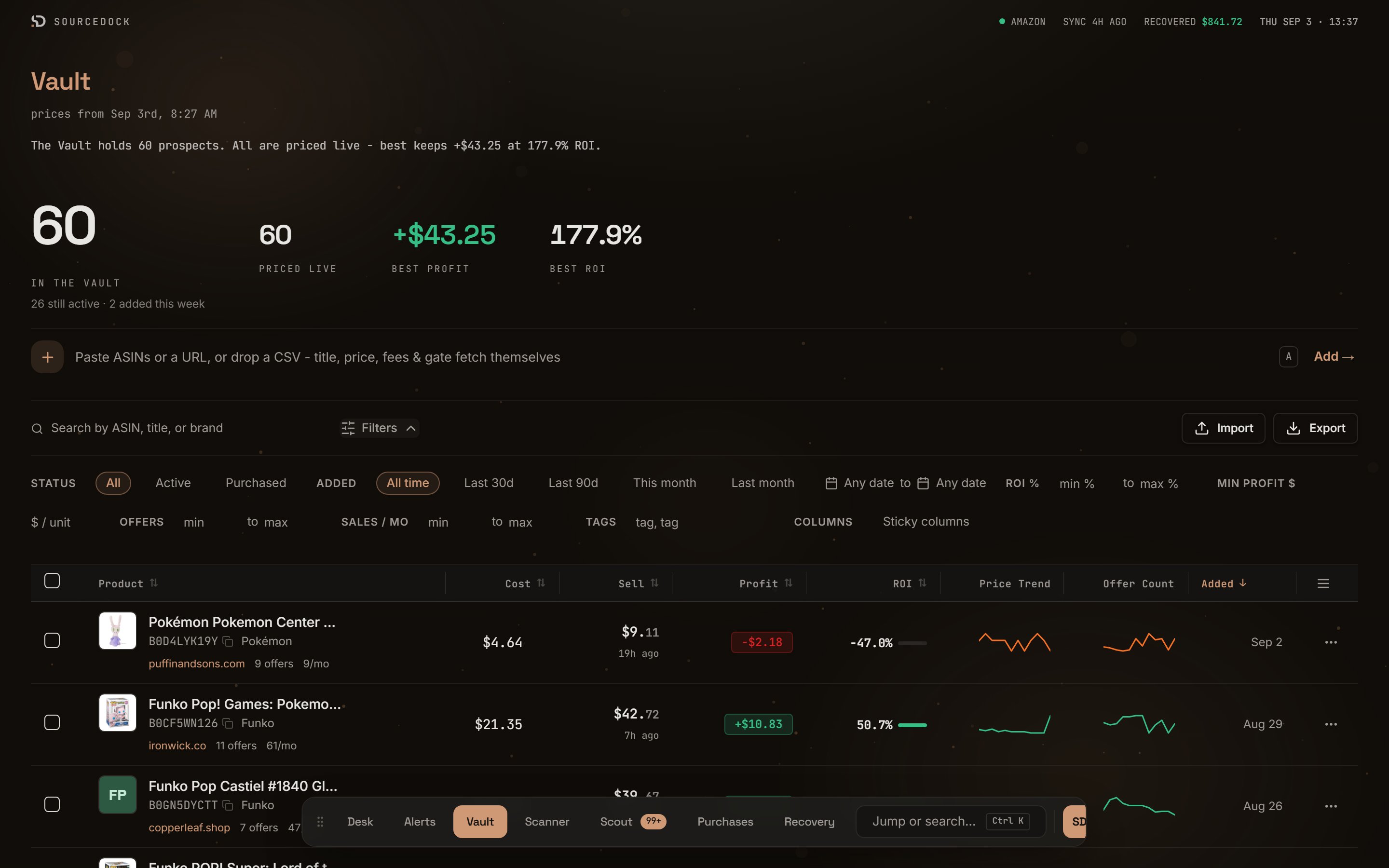
The filter panel open.
A profit filter cannot judge a row with no buy cost. When a filter leaves rows out for that reason, a line under the filters says how many and why. It has a link to clear those filters.
Row actions
Hover a row to see a Buy button. It opens the record purchase form with this prospect filled in.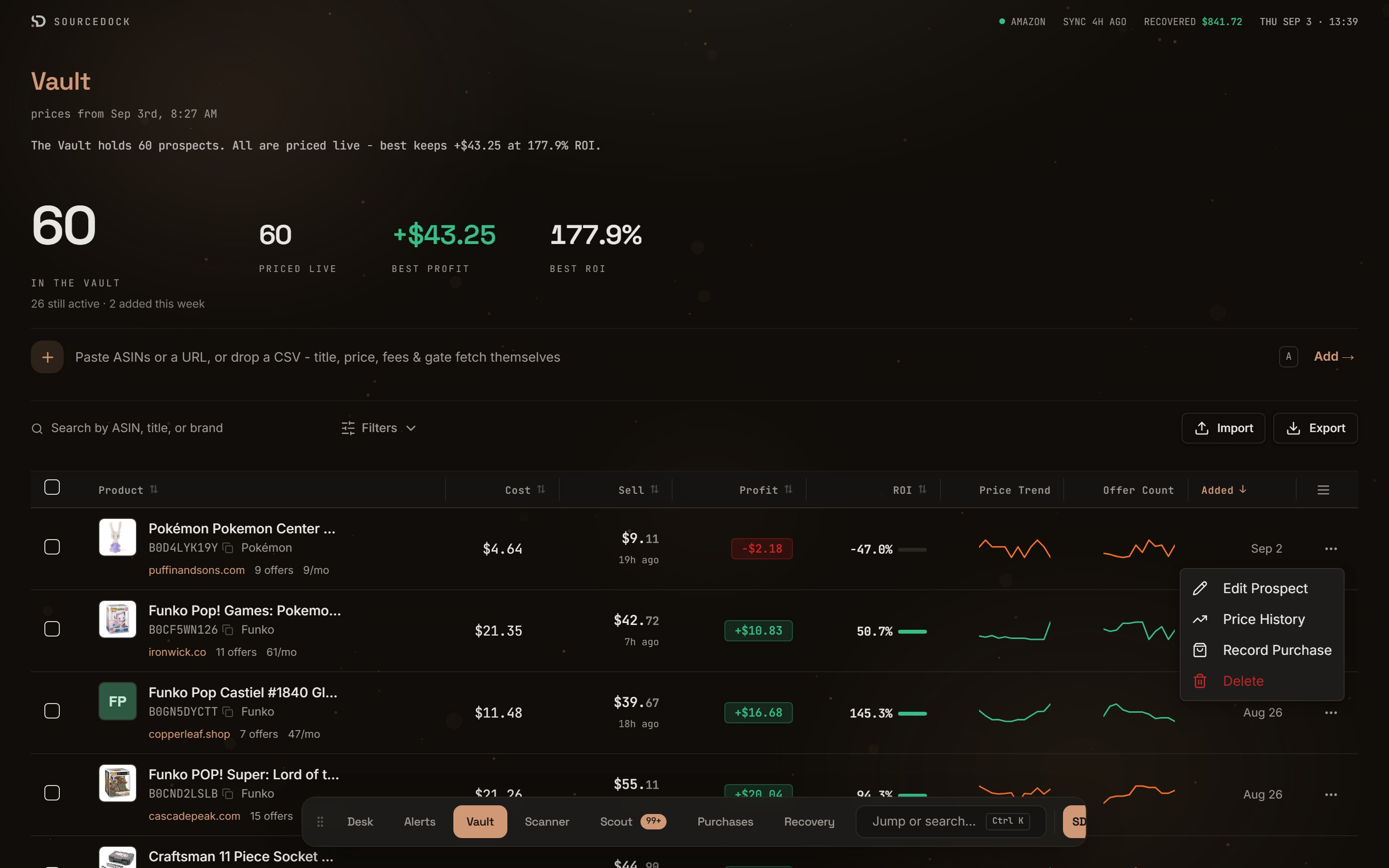
The row menu.
Bulk actions
Tick one or more rows. The top box ticks the whole page. A bar appears at the bottom.Column settings
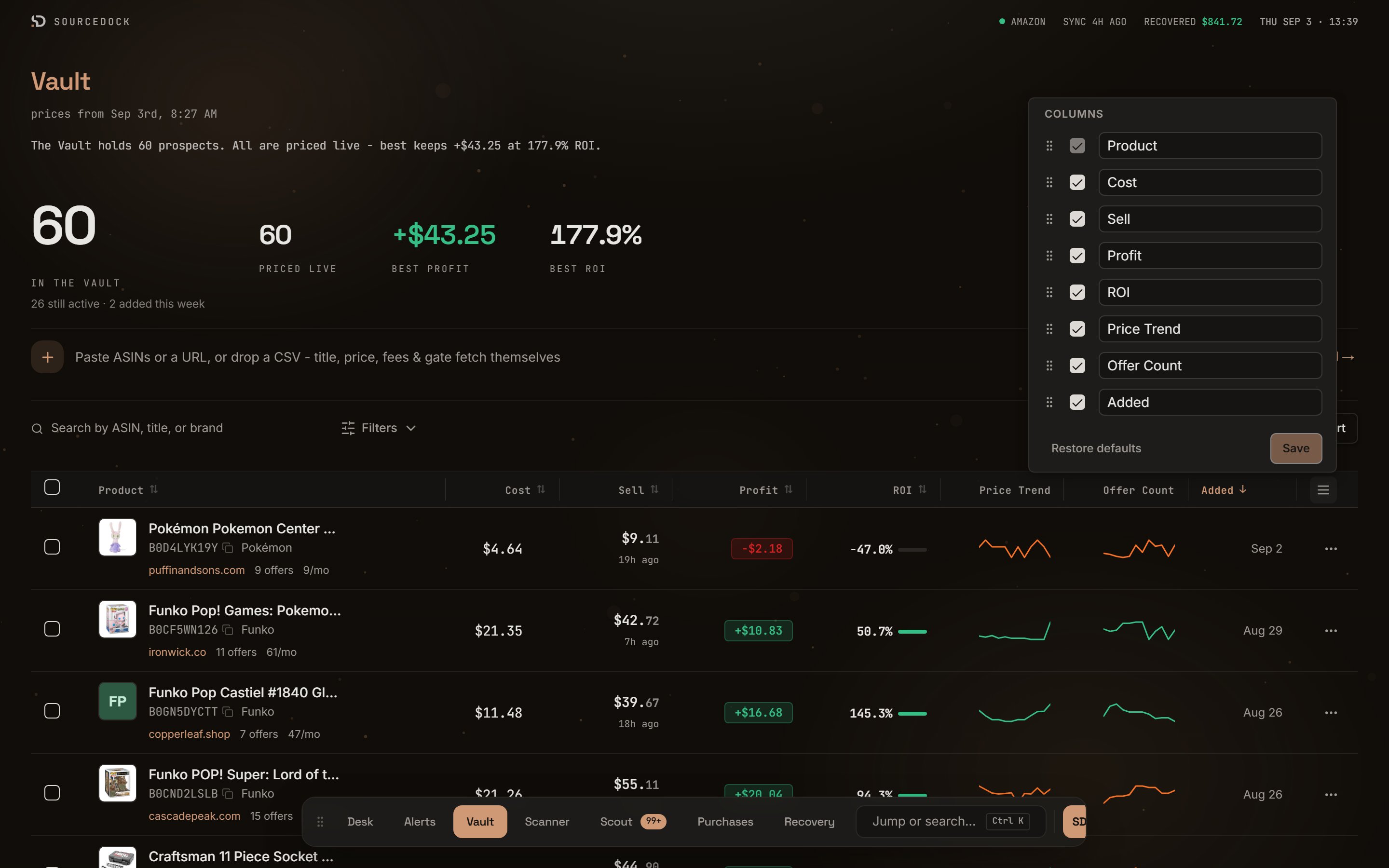
The column settings popover.
Import and Export
Import opens the Add to Vault sheet on the Paste ASINs tab. Export downloads a CSV of every prospect that matches the current filters, in the current sort order. Export is part of Pro and Flagship. On Premier you see Export requires an upgrade.Plan limits
If you hold more than your plan allows, nothing is deleted. A notice reads Nothing was removed - some of it just is not being refreshed. The newest rows up to your limit keep getting fresh prices. The rest keep their last known price and show its age.