

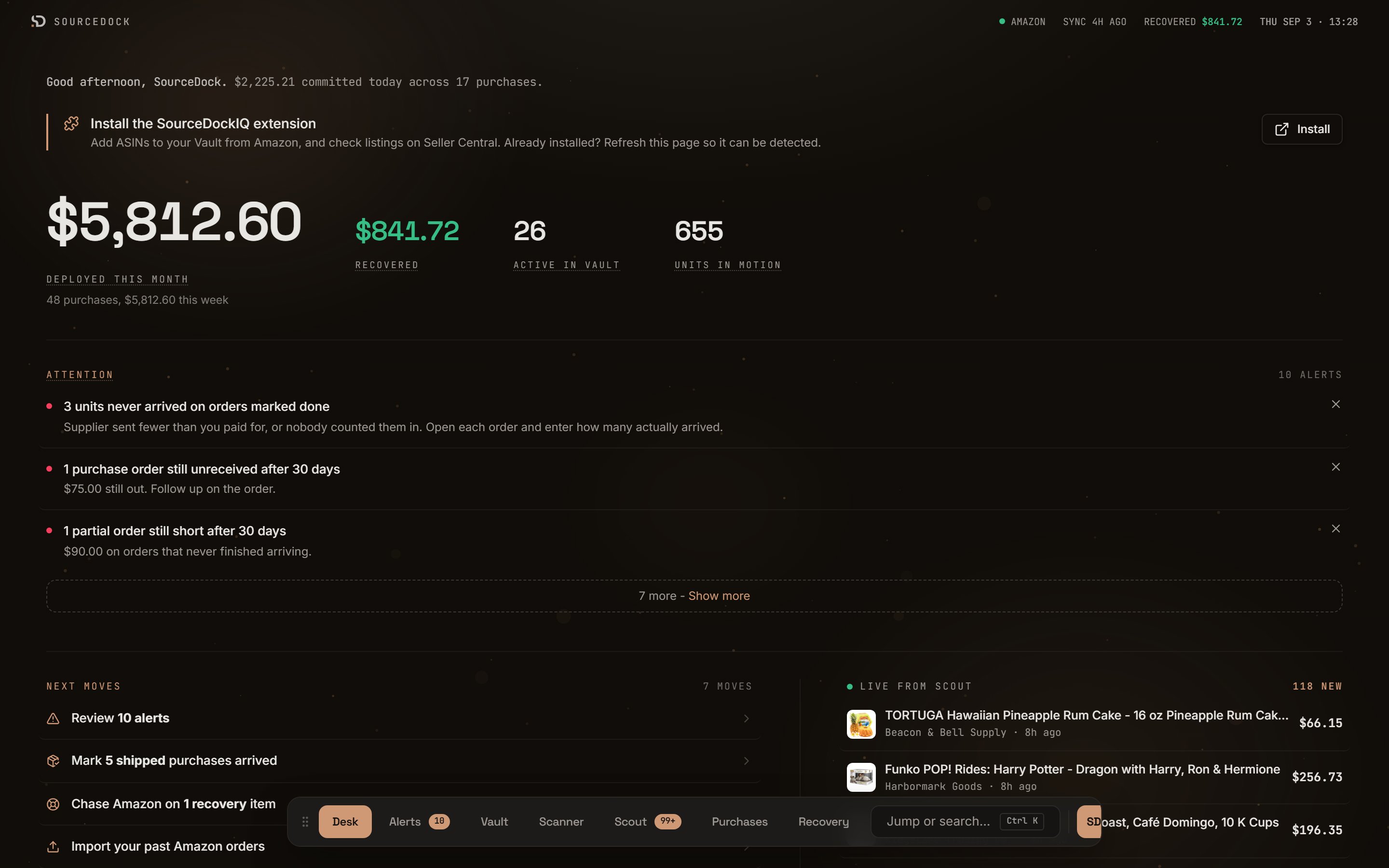
The Command desk on a busy day. All numbers are demo data.
The greeting line
The first line starts with “Good morning”, “Good afternoon”, or “Good evening”, then your first name. Next comes today’s spend. For example: “$120.00 committed today across 2 purchases.” Committed means money you spent on buys today.- If you bought nothing today it says: “The desk is quiet - nothing bought today.”
- If your plan is paused it says: “Choose a plan to unlock the Vault, Scanner, and Recovery.”
The four figures

The figures row. The biggest number is this month's spend.
A figure can show a word instead of a number. Paused means your paid plan is not active. It is not a zero. Unavailable means the number did not load. A note under it says “This total did not load.”
Attention
This section shows only when you have alerts. An alert is a problem the app found in your data. Hover the word “Attention” to see where alerts come from: Purchases, Capital Recovery, Vault, and Scout.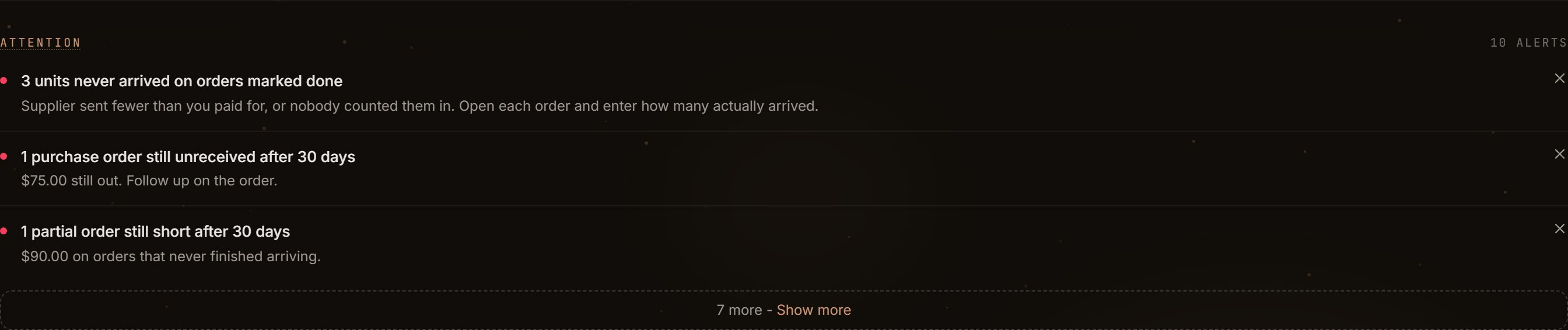
Attention shows the top three alerts first.
Next moves
Next moves is your to-do list. Each row starts with a verb. Each row is a link to the page where you do the work. The count on the right, like “7 moves”, is how many rows there are.
A small spinner on a Scout row means the count is refreshing.
When there is nothing to do, the list says: “Nothing needs you. Good time to go find the next deal.” It adds a link: “Check Scout” if Scout is on, or “Open Vault” if it is not.
If part of your data did not load, a note says “Showing what loaded.” It names what could not be checked. If nothing loaded, the list says “Could not load” and names the missing parts.
The month line
Under Next moves sits one line about this month.Live from Scout
Scout watches other sellers’ storefronts and finds new products. This panel shows the newest finds. The green dot pulses because the list refreshes every 60 seconds. Each row shows the product picture, its name, the storefront, how long ago it was seen, and the price. Up to four rows show. Click a row to open Scout on that storefront. The top right says “118 new” when there are finds you have not looked at.
If Scout is not turned on for your account, this spot shows the month’s profit figures instead.
The extension banner
The SourceDockIQ extension is a Chrome add-on. It lets you add ASINs to your Vault from Amazon and check listings on Seller Central. An ASIN is Amazon’s product code. A banner above the figures tells you the state of the extension. When the extension is connected, the banner goes away.Other notices
Two notices can show near the bottom of the desk.- “Amazon connection needs attention”, in red. Your Amazon link stopped working. Open Connections to fix it.
- “Keepa API tokens exhausted”. Product names, pictures, and prices cannot update until the tokens refill.
The command deck
The command deck is the floating bar at the bottom of every page. It is how you move around the app. There is no side menu.
The command deck. Alerts and Scout carry counts.
Move the deck
Drag the grip toward any edge of the screen. The deck snaps to the nearest edge: top, bottom, left, or right. On the left or right it becomes a narrow rail of icons. Hover an icon to see its name. The app remembers your choice in this browser.Reorder the pills
Drag a pill and drop it on another pill. It moves to that spot. The app remembers the order in this browser.Jump or search
Press Ctrl K (⌘K on a Mac) anywhere in the app. This works even while you type in a box. Or click the “Jump or search…” field on the deck. Press the keys again to close it.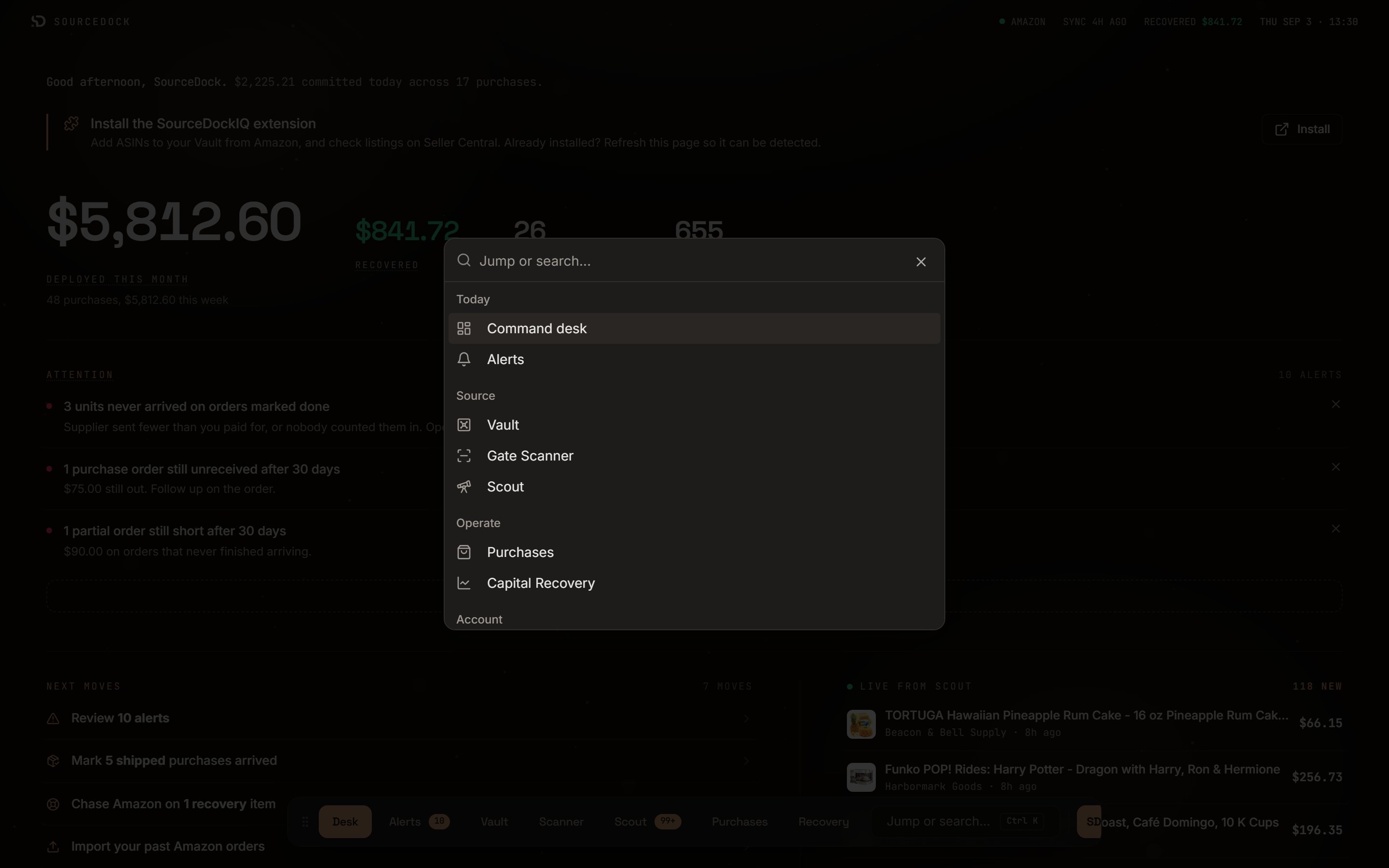
The palette lists every page in groups.
The officer panel
Click your avatar at the right end of the deck. This panel is about you, not your work.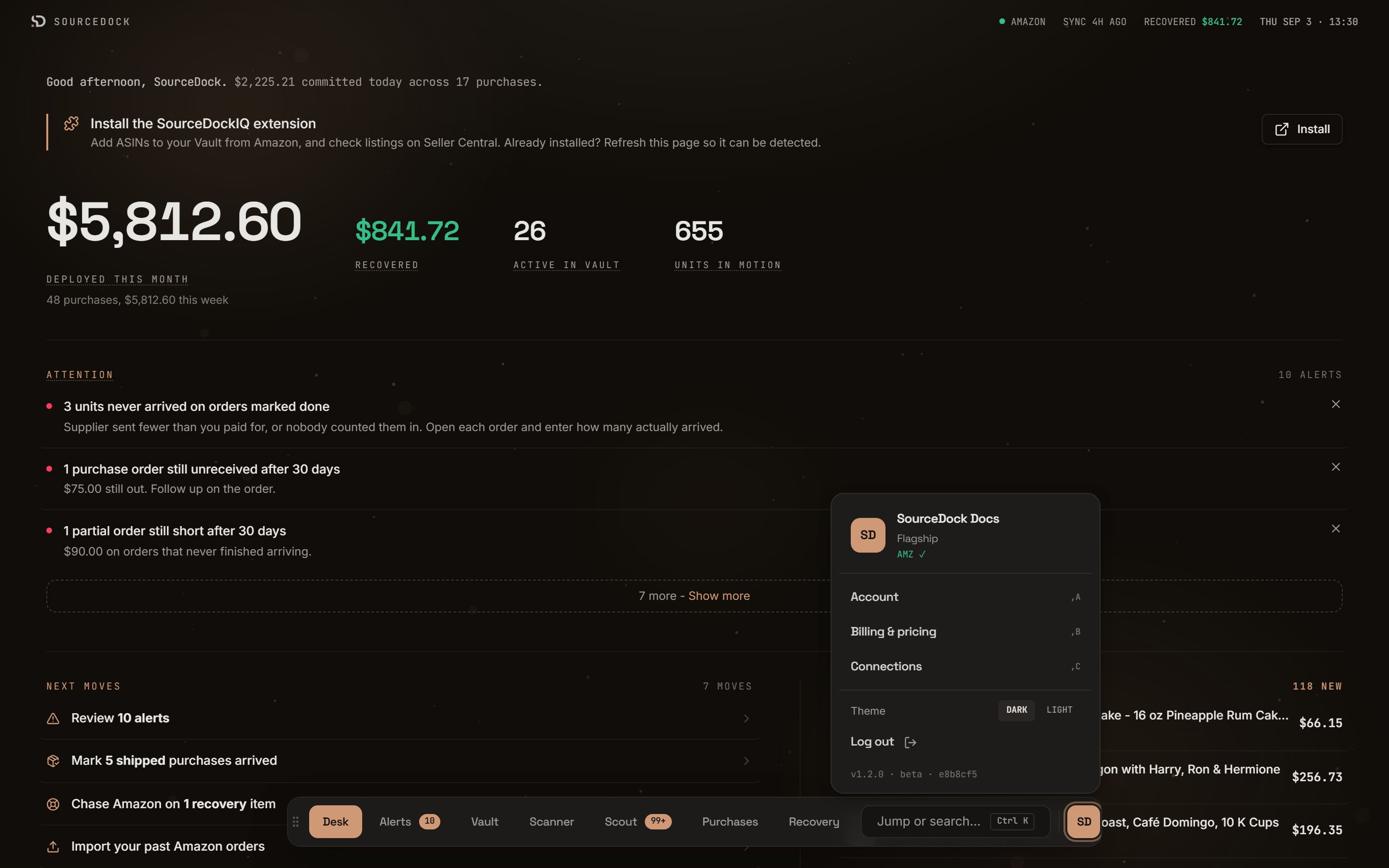
The officer panel behind the avatar.
Each link has a chord printed beside it:
,A, ,B, ,C. A chord is two keys pressed one after the other. Press the comma key, then the letter. The app jumps to that page and closes the panel. Chords do not fire while you are typing in a box.