

In short
Say a buyer gets your toy on Monday. A week later, Amazon emails them to ask for a review. You didn’t write that email, and you didn’t press anything. Reviews did it for you. Amazon has a Request a Review button on every order. Reviews presses it for you, on the day you pick. Amazon writes and sends the email. Nothing is sent until you start a campaign and turn it on.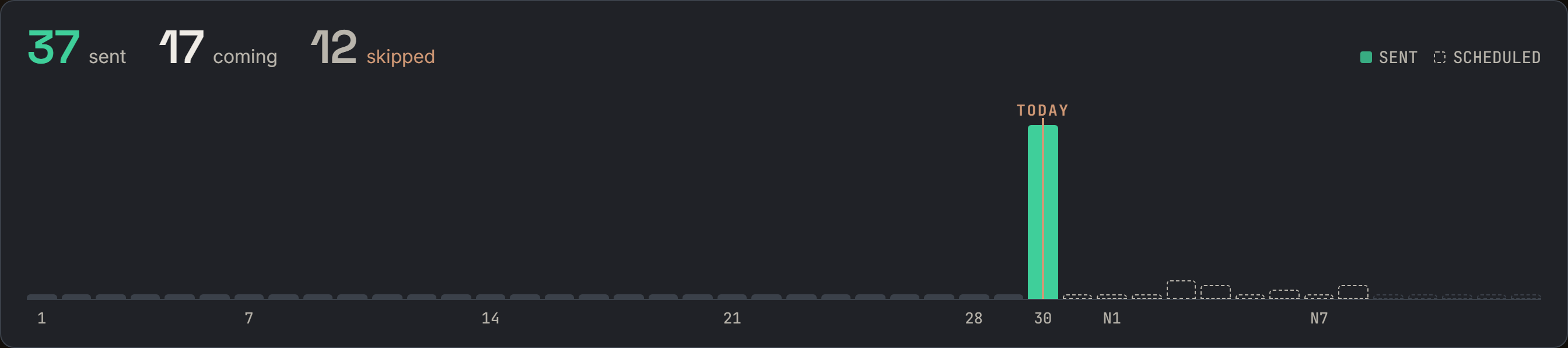
The demo store: this month's review requests. Notice 37 sent, 17 coming and 12 skipped, with the coming ones drawn as dashed bars after TODAY.
More details
Before you start
Before you start
- A connected Amazon store in the US or Canada. Mexico isn’t supported. On a Mexico store, the page says Review requests work for your US and Canada stores.
- A plan where SourceDock reads your orders: Pro, Flagship, or Premier during its trial. A Premier plan that was already paying on October 20, 2026 has it too. On any other plan, the page says SourceDock doesn’t read this store’s orders, so there’s nothing to ask about yet. Nothing is sent.
- Only the account owner sees Reviews. Team members don’t.
Start a campaign, step by step
Start a campaign, step by step
Open Reviews
Click Start a campaign
Pick when to ask
Click Save, then Turn on
- Only new orders from today: older orders are left alone. This is picked to start.
- Orders still inside Amazon’s window: starts right away with recent orders.
Who gets asked
Who gets asked

The demo store's campaign row. Notice the three skip chips are on.
- FBA (orders Amazon ships) and FBM (orders you ship): both on to start. Keep at least one on.
- skip promos (orders bought with a promotion or discount): on to start.
- skip refunds (orders with a refund or return): off to start.
- skip 1-3 star feedback (orders with a negative or neutral seller rating): off to start.
- All products, Only N products, or All but N: all products to start.
Amazon's rules
Amazon's rules
- 5 to 30 days after delivery. Amazon only takes a request in that window. The campaign row shows AMAZON ALLOWS 5–30 DAYS.
- One request per order, ever. If you or another tool already asked in Seller Central, the order says Already asked. The buyer still gets only one.
- The delivery day is a guess. SourceDock counts from the day the order shipped: 3 days for orders Amazon ships, 5 for orders you ship. Amazon’s own check decides the real window.
- An order past Amazon’s window says Past Amazon’s 30-day window: won’t be asked.
The order list
The order list
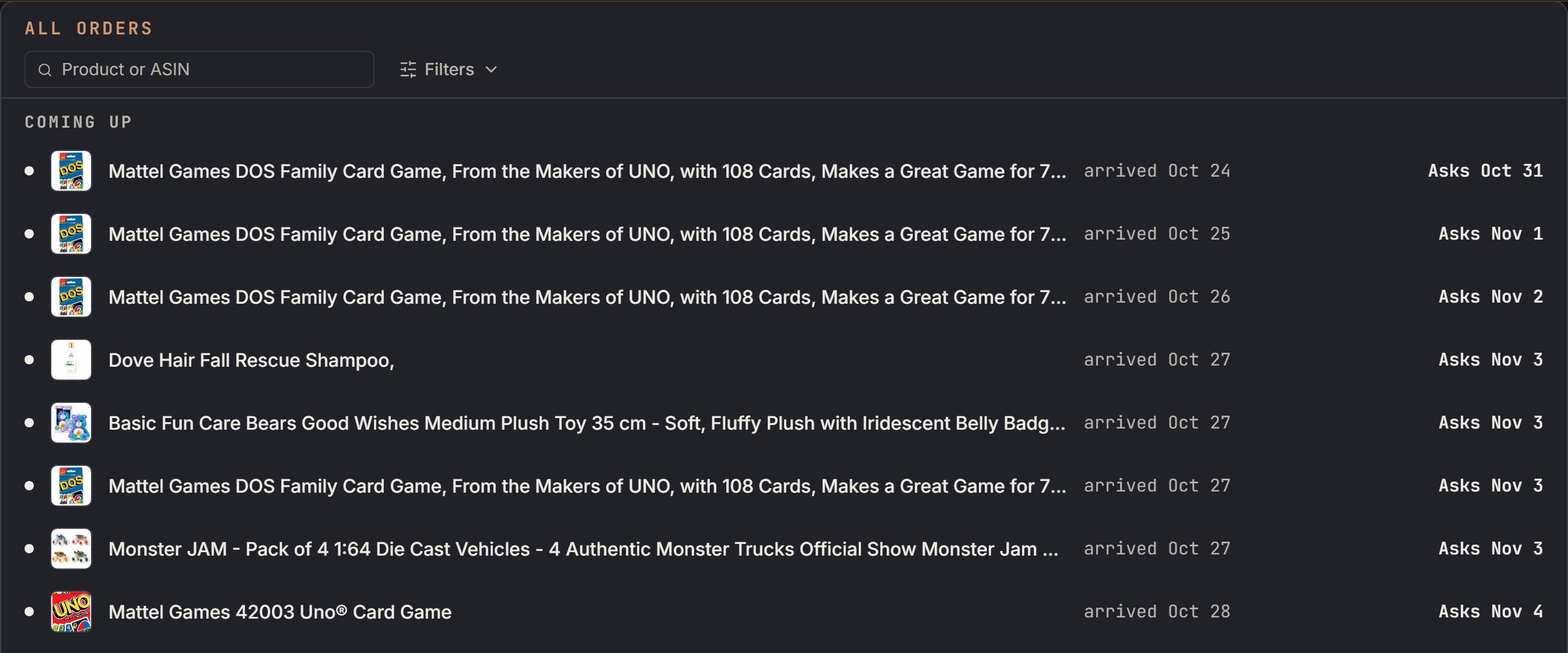
The demo store's order list. Each row shows the product, its day, and what happens next.

The Bluey plane's order, opened. Notice the order number, the campaign, and Sent Oct 30.

The demo store's skipped orders. Notice each row says why: Refunded, 1-3 star feedback, or Promotion.
What each row says
What each row says
- Asks a day: waiting for its day. The open row shows Amazon’s window.
- Asks today: it goes in today’s run.
- Sending now: SourceDock is asking Amazon right now.
- Sent a day: Amazon sent its review request that day.
- Paused: nothing goes out right now. The line above the list says why.
- Retrying: Amazon didn’t answer. The next run tries again.
- Already asked: someone already asked for this order. The buyer still gets only one.
- Not eligible: Amazon said this order can’t get a request.
- Couldn’t send: Amazon didn’t answer before its window closed.
- A reason, when one of your choices left it out: Product off, Promotion, Refunded, Returned, Cancelled, FBA off, FBM off, or 1-3 star feedback. These rows sit under Skipped in the filters.
Pause, change, or add a campaign
Pause, change, or add a campaign
- Pause: click the campaign’s name (it has a pencil), turn off Campaign on, then Save. It reads Paused. With every campaign paused, the page says No campaign is on right now, so no new requests go out.
- Change: click the campaign’s name, or click a chip on its row. Changes count from the next daily run.
- Add: click + New campaign. You can have up to 20. Each can cover its own products and days.
- Delete: orders it was going to ask about go to another campaign that fits them. Requests already sent stay sent. You can’t delete the last one. Pause it instead.
Canada stores
Canada stores

The demo store's Canada store: one request sent, for the YETI mug.
When something is wrong
When something is wrong
- Connect your Amazon store to use Reviews. Click Connect.
- The connection to this store was removed, so nothing is being sent. Click Reconnect.
- Amazon didn’t let SourceDock ask for this store. Reconnect your store to fix it. Click Reconnect.
- Paused for an hour, Amazon asked us to slow down. Nothing is lost. Nothing to do. It picks up again by itself.
- SourceDock doesn’t read this store’s orders, so there’s nothing to ask about yet. Your plan doesn’t read orders. See Plans and billing.