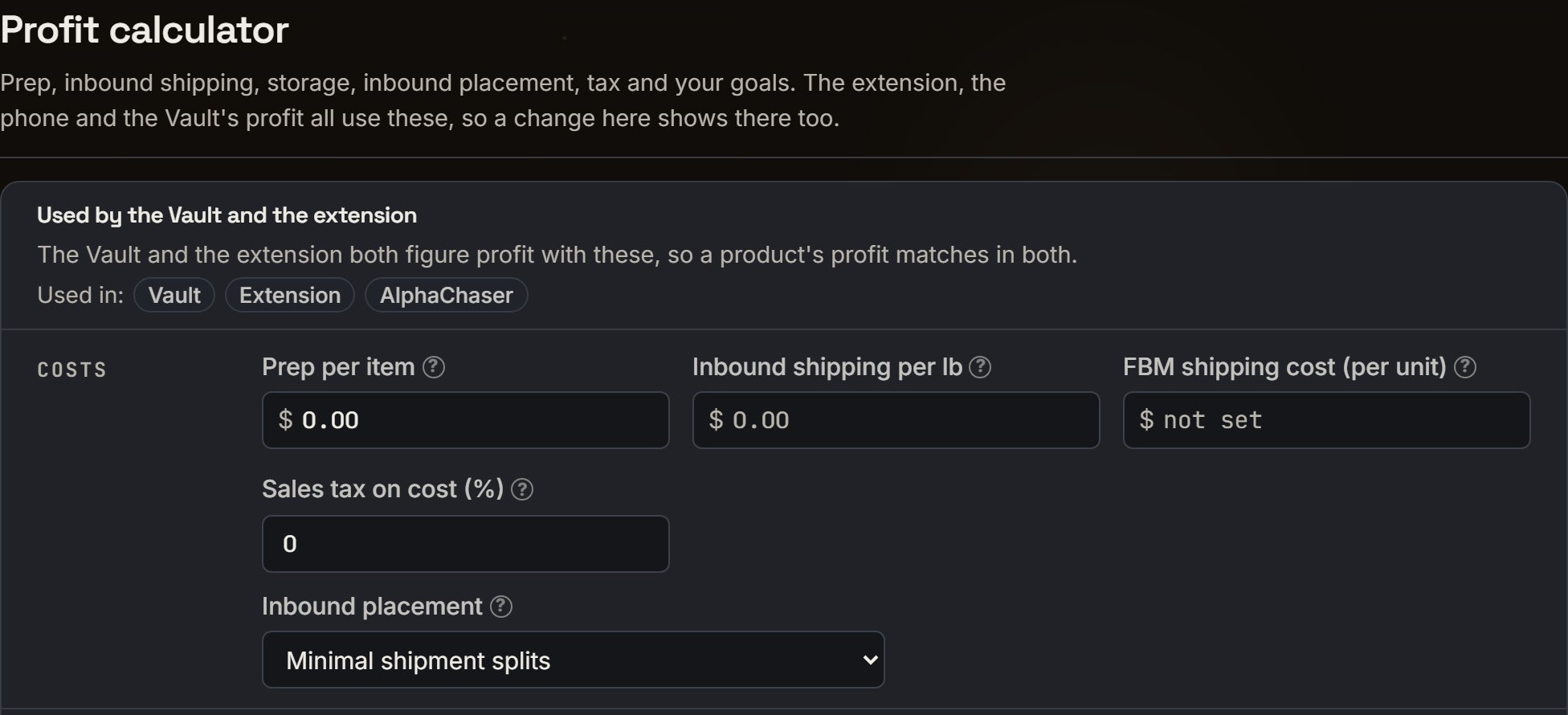
Most settings live in one place: click your picture at the end of the bar, then Account > Features. The extension’s Account tab holds the same profit settings, so a change in one shows in the other. A few settings sit on their own page, like Vault filters or a Reviews campaign.Say you pay $0.50 to prep each item. Type 0.50 in Prep per item once. The Vault, the extension and AlphaChaser all use it from then on.
Account > Features > Profit calculator. Notice Used in: every place that uses these settings.
Your costs and goals (Account > Features > Profit calculator)
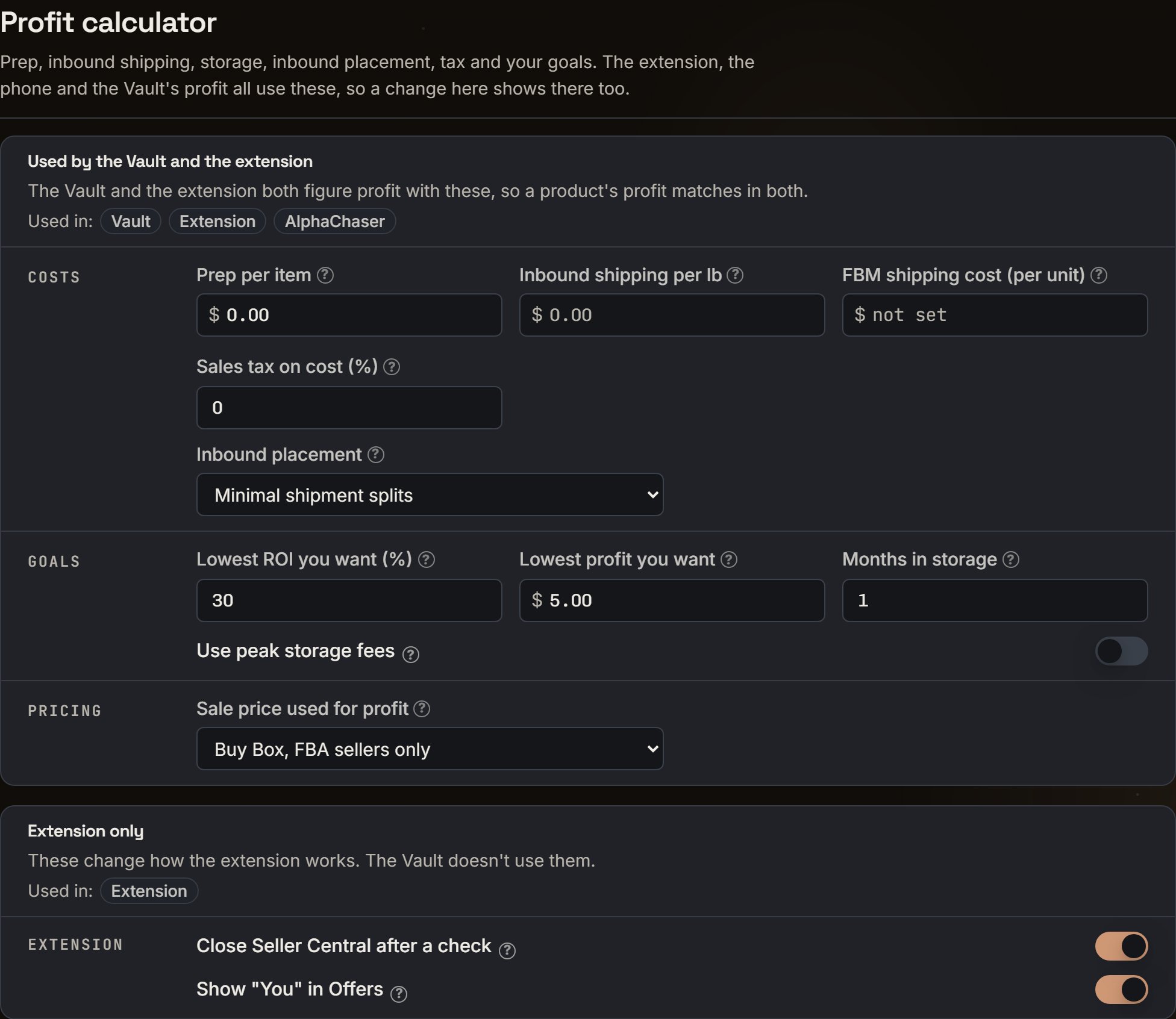
These feed every profit you see: the Vault, the extension, the phone’s Profit calculator and AlphaChaser.
The whole card in the demo store. Notice the Extension only part at the bottom.
COSTS
Prep per item: what you pay to prep one unit.
Inbound shipping per lb: shipping to Amazon. Left blank, SourceDock uses your store’s rate from recent boxes.
FBM shipping cost (per unit): what you pay to ship one unit yourself, in US dollars. It’s the same box as in the Vault’s Filters.
Sales tax on cost (%): tax added to what you pay.
Inbound placement: Amazon’s placement option. It only counts when your store has no recent boxes.
GOALS
Lowest ROI you want (%) and Lowest profit you want: your goals. They decide Max cost, the most you can pay.
Months in storage: how many months of storage fees to count.
Use peak storage fees: counts every month at Amazon’s October to December rate.
PRICING
Sale price used for profit: which price profit uses. Pick Buy Box, FBA sellers only, Buy Box, any seller, or Lowest FBA.
EXTENSION (the extension only)
Close Seller Central after a check: closes the Seller Central tab that Verify opened.
Show “You” in Offers: marks your own offer as “You” in the Offers list.
The same settings in the extension
Open the extension on any Amazon product page, click the Account tab, and scroll to Settings. These are the same settings as Account > Features, plus one more:
Where the panel shows on Amazon: Docked above the Buy Box, or Only in the side panel.
One product only (Vault > Edit Prospect)
In the Vault, click a row, or its ⋯ > Edit Prospect. These change that product only. Click Save Changes.
Buy Cost, Prep Cost, Shipping Cost, Tax Cost: this product’s own costs.
ROI Method: Buy Cost Only, Total Cost, or Sell Price.
Sale price used for profit: Use my setting, or a different price for this product.
Alerts: tell you when its offers drop, its profit or ROI reaches a number, or its price goes above or below one.
How the Vault looks (Vault)
Sell As FBA or FBM, beside Filters: prices the whole Vault one way. SourceDock remembers it.
Filters: Prospect status (All, Not yet bought, Purchased), tags, the day you added it, ROI and profit, how many sellers and sales a month, and FBM vs FBA (your FBM shipping cost and the Compare column).
Filters > Table > Sticky columns: keeps the first column in view as you scroll.
The ≡ at the right end of the table header: show, hide, rename or move columns.
The bar and the Desk (Account > Features)
Navigation bar: one tile per page. On means it rides the bar. Off moves it to the menu under your picture.
Desk: Health strip on desk, Capital Recovered on flywheel, and Sales on flywheel.
Alerts
On the Alerts page, each group’s header has its own buttons:
Toast and Sound: show a pop-up, or play a sound.
Phone: buzzes your phone, where SourceDock can reach it.
Sound: pick the tone, for all alerts or one group.
To hide one alert, click its eye (7 days) or its clock (pick how long).
In Account > Features > ALERTS:
Price & Buy Box alerts: which products, when to tell you, and where (Alerts page, Email, Phone notification).
Restock reminders: which products, when to remind you, your usual lead time, and where.
On Scout, the Notify switch turns its alerts on or off.
Automation (Account > Features > AUTOMATION)
Auto-cancel purchases that never arrive, after the days you pick.
Auto Add Purchases to the Vault: every product you buy joins your Vault.
Stores and connections (Account > Connections)
Make main store: the store single-store pages use.
Reconnect, Disconnect, and Add Account for your Amazon stores.
Connect Google Sheets: sends your purchases and expenses to a sheet. See Connections.
Add to Chrome: installs the extension.
Reviews (Reviews > a campaign)
Click a campaign’s name, or + New campaign:
When to ask: 5 to 30 days after the order arrives.
Which orders: FBA, FBM, and the three skips (refunds and returns, low seller ratings, promotions).
Which products: all, only some, or all except some.
Which days: Campaign on, First day, Last day.
Capital Recovery
Default or Advanced: the view switch at the top.
The ⋯ (Default) or ≡ (Advanced) menu: which columns show.
Filters > Table: Compact, Full, or Sticky columns.
A product’s Reorder tag: its own lead time, or Don’t remind me.
The extension's panel (Account tab)
Panel sections: turn each section of the Profit tab on or off, and drag to reorder. Buy Box pie, Variations and AlphaChaser (Beta) start off. Reset to default puts them back.
Theme: Light or Dark.
On the extension’s Settings page: Disconnect Account and Revoke Consent.
Your account (Account)
Profile: your photo, your name, and Optional emails (news and tips; this also turns Buy Box and restock emails on or off).
Security: your sign-in email, your password, and two-factor sign-in.
Sessions: Sign out of all other sessions.
Billing: change your plan, your card, a code, and company details for invoices. See Plans and billing.
Danger: Delete account.
{"docsConfig":{"theme":"mint","$schema":"https://mintlify.com/docs.json","name":"SourceDock","colors":{"primary":"#D29A6B","light":"#E8B98F","dark":"#B07A4A"},"logo":{"light":"https://mintcdn.com/sourcedock/mseP21Eez9BdsfOJ/logo/light.svg?fit=max\u0026auto=format\u0026n=mseP21Eez9BdsfOJ\u0026q=85\u0026s=16de0a0ca40c678c1957750a3a65ee9f","dark":"https://mintcdn.com/sourcedock/mseP21Eez9BdsfOJ/logo/dark.svg?fit=max\u0026auto=format\u0026n=mseP21Eez9BdsfOJ\u0026q=85\u0026s=d6bf67a179e5ac2ec53a161e06a52e72","href":"https://sourcedock.io"},"favicon":"https://mintcdn.com/sourcedock/PvFEadQJVbcHct-s/favicon.png?fit=max\u0026auto=format\u0026n=PvFEadQJVbcHct-s\u0026q=85\u0026s=b2a8ed72213fc5eb8082f24866be78d9","appearance":{"default":"dark"},"navbar":{"links":[{"href":"https://discord.gg/ssWsu5jHe","label":"Community"}],"primary":{"type":"button","label":"Open SourceDock","href":"https://app.sourcedock.io"}},"footer":{"socials":{"website":"https://sourcedock.io","discord":"https://discord.gg/ssWsu5jHe"}},"icons":{"library":"lucide"},"styling":{"latex":true},"navigation":{"pages":[]}},"deployment":{"deploymentMetadataValue":{"subdomain":"sourcedock","hasAudioNarration":false,"actualSubdomain":"sourcedock","customDomains":["docs.sourcedock.io"],"gitSource":{"type":"github","owner":"source-dock","repo":"sourcedock-docs","deployBranch":"main","contentDirectory":"","isPrivate":true,"mountPath":"","label":""},"chroma":{"latestBuiltDeploymentHistoryId":"6ae6a024420faf70548cc1ba","collectionId":"98e7cb76-aa2c-4ccf-8221-2aa63cc65c74","liveDeploymentHistoryId":"6ae6a024420faf70548cc1ba","schemaVersion":"v3"},"entitlements":{"AI_CHAT":{"status":"DISABLED"}},"buildId":"6ae6aa98420faf70548cd00f","clientVersion":"0.0.4044","searchFilterCounts":[{"language":"default","tag":"Get started","count":14},{"language":"default","tag":"Operate","count":9},{"language":"default","tag":"The desk","count":8},{"language":"default","tag":"Reference","count":6},{"language":"default","tag":"Source","count":6},{"language":"default","tag":"Guides","count":4}]},"assistantConfig":{"enableAskAiButton":false,"enableStarterQuestions":false,"enableContextualStarterQuestions":false,"enableAskAiSearchBar":true},"basePath":"","hasChatPermissions":false,"hasWebMcpPermissions":false,"toggles":[{"name":"kill-isr","enabled":true,"variant":{"name":"disabled","enabled":false,"feature_enabled":true},"impressionData":false},{"name":"agent-mintlify-slack","enabled":true,"variant":{"name":"disabled","enabled":false,"feature_enabled":true},"impressionData":false},{"name":"agent-integrations-settings","enabled":true,"variant":{"name":"disabled","enabled":false,"feature_enabled":true},"impressionData":false},{"name":"automations-pr-grouping","enabled":true,"variant":{"name":"disabled","enabled":false,"feature_enabled":true},"impressionData":false},{"name":"custom-prefix","enabled":true,"variant":{"name":"disabled","enabled":false,"feature_enabled":true},"impressionData":false},{"name":"analytics-v7","enabled":true,"variant":{"name":"disabled","enabled":false,"feature_enabled":true},"impressionData":false},{"name":"user-flows-analytics","enabled":true,"variant":{"name":"disabled","enabled":false,"feature_enabled":true},"impressionData":false},{"name":"no-publish-flow","enabled":true,"variant":{"name":"disabled","enabled":false,"feature_enabled":true},"impressionData":false},{"name":"workos-onboarding","enabled":true,"variant":{"name":"disabled","enabled":false,"feature_enabled":true},"impressionData":false},{"name":"llms-txt-v2","enabled":true,"variant":{"name":"disabled","enabled":false,"feature_enabled":true},"impressionData":false},{"name":"snapshot-serving-live","enabled":true,"variant":{"name":"disabled","enabled":false,"feature_enabled":true},"impressionData":false},{"name":"stripTemperatureMiddleware","enabled":true,"variant":{"name":"disabled","enabled":false,"feature_enabled":true},"impressionData":false},{"name":"support-platform-pylon-zendesk","enabled":true,"variant":{"name":"disabled","enabled":false,"feature_enabled":true},"impressionData":false},{"name":"snapshot-serving","enabled":true,"variant":{"name":"disabled","enabled":false,"feature_enabled":true},"impressionData":false},{"name":"instant-rollback","enabled":true,"variant":{"name":"disabled","enabled":false,"feature_enabled":true},"impressionData":false},{"name":"granular-notifications-server","enabled":true,"variant":{"name":"disabled","enabled":false,"feature_enabled":true},"impressionData":false},{"name":"granular-notifications","enabled":true,"variant":{"name":"disabled","enabled":false,"feature_enabled":true},"impressionData":false},{"name":"automations-fable","enabled":true,"variant":{"name":"disabled","enabled":false,"feature_enabled":true},"impressionData":false},{"name":"fixed-ai-action-pricing","enabled":true,"variant":{"name":"disabled","enabled":false,"feature_enabled":true},"impressionData":false},{"name":"automation-resolve-merge-conflict","enabled":true,"variant":{"name":"disabled","enabled":false,"feature_enabled":true},"impressionData":false},{"name":"scoped-publishing","enabled":true,"variant":{"name":"disabled","enabled":false,"feature_enabled":true},"impressionData":false},{"name":"mintql","enabled":true,"variant":{"name":"disabled","enabled":false,"feature_enabled":true},"impressionData":false},{"name":"page-level-analytics","enabled":true,"variant":{"name":"disabled","enabled":false,"feature_enabled":true},"impressionData":false},{"name":"editor-version-history-v2","enabled":true,"variant":{"name":"disabled","enabled":false,"feature_enabled":true},"impressionData":false},{"name":"billing-page-v2","enabled":true,"variant":{"name":"disabled","enabled":false,"feature_enabled":true},"impressionData":false},{"name":"full-page-search","enabled":true,"variant":{"name":"disabled","enabled":false,"feature_enabled":true},"impressionData":false},{"name":"workspace-projects","enabled":true,"variant":{"name":"disabled","enabled":false,"feature_enabled":true},"impressionData":false},{"name":"assistant-v5","enabled":true,"variant":{"name":"disabled","enabled":false,"feature_enabled":true},"impressionData":false},{"name":"byok-sep-25","enabled":true,"variant":{"name":"disabled","enabled":false,"feature_enabled":true},"impressionData":false},{"name":"fork-pr-previews","enabled":true,"variant":{"name":"disabled","enabled":false,"feature_enabled":true},"impressionData":false},{"name":"revalidation-jwt","enabled":true,"variant":{"name":"disabled","enabled":false,"feature_enabled":true},"impressionData":false},{"name":"vite-origin","enabled":true,"variant":{"name":"disabled","enabled":false,"feature_enabled":true},"impressionData":false},{"name":"billing-updated-9-15","enabled":true,"variant":{"name":"disabled","enabled":false,"feature_enabled":true},"impressionData":false},{"name":"workos-sso-scim","enabled":true,"variant":{"name":"disabled","enabled":false,"feature_enabled":true},"impressionData":false},{"name":"hobby-abuse-scan","enabled":true,"variant":{"name":"disabled","enabled":false,"feature_enabled":true},"impressionData":false},{"name":"dashboard-inbox","enabled":true,"variant":{"name":"disabled","enabled":false,"feature_enabled":true},"impressionData":false},{"name":"workos-signup","enabled":true,"variant":{"name":"disabled","enabled":false,"feature_enabled":true},"impressionData":false},{"name":"turbopuffer-dual-write","enabled":true,"variant":{"name":"disabled","enabled":false,"feature_enabled":true},"impressionData":false},{"name":"workos-enabled","enabled":true,"variant":{"name":"disabled","enabled":false,"feature_enabled":true},"impressionData":false},{"name":"approve-review-flow","enabled":true,"variant":{"name":"disabled","enabled":false,"feature_enabled":true},"impressionData":false},{"name":"sso-setup-deadline-banner","enabled":true,"variant":{"name":"disabled","enabled":false,"feature_enabled":true},"impressionData":false}],"googleFontsInlined":false},"customCss":[],"page":{"pagePath":"guides/settings-map","slug":"/guides/settings-map","pageMetadata":{"title":"Where each setting lives","description":"Every setting you can change in SourceDock and the Chrome extension: where to click and what it changes.","icon":"sliders-horizontal","href":"/guides/settings-map"},"description":{"compiledSource":"\"use strict\";\nconst {jsx: _jsx} = arguments[0];\nconst {useMDXComponents: _provideComponents} = arguments[0];\nfunction _createMdxContent(props) {\n const _components = {\n p: \"p\",\n ..._provideComponents(),\n ...props.components\n };\n return _jsx(_components.p, {\n children: \"Every setting you can change in SourceDock and the Chrome extension: where to click and what it changes.\"\n });\n}\nfunction MDXContent(props = {}) {\n const {wrapper: MDXLayout} = {\n ..._provideComponents(),\n ...props.components\n };\n return MDXLayout ? _jsx(MDXLayout, {\n ...props,\n children: _jsx(_createMdxContent, {\n ...props\n })\n }) : _createMdxContent(props);\n}\nreturn {\n default: MDXContent\n};\n","frontmatter":{},"scope":{}},"pageType":"default","mdx":{"mdxSource":{"compiledSource":"\"use strict\";const{Fragment:_Fragment,jsx:_jsx,jsxs:_jsxs}=arguments[0];const{useMDXComponents:_provideComponents}=arguments[0];function _createMdxContent(props){const _components={a:`a`,li:`li`,p:`p`,strong:`strong`,ul:`ul`,..._provideComponents(),...props.components},{Accordion,AccordionGroup,Frame,Heading,OptimizedImage}=_components;if(!Accordion)_missingMdxReference(`Accordion`,true);if(!AccordionGroup)_missingMdxReference(`AccordionGroup`,true);if(!Frame)_missingMdxReference(`Frame`,true);if(!Heading)_missingMdxReference(`Heading`,true);if(!OptimizedImage)_missingMdxReference(`OptimizedImage`,true);return _jsxs(_Fragment,{children:[_jsx(Heading,{level:`2`,id:`in-short`,children:`In short`}),`\n`,_jsxs(_components.p,{children:[`Most settings live in one place: click your picture at the end of the bar, then `,_jsx(_components.strong,{children:`Account`}),` > `,_jsx(_components.strong,{children:`Features`}),`. The extension’s `,_jsx(_components.strong,{children:`Account`}),` tab holds the same profit settings, so a change in one shows in the other. A few settings sit on their own page, like Vault filters or a Reviews campaign.`]}),`\n`,_jsxs(_components.p,{children:[`Say you pay $0.50 to prep each item. Type 0.50 in `,_jsx(_components.strong,{children:`Prep per item`}),` once. The Vault, the extension and AlphaChaser all use it from then on.`]}),`\n`,_jsx(Frame,{caption:`Account > Features > Profit calculator. Notice Used in: every place that uses these settings.`,children:_jsx(OptimizedImage,{src:`https://mintcdn.com/sourcedock/xpWU-kG_EW6IO2H_/images/deep-dives/settings-map/01-profit-settings.png?fit=max\u0026auto=format\u0026n=xpWU-kG_EW6IO2H_\u0026q=85\u0026s=3e8f17da45876b594d68ae68a7042161`,alt:`Profit calculator, Used by the Vault and the extension: Used in Vault, Extension, AlphaChaser. COSTS: Prep per item $0.00, Inbound shipping per lb $0.00, FBM shipping cost (per unit) not set, Sales tax on cost (%) 0, Inbound placement Minimal shipment splits.`,\"data-og-width\":`1952`,width:`1952`,\"data-og-height\":`890`,height:`890`,\"data-path\":`images/deep-dives/settings-map/01-profit-settings.png`,\"data-optimize\":`true`,\"data-opv\":`3`,srcset:`https://mintcdn.com/sourcedock/xpWU-kG_EW6IO2H_/images/deep-dives/settings-map/01-profit-settings.png?w=280\u0026fit=max\u0026auto=format\u0026n=xpWU-kG_EW6IO2H_\u0026q=85\u0026s=a888af818dd594e709b4ef0b523b7100 280w, https://mintcdn.com/sourcedock/xpWU-kG_EW6IO2H_/images/deep-dives/settings-map/01-profit-settings.png?w=560\u0026fit=max\u0026auto=format\u0026n=xpWU-kG_EW6IO2H_\u0026q=85\u0026s=44680a0e28334cf9da875aba610cc801 560w, https://mintcdn.com/sourcedock/xpWU-kG_EW6IO2H_/images/deep-dives/settings-map/01-profit-settings.png?w=840\u0026fit=max\u0026auto=format\u0026n=xpWU-kG_EW6IO2H_\u0026q=85\u0026s=d213c199d80a274ccb8a75acc578b723 840w, https://mintcdn.com/sourcedock/xpWU-kG_EW6IO2H_/images/deep-dives/settings-map/01-profit-settings.png?w=1100\u0026fit=max\u0026auto=format\u0026n=xpWU-kG_EW6IO2H_\u0026q=85\u0026s=af22897363308c91697cc22f5606cf9a 1100w, https://mintcdn.com/sourcedock/xpWU-kG_EW6IO2H_/images/deep-dives/settings-map/01-profit-settings.png?w=1650\u0026fit=max\u0026auto=format\u0026n=xpWU-kG_EW6IO2H_\u0026q=85\u0026s=5e93d10f67761a85834245f68f716743 1650w, https://mintcdn.com/sourcedock/xpWU-kG_EW6IO2H_/images/deep-dives/settings-map/01-profit-settings.png?w=2500\u0026fit=max\u0026auto=format\u0026n=xpWU-kG_EW6IO2H_\u0026q=85\u0026s=ecc7f7325ccfaa8349fea40d23bb62da 2500w`})}),`\n`,_jsxs(_components.p,{children:[`To see one product move through every screen, read `,_jsx(_components.a,{href:`/guides/how-sourcedock-fits-together`,children:`How SourceDock fits together`}),`.`]}),`\n`,_jsx(Heading,{level:`2`,id:`more-details`,children:`More details`}),`\n`,_jsxs(AccordionGroup,{children:[_jsxs(Accordion,{title:`Your costs and goals (Account > Features > Profit calculator)`,id:`your-costs-and-goals-account-features-profit-calculator`,children:[_jsx(_components.p,{children:`These feed every profit you see: the Vault, the extension, the phone’s Profit calculator and AlphaChaser.`}),_jsx(Frame,{caption:`The whole card in the demo store. Notice the Extension only part at the bottom.`,children:_jsx(OptimizedImage,{src:`https://mintcdn.com/sourcedock/xpWU-kG_EW6IO2H_/images/deep-dives/settings-map/02-profit-settings-full.png?fit=max\u0026auto=format\u0026n=xpWU-kG_EW6IO2H_\u0026q=85\u0026s=4d6b9f6a1d9471af3930b04f8d82a957`,alt:`The Profit calculator card: COSTS, GOALS (Lowest ROI you want 30, Lowest profit you want $5.00, Months in storage 1, Use peak storage fees off), PRICING (Sale price used for profit: Buy Box, FBA sellers only), then Extension only: Close Seller Central after a check and Show You in Offers, both on.`,\"data-og-width\":`1952`,width:`1952`,\"data-og-height\":`1692`,height:`1692`,\"data-path\":`images/deep-dives/settings-map/02-profit-settings-full.png`,\"data-optimize\":`true`,\"data-opv\":`3`,srcset:`https://mintcdn.com/sourcedock/xpWU-kG_EW6IO2H_/images/deep-dives/settings-map/02-profit-settings-full.png?w=280\u0026fit=max\u0026auto=format\u0026n=xpWU-kG_EW6IO2H_\u0026q=85\u0026s=3c2172ece2a4d36ba10a2c07472b9e27 280w, https://mintcdn.com/sourcedock/xpWU-kG_EW6IO2H_/images/deep-dives/settings-map/02-profit-settings-full.png?w=560\u0026fit=max\u0026auto=format\u0026n=xpWU-kG_EW6IO2H_\u0026q=85\u0026s=5dd3701c0ba7ba3e89f5269fe8e05dd7 560w, https://mintcdn.com/sourcedock/xpWU-kG_EW6IO2H_/images/deep-dives/settings-map/02-profit-settings-full.png?w=840\u0026fit=max\u0026auto=format\u0026n=xpWU-kG_EW6IO2H_\u0026q=85\u0026s=f25e662a2a050a36dc97005d405567b3 840w, https://mintcdn.com/sourcedock/xpWU-kG_EW6IO2H_/images/deep-dives/settings-map/02-profit-settings-full.png?w=1100\u0026fit=max\u0026auto=format\u0026n=xpWU-kG_EW6IO2H_\u0026q=85\u0026s=d32a2f6e2c773b2e5f12ca7b01733b58 1100w, https://mintcdn.com/sourcedock/xpWU-kG_EW6IO2H_/images/deep-dives/settings-map/02-profit-settings-full.png?w=1650\u0026fit=max\u0026auto=format\u0026n=xpWU-kG_EW6IO2H_\u0026q=85\u0026s=5784bd6d692537a086ea3f7733fce573 1650w, https://mintcdn.com/sourcedock/xpWU-kG_EW6IO2H_/images/deep-dives/settings-map/02-profit-settings-full.png?w=2500\u0026fit=max\u0026auto=format\u0026n=xpWU-kG_EW6IO2H_\u0026q=85\u0026s=de63334d19e0443aa73ebb5822afe0f6 2500w`})}),_jsx(_components.p,{children:_jsx(_components.strong,{children:`COSTS`})}),_jsxs(_components.ul,{children:[`\n`,_jsxs(_components.li,{children:[_jsx(_components.strong,{children:`Prep per item`}),`: what you pay to prep one unit.`]}),`\n`,_jsxs(_components.li,{children:[_jsx(_components.strong,{children:`Inbound shipping per lb`}),`: shipping to Amazon. Left blank, SourceDock uses your store’s rate from recent boxes.`]}),`\n`,_jsxs(_components.li,{children:[_jsx(_components.strong,{children:`FBM shipping cost (per unit)`}),`: what you pay to ship one unit yourself, in US dollars. It’s the same box as in the Vault’s Filters.`]}),`\n`,_jsxs(_components.li,{children:[_jsx(_components.strong,{children:`Sales tax on cost (%)`}),`: tax added to what you pay.`]}),`\n`,_jsxs(_components.li,{children:[_jsx(_components.strong,{children:`Inbound placement`}),`: Amazon’s placement option. It only counts when your store has no recent boxes.`]}),`\n`]}),_jsx(_components.p,{children:_jsx(_components.strong,{children:`GOALS`})}),_jsxs(_components.ul,{children:[`\n`,_jsxs(_components.li,{children:[_jsx(_components.strong,{children:`Lowest ROI you want (%)`}),` and `,_jsx(_components.strong,{children:`Lowest profit you want`}),`: your goals. They decide `,_jsx(_components.strong,{children:`Max cost`}),`, the most you can pay.`]}),`\n`,_jsxs(_components.li,{children:[_jsx(_components.strong,{children:`Months in storage`}),`: how many months of storage fees to count.`]}),`\n`,_jsxs(_components.li,{children:[_jsx(_components.strong,{children:`Use peak storage fees`}),`: counts every month at Amazon’s October to December rate.`]}),`\n`]}),_jsx(_components.p,{children:_jsx(_components.strong,{children:`PRICING`})}),_jsxs(_components.ul,{children:[`\n`,_jsxs(_components.li,{children:[_jsx(_components.strong,{children:`Sale price used for profit`}),`: which price profit uses. Pick `,_jsx(_components.strong,{children:`Buy Box, FBA sellers only`}),`, `,_jsx(_components.strong,{children:`Buy Box, any seller`}),`, or `,_jsx(_components.strong,{children:`Lowest FBA`}),`.`]}),`\n`]}),_jsxs(_components.p,{children:[_jsx(_components.strong,{children:`EXTENSION`}),` (the extension only)`]}),_jsxs(_components.ul,{children:[`\n`,_jsxs(_components.li,{children:[_jsx(_components.strong,{children:`Close Seller Central after a check`}),`: closes the Seller Central tab that `,_jsx(_components.strong,{children:`Verify`}),` opened.`]}),`\n`,_jsxs(_components.li,{children:[_jsx(_components.strong,{children:`Show “You” in Offers`}),`: marks your own offer as “You” in the Offers list.`]}),`\n`]})]}),_jsxs(Accordion,{title:`The same settings in the extension`,id:`the-same-settings-in-the-extension`,children:[_jsxs(_components.p,{children:[`Open the extension on any Amazon product page, click the `,_jsx(_components.strong,{children:`Account`}),` tab, and scroll to `,_jsx(_components.strong,{children:`Settings`}),`. These are the same settings as `,_jsx(_components.strong,{children:`Account`}),` > `,_jsx(_components.strong,{children:`Features`}),`, plus one more:`]}),_jsxs(_components.ul,{children:[`\n`,_jsxs(_components.li,{children:[_jsx(_components.strong,{children:`Where the panel shows on Amazon`}),`: `,_jsx(_components.strong,{children:`Docked above the Buy Box`}),`, or `,_jsx(_components.strong,{children:`Only in the side panel`}),`.`]}),`\n`]})]}),_jsxs(Accordion,{title:`One product only (Vault > Edit Prospect)`,id:`one-product-only-vault-edit-prospect`,children:[_jsxs(_components.p,{children:[`In the Vault, click a row, or its `,_jsx(_components.strong,{children:`⋯`}),` > `,_jsx(_components.strong,{children:`Edit Prospect`}),`. These change that product only. Click `,_jsx(_components.strong,{children:`Save Changes`}),`.`]}),_jsxs(_components.ul,{children:[`\n`,_jsxs(_components.li,{children:[_jsx(_components.strong,{children:`Buy Cost`}),`, `,_jsx(_components.strong,{children:`Prep Cost`}),`, `,_jsx(_components.strong,{children:`Shipping Cost`}),`, `,_jsx(_components.strong,{children:`Tax Cost`}),`: this product’s own costs.`]}),`\n`,_jsxs(_components.li,{children:[_jsx(_components.strong,{children:`ROI Method`}),`: `,_jsx(_components.strong,{children:`Buy Cost Only`}),`, `,_jsx(_components.strong,{children:`Total Cost`}),`, or `,_jsx(_components.strong,{children:`Sell Price`}),`.`]}),`\n`,_jsxs(_components.li,{children:[_jsx(_components.strong,{children:`Sale price used for profit`}),`: `,_jsx(_components.strong,{children:`Use my setting`}),`, or a different price for this product.`]}),`\n`,_jsxs(_components.li,{children:[_jsx(_components.strong,{children:`Alerts`}),`: tell you when its offers drop, its profit or ROI reaches a number, or its price goes above or below one.`]}),`\n`]})]}),_jsx(Accordion,{title:`How the Vault looks (Vault)`,id:`how-the-vault-looks-vault`,children:_jsxs(_components.ul,{children:[`\n`,_jsxs(_components.li,{children:[_jsx(_components.strong,{children:`Sell As FBA`}),` or `,_jsx(_components.strong,{children:`FBM`}),`, beside `,_jsx(_components.strong,{children:`Filters`}),`: prices the whole Vault one way. SourceDock remembers it.`]}),`\n`,_jsxs(_components.li,{children:[_jsx(_components.strong,{children:`Filters`}),`: Prospect status (`,_jsx(_components.strong,{children:`All`}),`, `,_jsx(_components.strong,{children:`Not yet bought`}),`, `,_jsx(_components.strong,{children:`Purchased`}),`), tags, the day you added it, ROI and profit, how many sellers and sales a month, and `,_jsx(_components.strong,{children:`FBM vs FBA`}),` (your FBM shipping cost and the `,_jsx(_components.strong,{children:`Compare`}),` column).`]}),`\n`,_jsxs(_components.li,{children:[_jsx(_components.strong,{children:`Filters`}),` > `,_jsx(_components.strong,{children:`Table`}),` > `,_jsx(_components.strong,{children:`Sticky columns`}),`: keeps the first column in view as you scroll.`]}),`\n`,_jsxs(_components.li,{children:[`The `,_jsx(_components.strong,{children:`≡`}),` at the right end of the table header: show, hide, rename or move columns.`]}),`\n`]})}),_jsx(Accordion,{title:`The bar and the Desk (Account > Features)`,id:`the-bar-and-the-desk-account-features`,children:_jsxs(_components.ul,{children:[`\n`,_jsxs(_components.li,{children:[_jsx(_components.strong,{children:`Navigation bar`}),`: one tile per page. On means it rides the bar. Off moves it to the menu under your picture.`]}),`\n`,_jsxs(_components.li,{children:[_jsx(_components.strong,{children:`Desk`}),`: `,_jsx(_components.strong,{children:`Health strip on desk`}),`, `,_jsx(_components.strong,{children:`Capital Recovered on flywheel`}),`, and `,_jsx(_components.strong,{children:`Sales on flywheel`}),`.`]}),`\n`]})}),_jsxs(Accordion,{title:`Alerts`,id:`alerts`,children:[_jsxs(_components.p,{children:[`On the `,_jsx(_components.strong,{children:`Alerts`}),` page, each group’s header has its own buttons:`]}),_jsxs(_components.ul,{children:[`\n`,_jsxs(_components.li,{children:[_jsx(_components.strong,{children:`Toast`}),` and `,_jsx(_components.strong,{children:`Sound`}),`: show a pop-up, or play a sound.`]}),`\n`,_jsxs(_components.li,{children:[_jsx(_components.strong,{children:`Phone`}),`: buzzes your phone, where SourceDock can reach it.`]}),`\n`,_jsxs(_components.li,{children:[_jsx(_components.strong,{children:`Sound`}),`: pick the tone, for all alerts or one group.`]}),`\n`,_jsx(_components.li,{children:`To hide one alert, click its eye (7 days) or its clock (pick how long).`}),`\n`]}),_jsxs(_components.p,{children:[`In `,_jsx(_components.strong,{children:`Account`}),` > `,_jsx(_components.strong,{children:`Features`}),` > `,_jsx(_components.strong,{children:`ALERTS`}),`:`]}),_jsxs(_components.ul,{children:[`\n`,_jsxs(_components.li,{children:[_jsx(_components.strong,{children:`Price \u0026 Buy Box alerts`}),`: which products, when to tell you, and where (`,_jsx(_components.strong,{children:`Alerts page`}),`, `,_jsx(_components.strong,{children:`Email`}),`, `,_jsx(_components.strong,{children:`Phone notification`}),`).`]}),`\n`,_jsxs(_components.li,{children:[_jsx(_components.strong,{children:`Restock reminders`}),`: which products, when to remind you, your usual lead time, and where.`]}),`\n`]}),_jsxs(_components.p,{children:[`On Scout, the `,_jsx(_components.strong,{children:`Notify`}),` switch turns its alerts on or off.`]})]}),_jsx(Accordion,{title:`Automation (Account > Features > AUTOMATION)`,id:`automation-account-features-automation`,children:_jsxs(_components.ul,{children:[`\n`,_jsxs(_components.li,{children:[_jsx(_components.strong,{children:`Auto-cancel purchases that never arrive`}),`, after the days you pick.`]}),`\n`,_jsxs(_components.li,{children:[_jsx(_components.strong,{children:`Auto Add Purchases to the Vault`}),`: every product you buy joins your Vault.`]}),`\n`]})}),_jsx(Accordion,{title:`Stores and connections (Account > Connections)`,id:`stores-and-connections-account-connections`,children:_jsxs(_components.ul,{children:[`\n`,_jsxs(_components.li,{children:[_jsx(_components.strong,{children:`Make main store`}),`: the store single-store pages use.`]}),`\n`,_jsxs(_components.li,{children:[_jsx(_components.strong,{children:`Reconnect`}),`, `,_jsx(_components.strong,{children:`Disconnect`}),`, and `,_jsx(_components.strong,{children:`Add Account`}),` for your Amazon stores.`]}),`\n`,_jsxs(_components.li,{children:[_jsx(_components.strong,{children:`Connect Google Sheets`}),`: sends your purchases and expenses to a sheet. See `,_jsx(_components.a,{href:`/get-started/connections`,children:`Connections`}),`.`]}),`\n`,_jsxs(_components.li,{children:[_jsx(_components.strong,{children:`Add to Chrome`}),`: installs the extension.`]}),`\n`]})}),_jsxs(Accordion,{title:`Reviews (Reviews > a campaign)`,id:`reviews-reviews-a-campaign`,children:[_jsxs(_components.p,{children:[`Click a campaign’s name, or `,_jsx(_components.strong,{children:`+ New campaign`}),`:`]}),_jsxs(_components.ul,{children:[`\n`,_jsxs(_components.li,{children:[_jsx(_components.strong,{children:`When to ask`}),`: 5 to 30 days after the order arrives.`]}),`\n`,_jsxs(_components.li,{children:[_jsx(_components.strong,{children:`Which orders`}),`: FBA, FBM, and the three skips (refunds and returns, low seller ratings, promotions).`]}),`\n`,_jsxs(_components.li,{children:[_jsx(_components.strong,{children:`Which products`}),`: all, only some, or all except some.`]}),`\n`,_jsxs(_components.li,{children:[_jsx(_components.strong,{children:`Which days`}),`: `,_jsx(_components.strong,{children:`Campaign on`}),`, `,_jsx(_components.strong,{children:`First day`}),`, `,_jsx(_components.strong,{children:`Last day`}),`.`]}),`\n`]})]}),_jsx(Accordion,{title:`Capital Recovery`,id:`capital-recovery`,children:_jsxs(_components.ul,{children:[`\n`,_jsxs(_components.li,{children:[_jsx(_components.strong,{children:`Default`}),` or `,_jsx(_components.strong,{children:`Advanced`}),`: the view switch at the top.`]}),`\n`,_jsxs(_components.li,{children:[`The `,_jsx(_components.strong,{children:`⋯`}),` (Default) or `,_jsx(_components.strong,{children:`≡`}),` (Advanced) menu: which columns show.`]}),`\n`,_jsxs(_components.li,{children:[_jsx(_components.strong,{children:`Filters`}),` > `,_jsx(_components.strong,{children:`Table`}),`: `,_jsx(_components.strong,{children:`Compact`}),`, `,_jsx(_components.strong,{children:`Full`}),`, or `,_jsx(_components.strong,{children:`Sticky columns`}),`.`]}),`\n`,_jsxs(_components.li,{children:[`A product’s `,_jsx(_components.strong,{children:`Reorder`}),` tag: its own lead time, or `,_jsx(_components.strong,{children:`Don’t remind me`}),`.`]}),`\n`]})}),_jsx(Accordion,{title:`The extension's panel (Account tab)`,id:`the-extensions-panel-account-tab`,children:_jsxs(_components.ul,{children:[`\n`,_jsxs(_components.li,{children:[_jsx(_components.strong,{children:`Panel sections`}),`: turn each section of the Profit tab on or off, and drag to reorder. `,_jsx(_components.strong,{children:`Buy Box pie`}),`, `,_jsx(_components.strong,{children:`Variations`}),` and `,_jsx(_components.strong,{children:`AlphaChaser`}),` (Beta) start off. `,_jsx(_components.strong,{children:`Reset to default`}),` puts them back.`]}),`\n`,_jsxs(_components.li,{children:[_jsx(_components.strong,{children:`Theme`}),`: `,_jsx(_components.strong,{children:`Light`}),` or `,_jsx(_components.strong,{children:`Dark`}),`.`]}),`\n`,_jsxs(_components.li,{children:[`On the extension’s Settings page: `,_jsx(_components.strong,{children:`Disconnect Account`}),` and `,_jsx(_components.strong,{children:`Revoke Consent`}),`.`]}),`\n`]})}),_jsx(Accordion,{title:`Your account (Account)`,id:`your-account-account`,children:_jsxs(_components.ul,{children:[`\n`,_jsxs(_components.li,{children:[_jsx(_components.strong,{children:`Profile`}),`: your photo, your name, and `,_jsx(_components.strong,{children:`Optional emails`}),` (news and tips; this also turns Buy Box and restock emails on or off).`]}),`\n`,_jsxs(_components.li,{children:[_jsx(_components.strong,{children:`Security`}),`: your sign-in email, your password, and two-factor sign-in.`]}),`\n`,_jsxs(_components.li,{children:[_jsx(_components.strong,{children:`Sessions`}),`: `,_jsx(_components.strong,{children:`Sign out of all other sessions`}),`.`]}),`\n`,_jsxs(_components.li,{children:[_jsx(_components.strong,{children:`Billing`}),`: change your plan, your card, a code, and company details for invoices. See `,_jsx(_components.a,{href:`/get-started/billing`,children:`Plans and billing`}),`.`]}),`\n`,_jsxs(_components.li,{children:[_jsx(_components.strong,{children:`Danger`}),`: `,_jsx(_components.strong,{children:`Delete account`}),`.`]}),`\n`]})})]})]})}function MDXContent(props={}){const{wrapper:MDXLayout}={..._provideComponents(),...props.components};return MDXLayout?_jsx(MDXLayout,{...props,children:_jsx(_createMdxContent,{...props})}):_createMdxContent(props)}return{default:MDXContent};function _missingMdxReference(id,component){throw new Error(`Expected `+(component?`component`:`object`)+\" `\"+id+\"` to be defined: you likely forgot to import, pass, or provide it.\")}","frontmatter":{},"scope":{"config":{},"pageMetadata":{"title":"Where each setting lives","description":"Every setting you can change in SourceDock and the Chrome extension: where to click and what it changes.","icon":"sliders-horizontal","href":"/guides/settings-map"}}},"mdxSourceWithNoJs":null},"mdxExtracts":{"tableOfContents":[{"title":"In short","slug":"in-short","depth":2,"children":[]},{"title":"More details","slug":"more-details","depth":2,"children":[]}],"codeExamples":{}},"jsLinks":[],"subdomain":"sourcedock","siteName":"SourceDock","title":"Where each setting lives - SourceDock","navMaps":{"firstHrefInVersion":{},"firstHrefInLanguage":{}},"lastModified":"2026-10-30T17:04:55.144Z","originalFileLocation":"guides/settings-map.mdx"},"headHtml":"\u003cscript data-mint-head>(function(){var d=document.documentElement,p=null;if(!p){try{p=localStorage.getItem(\"isDarkMode\")}catch(e){}if(p==='true')p='dark';else if(p==='false')p='light';if(p!=='light'\u0026\u0026p!=='dark'\u0026\u0026p!=='system')p=\"dark\"}var r=p==='system'?(matchMedia(\"(prefers-color-scheme: dark)\").matches?'dark':'light'):p;d.classList.remove(r==='dark'?'light':'dark');d.classList.add(r);d.setAttribute(\"data-theme-preference\",p)})();\u003c/script>\u003cmeta data-mint-head name=\"description\" content=\"Every setting you can change in SourceDock and the Chrome extension: where to click and what it changes.\">\u003cmeta data-mint-head name=\"application-name\" content=\"SourceDock\">\u003cmeta data-mint-head name=\"generator\" content=\"Mintlify\">\u003clink data-mint-head rel=\"apple-touch-icon\" type=\"image/png\" sizes=\"180x180\" href=\"https://mintcdn.com/sourcedock/PvFEadQJVbcHct-s/favicon.png?fit=max\u0026amp;auto=format\u0026amp;n=PvFEadQJVbcHct-s\u0026amp;q=85\u0026amp;s=b2a8ed72213fc5eb8082f24866be78d9\">\u003clink data-mint-head rel=\"icon\" type=\"image/png\" sizes=\"32x32\" href=\"https://mintcdn.com/sourcedock/PvFEadQJVbcHct-s/favicon.png?fit=max\u0026amp;auto=format\u0026amp;n=PvFEadQJVbcHct-s\u0026amp;q=85\u0026amp;s=b2a8ed72213fc5eb8082f24866be78d9\">\u003clink data-mint-head rel=\"icon\" type=\"image/png\" sizes=\"16x16\" href=\"https://mintcdn.com/sourcedock/PvFEadQJVbcHct-s/favicon.png?fit=max\u0026amp;auto=format\u0026amp;n=PvFEadQJVbcHct-s\u0026amp;q=85\u0026amp;s=b2a8ed72213fc5eb8082f24866be78d9\">\u003clink data-mint-head rel=\"shortcut icon\" type=\"image/png\" href=\"https://mintcdn.com/sourcedock/PvFEadQJVbcHct-s/favicon.png?fit=max\u0026amp;auto=format\u0026amp;n=PvFEadQJVbcHct-s\u0026amp;q=85\u0026amp;s=b2a8ed72213fc5eb8082f24866be78d9\">\u003cmeta data-mint-head property=\"og:title\" content=\"Where each setting lives - SourceDock\">\u003cmeta data-mint-head property=\"og:description\" content=\"Every setting you can change in SourceDock and the Chrome extension: where to click and what it changes.\">\u003cmeta data-mint-head property=\"og:site_name\" content=\"SourceDock\">\u003cmeta data-mint-head property=\"og:url\" content=\"https://docs.sourcedock.io/guides/settings-map\">\u003cmeta data-mint-head property=\"og:type\" content=\"website\">\u003cmeta data-mint-head property=\"og:image\" content=\"https://sourcedock.mintlify.app/_mintlify/api/og/v2?division=Guides\u0026amp;title=Where+each+setting+lives\u0026amp;description=Every+setting+you+can+change+in+SourceDock+and+the+Chrome+extension%3A+where+to+click+and+what+it+changes.\u0026amp;theme=df63114821df64e3ff1fe2ea\u0026amp;signature=81d6e47b6735ba8eb79e014b6547fde548591267a573ed27f02486799ee181de\">\u003cmeta data-mint-head property=\"og:image:width\" content=\"1200\">\u003cmeta data-mint-head property=\"og:image:height\" content=\"630\">\u003cmeta data-mint-head name=\"twitter:card\" content=\"summary_large_image\">\u003cmeta data-mint-head name=\"twitter:title\" content=\"Where each setting lives - SourceDock\">\u003cmeta data-mint-head name=\"twitter:description\" content=\"Every setting you can change in SourceDock and the Chrome extension: where to click and what it changes.\">\u003cmeta data-mint-head name=\"twitter:image\" content=\"https://sourcedock.mintlify.app/_mintlify/api/og/v2?division=Guides\u0026amp;title=Where+each+setting+lives\u0026amp;description=Every+setting+you+can+change+in+SourceDock+and+the+Chrome+extension%3A+where+to+click+and+what+it+changes.\u0026amp;theme=df63114821df64e3ff1fe2ea\u0026amp;signature=81d6e47b6735ba8eb79e014b6547fde548591267a573ed27f02486799ee181de\">\u003cmeta data-mint-head name=\"twitter:image:width\" content=\"1200\">\u003cmeta data-mint-head name=\"twitter:image:height\" content=\"630\">\u003cmeta data-mint-head name=\"msapplication-config\" content=\"https://mintlify.s3.us-west-1.amazonaws.com/sourcedock/_generated/favicon/browserconfig.xml?v=3\">\u003cmeta data-mint-head name=\"apple-mobile-web-app-title\" content=\"SourceDock\">\u003cmeta data-mint-head name=\"msapplication-TileColor\" content=\"#D29A6B\">\u003clink data-mint-head rel=\"canonical\" href=\"https://docs.sourcedock.io/guides/settings-map\">\u003clink data-mint-head rel=\"alternate\" type=\"application/xml\" href=\"/sitemap.xml\">\u003clink data-mint-head rel=\"alternate\" type=\"text/markdown\" href=\"/guides/settings-map.md\">\u003cscript data-mint-head type=\"application/ld+json\">{\"@context\":\"https://schema.org\",\"@graph\":[{\"@type\":\"Organization\",\"@id\":\"https://docs.sourcedock.io/#organization\",\"name\":\"SourceDock\",\"url\":\"https://docs.sourcedock.io\",\"logo\":{\"@type\":\"ImageObject\",\"url\":\"https://mintcdn.com/sourcedock/mseP21Eez9BdsfOJ/logo/light.svg?fit=max\u0026auto=format\u0026n=mseP21Eez9BdsfOJ\u0026q=85\u0026s=16de0a0ca40c678c1957750a3a65ee9f\"}},{\"@type\":\"WebSite\",\"@id\":\"https://docs.sourcedock.io#website\",\"name\":\"SourceDock\",\"url\":\"https://docs.sourcedock.io\",\"publisher\":{\"@id\":\"https://docs.sourcedock.io/#organization\"}},{\"@type\":\"WebPage\",\"@id\":\"https://docs.sourcedock.io/guides/settings-map#webpage\",\"url\":\"https://docs.sourcedock.io/guides/settings-map\",\"name\":\"Where each setting lives\",\"description\":\"Every setting you can change in SourceDock and the Chrome extension: where to click and what it changes.\",\"dateModified\":\"2026-10-30T17:04:55.144Z\",\"isPartOf\":{\"@id\":\"https://docs.sourcedock.io#website\"},\"breadcrumb\":{\"@id\":\"https://docs.sourcedock.io/guides/settings-map#breadcrumb\"}},{\"@type\":\"BreadcrumbList\",\"@id\":\"https://docs.sourcedock.io/guides/settings-map#breadcrumb\",\"itemListElement\":[{\"@type\":\"ListItem\",\"position\":1,\"name\":\"Guides\",\"item\":\"https://docs.sourcedock.io/guides/how-sourcedock-fits-together\"},{\"@type\":\"ListItem\",\"position\":2,\"name\":\"Where each setting lives\",\"item\":\"https://docs.sourcedock.io/guides/settings-map\"}]},{\"@type\":[\"Article\",\"TechArticle\"],\"@id\":\"https://docs.sourcedock.io/guides/settings-map#article\",\"headline\":\"Where each setting lives\",\"name\":\"Where each setting lives\",\"description\":\"Every setting you can change in SourceDock and the Chrome extension: where to click and what it changes.\",\"url\":\"https://docs.sourcedock.io/guides/settings-map\",\"mainEntityOfPage\":{\"@id\":\"https://docs.sourcedock.io/guides/settings-map#webpage\"},\"dateModified\":\"2026-10-30T17:04:55.144Z\",\"publisher\":{\"@id\":\"https://docs.sourcedock.io/#organization\"},\"isPartOf\":{\"@id\":\"https://docs.sourcedock.io#website\"}}]}\u003c/script>\u003cscript data-mint-head type=\"application/ld+json\">{\"@context\":\"https://schema.org\",\"@type\":\"WebSite\",\"name\":\"SourceDock\",\"creator\":{\"@type\":\"Organization\",\"name\":\"Mintlify\",\"url\":\"https://mintlify.com\"}}\u003c/script>","siteName":"SourceDock","nav":{"global":null,"groups":[{"group":"Get started","pages":[{"title":"Welcome to SourceDock","icon":"house","href":"/index"},{"title":"Quickstart","icon":"rocket","href":"/get-started/quickstart"},{"title":"Setup: your first day","icon":"list-checks","href":"/get-started/setup"},{"title":"Getting set up, in depth","icon":"list-checks","href":"/get-started/setup-in-depth"},{"title":"Connections","icon":"cable","href":"/get-started/connections"},{"title":"Account","icon":"user","href":"/get-started/account"},{"title":"Team members","icon":"users","href":"/get-started/team"},{"title":"Team members, in depth","icon":"users","href":"/get-started/team-in-depth"},{"title":"Turn features on and off","icon":"sliders-horizontal","href":"/get-started/features"},{"title":"The profit calculator and every setting","icon":"calculator","href":"/get-started/profit-calculator-and-settings"},{"title":"Phone app","icon":"smartphone","href":"/get-started/phone-app"},{"title":"The phone app, in depth","icon":"smartphone","href":"/get-started/phone-app-in-depth"},{"title":"Plans and billing","icon":"credit-card","href":"/get-started/billing"},{"title":"Plans and billing, in depth","icon":"credit-card","href":"/get-started/billing-in-depth"}]},{"group":"Source","pages":[{"title":"Gate Scanner","icon":"scan-line","href":"/source/gate-scanner"},{"title":"The Gate Scanner, in depth","icon":"scan-line","href":"/source/gate-scanner-in-depth"},{"title":"Vault","icon":"vault","href":"/source/prospect-vault"},{"title":"The Vault, in depth","icon":"vault","href":"/source/vault-in-depth"},{"title":"Scout","icon":"telescope","href":"/source/scout"},{"title":"Scout, in depth","icon":"telescope","href":"/source/scout-in-depth"}]},{"group":"Operate","pages":[{"title":"Record what you buy, each way","icon":"shopping-cart","href":"/operate/record-a-purchase"},{"title":"Import from Amazon","icon":"import","href":"/operate/import-from-amazon"},{"title":"Purchases","icon":"shopping-bag","href":"/operate/purchases"},{"title":"Capital Recovery","icon":"chart-line","href":"/operate/capital-recovery"},{"title":"Capital Recovery vs Sales","icon":"scale-balanced","href":"/operate/capital-recovery-vs-sales"},{"title":"Sales","icon":"chart-column","href":"/operate/sales"},{"title":"Claims: money Amazon owes you","icon":"scale","href":"/operate/claims"},{"title":"Reviews","icon":"message-square-quote","href":"/operate/reviews"},{"title":"Expenses","icon":"receipt","href":"/operate/expenses"}]},{"group":"The desk","pages":[{"title":"Command desk","icon":"layout-dashboard","href":"/desk/command-desk"},{"title":"The Desk, in depth","icon":"layout-dashboard","href":"/desk/desk-in-depth"},{"title":"Alerts","icon":"bell","href":"/desk/alerts"},{"title":"Alerts, in depth","icon":"bell","href":"/desk/alerts-in-depth"},{"title":"Account health","icon":"heart-pulse","href":"/desk/account-health"},{"title":"Account health, in depth","icon":"heart-pulse","href":"/desk/account-health-in-depth"},{"title":"Restock reminders","icon":"package","href":"/desk/restock-reminders"},{"title":"Restock reminders, in depth","icon":"package","href":"/desk/restock-reminders-in-depth"}]},{"group":"Reference","pages":[{"title":"Alerts reference","icon":"bell","href":"/reference/alerts"},{"title":"Reconcile and Jax","icon":"scale","href":"/reference/reconcile"},{"title":"AlphaChaser (Beta)","icon":"hexagon","href":"/source/alphachaser"},{"title":"Chrome extension","icon":"puzzle","href":"/reference/chrome-extension"},{"title":"The Chrome extension, in depth","icon":"puzzle","href":"/reference/chrome-extension-in-depth"},{"title":"Glossary","icon":"book-open","href":"/reference/glossary"}]},{"group":"Guides","pages":[{"title":"How SourceDock fits together","description":"One set of costs and goals feeds every profit you see. Then a product you buy moves from Purchases to Sales and Capital Recovery by itself.","icon":"route","href":"/guides/how-sourcedock-fits-together"},{"title":"Where each setting lives","icon":"sliders-horizontal","href":"/guides/settings-map"},{"title":"A regular day in SourceDock","description":"A 5 to 10 minute daily check: the Desk, today's claims, your alerts, what came back, and what to do next, with every number explained.","icon":"sun","href":"/guides/a-regular-day"},{"title":"Vault or Profit calculator?","icon":"calculator","href":"/guides/vault-vs-profit-calculator"}]}]},"basePath":"","title":"Where each setting lives - SourceDock","buildId":"dpl_DeHjVRGfFnhYQwHnfC2pjeXXv8h9","deploymentId":"dpl_DeHjVRGfFnhYQwHnfC2pjeXXv8h9","dynamics":["07c022d89b","a74be98ba7","a9bb46feb3"],"chunks":["Frame-DXXFP6nH.js","DynamicMarkdown-B54_zNBF.js","zoom-image-lightbox-BG6oD64b.js","lightbox-handle-r17bVUz3.js","Markdown-DfhCTwyA.js","clsx-xpJZXxdP.js","lib-DuNMoZ05.js","lib-B8HbPgcC.js","html-void-elements-mCSPHezU.js","dist-BTZUMDnx.js","katex-YMM-FMeD.js","marked.esm-CZWythHk.js","AssistantPageLink-DqdKa2R4.js"]}