

In short
Account shows Connected when you are signed in, plus your plan name. Under it are your Settings: your costs, your goals, and how the panel looks. Say it costs you $0.50 to prep each item. Type 0.50 in Prep per item. Every profit in the panel and the Vault now counts it, because they share this setting.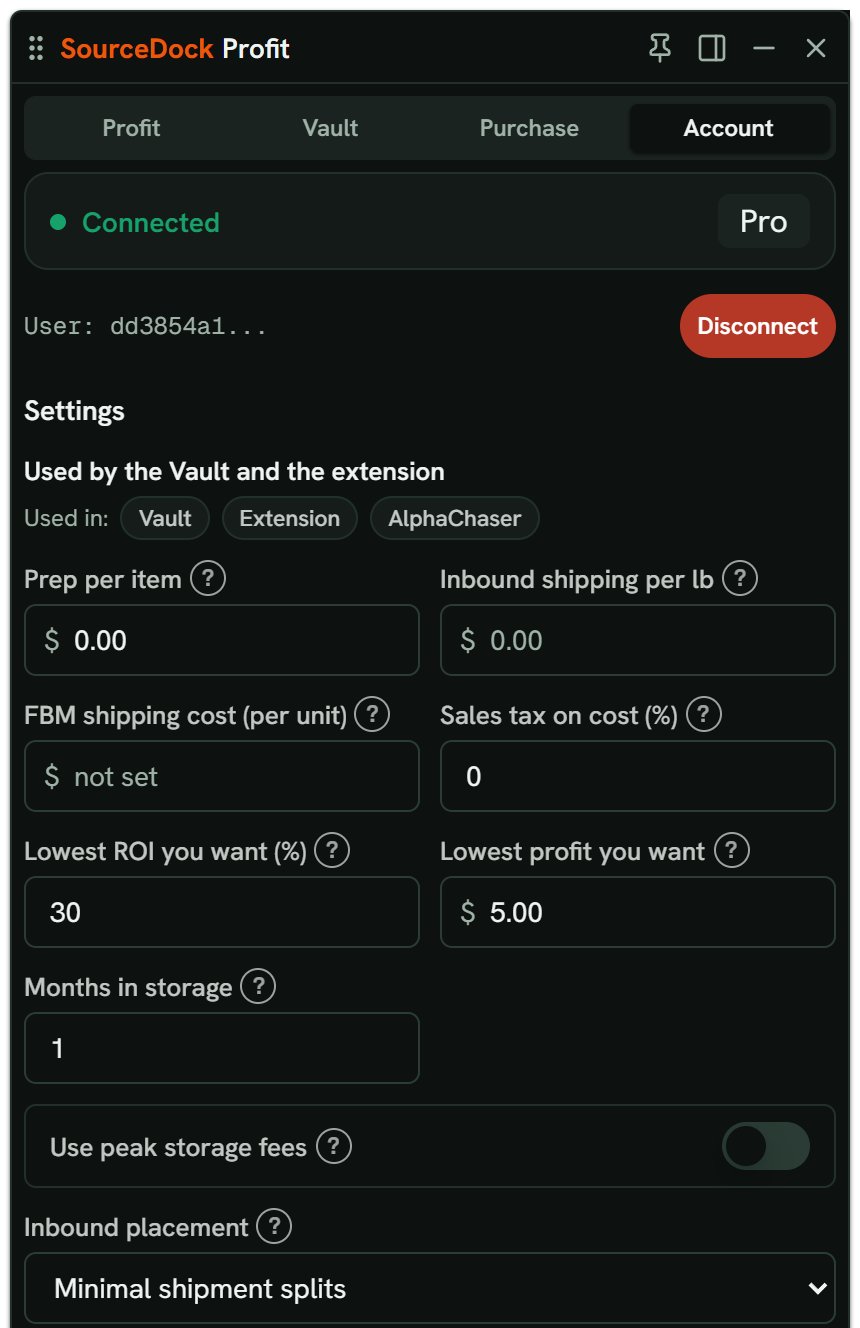
Hair dye: the Account tab. Notice Connected and the plan, the red Disconnect button, then the settings the Vault and the extension share.
More details
Signing in and out
Signing in and out
The red Disconnect button signs the extension out. Signed out, it says Not Connected and Connect in SourceDock. Open SourceDock while you are signed in, and the extension connects.If Amazon’s grant has ended, the card says Amazon connection needs attention and Reconnect Amazon.
The two parts of Settings
The two parts of Settings
- Used by the Vault and the extension: your costs, your goals, storage, inbound placement, and Sale price used for profit. Used in: names Vault and Extension.
- Extension only: Close Seller Central after a check, Show “You” in Offers, and Where the panel shows on Amazon.
Panel sections and Theme
Panel sections and Theme
Panel sections lists each part of the Profit tab: Quick info, Profit calculator, Seller Lookup, Offers, Buy Box pie, Variations, and Alerts. Turn one off to hide it. Drag a row, or use its arrows, to change the order. Reset to default puts them back.Buy Box pie and Variations start off. The pie’s help says Who held the Buy Box in the last 30 or 90 days. Off to start. Once on, it loads only when its section is opened.Theme is Light or Dark. Dark is the start.
FBM shipping cost
FBM shipping cost
FBM shipping cost (per unit) is what you pay to ship one unit to the buyer yourself. Type 3.00, and FBM profit takes $3.00 off each sale. Left blank, it says not set, which isn’t $0.00.It’s the same amount as in the Vault’s Filters. It’s in US dollars. On Account > Features, with a Canada, Mexico or UK store picked, it shows US$, so it’s never mixed up with CA$ or £. A cost you type on one product wins for that product only.It’s kept on your account only, so offline its box doesn’t show.
What syncs
What syncs
A change writes one copy on your account, and each computer keeps a copy for offline use. On the next sync, the newest change wins.The shared fields are Prep per item, Inbound shipping per lb, Sales tax on cost (%), Lowest ROI you want (%), Lowest profit you want, Months in storage, Sale price used for profit, Inbound placement, Use peak storage fees, Close Seller Central after a check, Show “You” in Offers, and the FBA / FBM switch.These stay on this computer: Where the panel shows on Amazon, Panel sections, and Theme.
Selling in Canada
Selling in Canada
When you work in Seller Central Canada, the side panel’s Account tab can say Selling in Canada? Let SourceDockIQ read sellercentral.amazon.ca so checks work there too. The button is Enable SourceDock on Seller Central Canada. Not now hides it until you work on Canada again.
Privacy and Finish setup
Privacy and Finish setup
Privacy opens the data list. Finish setup shows until you agree.