

In short
Quick info answers the first questions about a product: can you sell it, does it sell, and what would you make? Say a toy truck costs you $8.00 at the store, and it sells for $25.00 on Amazon. Approval says Approved, and Max cost is $9.64. Your cost is under that, so the cell is green. The cards show Profit $6.77, Margin 27.1%, ROI 84.6%, and Break-even $17.03.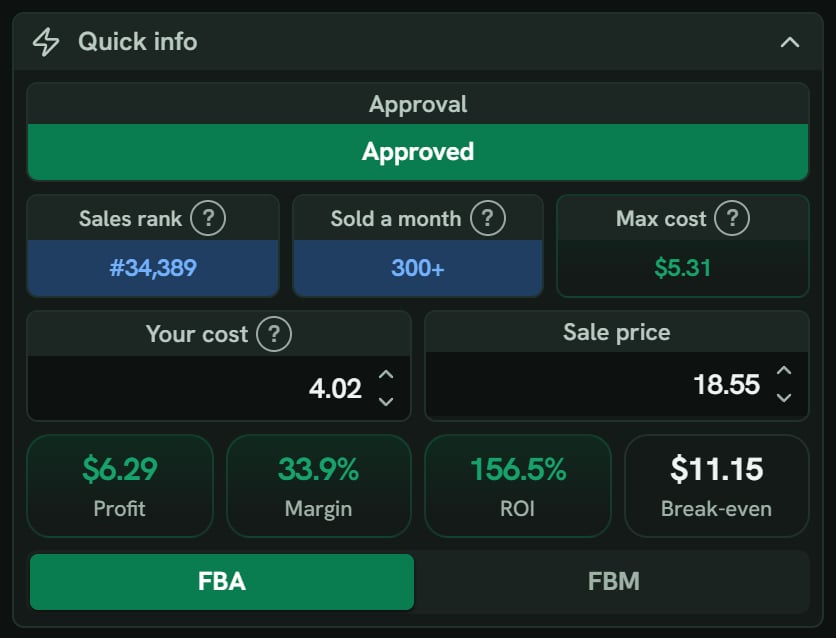
Hair dye: Quick info. The numbers are the demo product's, not the truck's. Notice Approved, Max cost $5.31, Your cost 4.02 from the Vault, and the four cards.
More details
Approval
Approval
Approved, Needs approval or Blocked. With your store connected and no answer yet, SourceDock checks by itself when you open the product. The cell says Checking… while it works. If that check doesn’t finish, you see Check now. See Verify and Check now.
Sales rank and Sold a month
Sales rank and Sold a month
Sales rank is Amazon’s best-seller number. A lower number sells faster.Sold a month keeps Amazon’s short form. If the page says “2K+ bought in past month”, the cell says “2K+”. If the page has no badge but Amazon gave a rank, you may see an estimate, like ”≈ 1,200/mo (est)”. If Amazon gave no rank and your store is connected, it says N/A. With no store and no badge, the cell is hidden. SourceDock won’t guess.
Max cost
Max cost
The most you can pay the store and still hit both your goals. The hover says The most to pay for one item and still meet the goals in Settings. Type a cost over it, and the cell turns orange, and the hover says The cost is above the max cost.If no store price can hit both goals, it says Below your goals. Needs a price, Needs size, and Needs weight show when a figure is missing. Anything else blank says Not known.
Your cost
Your cost
If the product is in your Vault, Your cost fills from its buy cost, and the hover says From your Vault. Type to change it. Prices you type come back when you open the product again on this computer.A Vault product also brings that row’s own Prep Cost, Shipping Cost, Tax Cost, and inbound placement, when you set them in Edit Prospect. So the profit and ROI here match the Vault’s.A blank Your cost, or 0.00, means the cost is unknown. Profit is still figured with $0.00. ROI shows a small orange Add cost button. Press it to land in the box. Its hover says No cost is typed, so there’s no ROI to show. Until there is, only the profit goal colors the numbers.
Sale price
Sale price
Point at the label to see who has the Buy Box, then Buy Box now. On Amazon’s own offer, the badge says Amazon. How the price is picked is on Where the sale price comes from.Your cost and Sale price each have an up and down arrow. Each press moves the price one dollar, and the cents stay the same. Hold an arrow to keep going. The up and down keys do the same. A price never goes under 0.
The four cards
The four cards
- Profit is what you keep on one sale.
- Margin is that profit divided by the sale price.
- ROI is that profit divided by your cost.
- Break-even is a sale price, not a cost. Its hover says Selling for less than this loses money. It also names the break-even cost.
FBA and FBM
FBA and FBM
Under the cards, the side that is on is green with white words. FBA means Amazon ships it. FBM means you ship it. See Switch to FBM.