

In short
Say you ordered 10 blenders 30 days ago. You never marked any received or sent, and Amazon doesn’t have those 10 either. With Auto-cancel purchases that never arrive on, SourceDock cancels that order and tells you. It starts off. You can Uncancel it. That puts the order back, and its units count in Capital Recovery again.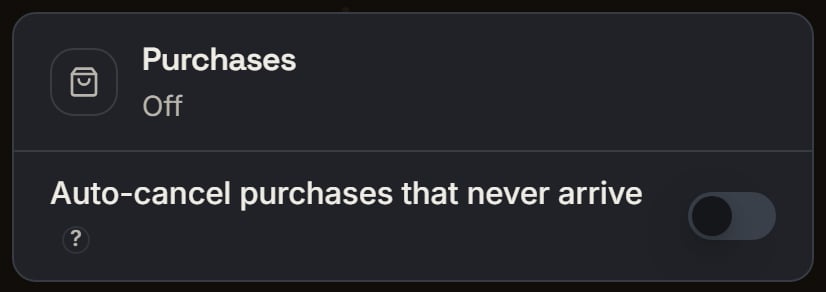
Demo login: the Purchases card. Notice the status says Off and the switch is off, which is how it starts.
More details
What it checks
What it checks
Nothing on the order is marked received or sent, and Amazon doesn’t already have those units. So an order that came but was never marked received can still be cancelled.Cancel after starts at 30 days. You can type 14 through 365. 14 is the day an order can first read Never arrived.
Turning it on
Turning it on
A box asks Turn on auto-cancel? With no old orders, it says “No orders are past 30 days now.” Press Turn on or Go back.Say 2 orders are already past 30 days. You can press “Turn on and cancel these 2”, Turn on for new orders only, or Go back.Go back leaves the switch off. Turn on for new orders only leaves the old orders alone.If you cancel them now, the box says “2 orders cancelled. They wait in Write-offs under Waiting for refund.”
After an order is cancelled
After an order is cancelled
Each cancelled order gets a notice with the order day, the units, and the product. Purchases history says “Cancelled by SourceDock after 30 days”.The card then says “Cancels after 30 days”. A new day count that would cancel orders now asks first.
Which stores it runs on
Which stores it runs on
The day count is saved for this store, and another store has its own switch.Some stores can’t be checked. A line under the switch says it cancels nothing there, and why. A Mexico store says it runs on your US, Canada and UK stores. A plan without Capital Recovery says auto-cancel comes with Capital Recovery.