

In short
Keep each store receipt on its order, so it’s there when Amazon asks for proof. Say you bought 10 plush toys. On the Record purchase sheet, or on the row’s Order details, drop the receipt under Receipts and photos. The row then shows a paper clip. Click it to see the receipt. On the phone, tap +, then Add receipt. See the phone app.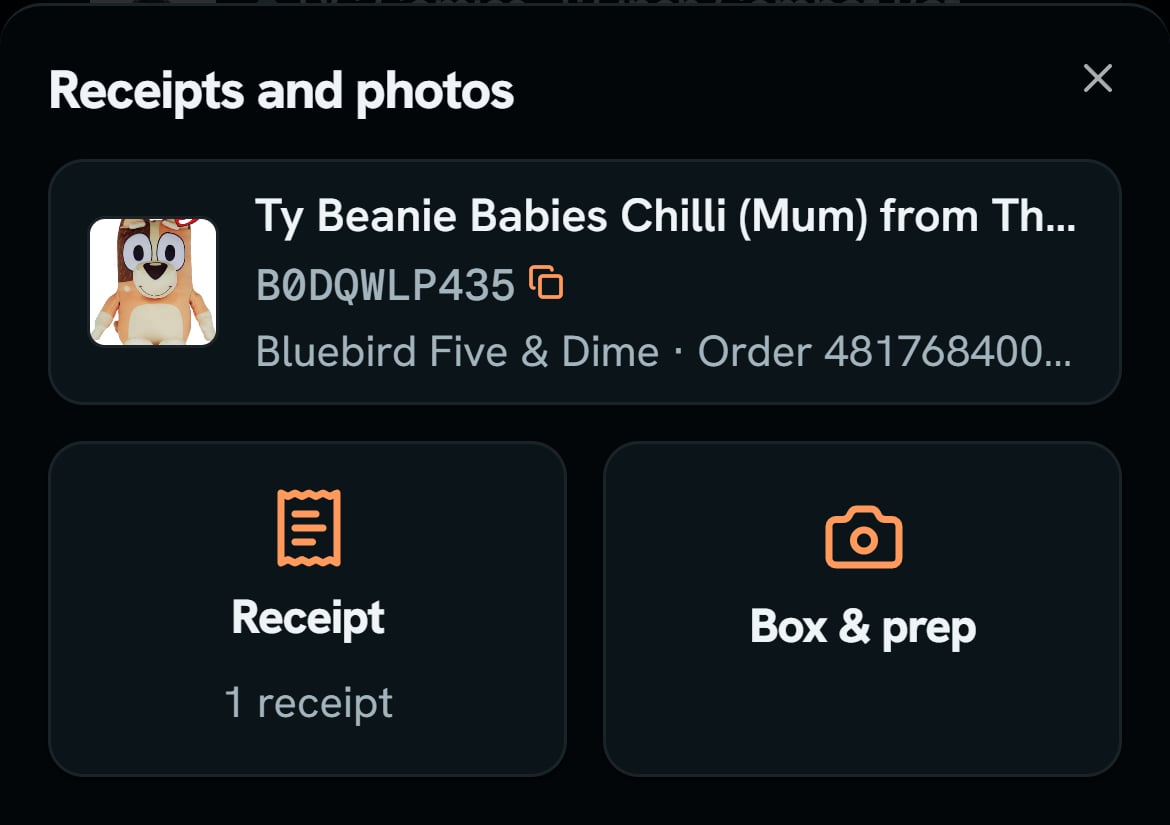
Ty Chilli plush order, on the phone: the sheet a tap opens. Notice the two big buttons, Receipt and Box & prep.
More details
Adding files
Adding files
Up to 20 files, each under 25 MB. Each file shows as a small square picture. An iPhone photo saves as a JPEG when your browser can do that.Each one saves as a Receipt, the store’s proof. To make one a Box & prep photo, what you packed, open it and click Move to Box & prep photos. Until you move it, it counts as a receipt, not as box proof for a claim.
Finding a receipt
Finding a receipt
An order with a receipt shows a paper clip at the start of its row. Its hover says See the receipt, or “See the 2 receipts” when there are two. With two or more, the first one opens, and the others sit under it as small pictures. An open row’s lines show the clip too.The row also has a small Receipt chip under the product’s name, after the ASIN. With two receipts it says “2 receipts”. Click it to open the same viewer, and with two or more, pick one by name first. A Group by ASIN row has no chip.
The viewer
The viewer
The viewer shows the file’s name on top. Most pictures and PDFs open right there, and Download saves the file.Open a file from Order details, and the viewer has Delete too. If you filed a claim on that order, SourceDock warns you first: the file may be your proof, and Amazon can ask to see it again.