> ## Documentation Index
> Fetch the complete documentation index at: https://docs.sourcedock.io/llms.txt
> Use this file to discover all available pages before exploring further.
# Scout
> Watch other sellers' storefronts and see every new product they add.
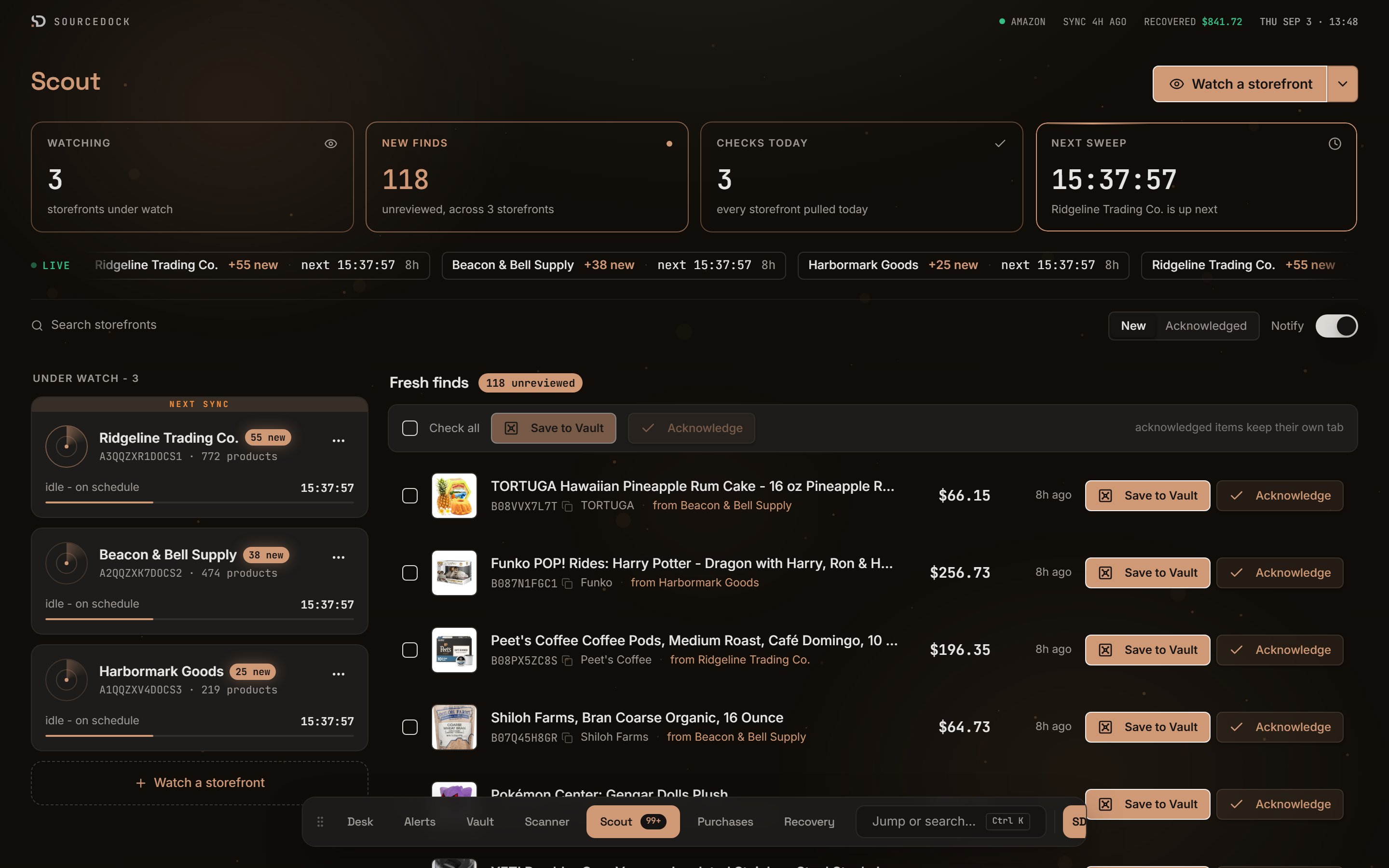
Scout watches Amazon storefronts you pick. A storefront is one seller's list of products. Once a day Scout pulls that list and compares it to the last one. Anything new lands in your feed. You can save a find to the Vault or mark it as seen.
 ## Watch a storefront
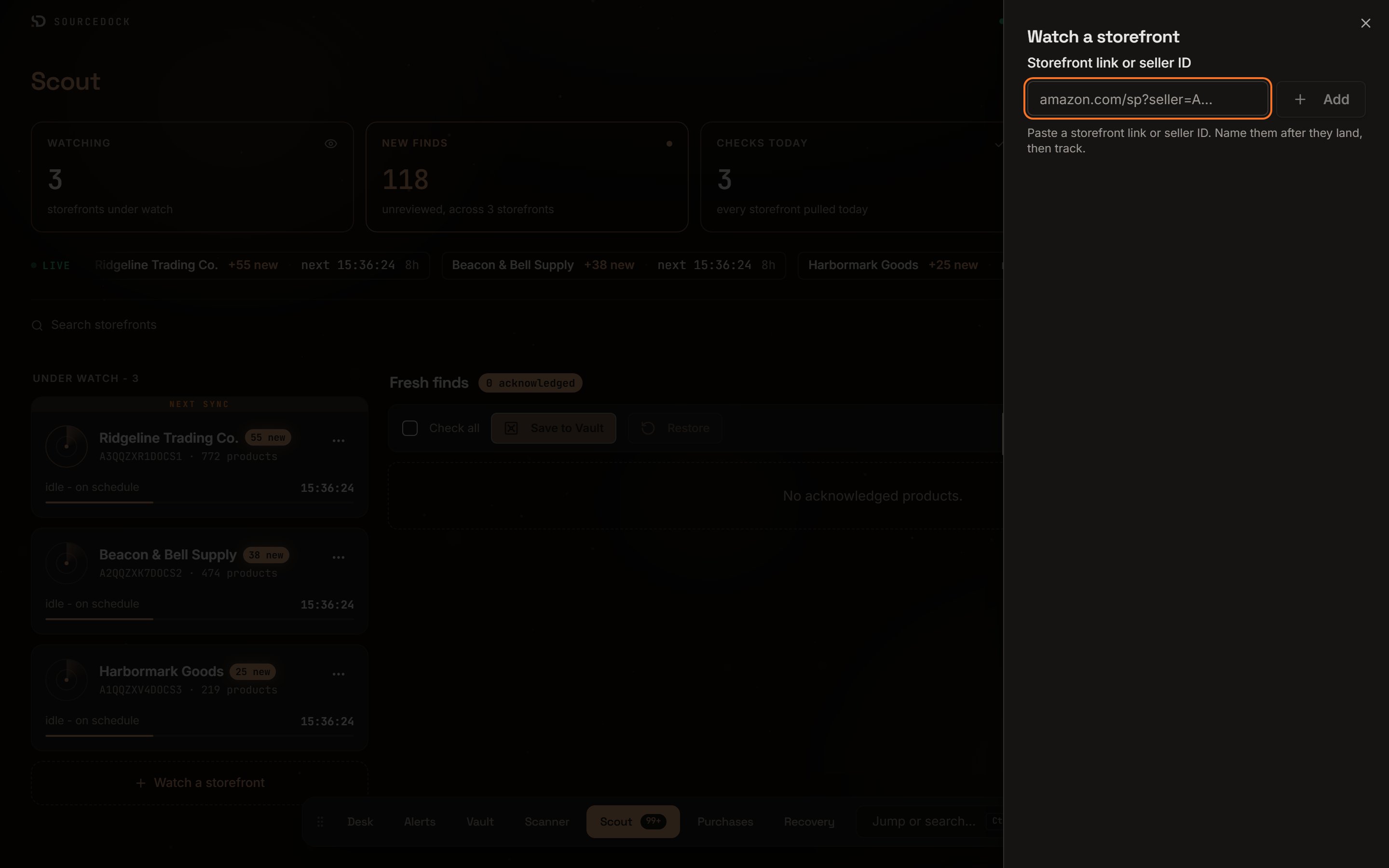 Click **Watch a storefront** at the top right. The same button sits under the storefront cards.
Put an Amazon storefront link or a seller ID in **Storefront link or seller ID**. A seller ID starts with the letter A. Click **Add**. The button reads **Checking...** while Scout finds the seller, or **Still checking** if that takes a while.
The storefront drops into a list below with its seller ID and product count. Type a name in **Name this seller**. You can add more storefronts before you track any.
Tick the rows you want and click **Track 2**. A toast reads **Storefront added to Scout.** The first check runs in the background.
If the link is not valid, the hint reads **Use an Amazon storefront link or a seller ID starting with A.** If your plan is full, it reads `Tracking 5 of 5. Remove one to add another.` Closing the sheet drops the staged list.
## The watchtower
Click **Watch a storefront** at the top right. The same button sits under the storefront cards.
Put an Amazon storefront link or a seller ID in **Storefront link or seller ID**. A seller ID starts with the letter A. Click **Add**. The button reads **Checking...** while Scout finds the seller, or **Still checking** if that takes a while.
The storefront drops into a list below with its seller ID and product count. Type a name in **Name this seller**. You can add more storefronts before you track any.
Tick the rows you want and click **Track 2**. A toast reads **Storefront added to Scout.** The first check runs in the background.
If the link is not valid, the hint reads **Use an Amazon storefront link or a seller ID starting with A.** If your plan is full, it reads `Tracking 5 of 5. Remove one to add another.` Closing the sheet drops the staged list.
## The watchtower
 | Tile | What it shows |
| ---------------- | ---------------------------------------------------------------------------------------------------------------- |
| **Watching** | How many storefronts you track. |
| **New finds** | Finds you have not reviewed, and how many storefronts they come from. It lights up when the count is above zero. |
| **Checks today** | How many storefronts were pulled since midnight, your local time. |
| **Next sweep** | A countdown to the next scheduled check and which storefront is up. |
Under the tiles a **LIVE** ticker scrolls one pill per storefront. Each pill shows the name and a state such as `+3 new`, `clean`, or `pending`. It also shows the next check countdown and the time since the last check.
## Storefront cards
Each storefront you watch is a card under **Under watch**. It shows the name, a `3 new` pill when there are unreviewed finds, the seller ID, and the product count. Before the first pull it reads **first catalog pull pending**. The card that is next in line wears a **Next sync** ribbon. Click a card to show only that storefront's finds. Click it again to show all.
The bottom of the card shows the check state and a countdown.
| State | When you see it |
| -------------------------- | --------------------------------------- |
| **idle - on schedule** | While it waits. |
| **sweeping storefront...** | When the check is due and about to run. |
| **first check queued** | Before the first pull. |
The three-dot menu on a card has three items.
| Item | What it does |
| ----------------------- | ---------------------------------------------------------------------------------- |
| **Export new items** | Downloads this storefront's unreviewed finds as a CSV file. |
| **Export acknowledged** | Downloads the finds you have marked as seen. |
| **Remove** | Stops watching after you confirm. Items you already saved to the Vault stay there. |
## The feed
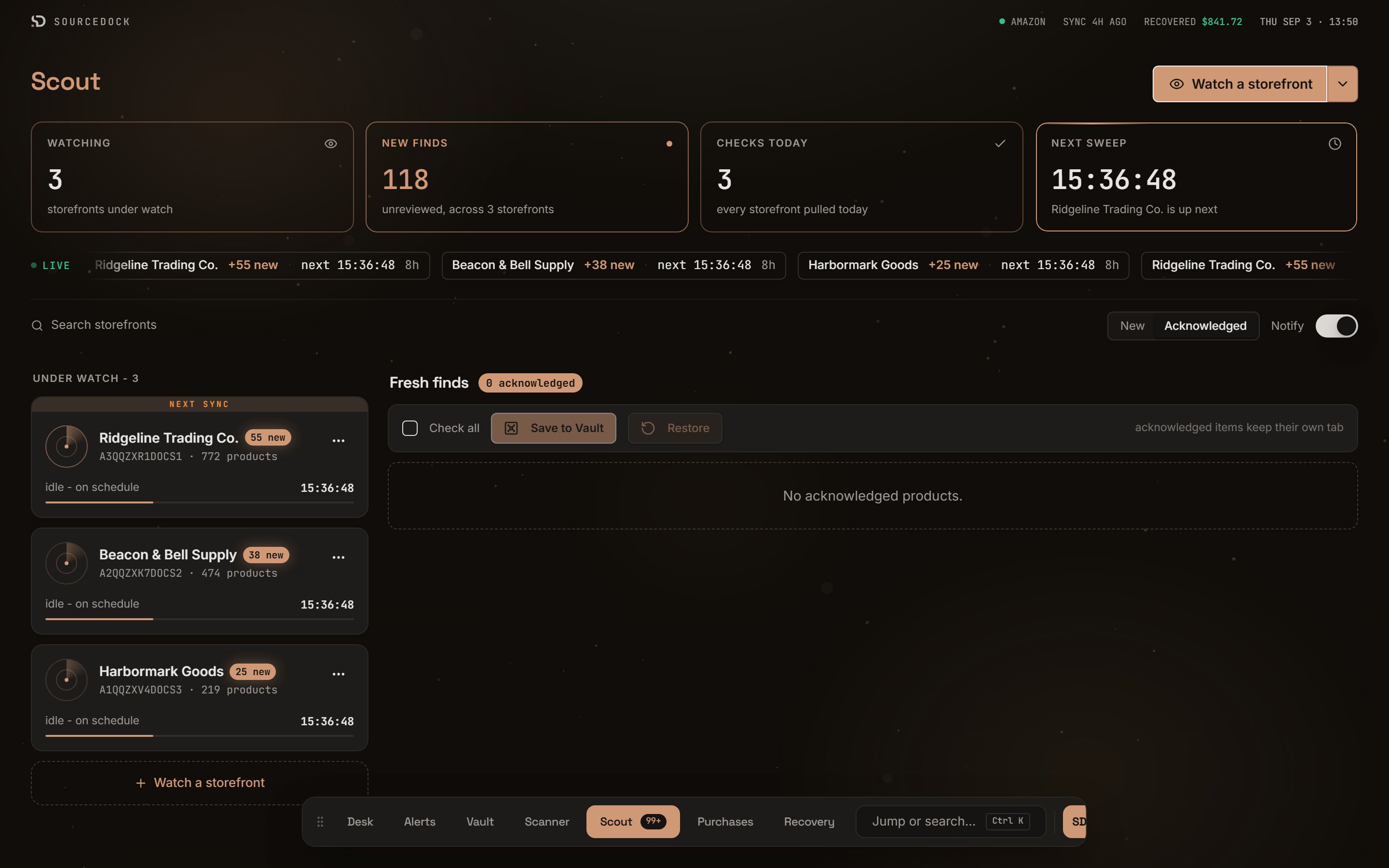
The right side is **Fresh finds**. A pill shows the count, such as `12 unreviewed`. The **New** tab shows finds you have not reviewed. The **Acknowledged** tab shows finds you marked as seen, so nothing is lost.
| Tile | What it shows |
| ---------------- | ---------------------------------------------------------------------------------------------------------------- |
| **Watching** | How many storefronts you track. |
| **New finds** | Finds you have not reviewed, and how many storefronts they come from. It lights up when the count is above zero. |
| **Checks today** | How many storefronts were pulled since midnight, your local time. |
| **Next sweep** | A countdown to the next scheduled check and which storefront is up. |
Under the tiles a **LIVE** ticker scrolls one pill per storefront. Each pill shows the name and a state such as `+3 new`, `clean`, or `pending`. It also shows the next check countdown and the time since the last check.
## Storefront cards
Each storefront you watch is a card under **Under watch**. It shows the name, a `3 new` pill when there are unreviewed finds, the seller ID, and the product count. Before the first pull it reads **first catalog pull pending**. The card that is next in line wears a **Next sync** ribbon. Click a card to show only that storefront's finds. Click it again to show all.
The bottom of the card shows the check state and a countdown.
| State | When you see it |
| -------------------------- | --------------------------------------- |
| **idle - on schedule** | While it waits. |
| **sweeping storefront...** | When the check is due and about to run. |
| **first check queued** | Before the first pull. |
The three-dot menu on a card has three items.
| Item | What it does |
| ----------------------- | ---------------------------------------------------------------------------------- |
| **Export new items** | Downloads this storefront's unreviewed finds as a CSV file. |
| **Export acknowledged** | Downloads the finds you have marked as seen. |
| **Remove** | Stops watching after you confirm. Items you already saved to the Vault stay there. |
## The feed
The right side is **Fresh finds**. A pill shows the count, such as `12 unreviewed`. The **New** tab shows finds you have not reviewed. The **Acknowledged** tab shows finds you marked as seen, so nothing is lost.
 Each find shows the image and the title as a link to Amazon. Under that sit the ASIN, the brand, and which storefront it came from. To the right are the price and how long ago it was found. A find under 15 minutes old wears a **just found** tag. Click the ASIN to copy it.
| Button | What it does |
| ----------------- | ------------------------------------------------------------------------------------------------------------------------------------------------------------------------------------ |
| **Save to Vault** | Adds the ASIN to your Prospect Vault. |
| **Acknowledge** | Marks the find as seen and moves it to the Acknowledged tab. There the button reads **Restore** and moves it back. |
| **Check all** | Ticks every find you can see. You can also tick the box on each find. Then click **Save to Vault**, **Acknowledge**, or **Restore** in the bar above the feed to act on all of them. |
The feed shows eight finds at a time. Click the line at the bottom, such as `20 more - load as you triage`, to see more.
## Search, notify, and export
The search box reads **Search storefronts**. Type part of a name or seller ID to filter both the cards and the feed.
The **Notify** switch is on by default. It shows a notice at the top right of any page when the unreviewed count goes up. It reads something like `3 new products on 2 storefronts`. Click it to open Scout, or click the X to dismiss it. The switch is saved in this browser only.
The arrow next to **Watch a storefront** opens a menu with **Export new items** and **Export acknowledged**. These download finds from every storefront. Use the card menu to export one storefront.
## How often Scout checks
Every plan checks each storefront once a day. A few rules shape the timing.
| Rule | What happens |
| ------------ | --------------------------------------------------------------------------------------------------------------------------------------------------------------------------------- |
| Due check | Scout looks for due storefronts every five minutes. |
| Hourly cap | No storefront is checked more than once an hour. Amazon's storefront list does not change faster than that. |
| Spread | Check times are spread out so your storefronts do not all run at the same minute. |
| Data budget | If the daily data budget runs out, the check waits about 15 minutes and tries again. The feed reads **Checks paused: today's data budget is used up. They resume automatically.** |
| Failed check | Scout waits longer before each retry, up to three days. After three failures in a row the card shows a red dot with the reason. |
| Stale data | Opening Scout refreshes any storefront whose data is more than a day old. |
A very large storefront cannot be pulled in full. Its feed reads **Too big to check in full** with the product count. New products on it may be missed.
## Plan limits
| Plan | Storefronts |
| -------- | ----------- |
| Premier | 5 |
| Pro | 25 |
| Flagship | 100 |
If you watch more than your plan allows, nothing is removed. A notice reads **Nothing was removed - some of it just is not being refreshed**. The newest storefronts up to your limit keep being checked. The rest stay on the list but are not checked.
If your subscription is not active, the page shows one card: **Scout needs an active plan**. Your tracked storefronts come back as they were when you restart it.
Each find shows the image and the title as a link to Amazon. Under that sit the ASIN, the brand, and which storefront it came from. To the right are the price and how long ago it was found. A find under 15 minutes old wears a **just found** tag. Click the ASIN to copy it.
| Button | What it does |
| ----------------- | ------------------------------------------------------------------------------------------------------------------------------------------------------------------------------------ |
| **Save to Vault** | Adds the ASIN to your Prospect Vault. |
| **Acknowledge** | Marks the find as seen and moves it to the Acknowledged tab. There the button reads **Restore** and moves it back. |
| **Check all** | Ticks every find you can see. You can also tick the box on each find. Then click **Save to Vault**, **Acknowledge**, or **Restore** in the bar above the feed to act on all of them. |
The feed shows eight finds at a time. Click the line at the bottom, such as `20 more - load as you triage`, to see more.
## Search, notify, and export
The search box reads **Search storefronts**. Type part of a name or seller ID to filter both the cards and the feed.
The **Notify** switch is on by default. It shows a notice at the top right of any page when the unreviewed count goes up. It reads something like `3 new products on 2 storefronts`. Click it to open Scout, or click the X to dismiss it. The switch is saved in this browser only.
The arrow next to **Watch a storefront** opens a menu with **Export new items** and **Export acknowledged**. These download finds from every storefront. Use the card menu to export one storefront.
## How often Scout checks
Every plan checks each storefront once a day. A few rules shape the timing.
| Rule | What happens |
| ------------ | --------------------------------------------------------------------------------------------------------------------------------------------------------------------------------- |
| Due check | Scout looks for due storefronts every five minutes. |
| Hourly cap | No storefront is checked more than once an hour. Amazon's storefront list does not change faster than that. |
| Spread | Check times are spread out so your storefronts do not all run at the same minute. |
| Data budget | If the daily data budget runs out, the check waits about 15 minutes and tries again. The feed reads **Checks paused: today's data budget is used up. They resume automatically.** |
| Failed check | Scout waits longer before each retry, up to three days. After three failures in a row the card shows a red dot with the reason. |
| Stale data | Opening Scout refreshes any storefront whose data is more than a day old. |
A very large storefront cannot be pulled in full. Its feed reads **Too big to check in full** with the product count. New products on it may be missed.
## Plan limits
| Plan | Storefronts |
| -------- | ----------- |
| Premier | 5 |
| Pro | 25 |
| Flagship | 100 |
If you watch more than your plan allows, nothing is removed. A notice reads **Nothing was removed - some of it just is not being refreshed**. The newest storefronts up to your limit keep being checked. The rest stay on the list but are not checked.
If your subscription is not active, the page shows one card: **Scout needs an active plan**. Your tracked storefronts come back as they were when you restart it.