> ## Documentation Index
> Fetch the complete documentation index at: https://docs.sourcedock.io/llms.txt
> Use this file to discover all available pages before exploring further.
# Prospect Vault
> Save products you might buy and let SourceDock fill in the price, fees, profit, and ROI for you.
The Vault is where you keep prospects. A prospect is a product you are thinking about buying. Some people call it a lead. You add the ASIN and what it costs you. SourceDock finds the rest: the Amazon price, the fees, and what you would keep.
 ## The headline
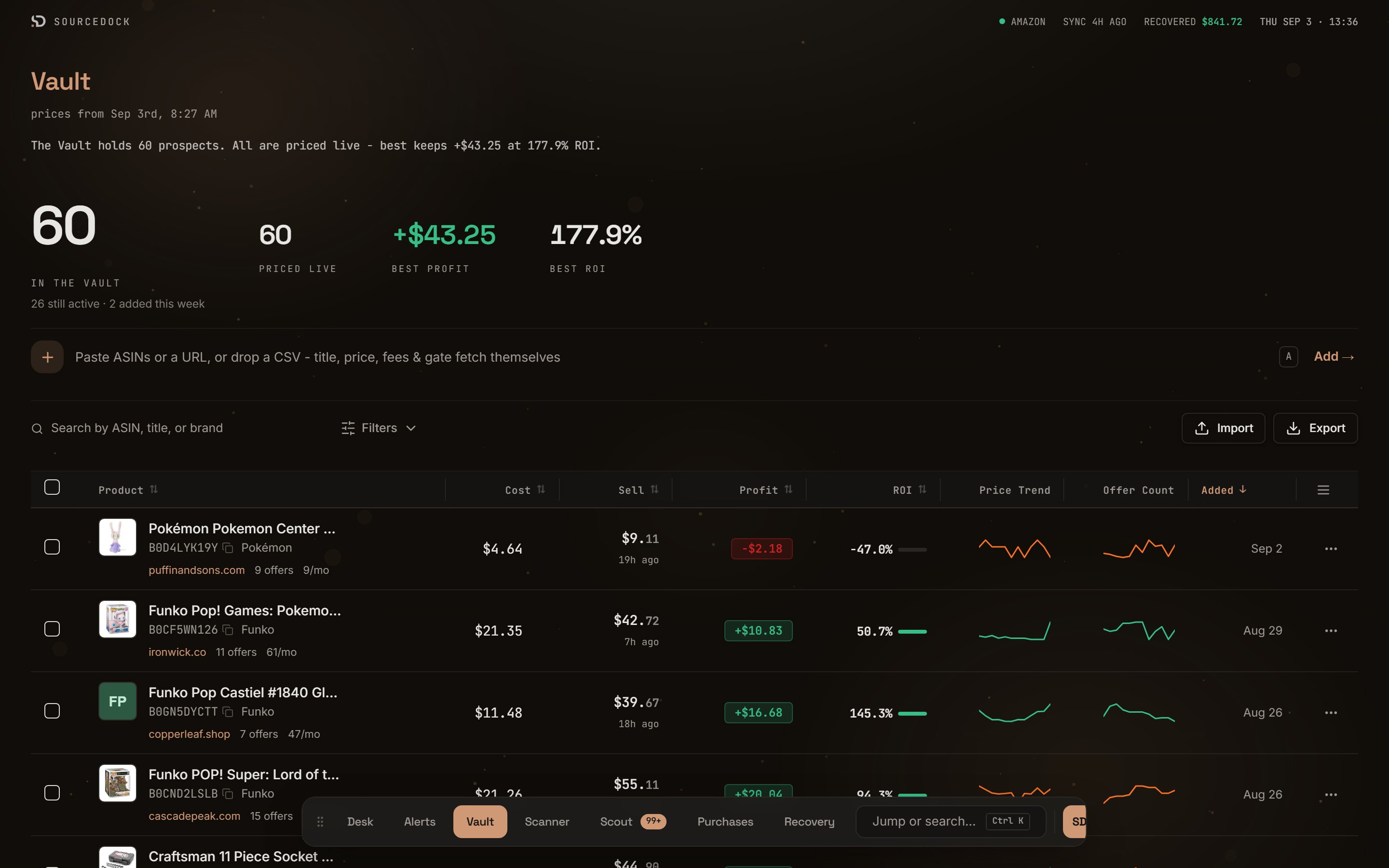
The top of the page is one plain sentence, such as "The Vault holds 11 prospects. 8 are priced live - best keeps +\$33.82 at 112.7% ROI." Four figures sit under it. They cover the whole Vault, not only the page you are on. A figure shows a dash when nothing is priced yet. A dash is not zero.
| Figure | What it counts |
| -------------------------------- | --------------------------------------------------------------------------------------------------------------------------------------- |
| **In the Vault** | Every prospect. A small line under it can note how many are still active, added this week, missing a live price, or missing a buy cost. |
| **Priced live** | Prospects with a current Amazon price. |
| **Best profit** and **Best ROI** | The top figures across all priced prospects. |
## The headline
The top of the page is one plain sentence, such as "The Vault holds 11 prospects. 8 are priced live - best keeps +\$33.82 at 112.7% ROI." Four figures sit under it. They cover the whole Vault, not only the page you are on. A figure shows a dash when nothing is priced yet. A dash is not zero.
| Figure | What it counts |
| -------------------------------- | --------------------------------------------------------------------------------------------------------------------------------------- |
| **In the Vault** | Every prospect. A small line under it can note how many are still active, added this week, missing a live price, or missing a buy cost. |
| **Priced live** | Prospects with a current Amazon price. |
| **Best profit** and **Best ROI** | The top figures across all priced prospects. |
 ## Add a prospect
The add bar sits under the headline. Paste an ASIN, an Amazon link, or a list of ASINs. Press Enter or click **Add →**. You can also drop a CSV file on it. Press the **A** key to jump to the bar from anywhere on the page.
The bar opens the **Add to Vault** sheet on the right tab for what you pasted. The **Import** button opens the same sheet.
## Add a prospect
The add bar sits under the headline. Paste an ASIN, an Amazon link, or a list of ASINs. Press Enter or click **Add →**. You can also drop a CSV file on it. Press the **A** key to jump to the bar from anywhere on the page.
The bar opens the **Add to Vault** sheet on the right tab for what you pasted. The **Import** button opens the same sheet.
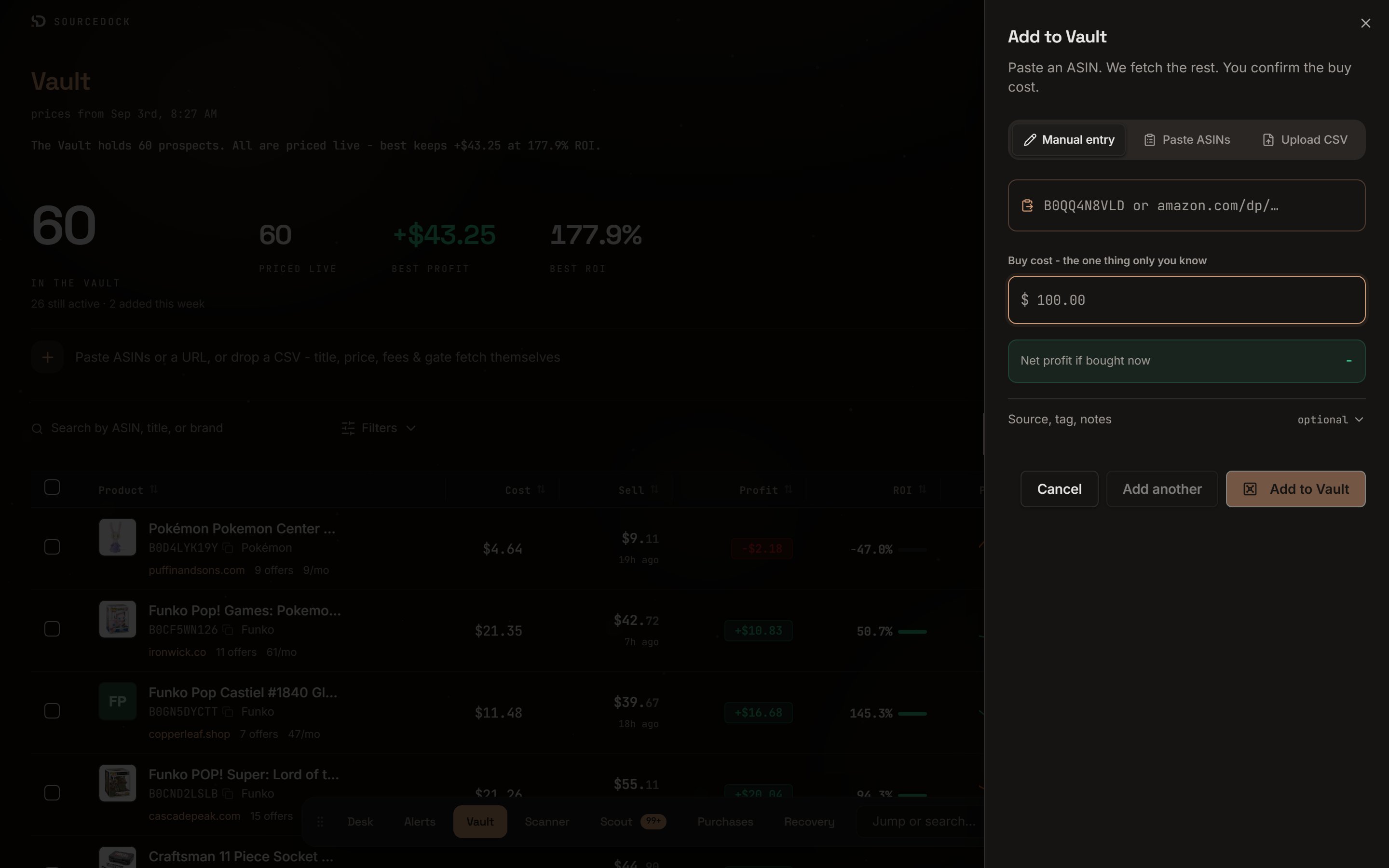 Paste one ASIN or product link. A preview card fills in with the image, title, sell price, and fees. A gate chip reads **OPEN**, **GATED**, or **BLOCKED**. Type your buy cost. The line **Net profit if bought now** updates as you type. Open **Source, tag, notes** for the optional fields.
Click **Add to Vault** to save and close, or **Add another** to save and keep going. If the ASIN is already saved, the sheet offers **Open existing**.
Paste many ASINs, one per line or split by commas. Type one cost in **Buy cost, applied to every ASIN (\$)**. Click **Import 12 Prospects**.
Drop a CSV file or click to browse. Only the ASIN column is required. The file can also carry buy cost, sell price, source link, title, brand, notes, and tags. Match the columns, then click **Import Prospects**. A row with no buy cost imports at \$0 and gets a **Needs cost** badge.
After a big import, a card reads **Your Vault is syncing.** Prices fill in on their own, and you can close the page. A second card reads **Import finished.** when it is done.
## What fills in on its own
After you add a prospect, SourceDock looks the product up and keeps these fresh.
| Field | What it is |
| ----------------------------------------- | ----------------------------------------------------------------------------------------------------------------- |
| **Sell price** | The current Amazon price. |
| **Fees** | The Amazon referral fee and the FBA fee. |
| **Profit** | Sell price minus fees minus your cost. It is a pre-buy estimate. It leaves out storage and inbound shipping fees. |
| **ROI** | Profit divided by your cost, as a percent. |
| **Sales rank, monthly sales, and offers** | How well it sells and how many sellers list it. |
| **Image, title, and brand** | The product details. |
If Amazon fee data is not available, the fees come from a local estimate. Those rows show a small **est. fees** note. Real fees may differ.
## The table
| Column | What you see |
| --------------- | ------------------------------------------------------------------------------------------------------------------- |
| **Product** | Image, title, ASIN, and brand. A second line shows the source site, the offer count, monthly sales, and any badges. |
| **Cost** | Your buy cost. Click it to edit in place. |
| **Sell** | The Amazon price and how fresh it is. |
| **Profit** | What you keep after fees and cost. |
| **ROI** | The return as a percent, with a small bar. The bar is green at 30% or more. |
| **Price Trend** | A small chart of the price over time. |
| **Offer Count** | A small chart of the seller count over time. |
| **Added** | The date you saved it. |
Click a header to sort by Product, Cost, Sell, Profit, ROI, or Added. Click any row to open it for editing.
### Badges and notes on a row
| Badge or note | What it means |
| ----------------------------------------- | --------------------------------------------------------------------------------------------------------------------------------- |
| Price age: `just now`, `3h ago`, `2d ago` | Sits under the sell price. It turns amber after a day and red after a week. Hover for the exact time. This covers the price only. |
| **Not checked yet.** | No lookup has finished. |
| **No live offers found.** | Amazon lists the product but nobody sells it right now. |
| **Could not price after 3 tries.** | Three lookups found nothing. Click **Retry** to ask again. |
| **Waiting for data** | A calm chip on a new row. Data is on the way. It is not an error. |
| **Not listed** | Amazon says this product no longer exists. Your own figures are unchanged. |
| **No buy cost. Profit not shown.** | The cost is \$0, so the figure would be wrong. |
| **No live price. ROI not shown.** | The sell price is your own guess, not a market price. |
| **Needs cost** | An import filled a missing field with a default. Hover the badge to read what was assumed. Fix the field and the badge goes away. |
## Filters
Paste one ASIN or product link. A preview card fills in with the image, title, sell price, and fees. A gate chip reads **OPEN**, **GATED**, or **BLOCKED**. Type your buy cost. The line **Net profit if bought now** updates as you type. Open **Source, tag, notes** for the optional fields.
Click **Add to Vault** to save and close, or **Add another** to save and keep going. If the ASIN is already saved, the sheet offers **Open existing**.
Paste many ASINs, one per line or split by commas. Type one cost in **Buy cost, applied to every ASIN (\$)**. Click **Import 12 Prospects**.
Drop a CSV file or click to browse. Only the ASIN column is required. The file can also carry buy cost, sell price, source link, title, brand, notes, and tags. Match the columns, then click **Import Prospects**. A row with no buy cost imports at \$0 and gets a **Needs cost** badge.
After a big import, a card reads **Your Vault is syncing.** Prices fill in on their own, and you can close the page. A second card reads **Import finished.** when it is done.
## What fills in on its own
After you add a prospect, SourceDock looks the product up and keeps these fresh.
| Field | What it is |
| ----------------------------------------- | ----------------------------------------------------------------------------------------------------------------- |
| **Sell price** | The current Amazon price. |
| **Fees** | The Amazon referral fee and the FBA fee. |
| **Profit** | Sell price minus fees minus your cost. It is a pre-buy estimate. It leaves out storage and inbound shipping fees. |
| **ROI** | Profit divided by your cost, as a percent. |
| **Sales rank, monthly sales, and offers** | How well it sells and how many sellers list it. |
| **Image, title, and brand** | The product details. |
If Amazon fee data is not available, the fees come from a local estimate. Those rows show a small **est. fees** note. Real fees may differ.
## The table
| Column | What you see |
| --------------- | ------------------------------------------------------------------------------------------------------------------- |
| **Product** | Image, title, ASIN, and brand. A second line shows the source site, the offer count, monthly sales, and any badges. |
| **Cost** | Your buy cost. Click it to edit in place. |
| **Sell** | The Amazon price and how fresh it is. |
| **Profit** | What you keep after fees and cost. |
| **ROI** | The return as a percent, with a small bar. The bar is green at 30% or more. |
| **Price Trend** | A small chart of the price over time. |
| **Offer Count** | A small chart of the seller count over time. |
| **Added** | The date you saved it. |
Click a header to sort by Product, Cost, Sell, Profit, ROI, or Added. Click any row to open it for editing.
### Badges and notes on a row
| Badge or note | What it means |
| ----------------------------------------- | --------------------------------------------------------------------------------------------------------------------------------- |
| Price age: `just now`, `3h ago`, `2d ago` | Sits under the sell price. It turns amber after a day and red after a week. Hover for the exact time. This covers the price only. |
| **Not checked yet.** | No lookup has finished. |
| **No live offers found.** | Amazon lists the product but nobody sells it right now. |
| **Could not price after 3 tries.** | Three lookups found nothing. Click **Retry** to ask again. |
| **Waiting for data** | A calm chip on a new row. Data is on the way. It is not an error. |
| **Not listed** | Amazon says this product no longer exists. Your own figures are unchanged. |
| **No buy cost. Profit not shown.** | The cost is \$0, so the figure would be wrong. |
| **No live price. ROI not shown.** | The sell price is your own guess, not a market price. |
| **Needs cost** | An import filled a missing field with a default. Hover the badge to read what was assumed. Fix the field and the badge goes away. |
## Filters
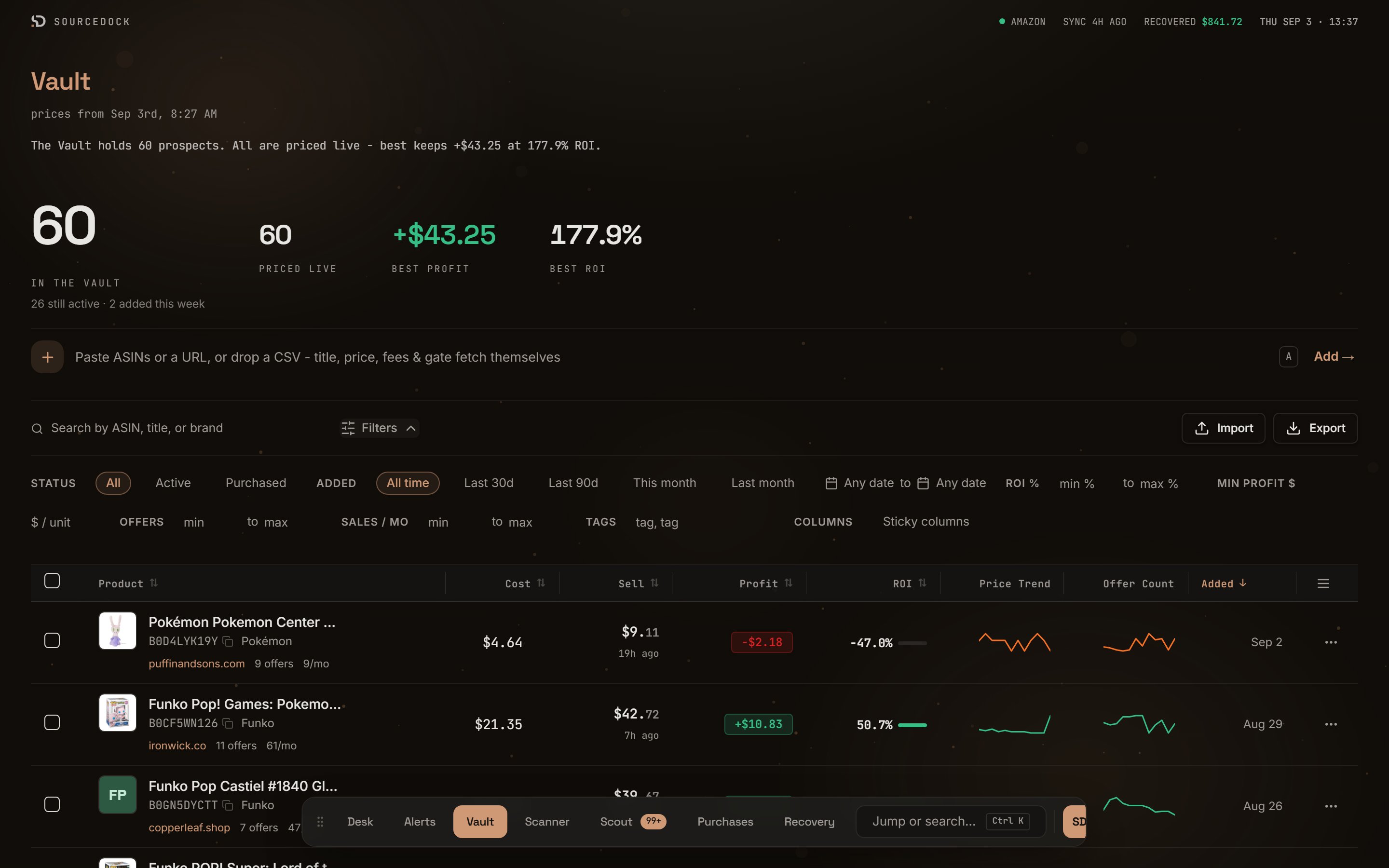 The search box matches ASIN, title, or brand. Open the panel for the rest. Click **Clear** to drop every filter.
| Filter | Options |
| ----------------------------------------- | ------------------------------------------------------------------------------------------------------------ |
| **Status** | **All**, **Active**, or **Purchased**. Active rows are ones you have not bought yet. |
| **Added** | Pills for **All time**, **Last 30d**, **Last 90d**, **This month**, and **Last month**, plus two date boxes. |
| **ROI %**, **Offers**, and **Sales / mo** | A min and a max for each. |
| **Min profit \$** | A dollar floor per unit. |
| **Tags** | Type tags split by commas. |
A profit filter cannot judge a row with no buy cost. When a filter leaves rows out for that reason, a line under the filters says how many and why. It has a link to clear those filters.
## Row actions
Hover a row to see a **Buy** button. It opens the record purchase form with this prospect filled in.
The search box matches ASIN, title, or brand. Open the panel for the rest. Click **Clear** to drop every filter.
| Filter | Options |
| ----------------------------------------- | ------------------------------------------------------------------------------------------------------------ |
| **Status** | **All**, **Active**, or **Purchased**. Active rows are ones you have not bought yet. |
| **Added** | Pills for **All time**, **Last 30d**, **Last 90d**, **This month**, and **Last month**, plus two date boxes. |
| **ROI %**, **Offers**, and **Sales / mo** | A min and a max for each. |
| **Min profit \$** | A dollar floor per unit. |
| **Tags** | Type tags split by commas. |
A profit filter cannot judge a row with no buy cost. When a filter leaves rows out for that reason, a line under the filters says how many and why. It has a link to clear those filters.
## Row actions
Hover a row to see a **Buy** button. It opens the record purchase form with this prospect filled in.
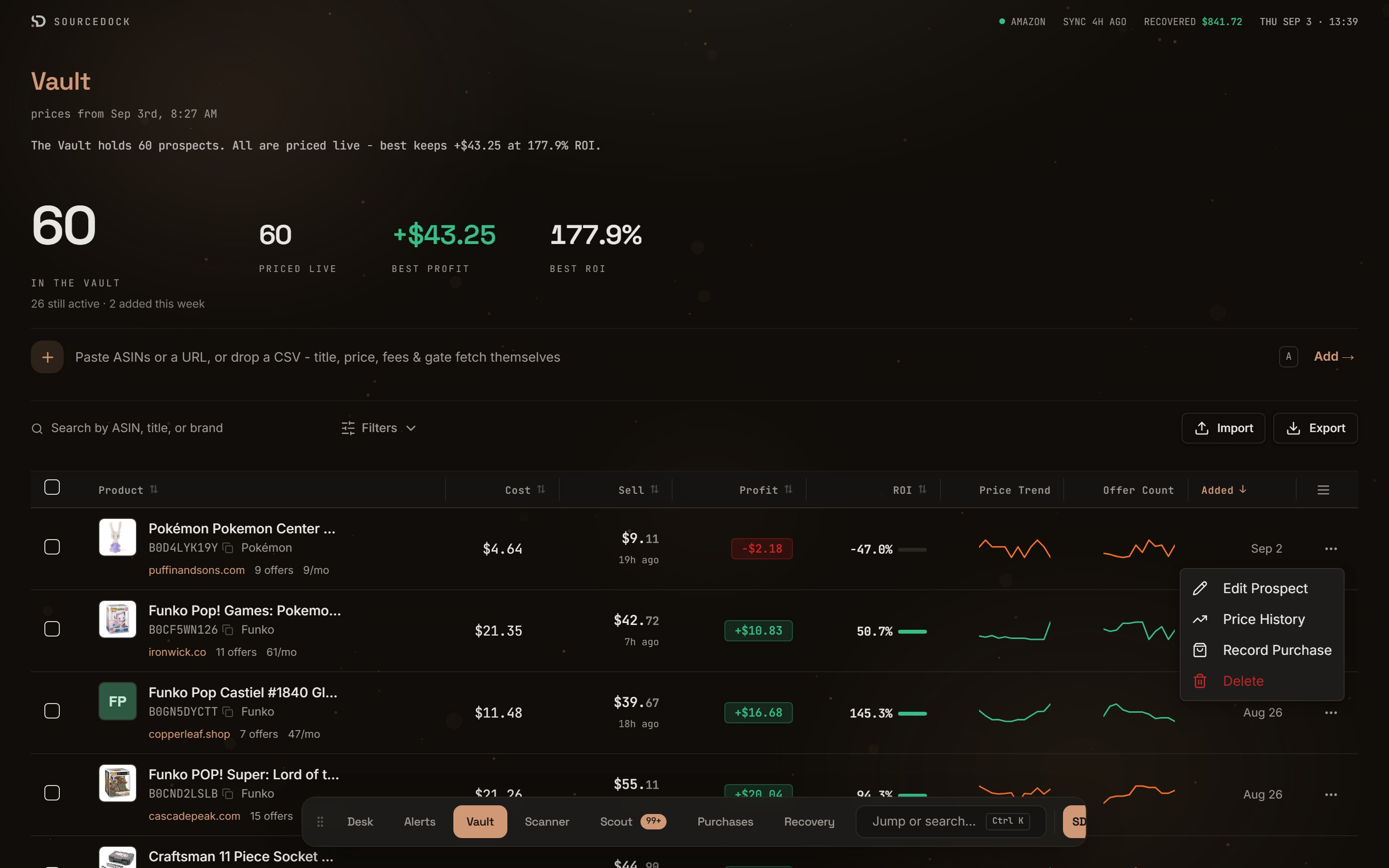 The three-dot menu at the end of a row has four items.
| Item | What it does |
| ------------------- | -------------------------------------------------------------------------------------------------------------------------------------------------------------------------------------------------------------------------------------------------------------------------------------------------------------------------------------------------------------------- |
| **Edit Prospect** | Opens the sheet. You can change **Buy Cost**, **Prep Cost**, **Shipping Cost**, **Tax Cost**, **ROI Method**, **Sourcing Method**, **Source URL**, **Tag**, and **Notes**. A box reads **Enrichment Data (auto-updated)** with the live figures. Click **Save Changes**. |
| **Price History** | Opens a chart. Pick **90d**, **180d**, **1yr**, or **All**. Lines show **Buy Box**, **Amazon**, **Lowest FBA**, and **Sales Rank**. Above it, **Max landed buy cost** is the most you can pay and still clear the profit floors. **Breakeven landed cost** is where you make nothing. Type a cost in **Test a landed cost** to see the profit and ROI at that price. |
| **Record Purchase** | Opens the purchase form. See [Purchases](/operate/purchases). |
| **Delete** | Removes the prospect after you confirm. Purchases already recorded against it are kept. |
## Bulk actions
Tick one or more rows. The top box ticks the whole page. A bar appears at the bottom.
| Button | What it does |
| --------------------- | -------------------------------------------------------------------------------------------- |
| **Tag** | Opens a dialog. Type a tag, then click **Add tags** or **Remove tags**. Tags are lowercased. |
| **Delete** | Removes every ticked row after you confirm. |
| **Export 5 selected** | Downloads those rows as a CSV file. |
| **Record Purchase** | Opens the purchase form with the ticked rows filled in. |
## Column settings
The three-dot menu at the end of a row has four items.
| Item | What it does |
| ------------------- | -------------------------------------------------------------------------------------------------------------------------------------------------------------------------------------------------------------------------------------------------------------------------------------------------------------------------------------------------------------------- |
| **Edit Prospect** | Opens the sheet. You can change **Buy Cost**, **Prep Cost**, **Shipping Cost**, **Tax Cost**, **ROI Method**, **Sourcing Method**, **Source URL**, **Tag**, and **Notes**. A box reads **Enrichment Data (auto-updated)** with the live figures. Click **Save Changes**. |
| **Price History** | Opens a chart. Pick **90d**, **180d**, **1yr**, or **All**. Lines show **Buy Box**, **Amazon**, **Lowest FBA**, and **Sales Rank**. Above it, **Max landed buy cost** is the most you can pay and still clear the profit floors. **Breakeven landed cost** is where you make nothing. Type a cost in **Test a landed cost** to see the profit and ROI at that price. |
| **Record Purchase** | Opens the purchase form. See [Purchases](/operate/purchases). |
| **Delete** | Removes the prospect after you confirm. Purchases already recorded against it are kept. |
## Bulk actions
Tick one or more rows. The top box ticks the whole page. A bar appears at the bottom.
| Button | What it does |
| --------------------- | -------------------------------------------------------------------------------------------- |
| **Tag** | Opens a dialog. Type a tag, then click **Add tags** or **Remove tags**. Tags are lowercased. |
| **Delete** | Removes every ticked row after you confirm. |
| **Export 5 selected** | Downloads those rows as a CSV file. |
| **Record Purchase** | Opens the purchase form with the ticked rows filled in. |
## Column settings
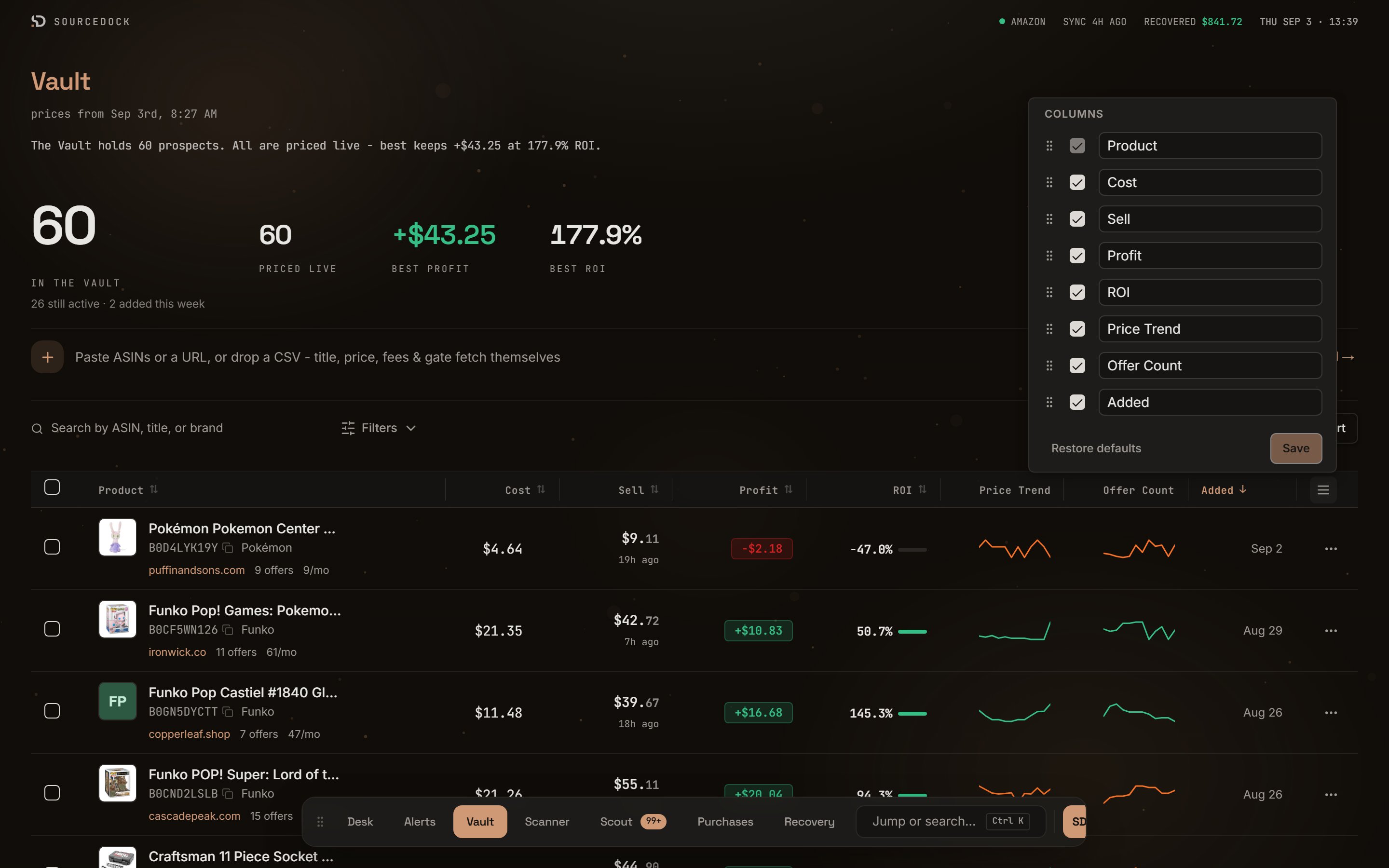 Click the menu icon at the end of the header row. Drag a column to move it. Untick it to hide it. Type in a box to rename it. Click **Save**, or **Restore defaults** to go back.
## Import and Export
**Import** opens the Add to Vault sheet on the **Paste ASINs** tab. **Export** downloads a CSV of every prospect that matches the current filters, in the current sort order. Export is part of Pro and Flagship. On Premier you see **Export requires an upgrade**.
## Plan limits
| Plan | Prospects kept fresh |
| -------- | -------------------- |
| Premier | 300 |
| Pro | 1,000 |
| Flagship | 5,000 |
If you hold more than your plan allows, nothing is deleted. A notice reads **Nothing was removed - some of it just is not being refreshed**. The newest rows up to your limit keep getting fresh prices. The rest keep their last known price and show its age.
Click the menu icon at the end of the header row. Drag a column to move it. Untick it to hide it. Type in a box to rename it. Click **Save**, or **Restore defaults** to go back.
## Import and Export
**Import** opens the Add to Vault sheet on the **Paste ASINs** tab. **Export** downloads a CSV of every prospect that matches the current filters, in the current sort order. Export is part of Pro and Flagship. On Premier you see **Export requires an upgrade**.
## Plan limits
| Plan | Prospects kept fresh |
| -------- | -------------------- |
| Premier | 300 |
| Pro | 1,000 |
| Flagship | 5,000 |
If you hold more than your plan allows, nothing is deleted. A notice reads **Nothing was removed - some of it just is not being refreshed**. The newest rows up to your limit keep getting fresh prices. The rest keep their last known price and show its age.