> ## Documentation Index
> Fetch the complete documentation index at: https://docs.sourcedock.io/llms.txt
> Use this file to discover all available pages before exploring further.
# Gate Scanner
> Check a list of ASINs for Amazon restrictions before you spend money on them.
The Gate Scanner tells you if Amazon will let you sell a product. You give it a list of ASINs. It asks Amazon about each one and shows you a verdict.
An ASIN is the ten-character code Amazon gives every product. A restriction check is one question sent to Amazon: "Can this seller list this product right now?" The scanner does not use Keepa tokens for this.
 ## Before you start
You need an Amazon seller account connected to SourceDock. Without one, the scan button stays off and the hint reads **Connect an Amazon seller account to scan**. A notice at the top says **No Amazon account connected** with a link to connect it.
The SourceDockIQ Chrome extension is optional. You only need it for the **Verify** step. See [Chrome extension](/reference/chrome-extension).
## The verdicts
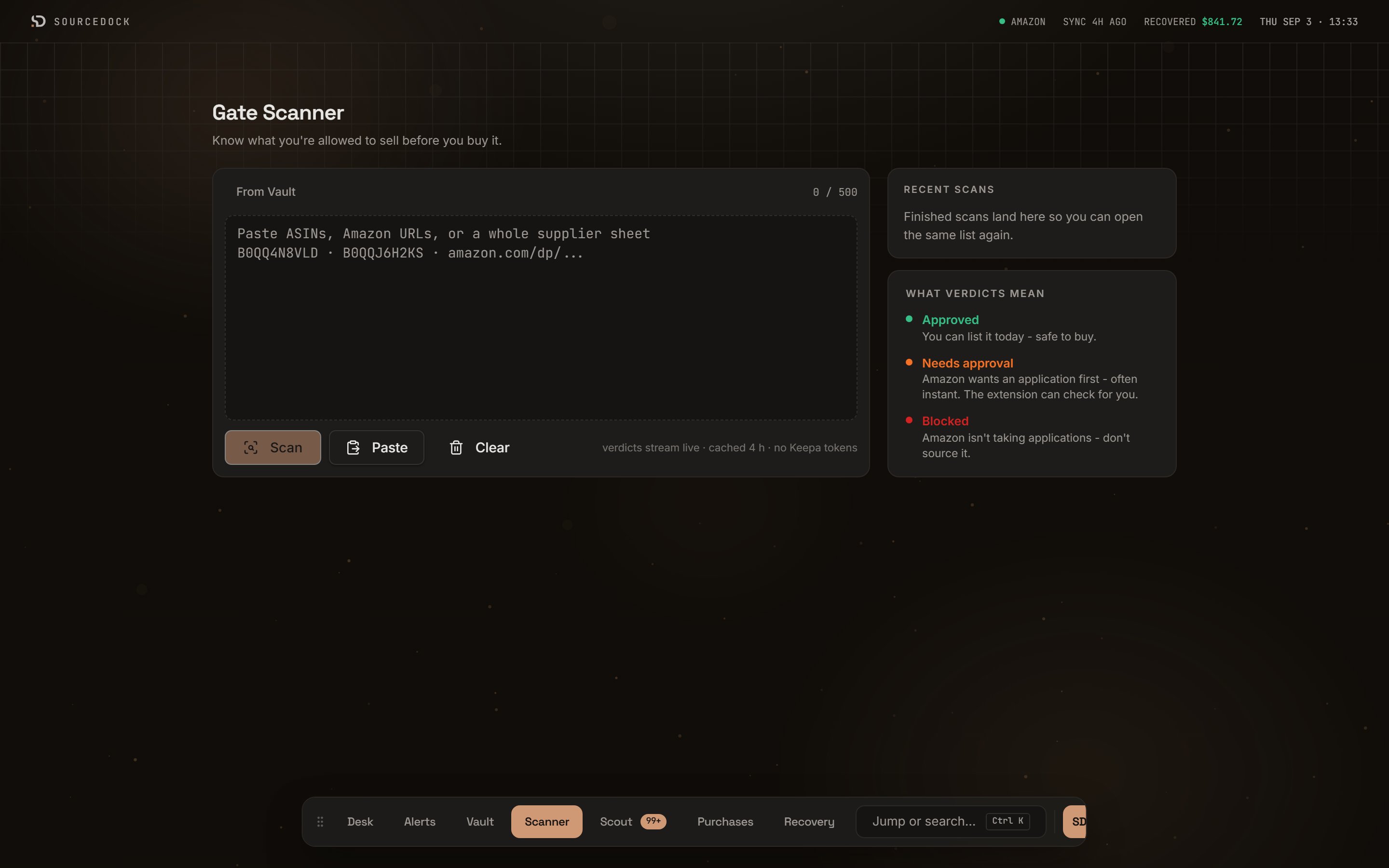
Every ASIN gets one of three verdicts. A fourth bucket, **Errors**, holds ASINs Amazon could not answer. The verdict key on the first-run screen says the same thing in short form.
| Verdict | What it means | What to do |
| ------------------ | --------------------------------------------------------------- | ---------------------------------------------------------- |
| **Approved** | You can list it today. | Safe to buy. |
| **Needs approval** | Amazon wants you to apply first. Often the approval is instant. | Use **Verify** to see what Amazon asks for. |
| **Blocked** | Amazon is not taking applications for this product. | Do not source it. |
| **Errors** | Amazon did not give an answer. | Read the **Reason** column, fix the cause, and scan again. |
An ASIN that was not checked is not an approved ASIN. If a scan stops early, the desk tells you how many were checked. Treat the rest as unknown.
## Add your ASINs
Type or paste into the big box. It accepts plain ASINs, Amazon product links, and whole supplier sheets. The scanner keeps every code that looks like an ASIN and drops the rest. Codes can be on new lines or split by commas. You can also drag a `.csv`, `.tsv`, or `.txt` file onto the box.
| Control | What it does |
| -------------- | ------------------------------------------------------------------------------------------------------------------------------------------------------------------------------------------------------------------------------------------------------------------------------------------------------------------------------ |
| The box | Reads a dropped file and shows a line like `sheet.csv: 40 ASINs ready to scan`. If the file has no ASINs, a toast says **No ASINs found**. |
| **Paste** | Reads your clipboard into the box. |
| **Clear** | Empties the box and resets the scan. |
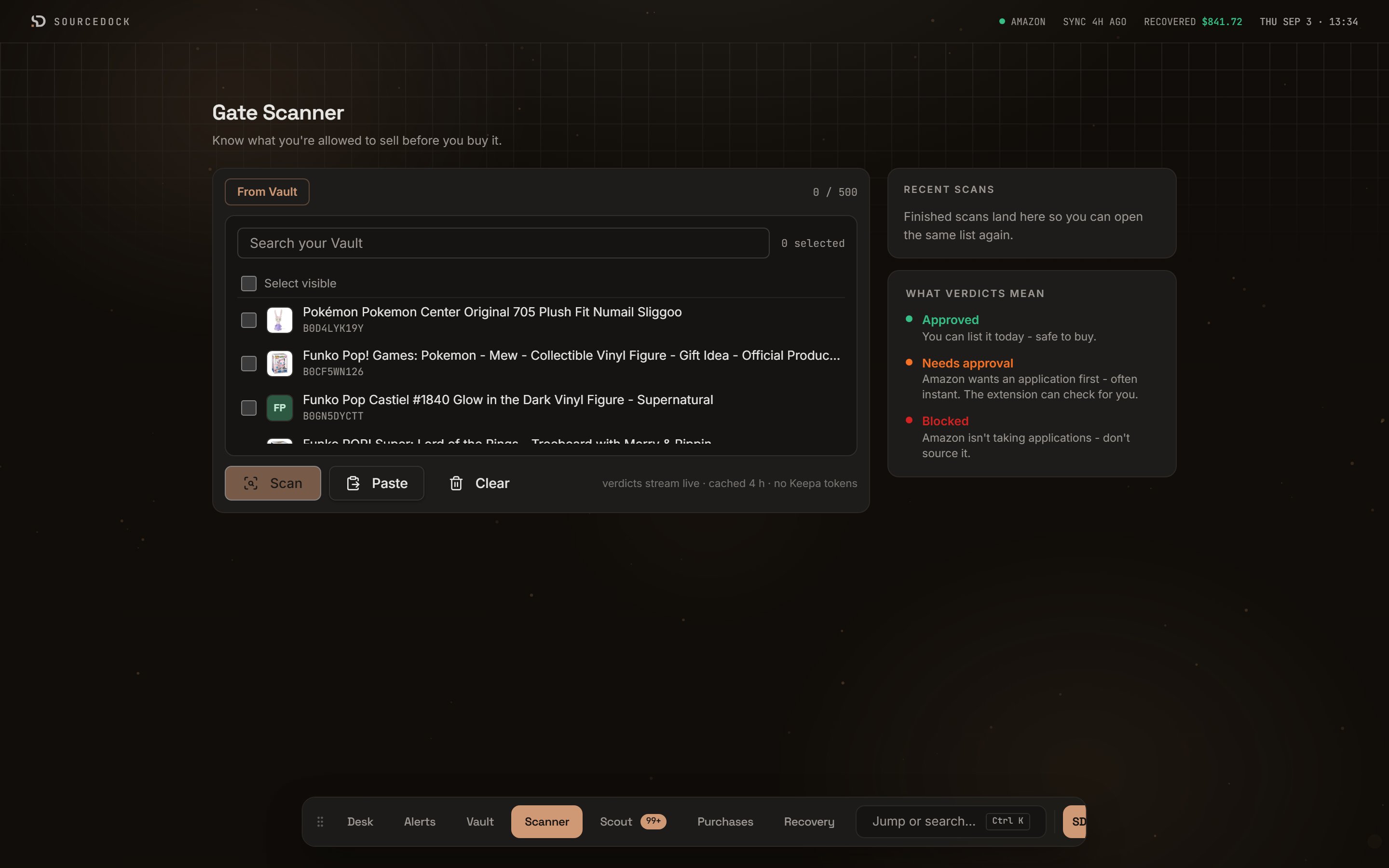
| **From Vault** | Picks ASINs saved in the [Prospect Vault](/source/prospect-vault). Use **Search your Vault** to filter by ASIN, title, or brand. Tick the rows you want. The top checkbox selects every row you can see. The panel shows how many are selected. If your Vault is empty, the panel says so and asks you to paste ASINs instead. |
| `12 / 50` | How many ASINs are ready, and how many one scan can hold on your plan. |
## Before you start
You need an Amazon seller account connected to SourceDock. Without one, the scan button stays off and the hint reads **Connect an Amazon seller account to scan**. A notice at the top says **No Amazon account connected** with a link to connect it.
The SourceDockIQ Chrome extension is optional. You only need it for the **Verify** step. See [Chrome extension](/reference/chrome-extension).
## The verdicts
Every ASIN gets one of three verdicts. A fourth bucket, **Errors**, holds ASINs Amazon could not answer. The verdict key on the first-run screen says the same thing in short form.
| Verdict | What it means | What to do |
| ------------------ | --------------------------------------------------------------- | ---------------------------------------------------------- |
| **Approved** | You can list it today. | Safe to buy. |
| **Needs approval** | Amazon wants you to apply first. Often the approval is instant. | Use **Verify** to see what Amazon asks for. |
| **Blocked** | Amazon is not taking applications for this product. | Do not source it. |
| **Errors** | Amazon did not give an answer. | Read the **Reason** column, fix the cause, and scan again. |
An ASIN that was not checked is not an approved ASIN. If a scan stops early, the desk tells you how many were checked. Treat the rest as unknown.
## Add your ASINs
Type or paste into the big box. It accepts plain ASINs, Amazon product links, and whole supplier sheets. The scanner keeps every code that looks like an ASIN and drops the rest. Codes can be on new lines or split by commas. You can also drag a `.csv`, `.tsv`, or `.txt` file onto the box.
| Control | What it does |
| -------------- | ------------------------------------------------------------------------------------------------------------------------------------------------------------------------------------------------------------------------------------------------------------------------------------------------------------------------------ |
| The box | Reads a dropped file and shows a line like `sheet.csv: 40 ASINs ready to scan`. If the file has no ASINs, a toast says **No ASINs found**. |
| **Paste** | Reads your clipboard into the box. |
| **Clear** | Empties the box and resets the scan. |
| **From Vault** | Picks ASINs saved in the [Prospect Vault](/source/prospect-vault). Use **Search your Vault** to filter by ASIN, title, or brand. Tick the rows you want. The top checkbox selects every row you can see. The panel shows how many are selected. If your Vault is empty, the panel says so and asks you to paste ASINs instead. |
| `12 / 50` | How many ASINs are ready, and how many one scan can hold on your plan. |
 | Plan | ASINs per scan |
| -------- | -------------- |
| Premier | 50 |
| Pro | 100 |
| Flagship | 500 |
If you go over, the hint turns amber and reads `120 ASINs - your plan allows 50 per scan` with an **Upgrade** link. The scan button stays off until you trim the list.
## Run the scan
Paste your list or pick from the Vault. The hint under the buttons shows `12 ready`.
The button reads **Scan 12 ASINs**. It changes to **Scanning...** while the scan runs.
The page switches to the scan desk. Verdicts appear one by one as Amazon answers.
| Part | What you see while it runs |
| ----------------- | ------------------------------------------------------------------------------------------------------------------------------------------------------------------------------------------------------ |
| Status card | **Scanning** with a count like `18 of 50`, a progress bar, the speed in ASINs per second, and a rough time left. Four counters tick up: **Approved**, **Needs approval**, **Blocked**, and **Errors**. |
| **Live verdicts** | Newest first. Each row has the time, the product image, the title, the ASIN, and a verdict badge. The footer reads `32 still in queue - verdicts append as Amazon responds`. |
| **Cancel scan** | Stops early. A notice then says where the scan stopped and that the rest were not checked. |
| **Scan complete** | The status card reads this when the scan ends. A toast sums up the counts. |
## Read the results
| Plan | ASINs per scan |
| -------- | -------------- |
| Premier | 50 |
| Pro | 100 |
| Flagship | 500 |
If you go over, the hint turns amber and reads `120 ASINs - your plan allows 50 per scan` with an **Upgrade** link. The scan button stays off until you trim the list.
## Run the scan
Paste your list or pick from the Vault. The hint under the buttons shows `12 ready`.
The button reads **Scan 12 ASINs**. It changes to **Scanning...** while the scan runs.
The page switches to the scan desk. Verdicts appear one by one as Amazon answers.
| Part | What you see while it runs |
| ----------------- | ------------------------------------------------------------------------------------------------------------------------------------------------------------------------------------------------------ |
| Status card | **Scanning** with a count like `18 of 50`, a progress bar, the speed in ASINs per second, and a rough time left. Four counters tick up: **Approved**, **Needs approval**, **Blocked**, and **Errors**. |
| **Live verdicts** | Newest first. Each row has the time, the product image, the title, the ASIN, and a verdict badge. The footer reads `32 still in queue - verdicts append as Amazon responds`. |
| **Cancel scan** | Stops early. A notice then says where the scan stopped and that the rest were not checked. |
| **Scan complete** | The status card reads this when the scan ends. A toast sums up the counts. |
## Read the results
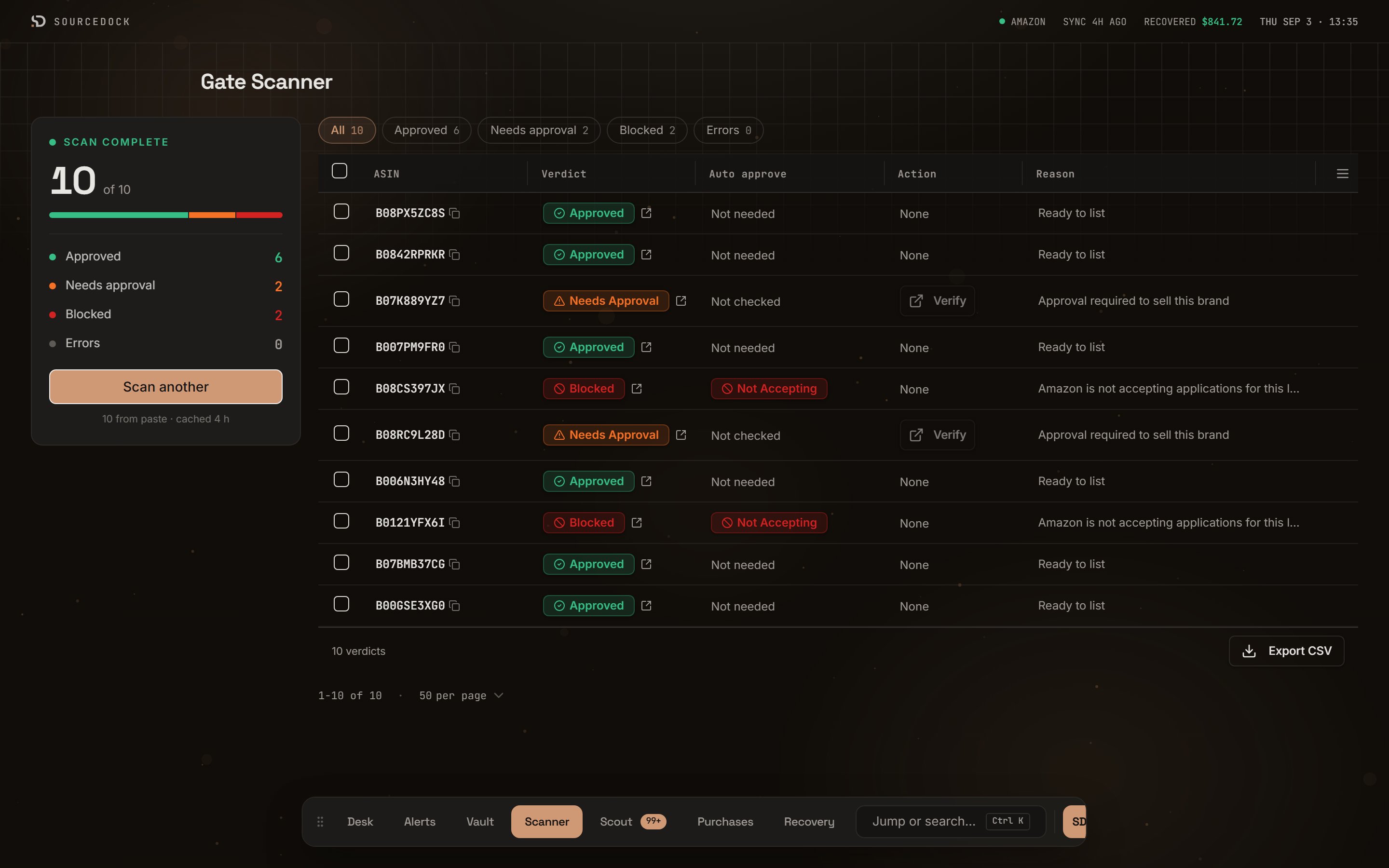 Five chips sit above the table: **All**, **Approved**, **Needs approval**, **Blocked**, and **Errors**. Each shows its count. Click one to show only those rows.
| Column | What you see |
| ---------------- | ------------------------------------------------------------------------------------------------------------------------------------------------------------------------------- |
| **ASIN** | The code. Click it to copy it. |
| **Verdict** | The badge, plus a small link that opens the product in Seller Central. |
| **Auto approve** | What the extension saw when you ran **Verify**. Reads **Not needed** for approved rows and **Not checked** for rows you have not verified. Blocked rows show **Not Accepting**. |
| **Action** | The **Verify** button for rows that need approval. Reads **None** for other rows. |
| **Reason** | Amazon's reason in plain text. Approved rows read **Ready to list**. Hover to read a long reason in full. |
The menu icon at the end of the header row lets you hide, rename, or reorder columns. The footer shows the verdict count and a pager with 10, 25, 50, or 100 rows per page. Click **Scan another** on the status card to go back to the paste box. The card also notes that verdicts are cached for 4 hours.
## Verify with the extension
**Needs approval** means Amazon wants an application. **Verify** shows you what that application looks like without leaving the desk.
**Verify** is off until the extension is connected. Then a green **Extension connected** pill sits next to the page title.
The extension opens that listing in a new Seller Central tab. You click through the page yourself. The extension only reads the outcome you see. It never clicks for you.
While the check runs the row reads **Checking...** with an X to cancel. When it finishes you see a badge with a short confidence bar. It reads **Auto-Approved**, **Documents Required**, **Info Required**, or **Not Accepting**.
Some checks need you signed in to Seller Central. If you are not, the badge reads **Not Signed In**. A notice at the top says **Sign in to Seller Central**. Sign in, then click **Verify** again. A check that runs out of time reads **Timed out** with a **Retry** link.
## Export CSV
Click **Export CSV** in the table footer to download every verdict from the scan. The file has six columns: ASIN, Title, Brand, Status, Reasons, and Approval URL. The file name includes the date.
## Recent scans
The **Recent scans** card on the first-run screen keeps your last five scans. Each row shows the date, the ASIN count, and a small bar split by verdict. Click a row to load that list back into the paste box and see its ASINs. Click the circular arrow to scan that list again right away. Recent scans live in this browser tab only. Closing the tab clears them.
## If a scan fails
A notice reads **This scan could not be completed** when something fails before any ASIN is checked. Treat none of the ASINs as approved. Run the scan again.
Five chips sit above the table: **All**, **Approved**, **Needs approval**, **Blocked**, and **Errors**. Each shows its count. Click one to show only those rows.
| Column | What you see |
| ---------------- | ------------------------------------------------------------------------------------------------------------------------------------------------------------------------------- |
| **ASIN** | The code. Click it to copy it. |
| **Verdict** | The badge, plus a small link that opens the product in Seller Central. |
| **Auto approve** | What the extension saw when you ran **Verify**. Reads **Not needed** for approved rows and **Not checked** for rows you have not verified. Blocked rows show **Not Accepting**. |
| **Action** | The **Verify** button for rows that need approval. Reads **None** for other rows. |
| **Reason** | Amazon's reason in plain text. Approved rows read **Ready to list**. Hover to read a long reason in full. |
The menu icon at the end of the header row lets you hide, rename, or reorder columns. The footer shows the verdict count and a pager with 10, 25, 50, or 100 rows per page. Click **Scan another** on the status card to go back to the paste box. The card also notes that verdicts are cached for 4 hours.
## Verify with the extension
**Needs approval** means Amazon wants an application. **Verify** shows you what that application looks like without leaving the desk.
**Verify** is off until the extension is connected. Then a green **Extension connected** pill sits next to the page title.
The extension opens that listing in a new Seller Central tab. You click through the page yourself. The extension only reads the outcome you see. It never clicks for you.
While the check runs the row reads **Checking...** with an X to cancel. When it finishes you see a badge with a short confidence bar. It reads **Auto-Approved**, **Documents Required**, **Info Required**, or **Not Accepting**.
Some checks need you signed in to Seller Central. If you are not, the badge reads **Not Signed In**. A notice at the top says **Sign in to Seller Central**. Sign in, then click **Verify** again. A check that runs out of time reads **Timed out** with a **Retry** link.
## Export CSV
Click **Export CSV** in the table footer to download every verdict from the scan. The file has six columns: ASIN, Title, Brand, Status, Reasons, and Approval URL. The file name includes the date.
## Recent scans
The **Recent scans** card on the first-run screen keeps your last five scans. Each row shows the date, the ASIN count, and a small bar split by verdict. Click a row to load that list back into the paste box and see its ASINs. Click the circular arrow to scan that list again right away. Recent scans live in this browser tab only. Closing the tab clears them.
## If a scan fails
A notice reads **This scan could not be completed** when something fails before any ASIN is checked. Treat none of the ASINs as approved. Run the scan again.