> ## Documentation Index
> Fetch the complete documentation index at: https://docs.sourcedock.io/llms.txt
> Use this file to discover all available pages before exploring further.
# Purchases
> Record what you buy, follow each order until it reaches Amazon, and log units that never showed up.
Purchases is your buying log. Record each store order once. Then move it through a few steps until the goods reach Amazon.
The page has three tabs: **Purchase Orders**, **Write-offs**, and **Import from Amazon**.
 ## The receipts headline
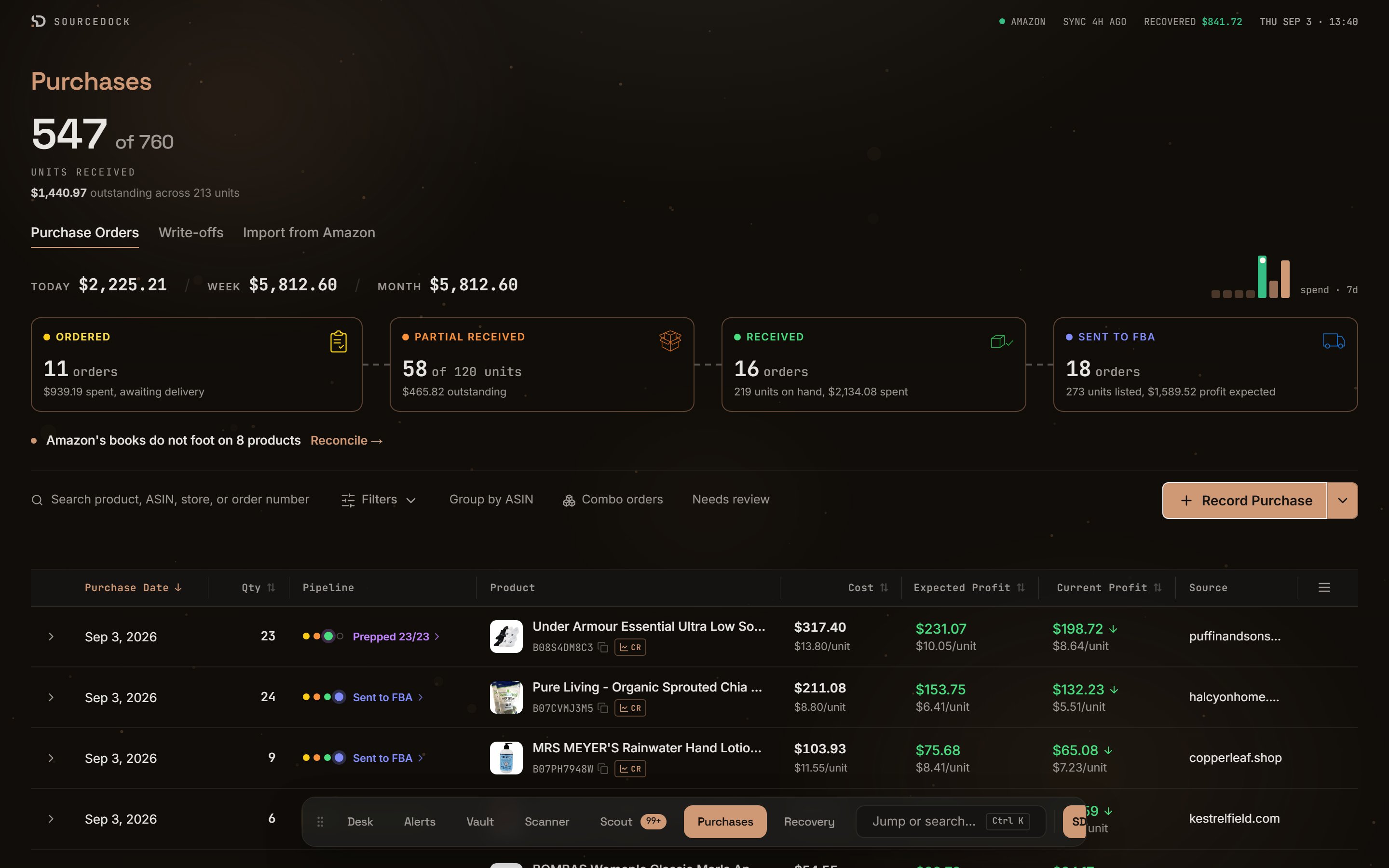
The big number is **Units received**: units that arrived, out of all units ordered. Under it is the money still tied up in units not yet in. When every unit is in, it says "Everything ordered has arrived". Before your first order, it says "Nothing ordered yet". The figures count every purchase, not only the rows on screen.
## The receipts headline
The big number is **Units received**: units that arrived, out of all units ordered. Under it is the money still tied up in units not yet in. When every unit is in, it says "Everything ordered has arrived". Before your first order, it says "Nothing ordered yet". The figures count every purchase, not only the rows on screen.
 ## Record a purchase
You record a purchase from prospects in your Vault. A prospect is a product you saved with its ASIN and buy cost.
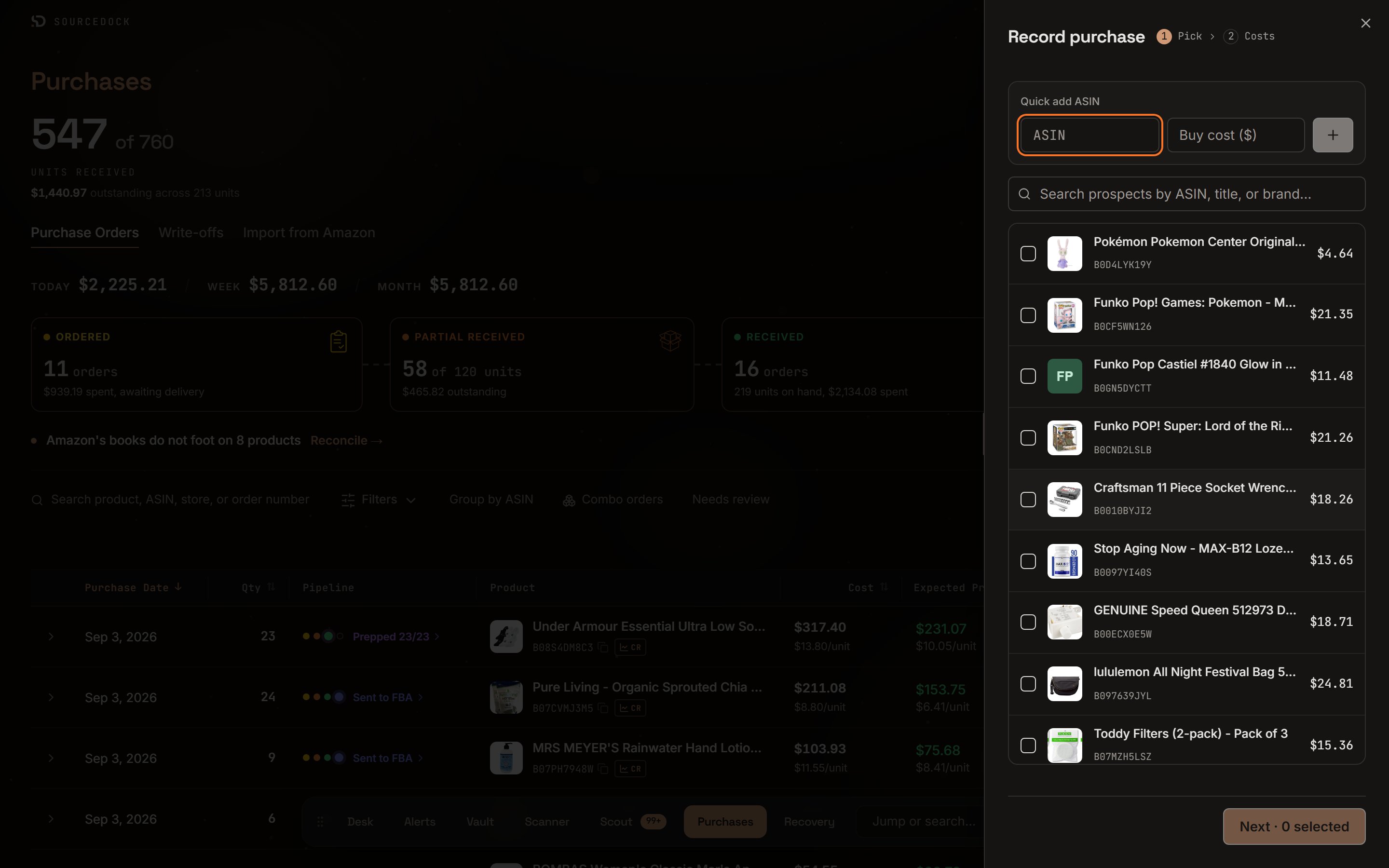
Click **Record Purchase**. A side panel opens with two steps: **Pick** and **Costs**.
Tick the prospects you bought. Search by ASIN, title, or brand. For a product not in your Vault, use **Quick add ASIN**. Type its ASIN and buy cost, then click the plus button. Then click **Next**.
Set the quantity and cost for each line. Type the cost per unit or the line total. The other box fills in. The bar at the bottom shows products, units, total cost, and estimated profit.
These are optional: purchase date, order number, and a note. The date starts as today.
Click **Record**. Each product becomes its own purchase row. Rows from the same checkout stay linked as a combo order.
Cost per unit is the **landed cost**: the product price plus its share of shipping and tax. The shipping and tax boxes in the edit sheet are for reference only. They do not add to your spend.
A prospect with no saved buy cost starts with an empty cost box. Type a cost before you save, or 0 if the item was free.
## Record a purchase
You record a purchase from prospects in your Vault. A prospect is a product you saved with its ASIN and buy cost.
Click **Record Purchase**. A side panel opens with two steps: **Pick** and **Costs**.
Tick the prospects you bought. Search by ASIN, title, or brand. For a product not in your Vault, use **Quick add ASIN**. Type its ASIN and buy cost, then click the plus button. Then click **Next**.
Set the quantity and cost for each line. Type the cost per unit or the line total. The other box fills in. The bar at the bottom shows products, units, total cost, and estimated profit.
These are optional: purchase date, order number, and a note. The date starts as today.
Click **Record**. Each product becomes its own purchase row. Rows from the same checkout stay linked as a combo order.
Cost per unit is the **landed cost**: the product price plus its share of shipping and tax. The shipping and tax boxes in the edit sheet are for reference only. They do not add to your spend.
A prospect with no saved buy cost starts with an empty cost box. Type a cost before you save, or 0 if the item was free.
 ## Order statuses
Each order has one status.
| Status | What it means |
| ---------------- | -------------------------------------------------------------- |
| Ordered | You placed the order. The goods have not shipped yet. |
| Shipped | An old status. The goods are on the way. Old rows only. |
| Partial Received | Some units arrived. Open the status to update the count. |
| Received | Every unit is counted in. The next step is Sent to FBA. |
| Prepped | An old status. Rows stay here until you mark them Sent to FBA. |
| Sent to FBA | You sent the goods to Amazon. They are inbound or live. |
| Cancelled | The order is cancelled. Restore it to bring it back. |
### Change a status
Click the status chip on a row. Under **Move to**, the menu lists Ordered, Partial Received, Received, and Sent to FBA. Pick any of them in any order. Shipped and Prepped are old stops. Old rows can sit there, but you cannot move a row into them.
The menu has these other items.
| Item | What it does |
| ----------------------- | ----------------------------------------------------------------------------------------------------------------------------------------------------------------------- |
| **Order details…** | Opens the **Edit purchase** sheet. Change the order details, payment method, shipping, tax, tracking number, and each line's quantity and cost. Click **Save Changes**. |
| **Record what arrived** | Opens the count dialog. Once a count exists, it reads **Update received count**. |
| **Split a product out** | Combo orders only. Gives one product its own order with the same date, store, and order number. |
| **Cancel** | Sits at the bottom. Confirm with **Cancel purchase**. The linked prospect goes back to active in your Vault. |
| **Restore purchase** | Shows on a cancelled row. Brings the order back. |
In the default layout, a toast says "Moved to" the new status, with an **Undo** button. Cancelled rows are hidden by default. In the classic layout, tick **Show cancelled** to see them.
## Receive items and record a shortfall
Click the status chip and choose **Record what arrived**. Picking **Partial Received** opens the same dialog.
Type how many units of each product arrived. Click **All** to fill one line, or **Receive all** to fill every line. The tally at the top shows units received out of units ordered, and how many are "still out".
Click **Save count**. If every unit is in, the button reads **Save and mark Received** and the order moves to Received. A short count sets it to Partial Received. An order already at Received, Prepped, or Sent to FBA keeps its status.
### Record a shortfall
Sometimes units never come. Under that line, click **Resolve** with the number missing. Pick what happened and set how many units. Add a refund if the store gave money back, and a note if you want. Click **Save**. Those units stop counting as missing and move to the Write-offs tab.
If units arrived and then got lost or broken before FBA, click **Report lost units…** instead.
| Kind | Use it when |
| --------------------- | ------------------------------------------------ |
| Short-shipped | The store sent fewer units than you ordered. |
| Damaged on arrival | Units arrived broken. |
| Returned to store | You sent units back to the store. |
| Written off | The units are gone for some other reason. |
| Lost before FBA | Units came in, then went missing before FBA. |
| Damaged after receipt | Units came in fine, then got damaged before FBA. |
The first four are for units that never came in. The last two are for units you counted in and then lost.
Write-offs here are store-side only. Units lost or damaged at Amazon are tracked in Capital Recovery.
## The default layout
The default layout is a desk built around the order lifecycle.
| Part | What it does |
| ---------------------- | --------------------------------------------------------------------------------------------------------------------------------------------------------------------------------------------------------------------------------------------------------------------------------------------------- |
| Spend strip | Spend for **Today**, **Week**, and **Month**, with a small pulse of recent daily spend. |
| Pipeline tiles | Four tiles: Ordered, Partial Received, Received, and Sent to FBA. Each counts orders. The Partial Received tile counts units received out of units ordered. Click a tile to filter the table. Click it again to clear. Old Shipped rows count under Ordered. Old Prepped rows count under Received. |
| Attention line | When Amazon's counts do not match yours, a line says "Amazon's books do not foot on" some number of products. Click **Reconcile →** to open the reconcile view below. |
| Search box | Finds a product, ASIN, store, or order number. |
| **Group by ASIN** lens | One row per product with all its orders inside. Expand a row to see them. |
| **Combo orders** lens | Only orders with more than one product from the same checkout. |
| **Needs review** lens | Rows an import filled in with a default value. Once you type the real cost, the mark goes away. |
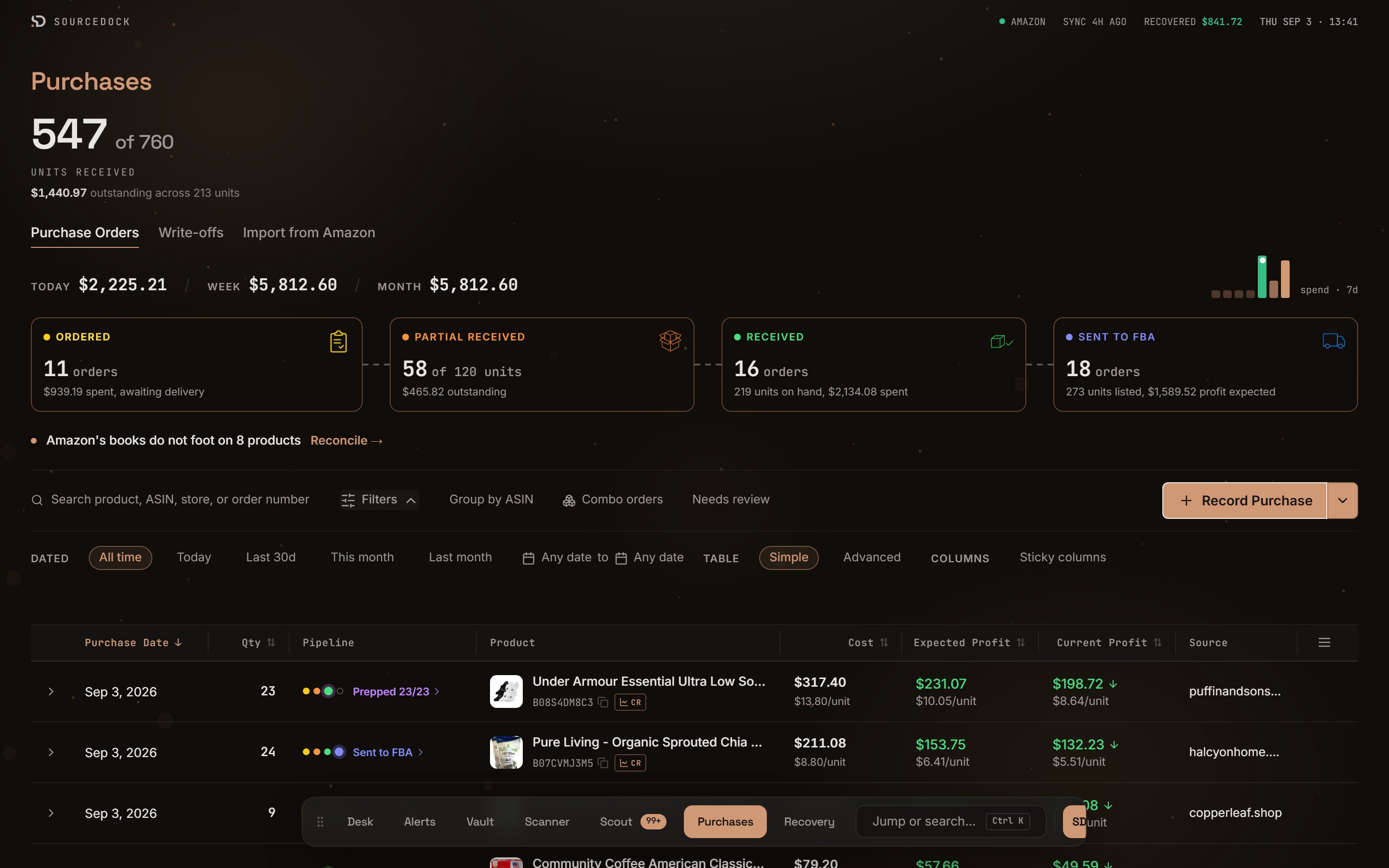
| **Dated** filter | Pills for All time, Today, Last 30d, This month, and Last month, plus from and to date boxes. |
| **Table** filter | Switches between **Simple** and **Advanced**. |
| Columns | Purchase Date, Qty, Pipeline, Product, Cost, Expected Profit, Current Profit, and Source. **Advanced** adds three Amazon columns: **Sent**, **Amazon in**, and **Received**. **Simple** hides them. The column picker can also turn on **Amazon holds** and **Reconcile**. |
| Row menu | **Update received count** and **Cancel purchase**. |
## Order statuses
Each order has one status.
| Status | What it means |
| ---------------- | -------------------------------------------------------------- |
| Ordered | You placed the order. The goods have not shipped yet. |
| Shipped | An old status. The goods are on the way. Old rows only. |
| Partial Received | Some units arrived. Open the status to update the count. |
| Received | Every unit is counted in. The next step is Sent to FBA. |
| Prepped | An old status. Rows stay here until you mark them Sent to FBA. |
| Sent to FBA | You sent the goods to Amazon. They are inbound or live. |
| Cancelled | The order is cancelled. Restore it to bring it back. |
### Change a status
Click the status chip on a row. Under **Move to**, the menu lists Ordered, Partial Received, Received, and Sent to FBA. Pick any of them in any order. Shipped and Prepped are old stops. Old rows can sit there, but you cannot move a row into them.
The menu has these other items.
| Item | What it does |
| ----------------------- | ----------------------------------------------------------------------------------------------------------------------------------------------------------------------- |
| **Order details…** | Opens the **Edit purchase** sheet. Change the order details, payment method, shipping, tax, tracking number, and each line's quantity and cost. Click **Save Changes**. |
| **Record what arrived** | Opens the count dialog. Once a count exists, it reads **Update received count**. |
| **Split a product out** | Combo orders only. Gives one product its own order with the same date, store, and order number. |
| **Cancel** | Sits at the bottom. Confirm with **Cancel purchase**. The linked prospect goes back to active in your Vault. |
| **Restore purchase** | Shows on a cancelled row. Brings the order back. |
In the default layout, a toast says "Moved to" the new status, with an **Undo** button. Cancelled rows are hidden by default. In the classic layout, tick **Show cancelled** to see them.
## Receive items and record a shortfall
Click the status chip and choose **Record what arrived**. Picking **Partial Received** opens the same dialog.
Type how many units of each product arrived. Click **All** to fill one line, or **Receive all** to fill every line. The tally at the top shows units received out of units ordered, and how many are "still out".
Click **Save count**. If every unit is in, the button reads **Save and mark Received** and the order moves to Received. A short count sets it to Partial Received. An order already at Received, Prepped, or Sent to FBA keeps its status.
### Record a shortfall
Sometimes units never come. Under that line, click **Resolve** with the number missing. Pick what happened and set how many units. Add a refund if the store gave money back, and a note if you want. Click **Save**. Those units stop counting as missing and move to the Write-offs tab.
If units arrived and then got lost or broken before FBA, click **Report lost units…** instead.
| Kind | Use it when |
| --------------------- | ------------------------------------------------ |
| Short-shipped | The store sent fewer units than you ordered. |
| Damaged on arrival | Units arrived broken. |
| Returned to store | You sent units back to the store. |
| Written off | The units are gone for some other reason. |
| Lost before FBA | Units came in, then went missing before FBA. |
| Damaged after receipt | Units came in fine, then got damaged before FBA. |
The first four are for units that never came in. The last two are for units you counted in and then lost.
Write-offs here are store-side only. Units lost or damaged at Amazon are tracked in Capital Recovery.
## The default layout
The default layout is a desk built around the order lifecycle.
| Part | What it does |
| ---------------------- | --------------------------------------------------------------------------------------------------------------------------------------------------------------------------------------------------------------------------------------------------------------------------------------------------- |
| Spend strip | Spend for **Today**, **Week**, and **Month**, with a small pulse of recent daily spend. |
| Pipeline tiles | Four tiles: Ordered, Partial Received, Received, and Sent to FBA. Each counts orders. The Partial Received tile counts units received out of units ordered. Click a tile to filter the table. Click it again to clear. Old Shipped rows count under Ordered. Old Prepped rows count under Received. |
| Attention line | When Amazon's counts do not match yours, a line says "Amazon's books do not foot on" some number of products. Click **Reconcile →** to open the reconcile view below. |
| Search box | Finds a product, ASIN, store, or order number. |
| **Group by ASIN** lens | One row per product with all its orders inside. Expand a row to see them. |
| **Combo orders** lens | Only orders with more than one product from the same checkout. |
| **Needs review** lens | Rows an import filled in with a default value. Once you type the real cost, the mark goes away. |
| **Dated** filter | Pills for All time, Today, Last 30d, This month, and Last month, plus from and to date boxes. |
| **Table** filter | Switches between **Simple** and **Advanced**. |
| Columns | Purchase Date, Qty, Pipeline, Product, Cost, Expected Profit, Current Profit, and Source. **Advanced** adds three Amazon columns: **Sent**, **Amazon in**, and **Received**. **Simple** hides them. The column picker can also turn on **Amazon holds** and **Reconcile**. |
| Row menu | **Update received count** and **Cancel purchase**. |
 ### Reconcile and uncounted units
Two banners can sit above the table.
| Banner | What it shows |
| ----------------------------------------------------------------- | --------------------------------------------------------------------------------------------------------------------------------------------------------------------------------------------------------------------------------------------------------------------------------------------------------------------------------------------------------------- |
| "Viewing products whose Amazon books do not foot" | Opens when you click **Reconcile →**. The table groups by ASIN and shows only those products. A chip marks each kind of gap: Forgot to mark Sent?, Fewer at the dock, Amazon recorded more inbound, You marked more Sent, Counts missed, and Never arrived. Click the X to clear. See the [reconcile reference](/reference/reconcile) for what each chip means. |
| "Viewing orders with uncounted units - marked done, counts short" | Orders marked Received or Sent to FBA whose count is short. The Command desk links here. |
## The classic layout
Add `?classic=1` to the page address for the classic table. Add `?ops=1` to go back.
### Reconcile and uncounted units
Two banners can sit above the table.
| Banner | What it shows |
| ----------------------------------------------------------------- | --------------------------------------------------------------------------------------------------------------------------------------------------------------------------------------------------------------------------------------------------------------------------------------------------------------------------------------------------------------- |
| "Viewing products whose Amazon books do not foot" | Opens when you click **Reconcile →**. The table groups by ASIN and shows only those products. A chip marks each kind of gap: Forgot to mark Sent?, Fewer at the dock, Amazon recorded more inbound, You marked more Sent, Counts missed, and Never arrived. Click the X to clear. See the [reconcile reference](/reference/reconcile) for what each chip means. |
| "Viewing orders with uncounted units - marked done, counts short" | Orders marked Received or Sent to FBA whose count is short. The Command desk links here. |
## The classic layout
Add `?classic=1` to the page address for the classic table. Add `?ops=1` to go back.
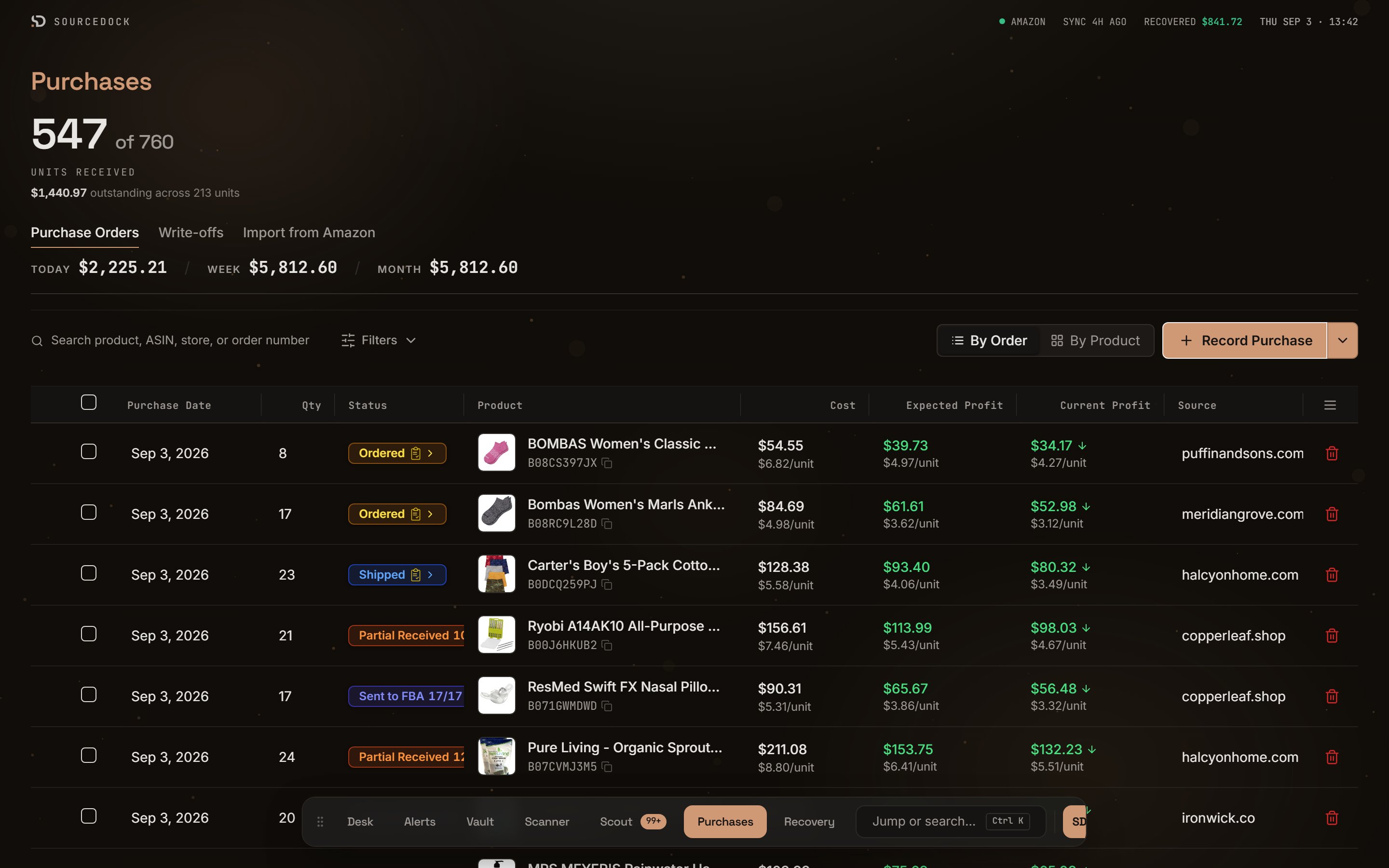 | Part | What it does |
| ----------------------------- | ------------------------------------------------------------------------------------------------------------------------------------------------------------------------------ |
| Spend strip | Today, Week, and Month. When you set a date range, the third figure shows that range instead. |
| **By Order** / **By Product** | A toggle that switches the table view. |
| Filter panel | A **Status** dropdown, the Dated pills, and three checkboxes: **Show cancelled**, **Needs review**, and **Uncounted units**. |
| Order columns | Purchase Date, Qty, Status, Product, Cost, Expected Profit, Current Profit, and Source. |
| Product columns | Orders, Qty, Status, Product, Total Cost, Expected Profit, and Current Profit. |
| Line items | An order with several products can expand. The drawer lists each line with its quantity, cost each, and line total. When counts are on, it also shows units in. |
| **Record Purchase** | A two-step form: **Select Products** from your Vault, then **Record Purchase** to enter order details. |
| Row ticks | Tick rows to select them. A bar offers **Delete** and **Export** with the count, plus **Clear**. When a whole page is ticked, you can select all rows that match your filters. |
Deleting is permanent. The linked prospects go back to active. Orders with synced Amazon recovery history are kept on the first pass. A second dialog asks if you want to destroy that history too.
## Write-offs tab
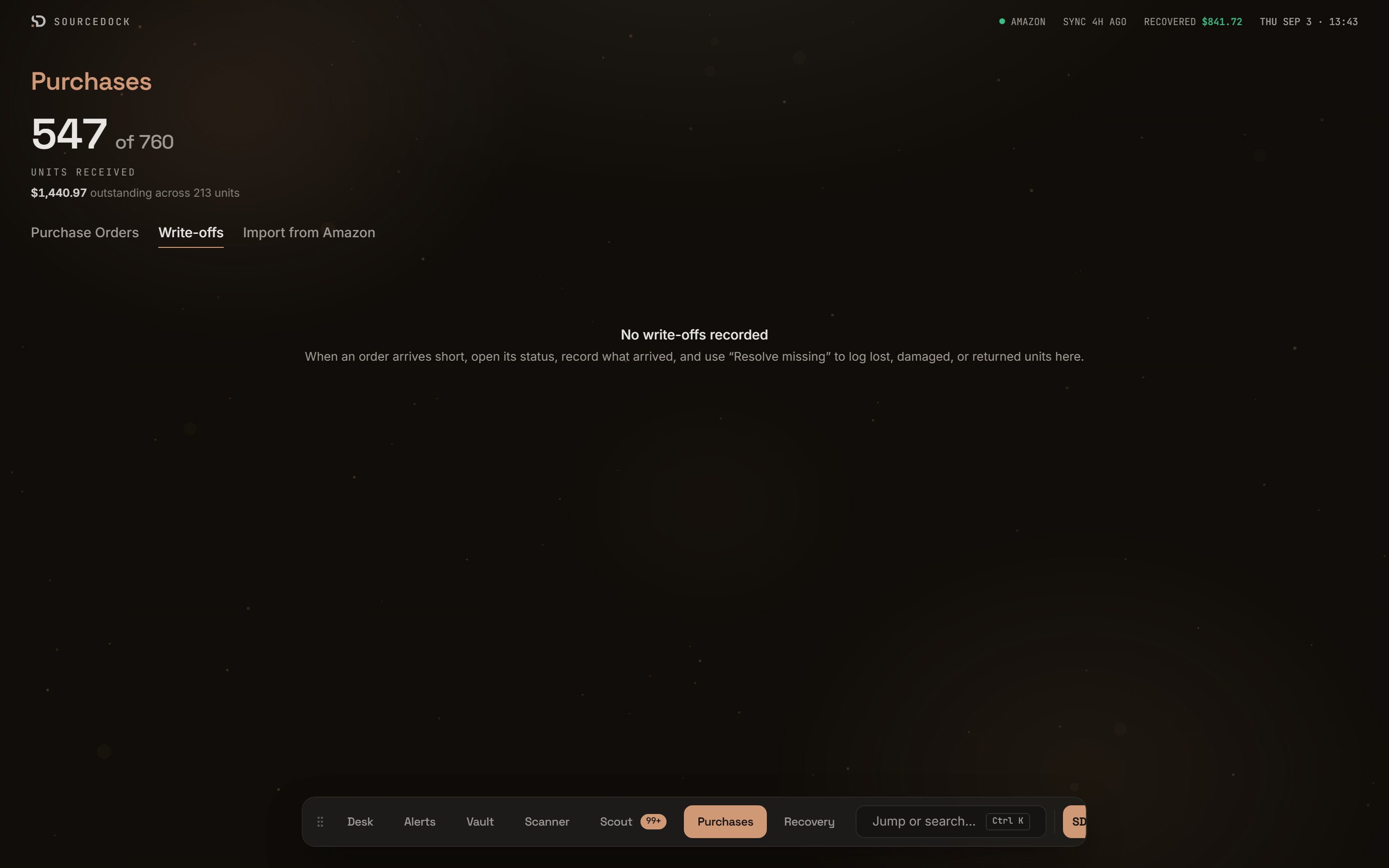
This tab is the shortfall ledger. It lists every unit that never became sellable stock on the store side. Columns are Date, Product, What happened, Units, Cost, Refunded, and Net loss. A Total row sums the bottom. You can remove a row you added by mistake.
| Part | What it does |
| ----------------------------- | ------------------------------------------------------------------------------------------------------------------------------------------------------------------------------ |
| Spend strip | Today, Week, and Month. When you set a date range, the third figure shows that range instead. |
| **By Order** / **By Product** | A toggle that switches the table view. |
| Filter panel | A **Status** dropdown, the Dated pills, and three checkboxes: **Show cancelled**, **Needs review**, and **Uncounted units**. |
| Order columns | Purchase Date, Qty, Status, Product, Cost, Expected Profit, Current Profit, and Source. |
| Product columns | Orders, Qty, Status, Product, Total Cost, Expected Profit, and Current Profit. |
| Line items | An order with several products can expand. The drawer lists each line with its quantity, cost each, and line total. When counts are on, it also shows units in. |
| **Record Purchase** | A two-step form: **Select Products** from your Vault, then **Record Purchase** to enter order details. |
| Row ticks | Tick rows to select them. A bar offers **Delete** and **Export** with the count, plus **Clear**. When a whole page is ticked, you can select all rows that match your filters. |
Deleting is permanent. The linked prospects go back to active. Orders with synced Amazon recovery history are kept on the first pass. A second dialog asks if you want to destroy that history too.
## Write-offs tab
This tab is the shortfall ledger. It lists every unit that never became sellable stock on the store side. Columns are Date, Product, What happened, Units, Cost, Refunded, and Net loss. A Total row sums the bottom. You can remove a row you added by mistake.
 ## Import from Amazon tab
This tab pulls your Amazon sales history so you do not type old orders by hand.
Click **Scan my Amazon history**. You need a connected Amazon seller first. The scan looks back about 24 months and can take a few minutes. You can leave and come back.
Each product Amazon knows about is a row. Amazon fills in what it knows. You type the quantity you bought, the landed unit cost, and the purchase date. A row needs all three. The quantity must be at least the number Amazon shows as sold.
Click **Skip** on a row you do not want. It gets a **Skipped** badge and hides unless you tick **Include skipped items**. Click **Restore** to bring it back. A row that already matches a purchase shows **In Purchases**. An imported row shows **Imported**.
Tick the rows you want and click **Import selected**. A dialog shows the count and total cost. Click **Confirm**. The new purchases go to Purchase Orders and Capital Recovery.
## Import from Amazon tab
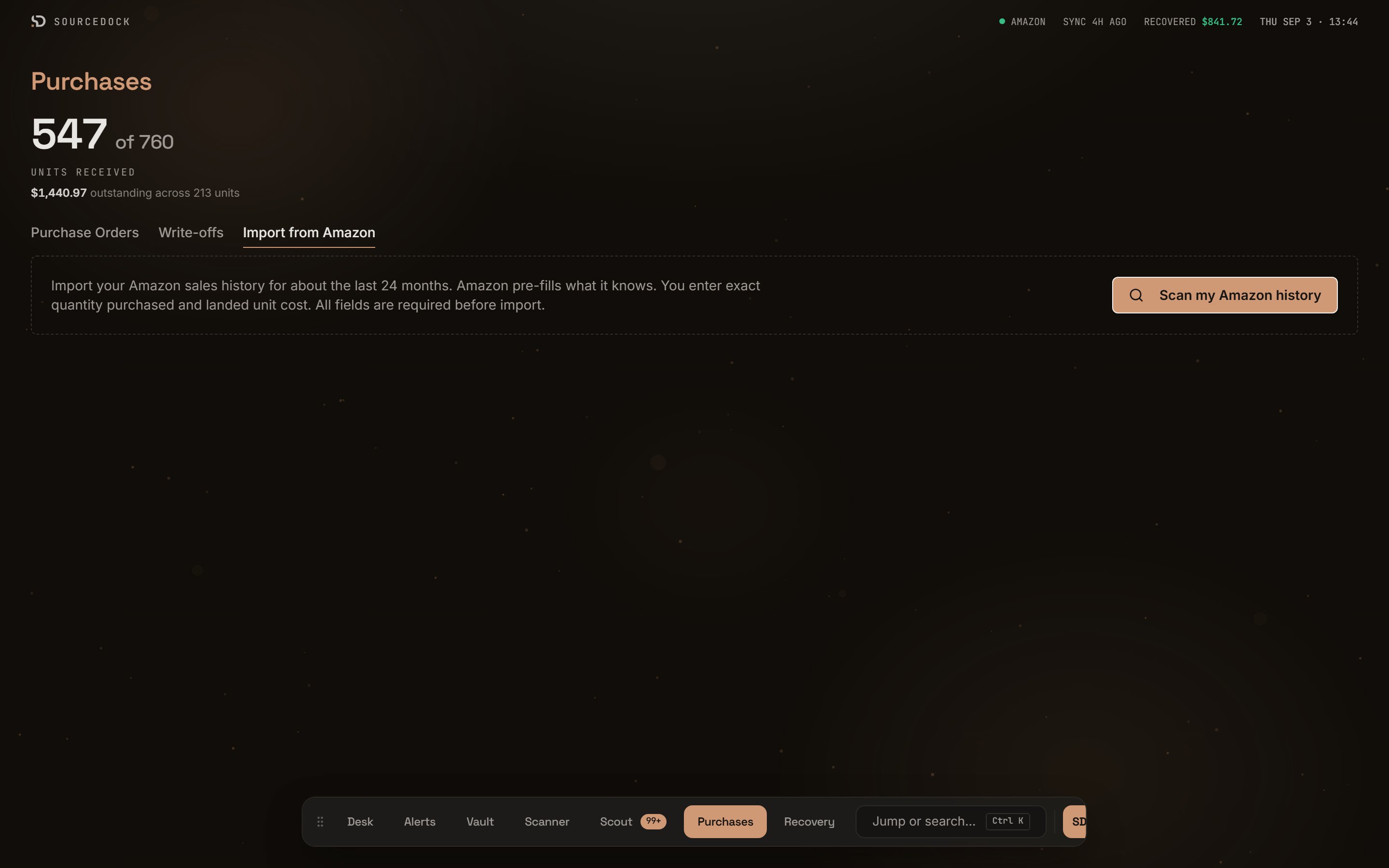
This tab pulls your Amazon sales history so you do not type old orders by hand.
Click **Scan my Amazon history**. You need a connected Amazon seller first. The scan looks back about 24 months and can take a few minutes. You can leave and come back.
Each product Amazon knows about is a row. Amazon fills in what it knows. You type the quantity you bought, the landed unit cost, and the purchase date. A row needs all three. The quantity must be at least the number Amazon shows as sold.
Click **Skip** on a row you do not want. It gets a **Skipped** badge and hides unless you tick **Include skipped items**. Click **Restore** to bring it back. A row that already matches a purchase shows **In Purchases**. An imported row shows **Imported**.
Tick the rows you want and click **Import selected**. A dialog shows the count and total cost. Click **Confirm**. The new purchases go to Purchase Orders and Capital Recovery.
 ## Import CSV and Export
The **Record Purchase** button has a small menu. **Import CSV** opens a panel where you upload a file and map its columns. Quantity defaults to one unit per row. A row with no cost imports at \$0. A row with no date is dated today. Both get a needs-review mark.
**Export** downloads a CSV of the rows that match your filters. If nothing matches, a toast says "Nothing to export". Export is a paid feature on some plans.
## Import CSV and Export
The **Record Purchase** button has a small menu. **Import CSV** opens a panel where you upload a file and map its columns. Quantity defaults to one unit per row. A row with no cost imports at \$0. A row with no date is dated today. Both get a needs-review mark.
**Export** downloads a CSV of the rows that match your filters. If nothing matches, a toast says "Nothing to export". Export is a paid feature on some plans.