> ## Documentation Index
> Fetch the complete documentation index at: https://docs.sourcedock.io/llms.txt
> Use this file to discover all available pages before exploring further.
# Connections
> Connect your Amazon seller account, check that it is healthy, add a second account, and fix a connection that needs attention.
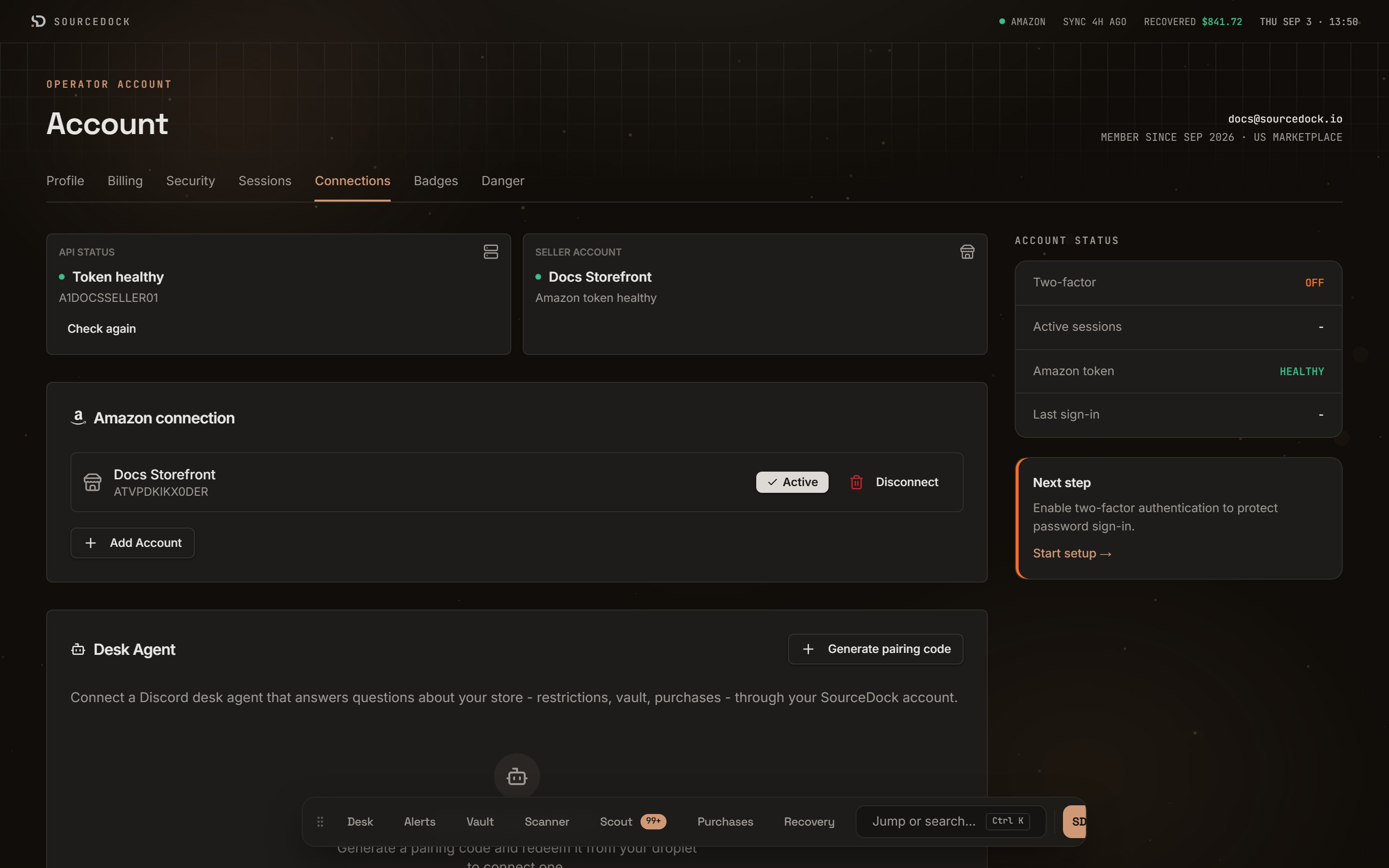
The Connections page links SourceDock to your Amazon seller account. Every restriction check, fee, and payout number comes through this link. Open it from your avatar menu, or from the **Connections** tab on the Account page.
 ## Before you connect
You need two things first. Until both are done, the connect step does not go through.
* A verified email. A bar at the top of the app says **Verify your email** until you click the link SourceDock sent you.
* An active plan or trial. See [Plans and billing](/get-started/billing).
## The two status tiles
Two small tiles sit at the top of the page.
**API status** shows if SourceDock can talk to Amazon right now. A token is a key Amazon gives SourceDock when you approve the link.
| What it says | What it means |
| ---------------------- | -------------------------------------------------------------------------------------------------------- |
| **Token healthy** | Amazon accepts your link. Your seller ID shows under it. |
| **Token failed** | You have an account, but Amazon did not accept the token. See "When a connection needs attention" below. |
| **Disconnected** | No Amazon account is linked yet. |
| **Status unavailable** | SourceDock could not run the check. Try again in a moment. |
Click **Check again** to run the check now. It says **Checking...** while it runs. This button shows only once an account is linked.
**Seller account** shows which account is active. It shows the store name, or the seller ID if there is no name. A short line sits under it:
| Line | What it means |
| ---------------------------- | -------------------------------- |
| **Amazon token healthy** | The link works. |
| **Amazon token failed** | Amazon did not accept the token. |
| **Checking Amazon token** | The check is running. |
| **Token status unavailable** | The check could not run. |
If no account is linked, the tile shows a **Connect account** button instead.
## Connect your first account
In the **Amazon connection** card, click **Connect Your First Account**. The button says **Redirecting...** and Amazon opens.
This is Amazon's own consent screen. Log in to Seller Central if asked. Approve the request.
Amazon sends you back here. A message says **Amazon account connected**. The account shows in the list with an **Active** badge.
If Amazon did not open, you see **Connection failed**. Try the button again.
### What SourceDock can read
The card lists what you agree to before you click:
* Read access to restrictions, catalog, pricing, and fees.
* On Pro and Flagship, read access to financial settlement data. That is the record of what Amazon paid you.
* Your credentials are stored encrypted (AES-256-GCM).
SourceDock never changes listings or prices. It never sends messages to buyers.
## Your account list
Each linked account is a row in the **Amazon connection** card. A row shows the store name and the marketplace ID.
| Control | What it does |
| ---------------- | ----------------------------------------------------------------------------------------- |
| **Active** badge | This is the account SourceDock uses right now. |
| **Set Active** | Switch to this account. The status tiles and every page use the active account. |
| **Reconnect** | Shows only on the active account when its token failed. Starts the Amazon approval again. |
| **Disconnect** | Removes this account from SourceDock. |
| **Add Account** | Connects another Amazon seller account. |
## Add a second account
Click **Add Account** under the list. Amazon opens the same consent screen. Approve it with the second seller login. The new account appears as a new row.
Click **Set Active** on the row you want to work with. Only one account is active at a time. The tiles, the Scanner, the Vault, and Recovery all follow it.
## Disconnect an account
Click **Disconnect** on the row. On a small screen you see only the trash icon. A box asks **Disconnect Amazon account?** It reminds you that your Vault, purchases, Recovery, and Scout data stay. SourceDock only stops calling Amazon for that account. Click **Disconnect** to confirm. A message says **Seller account removed**.
None of your data is deleted. You can link the same account again later.
## When a connection needs attention
Sometimes you see **Amazon connection needs attention**. It comes from one fact. You have a linked account, but its last token check failed. Amazon rejected the key. This happens when the approval expires, or when something changes on the Amazon side.
| Where | What you see |
| ------------------------------------- | ------------------------------------------------------------------------------ |
| Command desk | A red notice. **Reconnect your Amazon account** is also listed as a next move. |
| The status line at the top of the app | The **AMAZON** dot turns red. Click it to open Connections. |
| Your avatar menu | **AMZ !** |
| **API status** tile | **Token failed**, with the note **Unable to authenticate with Amazon SP-API.** |
| Account page | **Amazon token** shows **EXPIRED**. |
To fix it:
Click the red notice, or open Connections from your avatar menu.
Click **Reconnect** on the active account row. Amazon opens. Approve the request again.
Back on Connections, click **Check again** in the **API status** tile. It should now say **Token healthy**. The red notice goes away on its own.
The **Next step** card on the Account page also points here. If two-factor codes are off, it asks you to turn them on first. Then it shows **Reauthorize →** to bring you here.
If you see **Unable to load your connected accounts**, SourceDock could not read your list. Nothing was removed. Click **Try again**.
## Before you connect
You need two things first. Until both are done, the connect step does not go through.
* A verified email. A bar at the top of the app says **Verify your email** until you click the link SourceDock sent you.
* An active plan or trial. See [Plans and billing](/get-started/billing).
## The two status tiles
Two small tiles sit at the top of the page.
**API status** shows if SourceDock can talk to Amazon right now. A token is a key Amazon gives SourceDock when you approve the link.
| What it says | What it means |
| ---------------------- | -------------------------------------------------------------------------------------------------------- |
| **Token healthy** | Amazon accepts your link. Your seller ID shows under it. |
| **Token failed** | You have an account, but Amazon did not accept the token. See "When a connection needs attention" below. |
| **Disconnected** | No Amazon account is linked yet. |
| **Status unavailable** | SourceDock could not run the check. Try again in a moment. |
Click **Check again** to run the check now. It says **Checking...** while it runs. This button shows only once an account is linked.
**Seller account** shows which account is active. It shows the store name, or the seller ID if there is no name. A short line sits under it:
| Line | What it means |
| ---------------------------- | -------------------------------- |
| **Amazon token healthy** | The link works. |
| **Amazon token failed** | Amazon did not accept the token. |
| **Checking Amazon token** | The check is running. |
| **Token status unavailable** | The check could not run. |
If no account is linked, the tile shows a **Connect account** button instead.
## Connect your first account
In the **Amazon connection** card, click **Connect Your First Account**. The button says **Redirecting...** and Amazon opens.
This is Amazon's own consent screen. Log in to Seller Central if asked. Approve the request.
Amazon sends you back here. A message says **Amazon account connected**. The account shows in the list with an **Active** badge.
If Amazon did not open, you see **Connection failed**. Try the button again.
### What SourceDock can read
The card lists what you agree to before you click:
* Read access to restrictions, catalog, pricing, and fees.
* On Pro and Flagship, read access to financial settlement data. That is the record of what Amazon paid you.
* Your credentials are stored encrypted (AES-256-GCM).
SourceDock never changes listings or prices. It never sends messages to buyers.
## Your account list
Each linked account is a row in the **Amazon connection** card. A row shows the store name and the marketplace ID.
| Control | What it does |
| ---------------- | ----------------------------------------------------------------------------------------- |
| **Active** badge | This is the account SourceDock uses right now. |
| **Set Active** | Switch to this account. The status tiles and every page use the active account. |
| **Reconnect** | Shows only on the active account when its token failed. Starts the Amazon approval again. |
| **Disconnect** | Removes this account from SourceDock. |
| **Add Account** | Connects another Amazon seller account. |
## Add a second account
Click **Add Account** under the list. Amazon opens the same consent screen. Approve it with the second seller login. The new account appears as a new row.
Click **Set Active** on the row you want to work with. Only one account is active at a time. The tiles, the Scanner, the Vault, and Recovery all follow it.
## Disconnect an account
Click **Disconnect** on the row. On a small screen you see only the trash icon. A box asks **Disconnect Amazon account?** It reminds you that your Vault, purchases, Recovery, and Scout data stay. SourceDock only stops calling Amazon for that account. Click **Disconnect** to confirm. A message says **Seller account removed**.
None of your data is deleted. You can link the same account again later.
## When a connection needs attention
Sometimes you see **Amazon connection needs attention**. It comes from one fact. You have a linked account, but its last token check failed. Amazon rejected the key. This happens when the approval expires, or when something changes on the Amazon side.
| Where | What you see |
| ------------------------------------- | ------------------------------------------------------------------------------ |
| Command desk | A red notice. **Reconnect your Amazon account** is also listed as a next move. |
| The status line at the top of the app | The **AMAZON** dot turns red. Click it to open Connections. |
| Your avatar menu | **AMZ !** |
| **API status** tile | **Token failed**, with the note **Unable to authenticate with Amazon SP-API.** |
| Account page | **Amazon token** shows **EXPIRED**. |
To fix it:
Click the red notice, or open Connections from your avatar menu.
Click **Reconnect** on the active account row. Amazon opens. Approve the request again.
Back on Connections, click **Check again** in the **API status** tile. It should now say **Token healthy**. The red notice goes away on its own.
The **Next step** card on the Account page also points here. If two-factor codes are off, it asks you to turn them on first. Then it shows **Reauthorize →** to bring you here.
If you see **Unable to load your connected accounts**, SourceDock could not read your list. Nothing was removed. Click **Try again**.