> ## Documentation Index
> Fetch the complete documentation index at: https://docs.sourcedock.io/llms.txt
> Use this file to discover all available pages before exploring further.
# Account
> Manage your name, photo, email, password, two-factor codes, sessions, badges, and account deletion.
The Account page holds everything about you as a user. Click your avatar in the bottom bar and pick **Account**. The page opens on the **Security** tab.
The top shows your email, the month you joined, and your marketplace. Under that is a row of tabs: **Profile**, **Billing**, **Security**, **Sessions**, **Connections**, **Badges**, and **Danger**. Two tabs open other pages. **Billing** opens [Plans and billing](/get-started/billing). **Connections** opens [Connections](/get-started/connections).
## The status rail
The right side of every tab shows an **ACCOUNT STATUS** card.
| Row | What it shows |
| ------------------- | ----------------------------------------------------------------- |
| **Two-factor** | **ON** or **OFF**. Shows **N/A** for Google accounts. |
| **Active sessions** | Not counted yet. Shows a dash. |
| **Amazon token** | **HEALTHY**, **EXPIRED**, **NONE**, **CHECKING**, or **UNKNOWN**. |
| **Last sign-in** | The time today, or the date. |
Under it, a **Next step** card may appear. It asks you to turn on two-factor codes, or to reconnect Amazon when the token has expired. Click its link to jump to the right tab.
## Profile
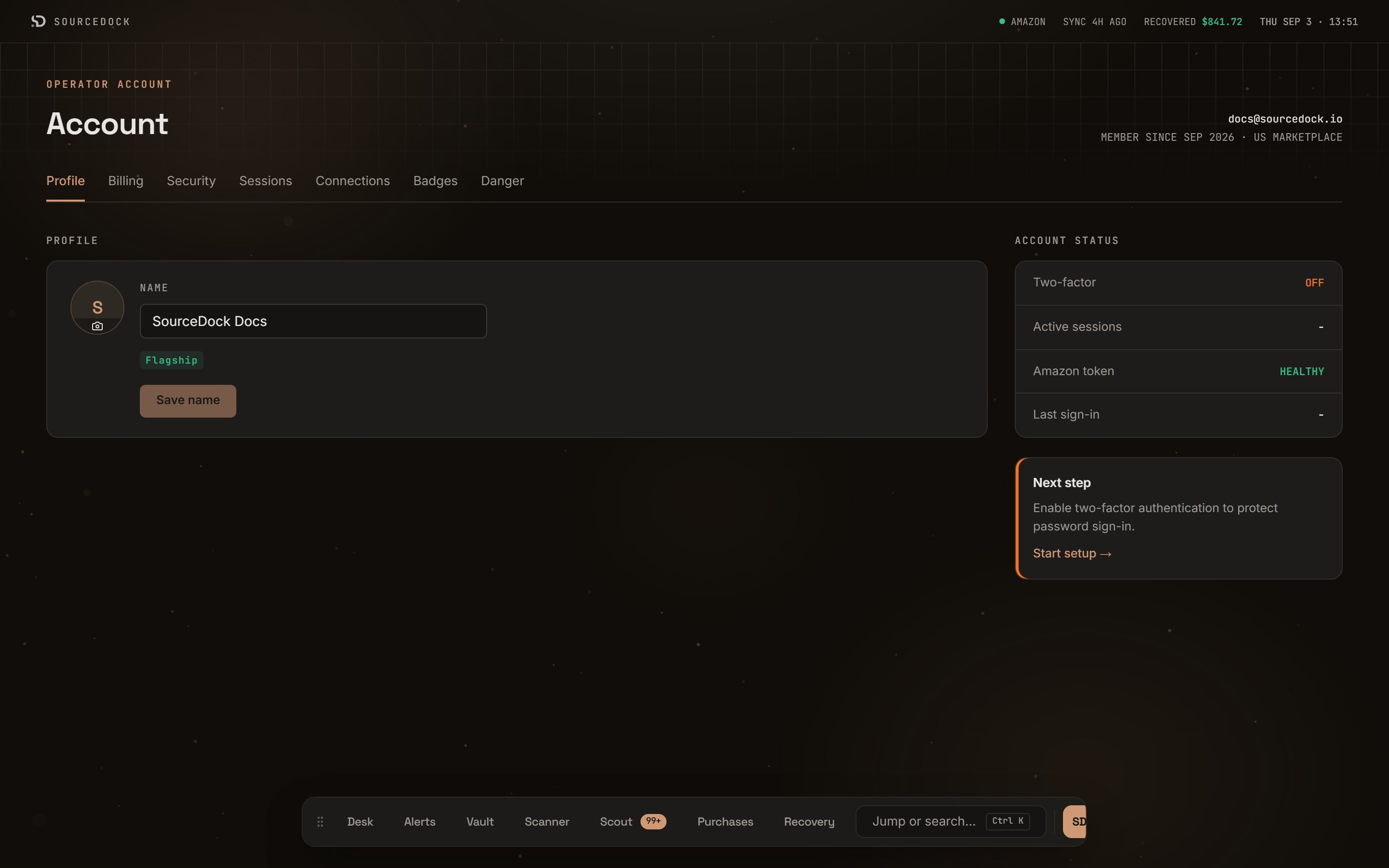 | Control | What it does |
| --------- | ---------------------------------------------------------------------------------------------------------------------------------------------------------------- |
| **Photo** | Click the circle to pick a photo. JPEG, PNG, and WebP files work. SourceDock crops it to a square. If the file cannot be read, you see **Could not read photo**. |
| **Name** | Type the name you want to see in the app. The **Save name** button turns on once you change something. Click it to save. |
| Plan pill | A small label under the name shows your plan, such as **Flagship**. During a trial it shows the days left. With no plan it says **No plan**. |
## Security
| Control | What it does |
| --------- | ---------------------------------------------------------------------------------------------------------------------------------------------------------------- |
| **Photo** | Click the circle to pick a photo. JPEG, PNG, and WebP files work. SourceDock crops it to a square. If the file cannot be read, you see **Could not read photo**. |
| **Name** | Type the name you want to see in the app. The **Save name** button turns on once you change something. Click it to save. |
| Plan pill | A small label under the name shows your plan, such as **Flagship**. During a trial it shows the days left. With no plan it says **No plan**. |
## Security
 ### Change your email
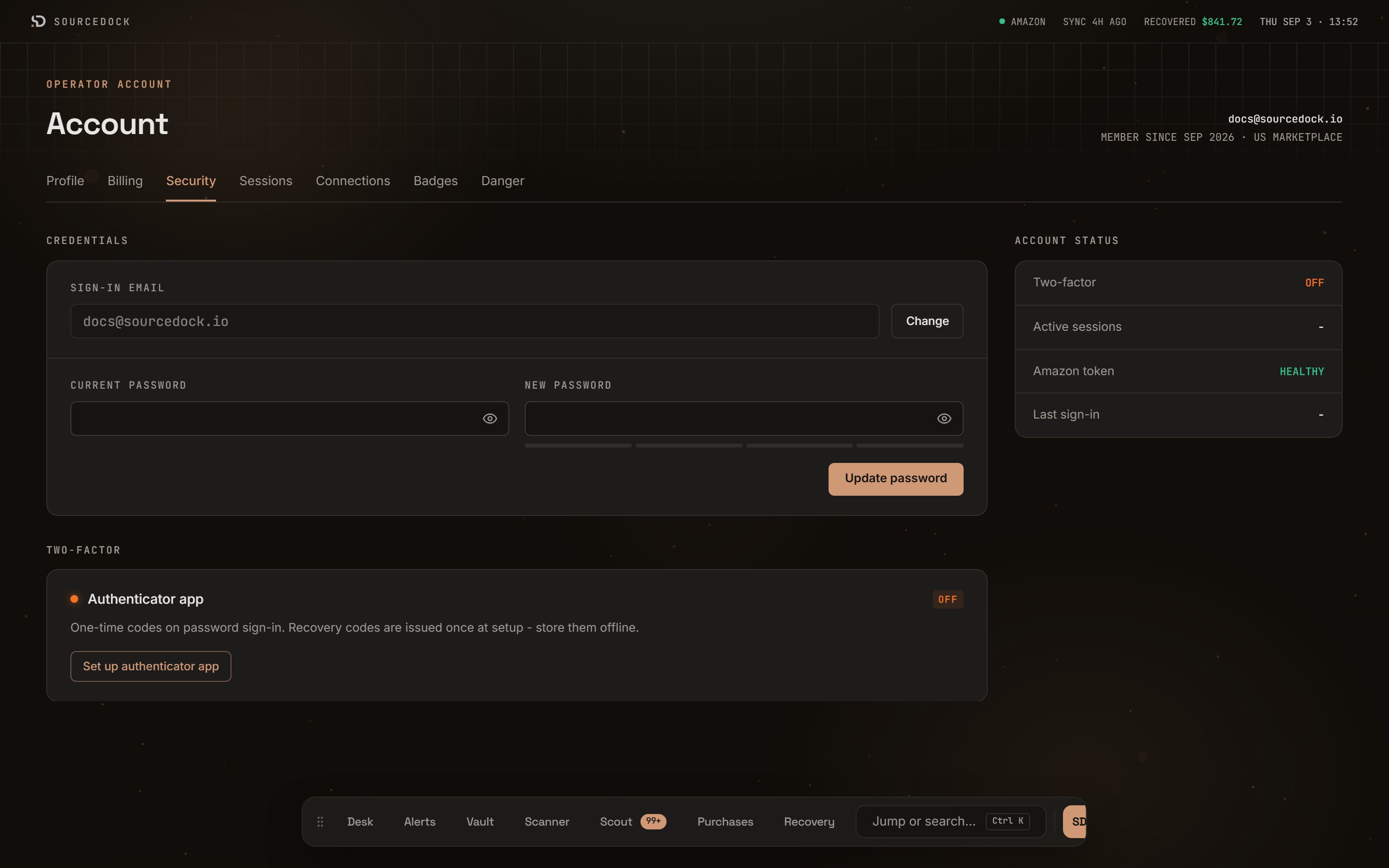
Your **Sign-in email** shows at the top of the **CREDENTIALS** card. Click **Change**. Type your **New email** and your **Current password**. Click **Update email**.
You see **Email updated**. SourceDock sends a link to the new address. Until you click it, checkout and the Amazon connection stay locked.
### Change your password
Type your **Current password** and a **New password**. A meter rates the new one **WEAK**, **FAIR**, **GOOD**, or **STRONG**. Use at least 12 characters. A password you do not use anywhere else is best. Click **Update password**.
You see **Password updated**. Every other device is signed out for safety. This one stays signed in.
If you sign in with Google, SourceDock cannot change your email or password. The card says so. Change them in your Google account instead.
### Turn on two-factor codes
Two-factor means you type a code from a phone app each time you log in with your password. It stops someone who only has your password.
In the **TWO-FACTOR** card, click **Set up authenticator app**.
Open your authenticator app on your phone and scan the square code. If you cannot scan, type the **Manual setup key** into the app instead.
Type the **6-digit code** the app shows and your **Current password**. Click **Verify and enable**.
SourceDock shows a list of recovery codes. Each one works once if you lose your phone. Click **Copy** or write them down. Keep them somewhere safe and off your computer. Tick **I saved these recovery codes**, then click **Done**.
The recovery codes show only once. You cannot see them again later. Save them before you leave the page.
When it is on, the card says **Authenticator app** with an **ON** pill. Every login now asks for a **6-digit code**. Lost your phone? On the login page, click **Use a recovery code** and type one.
### Turn off two-factor codes
Click **Disable** in the **TWO-FACTOR** card. Type your **Current password** and a **6-digit code**. No phone? Tick **Use a recovery code** and type a **Recovery code** instead. Click **Disable two-factor authentication**.
## Sessions
### Change your email
Your **Sign-in email** shows at the top of the **CREDENTIALS** card. Click **Change**. Type your **New email** and your **Current password**. Click **Update email**.
You see **Email updated**. SourceDock sends a link to the new address. Until you click it, checkout and the Amazon connection stay locked.
### Change your password
Type your **Current password** and a **New password**. A meter rates the new one **WEAK**, **FAIR**, **GOOD**, or **STRONG**. Use at least 12 characters. A password you do not use anywhere else is best. Click **Update password**.
You see **Password updated**. Every other device is signed out for safety. This one stays signed in.
If you sign in with Google, SourceDock cannot change your email or password. The card says so. Change them in your Google account instead.
### Turn on two-factor codes
Two-factor means you type a code from a phone app each time you log in with your password. It stops someone who only has your password.
In the **TWO-FACTOR** card, click **Set up authenticator app**.
Open your authenticator app on your phone and scan the square code. If you cannot scan, type the **Manual setup key** into the app instead.
Type the **6-digit code** the app shows and your **Current password**. Click **Verify and enable**.
SourceDock shows a list of recovery codes. Each one works once if you lose your phone. Click **Copy** or write them down. Keep them somewhere safe and off your computer. Tick **I saved these recovery codes**, then click **Done**.
The recovery codes show only once. You cannot see them again later. Save them before you leave the page.
When it is on, the card says **Authenticator app** with an **ON** pill. Every login now asks for a **6-digit code**. Lost your phone? On the login page, click **Use a recovery code** and type one.
### Turn off two-factor codes
Click **Disable** in the **TWO-FACTOR** card. Type your **Current password** and a **6-digit code**. No phone? Tick **Use a recovery code** and type a **Recovery code** instead. Click **Disable two-factor authentication**.
## Sessions
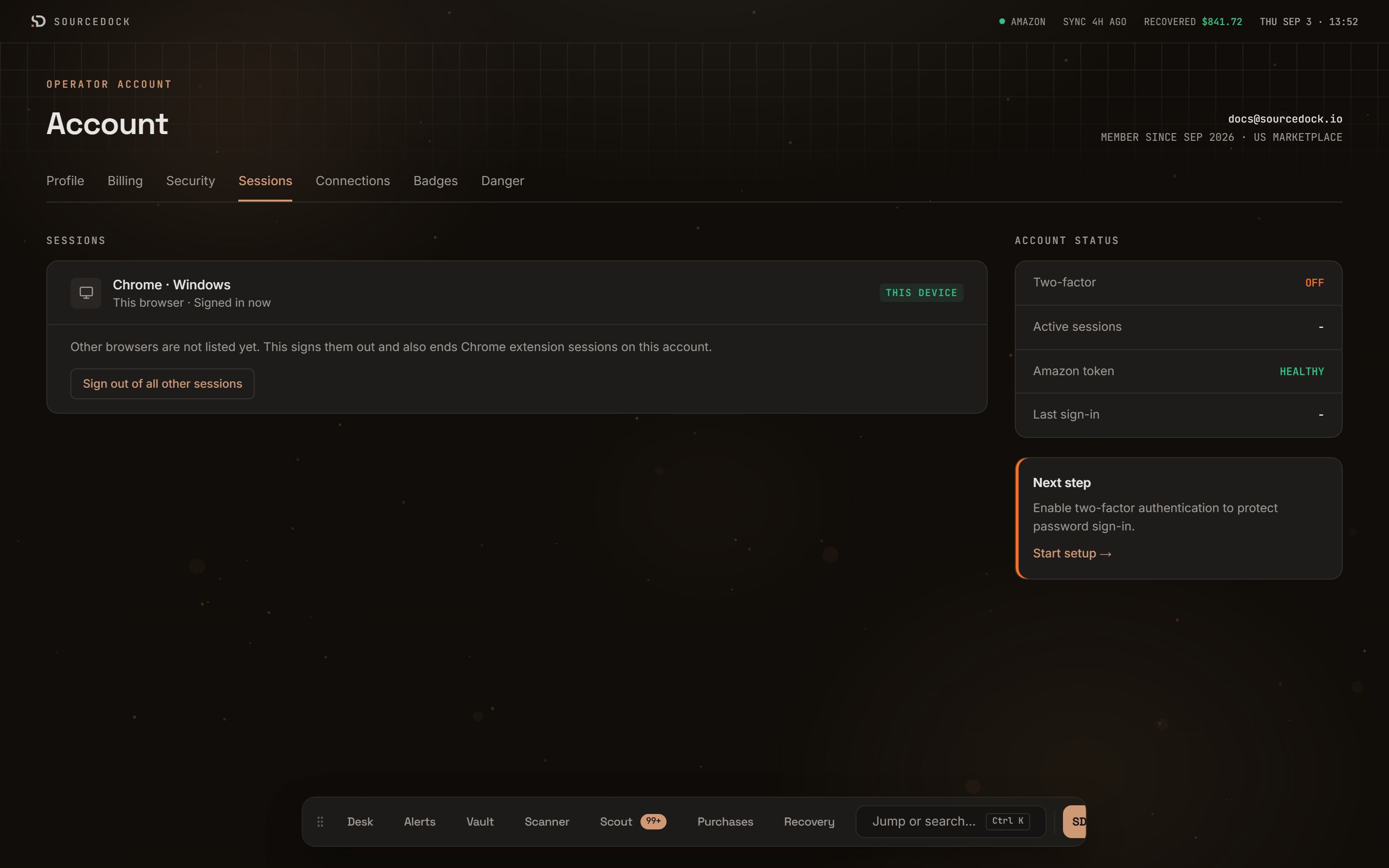 A session is one login on one browser. This tab shows the browser you are using now, marked **THIS DEVICE**. Other browsers are not listed yet.
Click **Sign out of all other sessions** to sign out everywhere else. A box asks **Sign out other sessions?** Click **Sign out others** to confirm, or **Keep them** to cancel. This browser stays signed in. Every other browser, and the Chrome extension, must log in again. Use this if you forgot to log out on a shared computer.
## Badges
A session is one login on one browser. This tab shows the browser you are using now, marked **THIS DEVICE**. Other browsers are not listed yet.
Click **Sign out of all other sessions** to sign out everywhere else. A box asks **Sign out other sessions?** Click **Sign out others** to confirm, or **Keep them** to cancel. This browser stays signed in. Every other browser, and the Chrome extension, must log in again. Use this if you forgot to log out on a shared computer.
## Badges
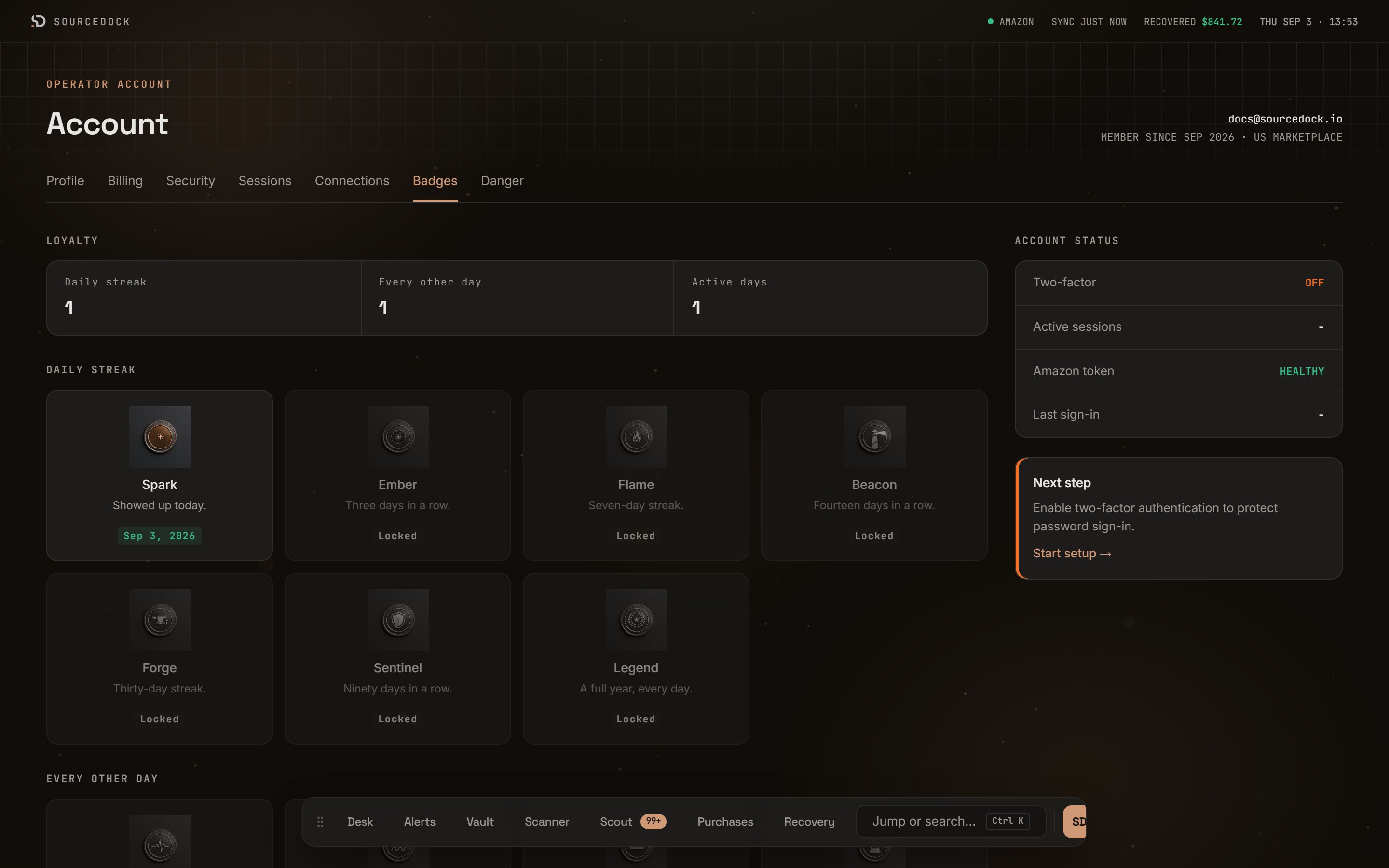 Badges reward you for showing up. The **LOYALTY** card counts three things:
| Counter | What it counts |
| ------------------- | -------------------------------------------- |
| **Daily streak** | Days in a row you used the desk. |
| **Every other day** | Your streak when you visit every second day. |
| **Active days** | Every day you used the desk, in total. |
Badge tiles sit under it in three groups: **DAILY STREAK**, **EVERY OTHER DAY**, and **TENURE**. A badge you have not earned yet is gray and says **Locked**. An earned badge shows the date you got it.
Spark (1 day), Ember (3 days), Flame (7 days), Beacon (14 days), Forge (30 days), Sentinel (90 days), Legend (365 days).
Pulse (a week), Rhythm (two weeks), Steady (a month), Metronome (a quarter).
First Watch (1 active day), Scout (10), Operator (25), Veteran (50), Centurion (100).
If the tab says **Could not load badges**, click **Retry**.
## Danger
Badges reward you for showing up. The **LOYALTY** card counts three things:
| Counter | What it counts |
| ------------------- | -------------------------------------------- |
| **Daily streak** | Days in a row you used the desk. |
| **Every other day** | Your streak when you visit every second day. |
| **Active days** | Every day you used the desk, in total. |
Badge tiles sit under it in three groups: **DAILY STREAK**, **EVERY OTHER DAY**, and **TENURE**. A badge you have not earned yet is gray and says **Locked**. An earned badge shows the date you got it.
Spark (1 day), Ember (3 days), Flame (7 days), Beacon (14 days), Forge (30 days), Sentinel (90 days), Legend (365 days).
Pulse (a week), Rhythm (two weeks), Steady (a month), Metronome (a quarter).
First Watch (1 active day), Scout (10), Operator (25), Veteran (50), Centurion (100).
If the tab says **Could not load badges**, click **Retry**.
## Danger
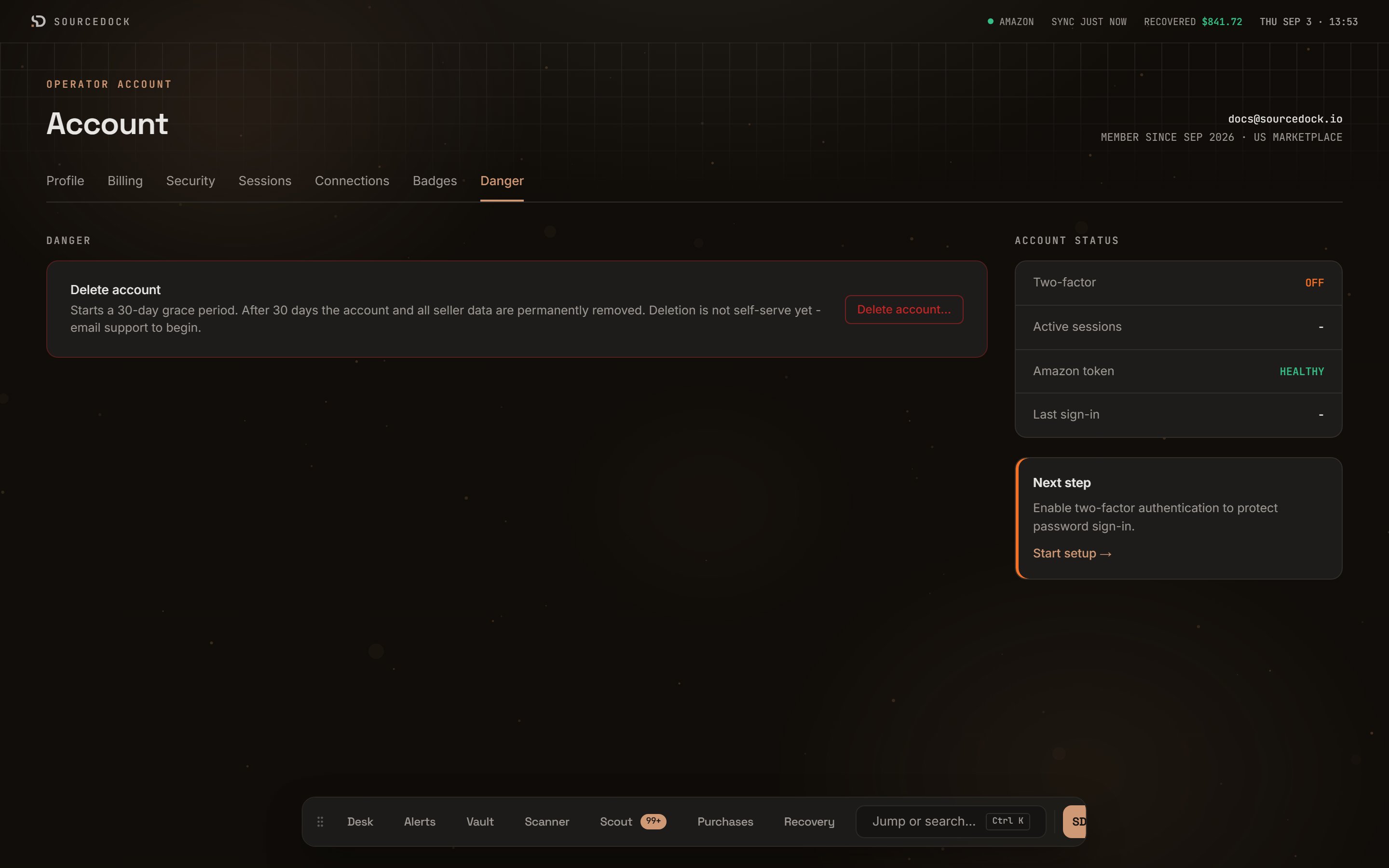 The **Delete account** row is the only thing here. Deleting starts a 30-day grace period. After 30 days, the account and all your seller data are removed for good. You cannot undo it after that.
Deletion is not self-serve yet. Click **Delete account…**. A box asks **Delete this account?** Click **Email support** to open an email to [support@sourcedock.io](mailto:support@sourcedock.io). Or click **Keep account** to back out.
The **Delete account** row is the only thing here. Deleting starts a 30-day grace period. After 30 days, the account and all your seller data are removed for good. You cannot undo it after that.
Deletion is not self-serve yet. Click **Delete account…**. A box asks **Delete this account?** Click **Email support** to open an email to [support@sourcedock.io](mailto:support@sourcedock.io). Or click **Keep account** to back out.