> ## Documentation Index
> Fetch the complete documentation index at: https://docs.sourcedock.io/llms.txt
> Use this file to discover all available pages before exploring further.
# Alerts
> See every open alert in one place, hide the ones you have handled, and pick how new alerts reach you.
The Alerts page lists every alert the app has found. An alert is a problem the app spotted in your data. You never write one yourself. The app makes them by reading your orders, your lots at Amazon, and your Vault. So an alert goes away when the data behind it is fixed.
Open the page from the **Alerts** pill on the command deck. The pill shows how many alerts are open.
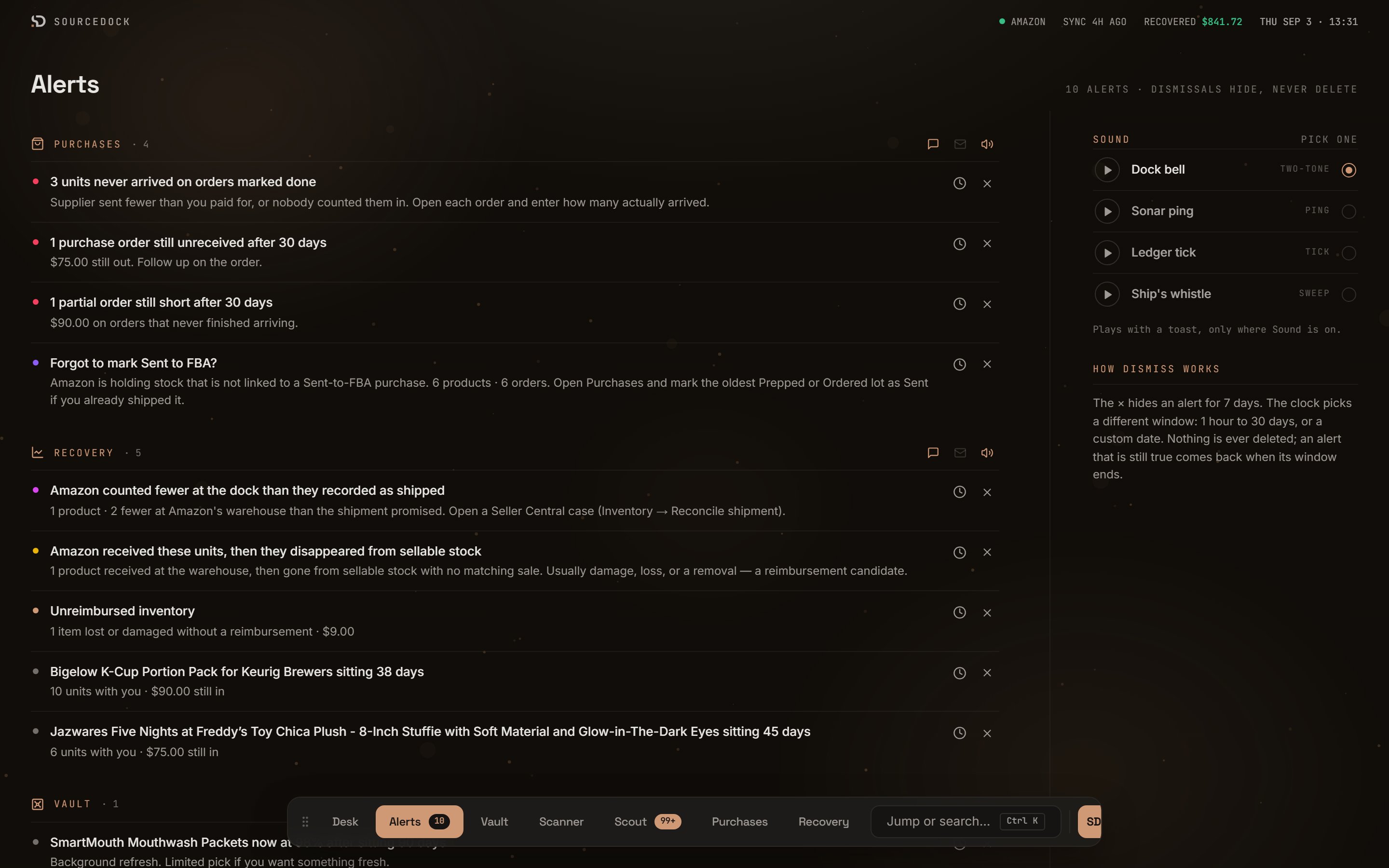 At the top right, a count like "10 ALERTS · DISMISSALS HIDE, NEVER DELETE" states the rule of this page. Hiding an alert never deletes it.
## Groups by source
Alerts are grouped by the desk they come from, in this order:
| Group | Where the data comes from |
| ------------- | --------------------------------------------------------------- |
| **PURCHASES** | Your purchase orders, and what Amazon says it received from you |
| **RECOVERY** | Capital Recovery: your lots at Amazon and what has sold |
| **VAULT** | Prospects you saved in the Vault |
| **SCOUT** | Storefronts you watch |
Each group header has an icon, the group name, and a count like "· 4". Click the group name to open that page. A group with no alerts says "Nothing on this desk." Inside a group, the most costly kinds of alert come first.
The SCOUT group shows only when it has an alert. Scout does not make alerts yet, so you will not see this group today.
At the top right, a count like "10 ALERTS · DISMISSALS HIDE, NEVER DELETE" states the rule of this page. Hiding an alert never deletes it.
## Groups by source
Alerts are grouped by the desk they come from, in this order:
| Group | Where the data comes from |
| ------------- | --------------------------------------------------------------- |
| **PURCHASES** | Your purchase orders, and what Amazon says it received from you |
| **RECOVERY** | Capital Recovery: your lots at Amazon and what has sold |
| **VAULT** | Prospects you saved in the Vault |
| **SCOUT** | Storefronts you watch |
Each group header has an icon, the group name, and a count like "· 4". Click the group name to open that page. A group with no alerts says "Nothing on this desk." Inside a group, the most costly kinds of alert come first.
The SCOUT group shows only when it has an alert. Scout does not make alerts yet, so you will not see this group today.
 ## An alert row
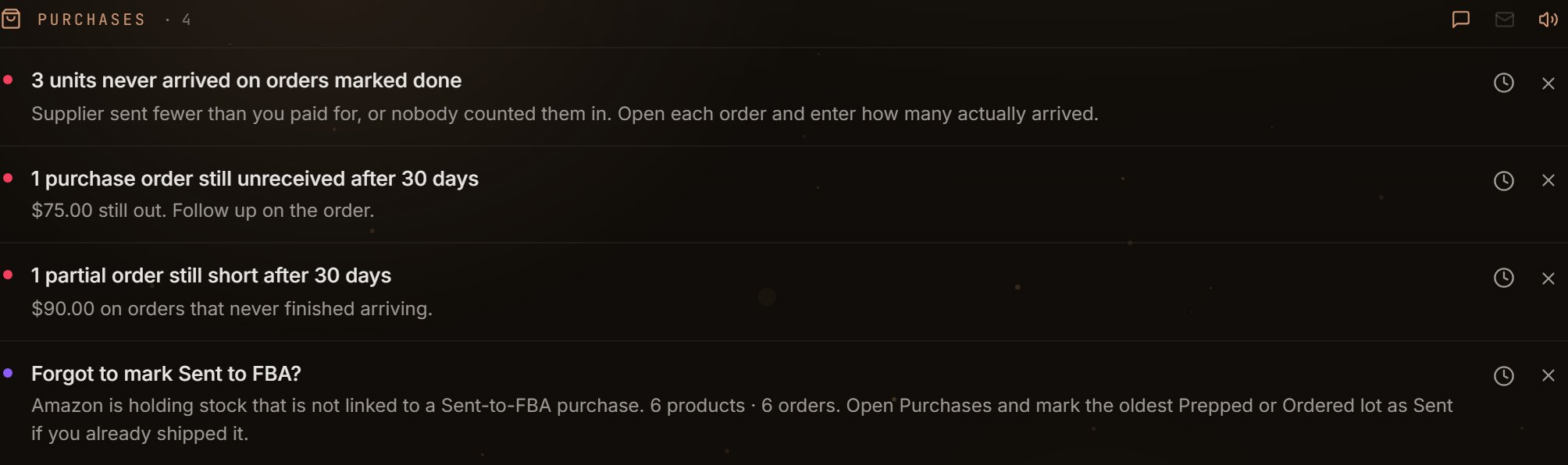
Each row has a colored dot, a title, and a detail line. The color tells you the kind of problem. Click the title to go to the page where you fix it. On the right of each row are two buttons: a clock and a **×**.
To learn what each alert means and how to clear it, see the [Alerts reference](/reference/alerts).
## Hide an alert
Click **×** to hide the alert for 7 days. Hover it to see "Hide for 7 days". After 7 days, the app checks again. If the problem is still there, the alert comes back.
Click the clock to pick a different window. A window is how long the alert stays hidden.
## An alert row
Each row has a colored dot, a title, and a detail line. The color tells you the kind of problem. Click the title to go to the page where you fix it. On the right of each row are two buttons: a clock and a **×**.
To learn what each alert means and how to clear it, see the [Alerts reference](/reference/alerts).
## Hide an alert
Click **×** to hide the alert for 7 days. Hover it to see "Hide for 7 days". After 7 days, the app checks again. If the problem is still there, the alert comes back.
Click the clock to pick a different window. A window is how long the alert stays hidden.
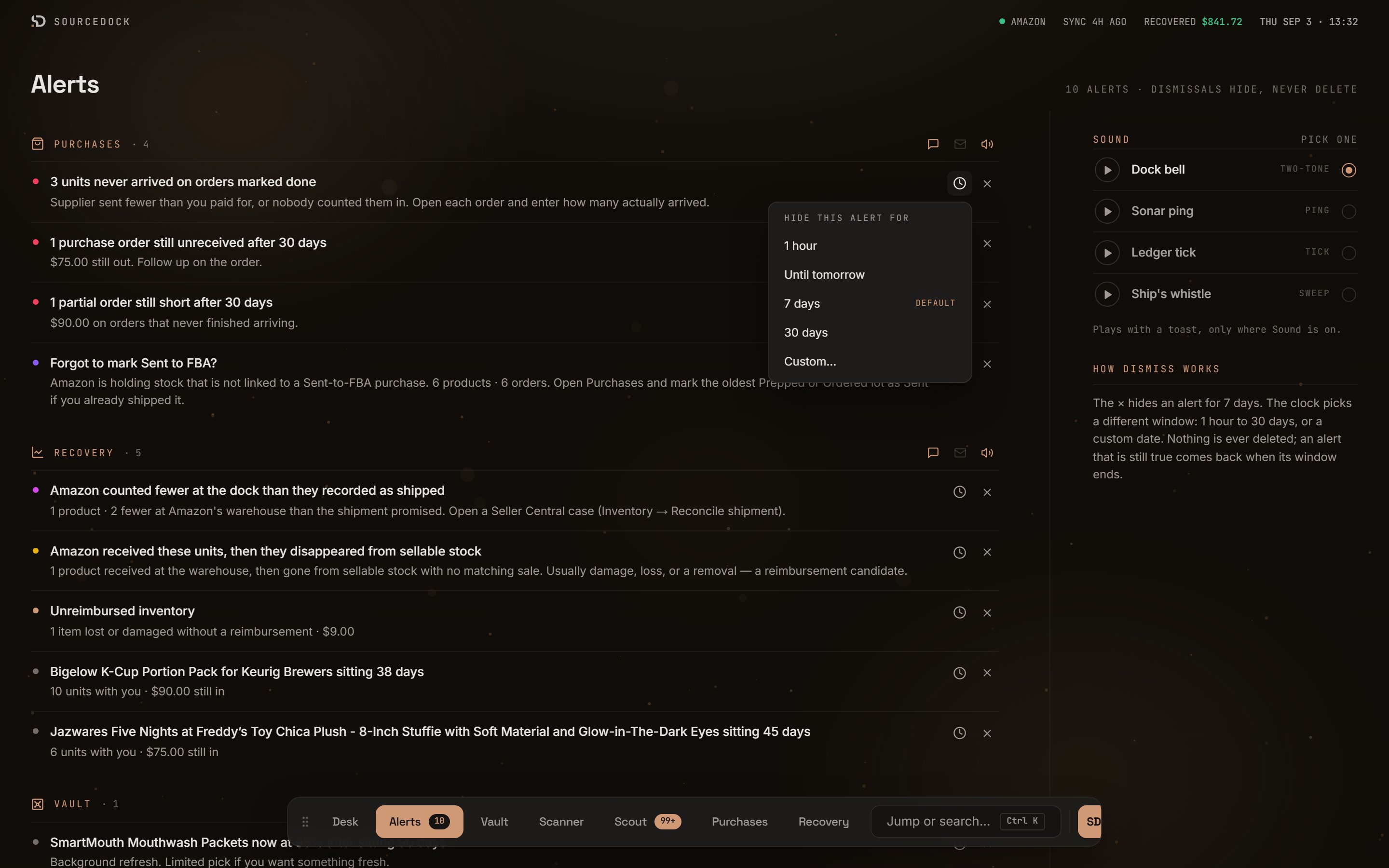 The menu is titled "HIDE THIS ALERT FOR". It offers:
| Option | Hides until |
| ------------------ | -------------------------------------------------------------------- |
| **1 hour** | One hour from now |
| **Until tomorrow** | Midnight tonight, your local time |
| **7 days** | Seven days from now. This is marked DEFAULT. It is the same as the × |
| **30 days** | Thirty days from now |
| **Custom...** | A date you pick |
A date box appears. It starts on today's date.
You cannot pick a day in the past. If you do, it says "That window has already ended." A bad date says "Pick a real date."
The alert stays hidden through the end of that day.
## Undo a hide
Right after you hide an alert, a small toast appears at the bottom right. A toast is a short pop-up message. It says "Hidden for 7 days" (or "1 hour", "tomorrow", "30 days", or "a custom window") and the alert title.
Click **Undo** to bring the alert back right away. The toast goes away after 8 seconds. You can also close it with its ×.
Hides are saved in this browser only. If you sign out, or open the app on another computer, hidden alerts show again.
## Toast, email, and sound for each group
Each group header has three small buttons on the right. These are channels. A channel is a way the app tells you about a new alert in that group.
| Control | What it does |
| --------------------------- | --------------------------------------------------------------- |
| **Toast** (a speech bubble) | When on, a pop-up shows the title and detail of each new alert. |
| **Email** (an envelope) | Marked coming soon. It cannot be turned on yet. |
| **Sound** (a speaker) | When on, your picked tone plays once for each new alert. |
A copper button is on. A grey button is off. Click to switch. Hover a button to read what it does, like "Turn on toast for purchases" or "Mute sound for recovery".
While you use the app, it keeps checking your data. Nothing pops up or plays when a page first loads. Undo does not pop up or play either.
The starting settings are:
| Group | Toast | Sound |
| --------- | ----- | ----- |
| Purchases | On | On |
| Recovery | On | On |
| Vault | Off | Off |
| Scout | On | Off |
Your choices are saved in this browser. Signing out puts them back to the starting settings.
## Pick a sound
The **SOUND** box on the right says "PICK ONE". It lists four tones:
The menu is titled "HIDE THIS ALERT FOR". It offers:
| Option | Hides until |
| ------------------ | -------------------------------------------------------------------- |
| **1 hour** | One hour from now |
| **Until tomorrow** | Midnight tonight, your local time |
| **7 days** | Seven days from now. This is marked DEFAULT. It is the same as the × |
| **30 days** | Thirty days from now |
| **Custom...** | A date you pick |
A date box appears. It starts on today's date.
You cannot pick a day in the past. If you do, it says "That window has already ended." A bad date says "Pick a real date."
The alert stays hidden through the end of that day.
## Undo a hide
Right after you hide an alert, a small toast appears at the bottom right. A toast is a short pop-up message. It says "Hidden for 7 days" (or "1 hour", "tomorrow", "30 days", or "a custom window") and the alert title.
Click **Undo** to bring the alert back right away. The toast goes away after 8 seconds. You can also close it with its ×.
Hides are saved in this browser only. If you sign out, or open the app on another computer, hidden alerts show again.
## Toast, email, and sound for each group
Each group header has three small buttons on the right. These are channels. A channel is a way the app tells you about a new alert in that group.
| Control | What it does |
| --------------------------- | --------------------------------------------------------------- |
| **Toast** (a speech bubble) | When on, a pop-up shows the title and detail of each new alert. |
| **Email** (an envelope) | Marked coming soon. It cannot be turned on yet. |
| **Sound** (a speaker) | When on, your picked tone plays once for each new alert. |
A copper button is on. A grey button is off. Click to switch. Hover a button to read what it does, like "Turn on toast for purchases" or "Mute sound for recovery".
While you use the app, it keeps checking your data. Nothing pops up or plays when a page first loads. Undo does not pop up or play either.
The starting settings are:
| Group | Toast | Sound |
| --------- | ----- | ----- |
| Purchases | On | On |
| Recovery | On | On |
| Vault | Off | Off |
| Scout | On | Off |
Your choices are saved in this browser. Signing out puts them back to the starting settings.
## Pick a sound
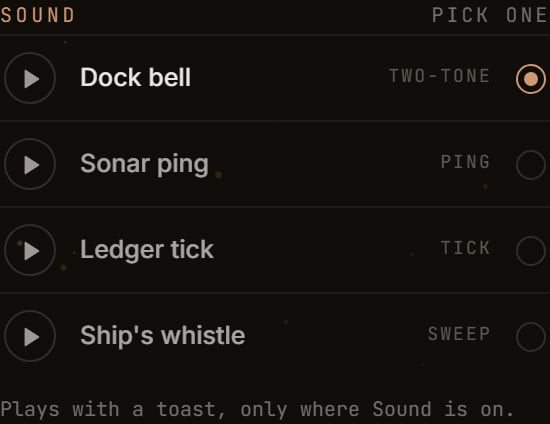
The **SOUND** box on the right says "PICK ONE". It lists four tones:
 | Tone | Hint |
| ------------------ | -------------------------------------- |
| **Dock bell** | TWO-TONE. This is the starting choice. |
| **Sonar ping** | PING |
| **Ledger tick** | TICK |
| **Ship's whistle** | SWEEP |
Click the round play button to hear a tone. Click the tone's name to pick it. The note under the list says: "Plays with a toast, only where Sound is on."
Browsers block sound until you click something on the page. If you hear nothing, click anywhere first and try again.
## How dismiss works
The right side of the page repeats the hide rule in the app's own words:
"The × hides an alert for 7 days. The clock picks a different window: 1 hour to 30 days, or a custom date. Nothing is ever deleted; an alert that is still true comes back when its window ends."
## What else the page can say
| Message | What it means |
| ---------------------------------------------------------------------------------------------------------------------- | --------------------------------------------------------------------------------------------------------------------------------------------------------------------- |
| "Checking the desks..." | The page is still reading your data. |
| "Nothing needs you. Hidden alerts come back when their window ends." | You have no open alerts. |
| "Could not load alerts. Open Purchases or Capital Recovery and try again." | A data read failed. Open one of those pages and come back. |
| "A desk holds more rows than one scan reads. Oldest lots and prospects were checked first; the rest were not checked." | You have a very large book. One scan reads up to 500 recovery lots, 200 active prospects, or 2,000 orders. Rows past that were not checked, so the list may be short. |
If your paid plan is paused, the list is replaced by a paused notice. Choose a plan to turn it back on.
| Tone | Hint |
| ------------------ | -------------------------------------- |
| **Dock bell** | TWO-TONE. This is the starting choice. |
| **Sonar ping** | PING |
| **Ledger tick** | TICK |
| **Ship's whistle** | SWEEP |
Click the round play button to hear a tone. Click the tone's name to pick it. The note under the list says: "Plays with a toast, only where Sound is on."
Browsers block sound until you click something on the page. If you hear nothing, click anywhere first and try again.
## How dismiss works
The right side of the page repeats the hide rule in the app's own words:
"The × hides an alert for 7 days. The clock picks a different window: 1 hour to 30 days, or a custom date. Nothing is ever deleted; an alert that is still true comes back when its window ends."
## What else the page can say
| Message | What it means |
| ---------------------------------------------------------------------------------------------------------------------- | --------------------------------------------------------------------------------------------------------------------------------------------------------------------- |
| "Checking the desks..." | The page is still reading your data. |
| "Nothing needs you. Hidden alerts come back when their window ends." | You have no open alerts. |
| "Could not load alerts. Open Purchases or Capital Recovery and try again." | A data read failed. Open one of those pages and come back. |
| "A desk holds more rows than one scan reads. Oldest lots and prospects were checked first; the rest were not checked." | You have a very large book. One scan reads up to 500 recovery lots, 200 active prospects, or 2,000 orders. Rows past that were not checked, so the list may be short. |
If your paid plan is paused, the list is replaced by a paused notice. Choose a plan to turn it back on.